
Wondering how to add WooCommerce search by SKU to your store?
Finding the right product in a WooCommerce store should be quick and intuitive. However, many store owners run into a common problem: customers cannot search by SKU.
Product names and categories work in some cases, but buyers who already know the exact code often face unnecessary friction. This is especially true for wholesale buyers, repeat customers, or those dealing with highly technical items where accuracy is essential.
By default, WooCommerce does not index SKUs in search. This means typing in a valid product code often leads to no results. The outcome is a frustrating experience that slows down the buying process and risks abandoned sales.
The solution is simple: enable SKU search using a powerful product search plugin - Advanced Woo Search.
In this article, we are going to dive into why SKU search matters, explore the limitations of WooCommerce’s default search, and show you how to set it up the right way.
What is a Product SKU & Why They Matter?
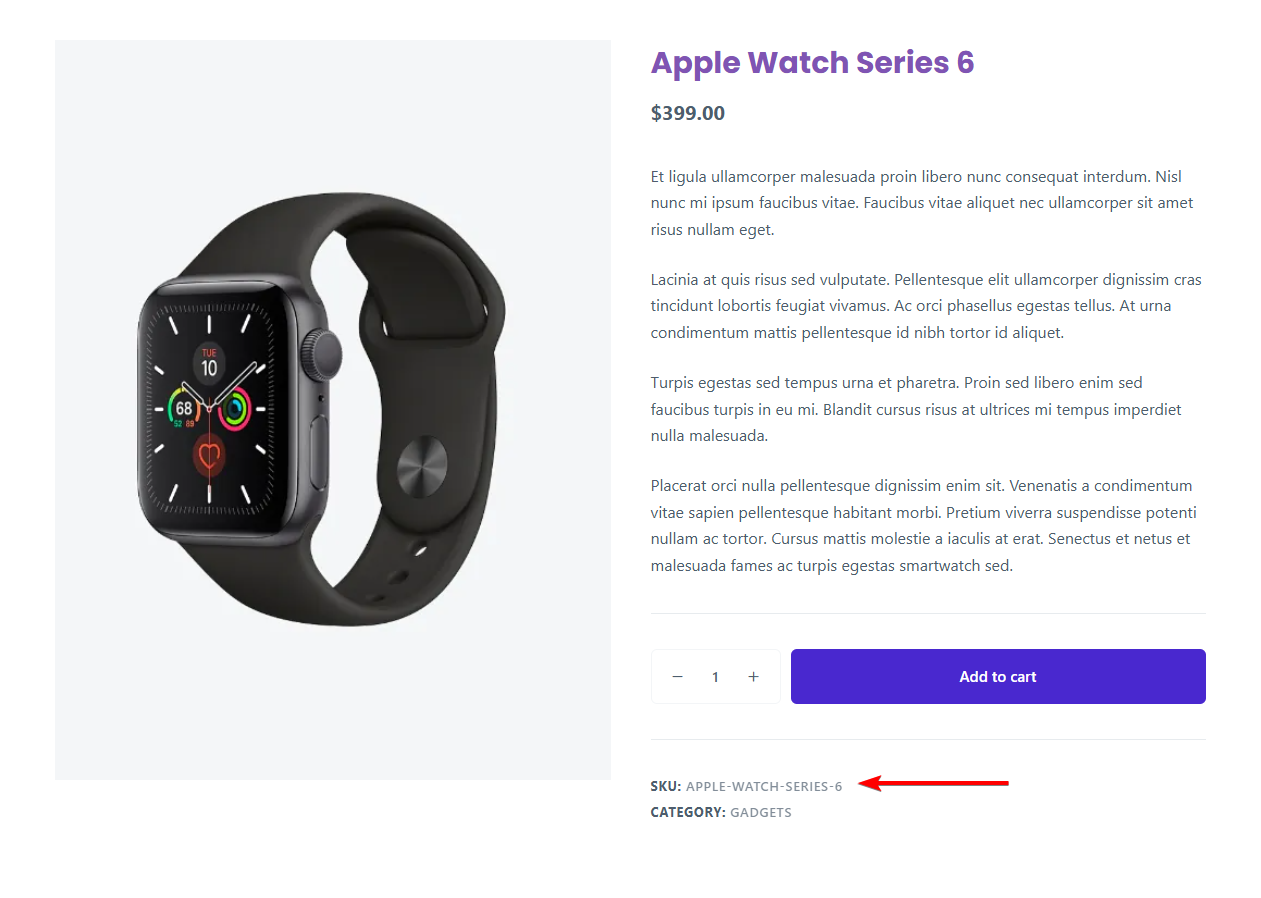
A product SKU, or Stock Keeping Unit, is a unique code that identifies each product in your WooCommerce store. It distinguishes one item from another, making inventory management and catalog organization easier for store owners.
Unlike product names, which can be similar or vary in spelling, SKUs are precise and consistent, which makes them far more reliable when locating specific products.
For customers, SKUs are just as important as they are for store managers. They act as shortcuts that take buyers directly to the products they want without unnecessary browsing. This is especially helpful in larger stores or businesses dealing with multiple variations of the same product.
Some of the key benefits of SKU include:
- Customers can enter the code to immediately reach the correct product page
- Bulk orders are often managed through SKU lists from invoices or catalogs
- SKUs saved on receipts or order histories make reordering fast and accurate
- Precision is crucial in industries like electronics or healthcare, where similar products may differ only by a code
- Reduces errors, shortens the buying journey, and increases conversion rates
In short, SKUs make shopping easier, faster, and more accurate for customers while helping store owners manage their catalogs more effectively. Supporting SKU search in WooCommerce is not just a nice-to-have feature but a practical necessity for stores that want to deliver a smoother buying experience.
Limitations of the Default WooCommerce Search
While WooCommerce provides a basic search function, it falls short when it comes to helping customers quickly locate the products they want.
The most significant limitation is that SKUs are not searchable by default.
WooCommerce stores SKUs in custom fields, and these are excluded from the standard search index. As a result, even if a customer enters a correct product code, they will not see any results unless a plugin extends this capability.
The default search also looks only at product titles, descriptions, and short descriptions. This leaves out other valuable identifiers like attributes, categories, tags, and custom fields, all of which can be critical for product discovery.
Case in point –

Another drawback is that results only appear after the full query has been submitted. There are no live or AJAX updates, so customers must wait for a page reload, making the experience slower and less intuitive.
Finally, WooCommerce search requires exact word matching. Typos, variations, or partial SKU entries return empty results, which is especially frustrating in large stores with thousands of products.
As the catalog grows, the default search becomes less effective at surfacing relevant items, leaving customers without a quick path to purchase.
How to Enable WooCommerce Search by SKU
There are two ways to do this. You can use a product search plugin or add custom code and tweak the database to enable WooCommerce search by SKU on your store. Let’s take a look at both these methods:
Use a Powerful WooCommerce Search Plugin (Recommended)
We are going to use the Advanced Woo Search (AWS) plugin to set up SKU search.
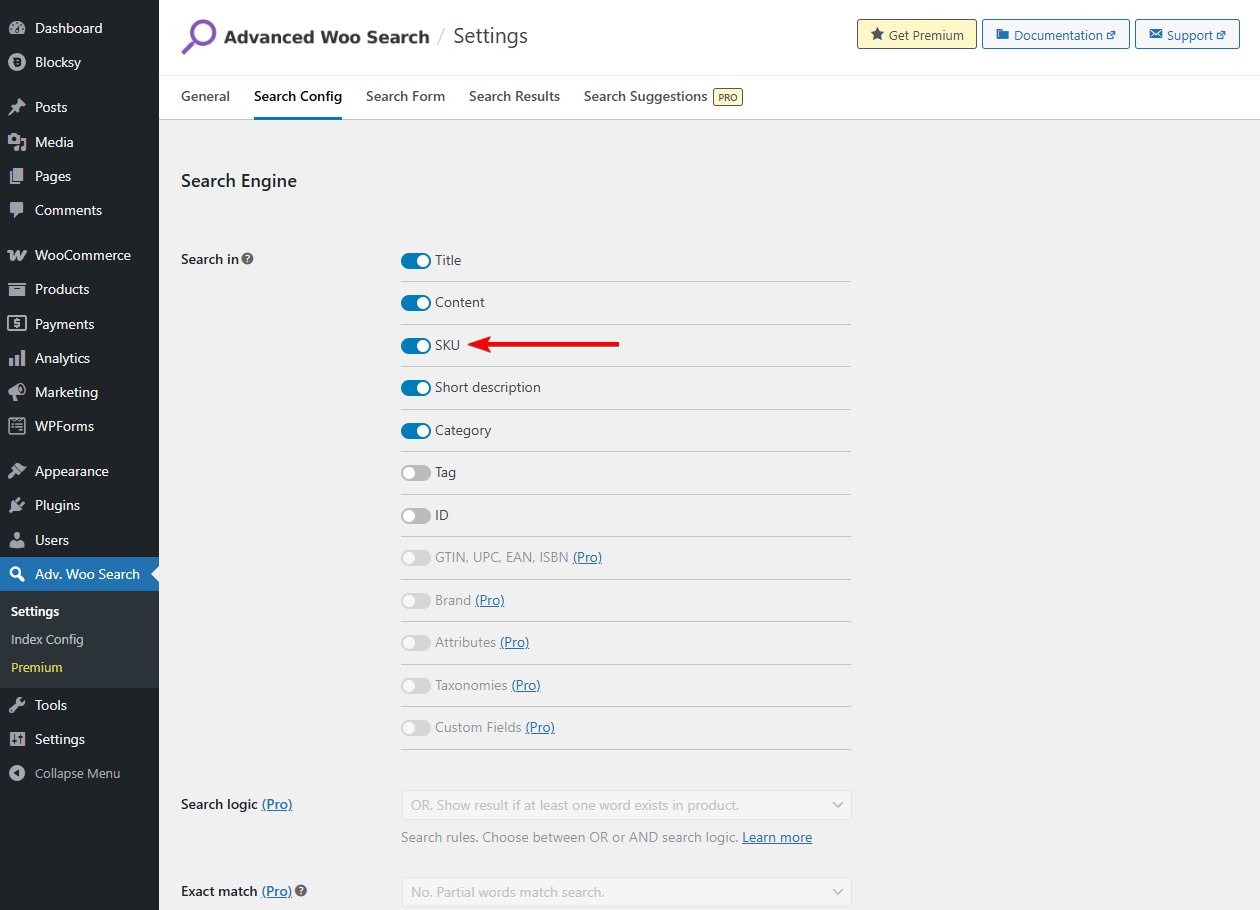
Install and activate the free AWS plugin on your website, and then go to Adv. Woo Search on your WordPress dashboard. Navigate to Settings → Search Config → Search in → SKU and toggle the option on and hit the Save Changes button.
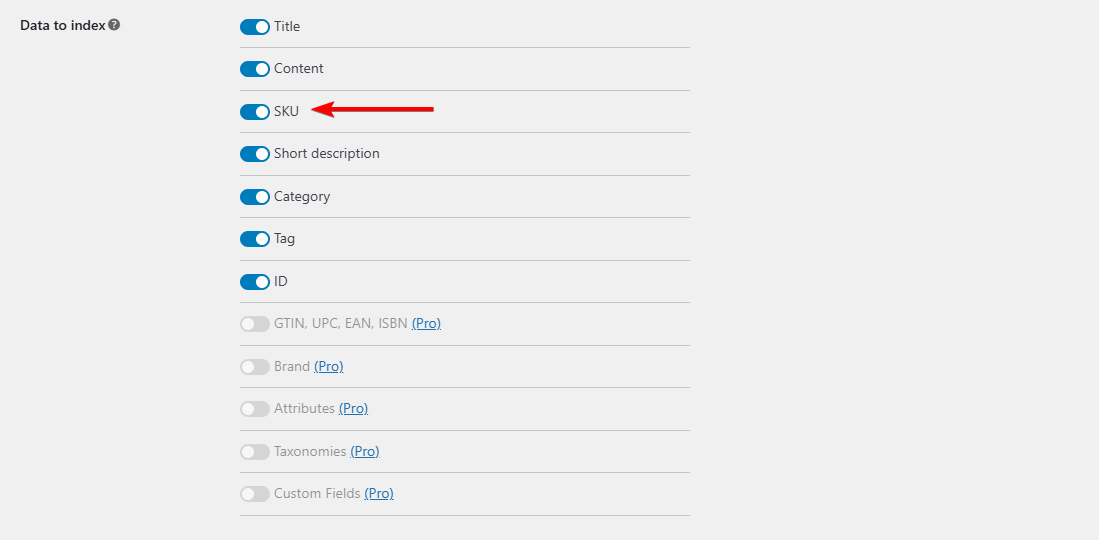
After enabling the SKU search options, ensure that the product SKUs are being indexed. This will ensure that they appear in the search forms of your store. Go to Adv. Woo Search → Index Config → Data to Index and ensure that the SKU option is toggled on.
Also, go to Settings → Reindexed Table and hit the Reindex Button.
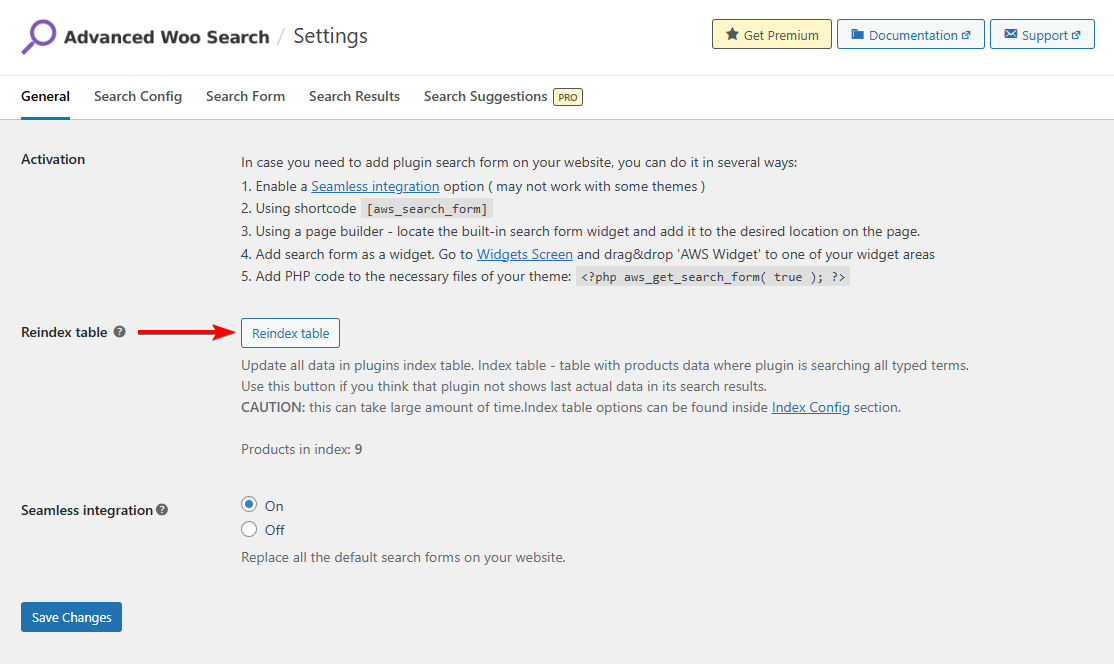
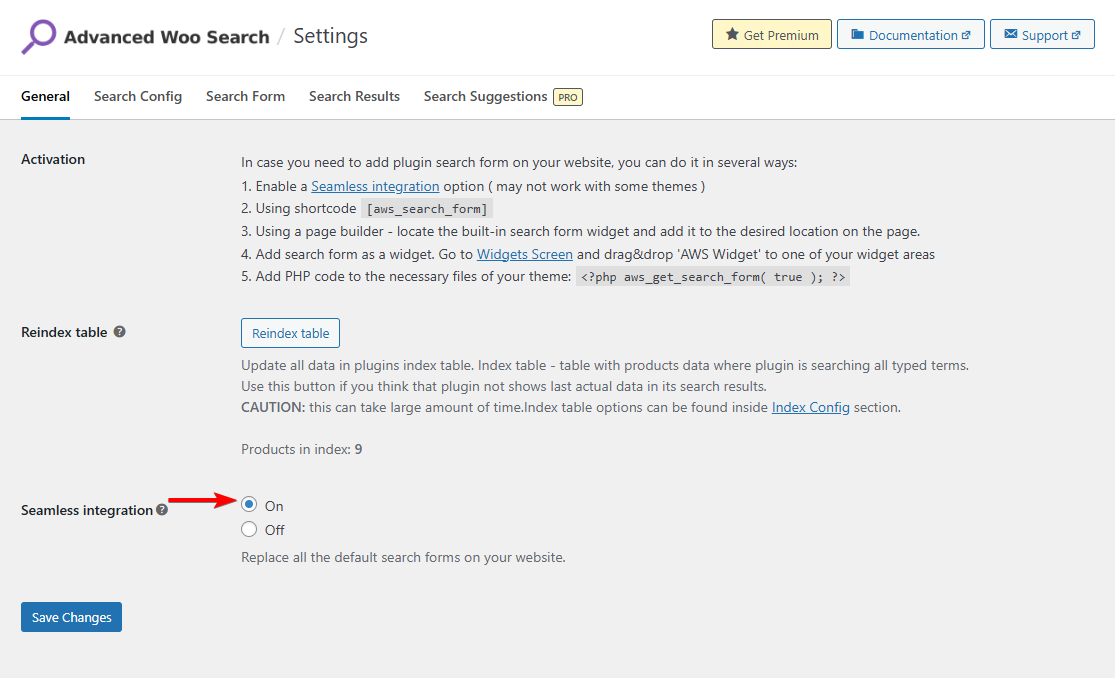
For the SKU search to work, you will need to replace your site’s native search form with the AWS search form by navigating to Settings and enabling the Seamless Integration option.
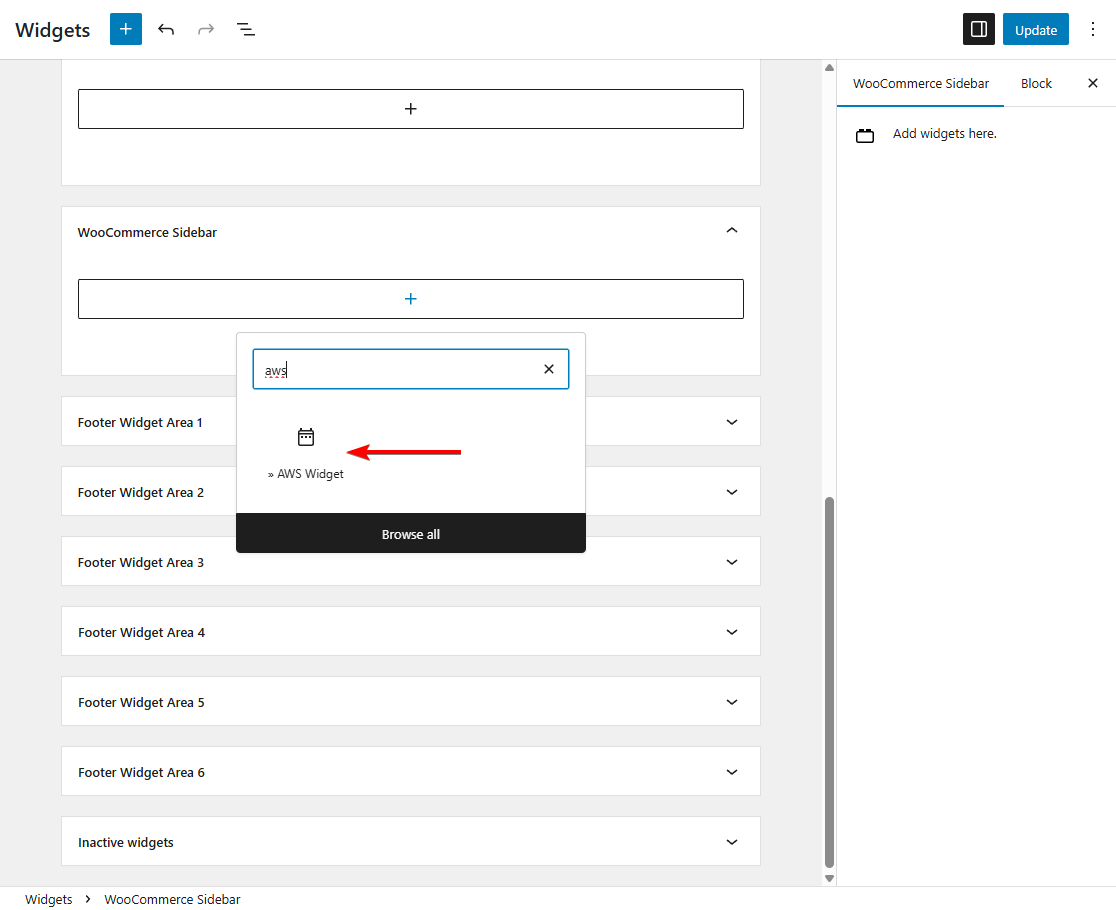
You can also use the AWS widget to add the search form anywhere on your website.
Side Note: With the free AWS plugin, you can create a single search form, but the paid AWS Pro plugin allows you to create multiple forms. Pro users with multiple forms will need to enable SKU search on every form individually. Just open the form’s settings and go to Search Config → Search in → SKU.
We recommend showing the SKU on your search form as shown in the image below.
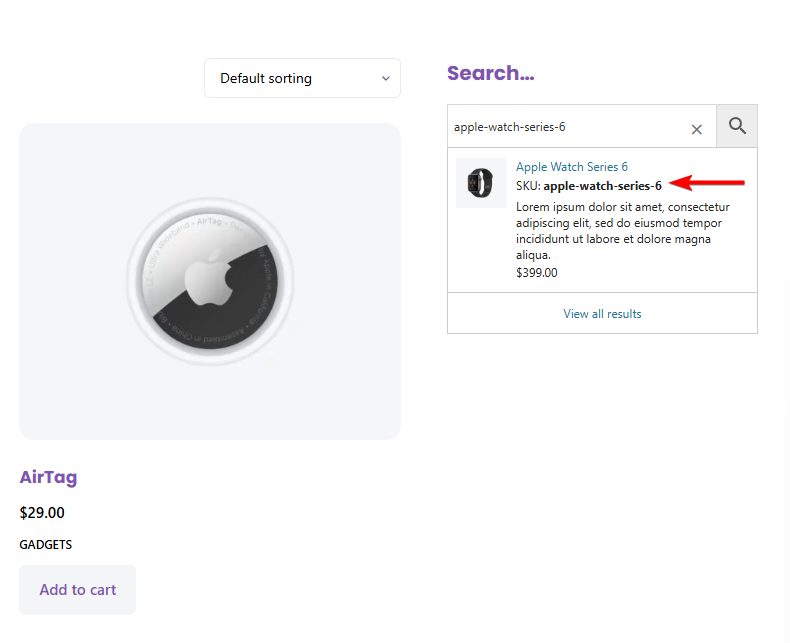
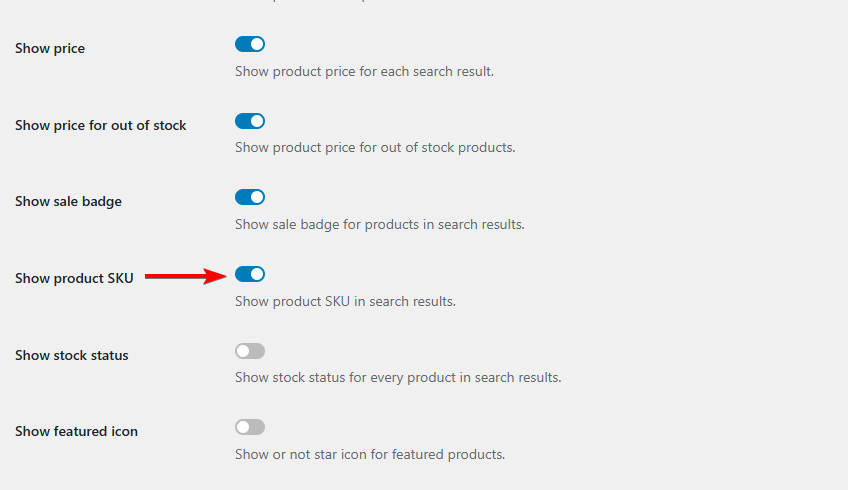
To display SKU like this, go to Search Results and toggle on the Show Product SKU option.
Now, check your store’s frontend to make sure that the SKU search is working properly. The AWS plugin automatically allows a partial SKU match.
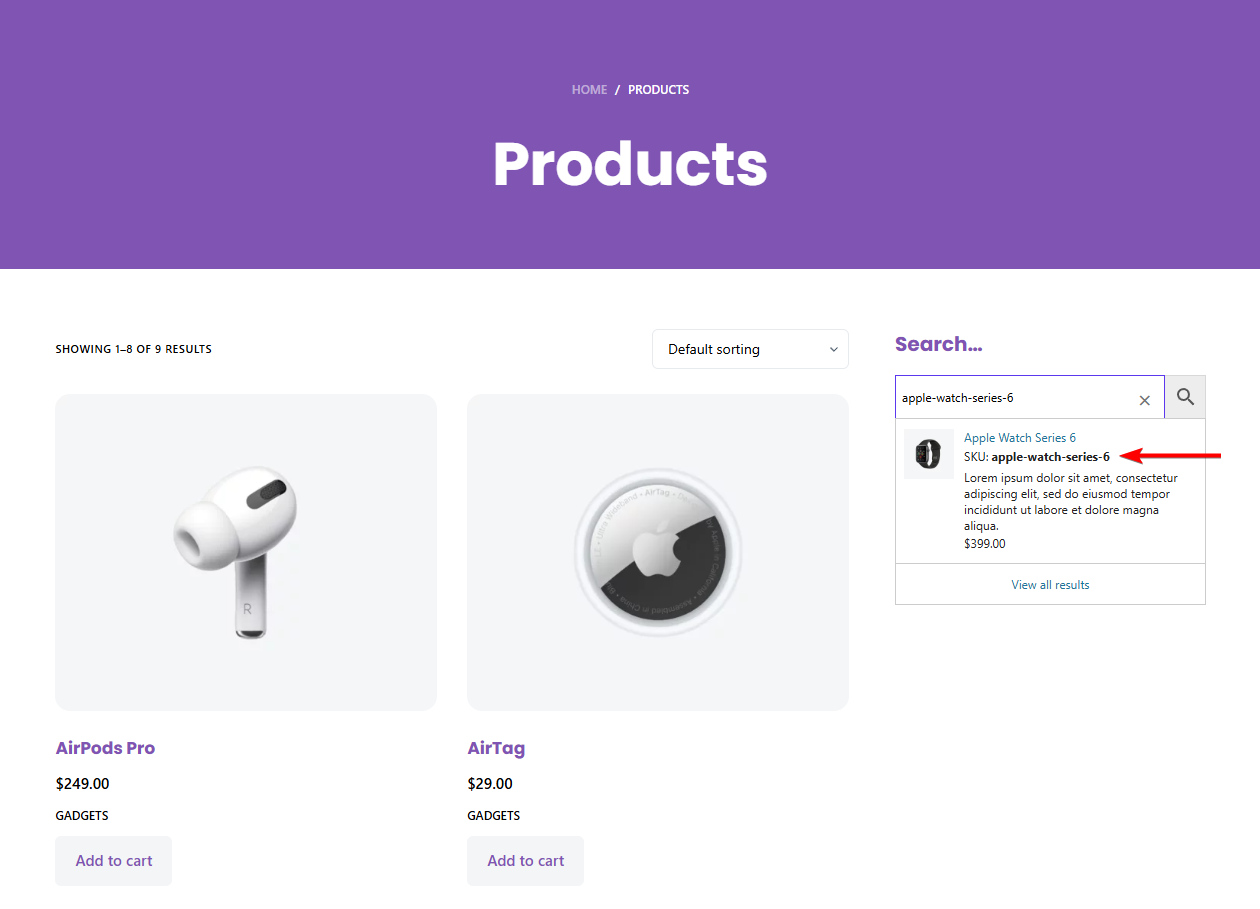
In the image above, we have AWS live or Ajax search enabled, which shows the product on the search form as you type the SKU ID. To enable live or Ajax search on your store, go to Adv. Woo Search → Search Form → AJAX Search. Read: Add WooCommerce Ajax Search
Side Note: We also recommend enabling suggestions and synonyms on your search forms. Consider making your WooCommerce search forms smarter and customizing search results pages to boost product discovery.
If you need assistance with setting up and operating the AWS plugin, read these help docs or reach out to the support team.
Use Custom Code & Database Tweaks (Not Recommended)
If you prefer not to use a plugin, there are alternative ways to make SKUs searchable in WooCommerce. These typically involve adding custom code to your theme’s functions.php file or creating a custom search query that indexes SKUs stored in the _sku field. While this can work, it requires technical knowledge of WordPress hooks and database queries.
The main drawback is maintainability. Every time WooCommerce or WordPress updates, your custom code may need adjustments to stay compatible. Without ongoing monitoring, you risk breaking the search functionality.
Additionally, custom implementations rarely match the speed and flexibility of a dedicated search plugin. Features like live AJAX results, fuzzy matching for partial SKUs, and advanced indexing are difficult to replicate manually.
For store owners with limited development resources, relying solely on code-level tweaks is not practical. These methods are best suited for developers managing highly customized sites, while most store owners will benefit more from using a robust search plugin that offers full SKU support out of the box.
Troubleshooting Common SKU Search Issues
Even after enabling SKU search, store owners may find it does not work as expected. These problems usually stem from how WooCommerce stores product data, conflicts with other plugins, or server performance limits. The good news is that most issues have straightforward fixes once you know what to check.
Search by SKU is Not Working on the Site
WooCommerce does not index SKUs by default since they are stored in custom fields. If valid product codes return no results, the SKUs are not being indexed. Use a WooCommerce product search plugin that supports SKU fields and rebuild the product index to fix this.
Search Not Working in the Admin Panel
Admins can usually search by SKU in the dashboard, but conflicts or errors may break it. Causes include incompatible plugins, database corruption after bulk imports, or low hosting memory. Try disabling plugins, regenerating lookup tables, or updating the database. If needed, contact hosting support to raise memory limits.
Partial SKU Searches Failing
Some search tools only recognize full SKUs, which frustrates customers who remember only part of a code. This is common with long or complex numbering systems. Enabling partial match or fuzzy search in your plugin settings fixes this by allowing results for incomplete codes or small typos.
Performance Issues With Large Catalogs
Large catalogs can overwhelm unoptimized search tools, leading to slow queries or timeouts. Standard WordPress database searches are not built for heavy SKU lookups. A plugin with its own dedicated index keeps SKU searches fast, while caching and reliable hosting further improve performance.
Plugin Settings Mismatch
Sometimes the SKU search fails because it is not fully enabled. Many plugins require you to include the _sku field during setup. If this is overlooked, searches will return nothing. Checking settings and re-indexing products usually resolves the problem quickly.
Most SKU search problems come down to indexing or configuration issues. By checking settings, avoiding plugin conflicts, and using a performance-focused tool, you can restore accurate and reliable WooCommerce search by SKU for your store.
FAQs
Does WooCommerce support SKU search by default?
No, WooCommerce does not support SKU search by default. SKUs are saved in custom fields, and these fields are excluded from the standard search index. This means customers entering a product code will see no results. To enable SKU search, you need to use a plugin or custom code that extends WooCommerce’s basic functionality.
Can customers search using partial or incomplete SKUs?
By default, WooCommerce requires exact matches, so partial SKU searches will not return results. This limitation often frustrates buyers dealing with long or complex codes. With the right plugin, you can enable fuzzy matching and partial lookups, allowing customers to find products even if they enter only part of the SKU or make a small typo.
Will enabling SKU search slow down my WooCommerce store?
A well-optimized plugin will not slow down your store. Tools like Advanced Woo Search build their own search index, which keeps queries fast even with thousands of products. Problems usually occur with poorly coded plugins that rely solely on WordPress database queries. Choosing a reliable solution ensures WooCommerce search by SKU runs efficiently without hurting store performance.
Does Advanced Woo Search support variable product SKUs?
Yes, Advanced Woo Search can search SKUs for both simple and variable products. Each product variation is indexed individually, allowing customers to find specific sizes, colors, or models by their unique SKU. This ensures that even complex product catalogs deliver precise search results and a smoother experience for shoppers.
Conclusion
SKU search is more than a convenience feature. For many WooCommerce stores, it is essential to help customers find products quickly and accurately.
Wholesale buyers, repeat customers, and technical shoppers often rely on product codes instead of browsing categories or remembering product names. Without SKU support, they face friction that can lead to lost sales.
The default WooCommerce search is not built to handle this, since it ignores SKUs stored in custom fields and struggles with partial matches.
The solution is to use a WooCommerce product search plugin that offers SKU indexing, partial search support, and fast AJAX-powered results.
Advanced Woo Search provides all of these capabilities, making it easier for customers to locate exactly what they need.
By enabling WooCommerce search by SKU and following best practices like standardizing SKUs and tracking search analytics, store owners can deliver a smoother shopping experience that boosts satisfaction and improves conversions.
- Try the free Advanced Woo Search plugin, or
- Get Advanced Woo Search Pro today!
If you have any questions about WooCommerce search by SKU, let us know in the comments section below.
Comments