
Are you looking for a way to enable WooCommerce search for category?
If you run a WooCommerce store, you’ve probably noticed an issue with how search works by default. Customers can type in product names or keywords and see individual items, but if they search for a category like T-shirts or Decor, nothing meaningful happens. Instead of browsing a full collection of related products, they’re shown only those that happen to include the category name in the title or description.
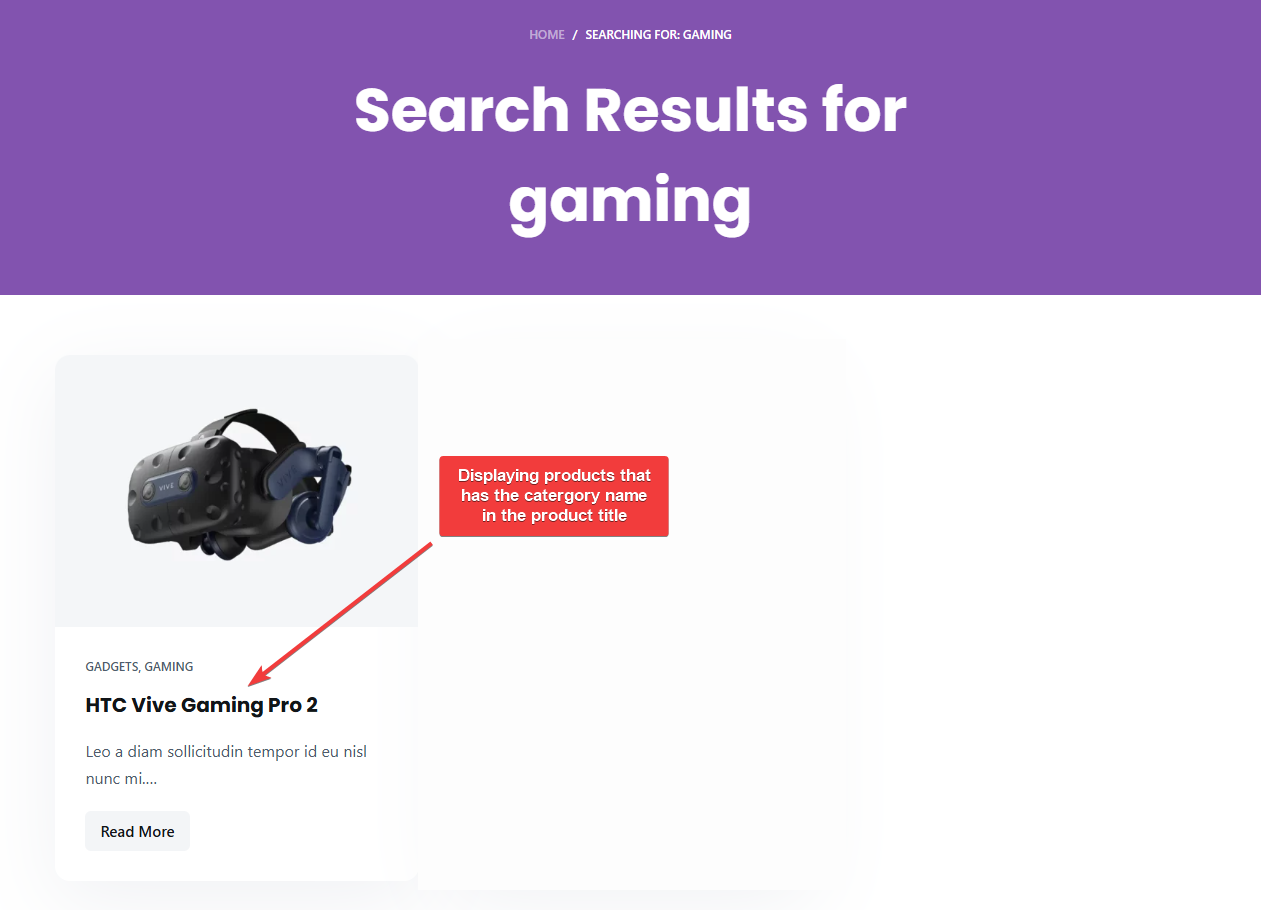
This disconnect can be frustrating for users, especially in stores with large catalogs.
Shoppers often use the search bar not just to find a specific product, but to explore a product type or collection. They expect to be able to search for a category name, see it in the results, and click through to a page that lists all products within that category.
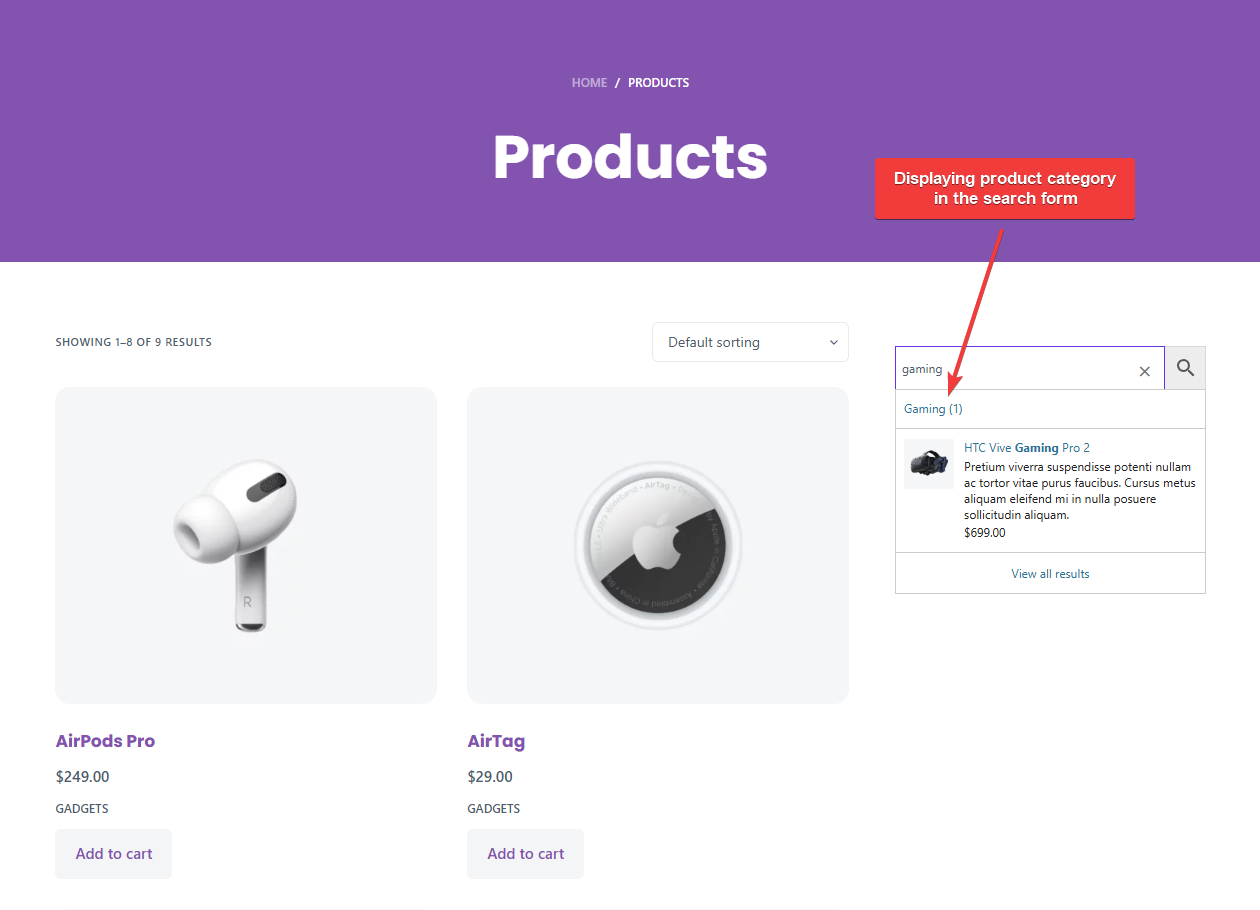
Fortunately, this kind of experience is possible with the right tools. “In this tutorial, you’ll learn how to set up WooCommerce search for category so users can type in a category name and see it appear as a clickable search result.
Using the Advanced Woo Search plugin, you can display product categories as standalone results in the live search dropdown and on the WooCommerce search results page. This allows users to search for category names like Decor, T-Shirts, or Gaming and click through to view the full category archive.
Let’s begin by understanding what the default WooCommerce search can and can’t do.
Limitations of the Default WooCommerce Search
WooCommerce’s built-in search is designed to return products based on keywords found in titles, descriptions, or other product fields. While this is helpful for direct product searches, it quickly falls short when users try to search more broadly.
One of the biggest limitations is that it doesn’t support searching for product categories, tags, or other taxonomy-based archive pages. For example, if a customer types in Hoodies, they’ll only see individual hoodie products with that word in the name, not a link to view the full Hoodies category. This can be confusing, especially when your store has clear category pages designed for browsing.
There’s also no built-in way to configure the search to include taxonomy results. Categories, tags, brands, and custom taxonomies are all ignored unless you use a third-party plugin to extend WooCommerce’s default behavior. On top of that, the search results page is limited to product results and doesn’t support showing taxonomy terms at all.
Because of these constraints, many users end up relying on menus or sidebar widgets to browse categories. But that’s not how most people shop anymore. For stores with large catalogs or customers who expect modern, search-driven navigation, the default setup can feel outdated and limiting.
In the next section, we’ll look at how Advanced Woo Search helps solve this problem.
How Advanced Woo Search Form Improves WooCommerce Search
Advanced Woo Search offers a simple and effective way to upgrade your store’s search experience, especially when it comes to category-based navigation. Instead of returning only product results, it gives you the ability to include taxonomy terms like product categories, tags, and even custom taxonomies in your search results.
This means that when a customer types a category name like Decor or T-Shirts into the search bar, that term can appear right in the live search suggestions. Clicking it takes the user directly to the category archive page, where they can browse all related products. This mirrors the behavior shoppers expect when searching for broad product types.
Advanced Woo Search also makes it possible to display category terms directly on the search results page, not just in the dropdown. If a customer types Gaming, they’ll see a link to the Gaming category archive along with matching product results. This makes your search results more complete and flexible, especially for users who prefer to explore rather than search for a specific item.
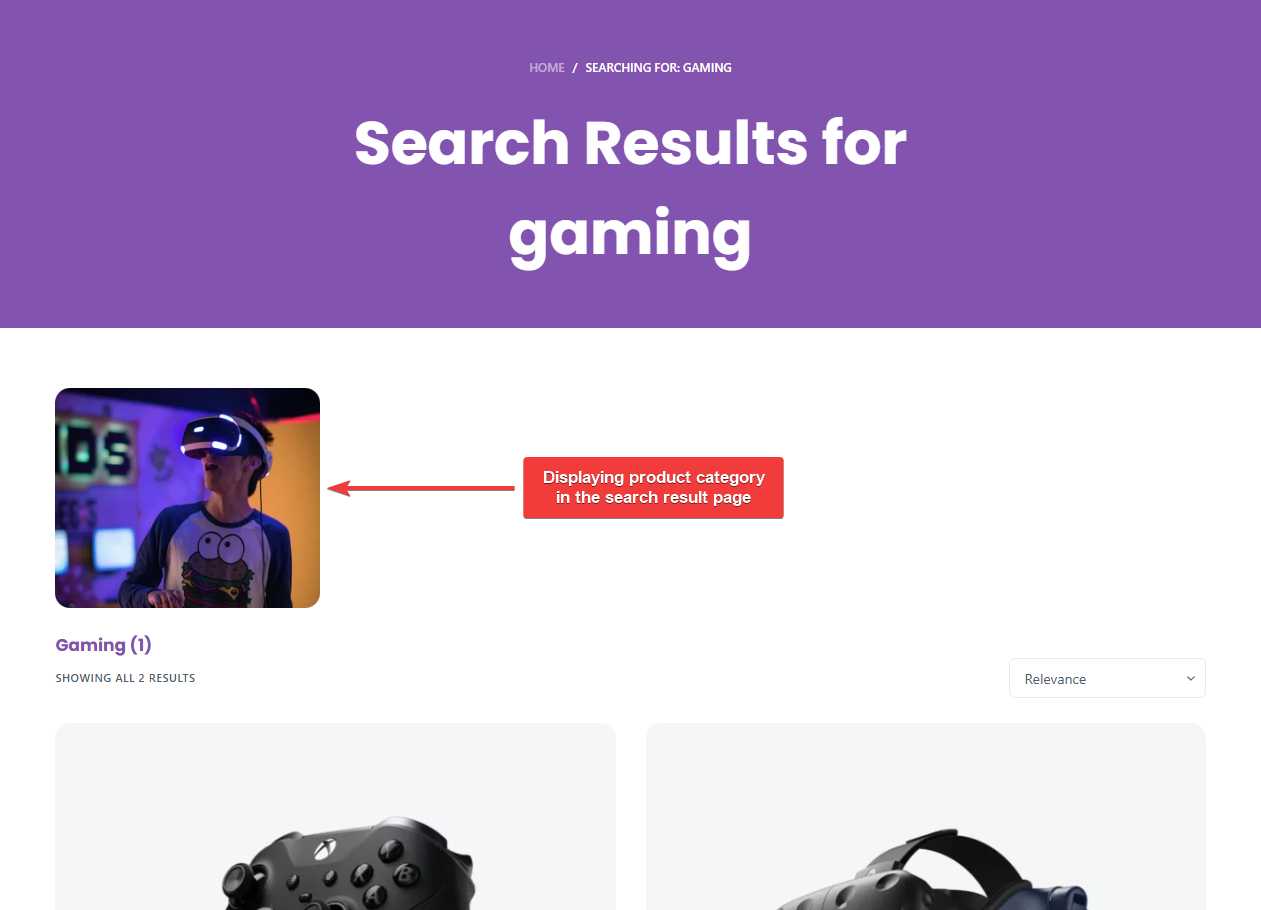
What makes this plugin even more powerful is that it doesn’t stop at product categories. You can enable term search for product tags, brands, attributes, or any custom taxonomy used in your store. It’s a simple way to turn your search bar into a true navigation tool, one that supports both specific and broad search behavior without requiring custom code.
Next, we’ll walk you through how to set this up step by step.
How to Show Category Pages in Search Forms & Result Pages
In this tutorial, we’re using the Advanced Woo Search plugin, which will allow you to show category pages as part of both the live search suggestions and the main search results page.
Here’s how to set it up.
Step 1: Install the Plugin & Reindex the Table
Start by installing the free version of Advanced Woo Search from your WordPress dashboard. Go to Plugins → Add New, search for Advanced Woo Search and click Install Now, then Activate.
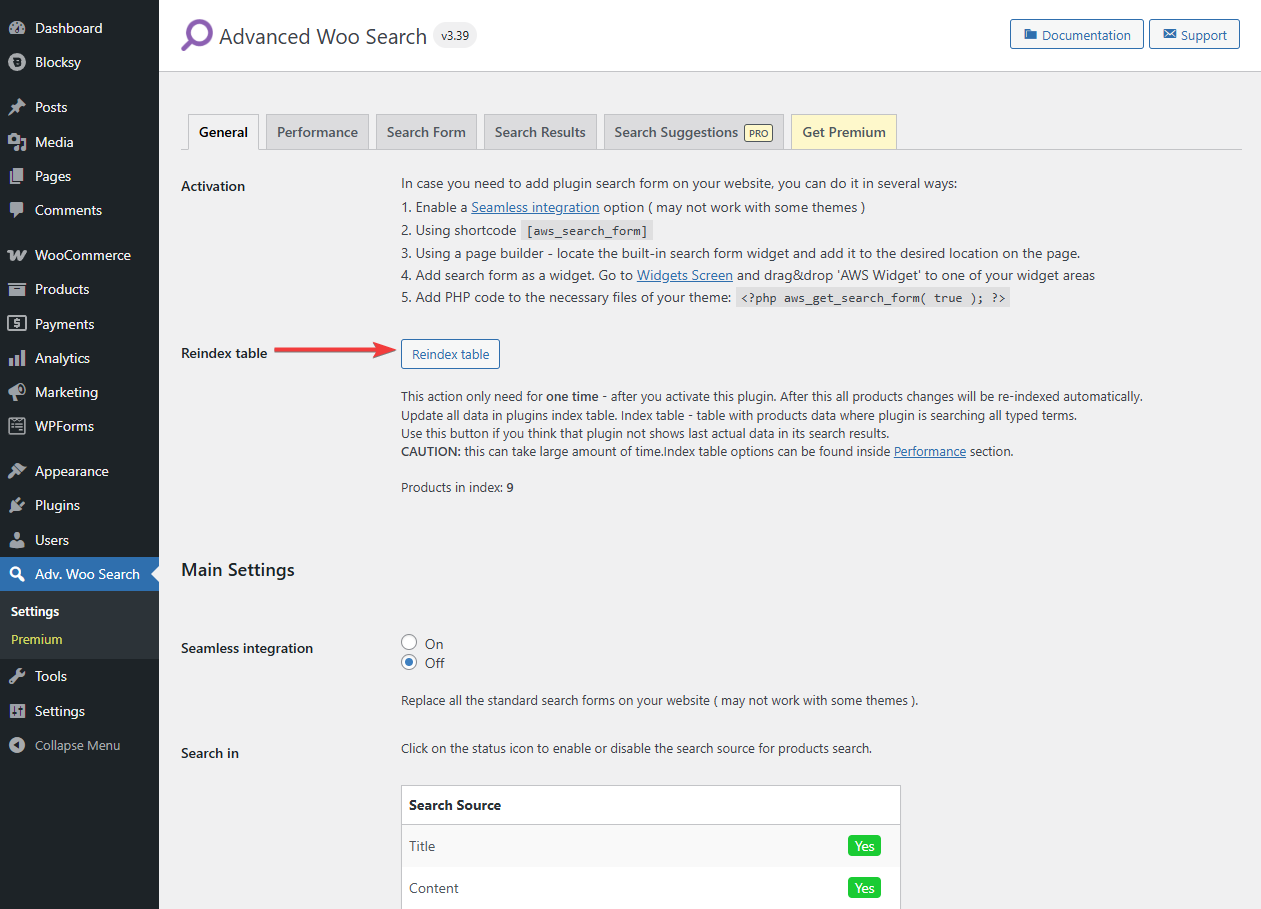
Once the plugin is active, navigate to Advanced Woo Search → General and click the Reindex Table button. This creates an internal search index so the plugin can return results quickly and accurately. You only need to do this once. After the initial indexing, new products and updates will sync automatically in the background.
Step 2: Create a Custom Search Form & Replace Old Forms
Advanced Woo Search uses its own search forms to control what appears in search results.
This means that even if category term search is enabled in the plugin settings, it won’t take effect unless it’s activated inside a custom form instance.
To replace your store’s default search with WooCommerce search for category, you’ll need to create a custom search form using the plugin. This ensures that category archive pages can appear in both live results and on the search results page.
In the free version of the AWS plugin, you already have a default custom form. In the paid AWS plugin, you will need to create new custom forms by going to Adv. Woo Search → General → Add New Form.
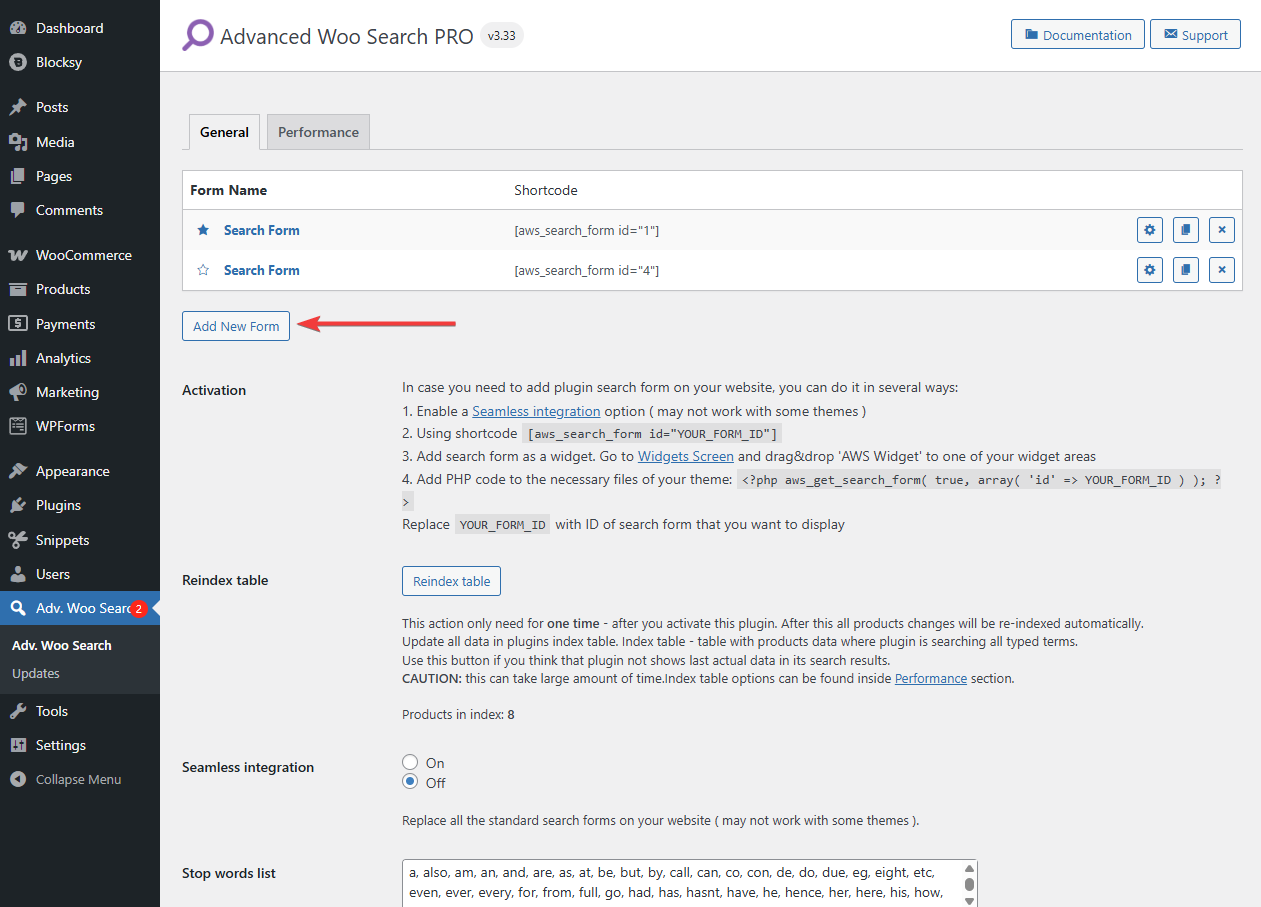
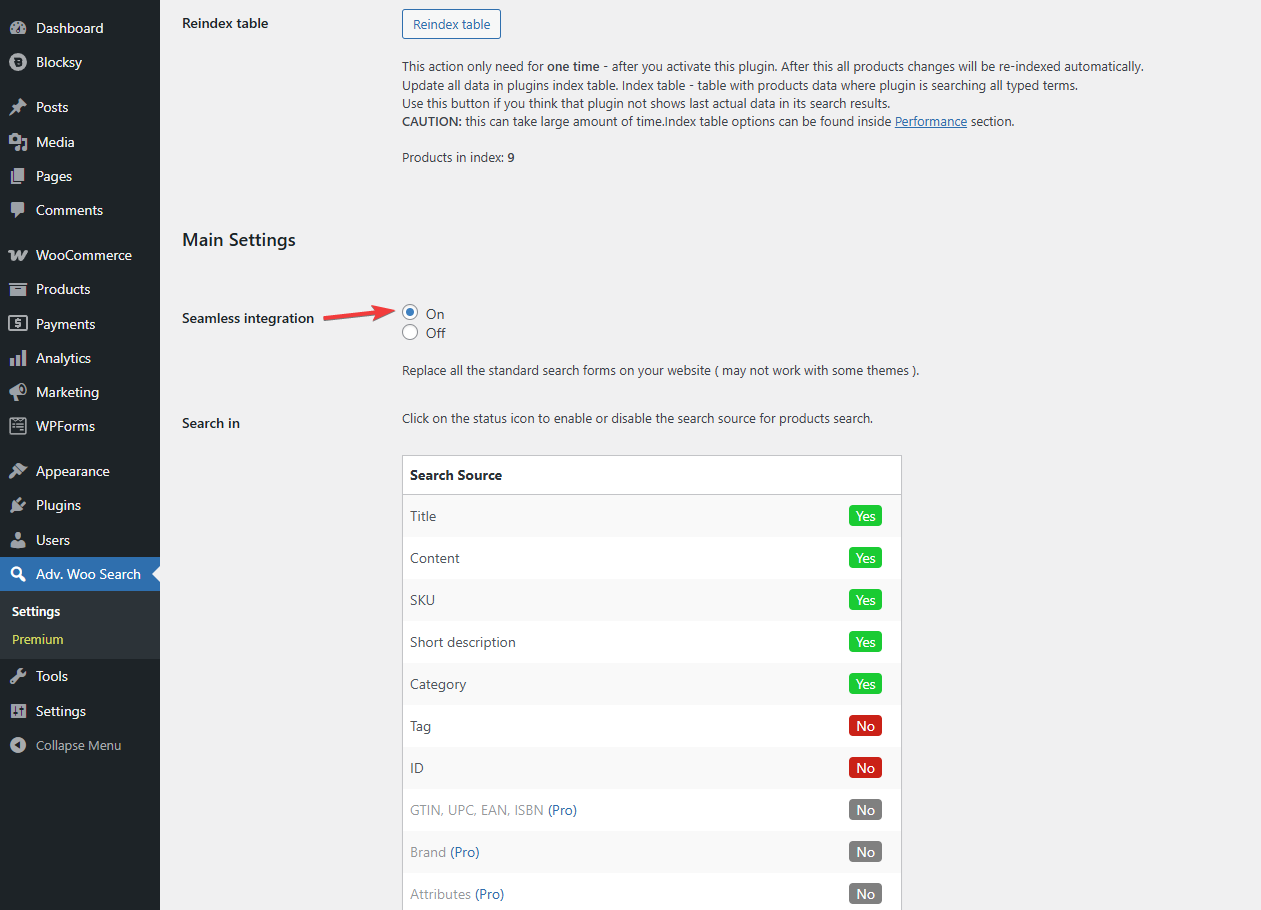
To replace your store’s existing forms with the new AWS custom forms, just enable the Seamless Integration option found in the Adv. Woo Search → General page, and save your changes. This step ensures all existing search fields on your store are replaced with the plugin-powered version.
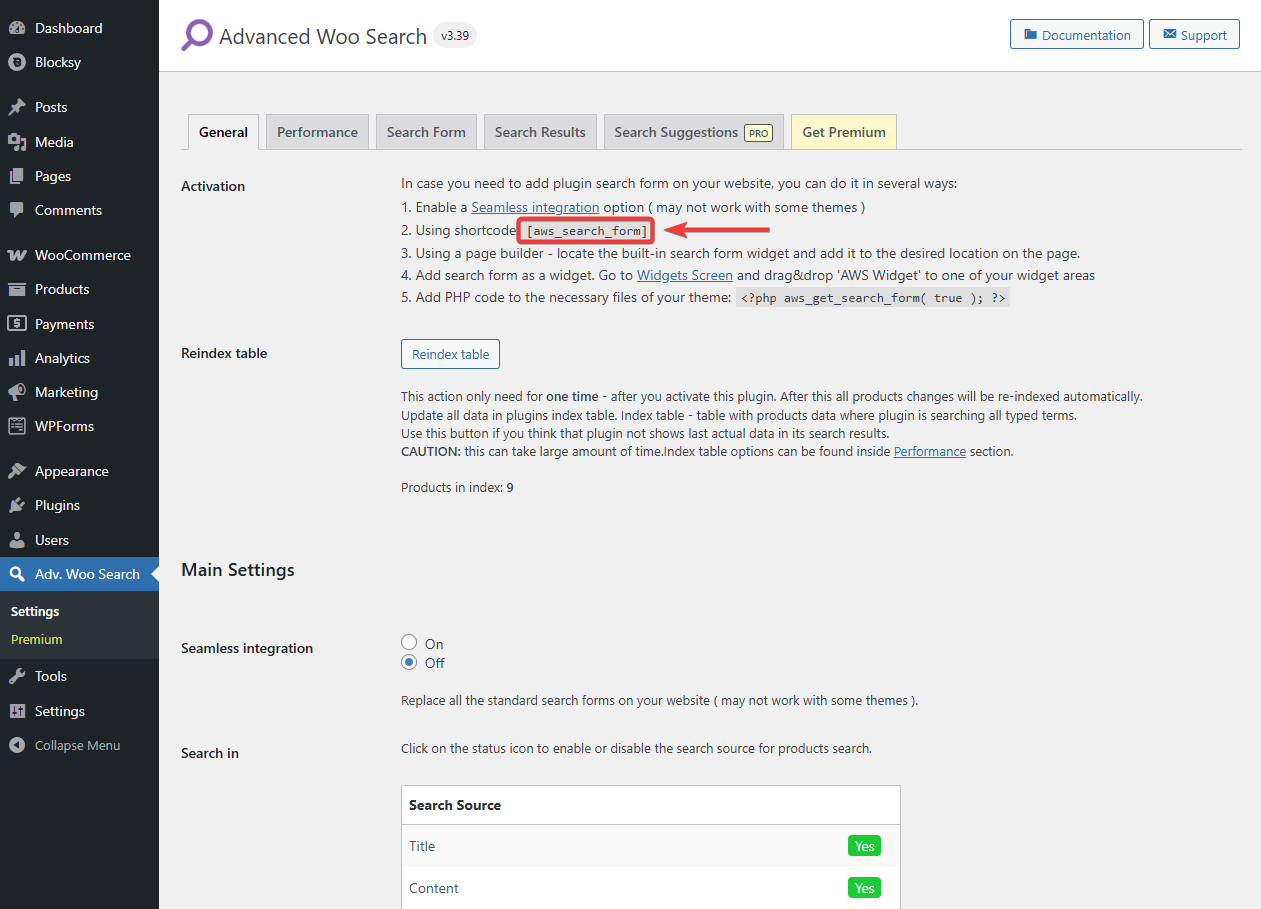
You can also use the custom search form shortcode to add it anywhere on your website. The custom form shortcode for the free AWS plugin is:
[aws_search_form]
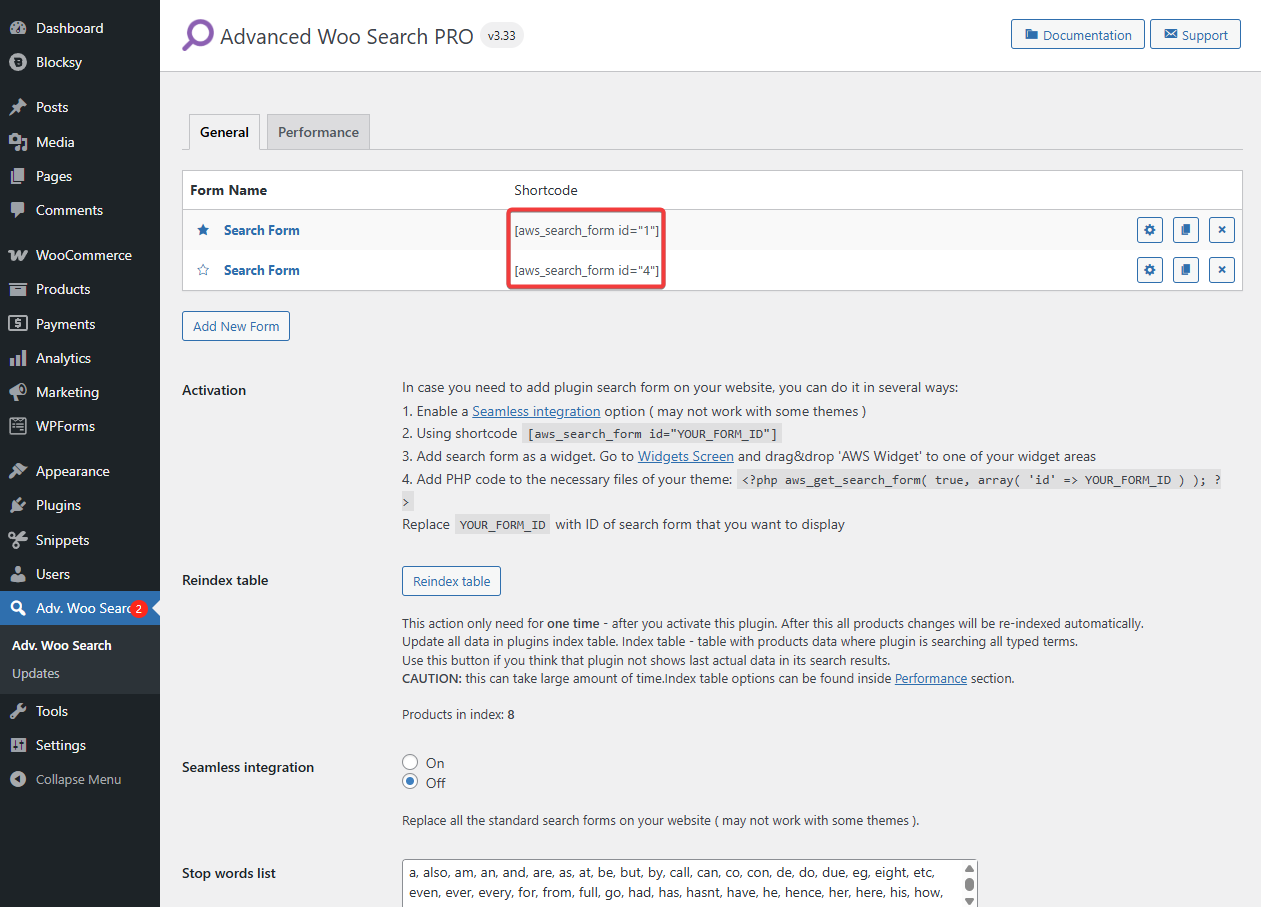
In the paid plugin, the custom form shortcode looks like this:
[aws_search_form id="1"]
[aws_search_form id="2"]
[aws_search_form id="3"]
So on and so forth.
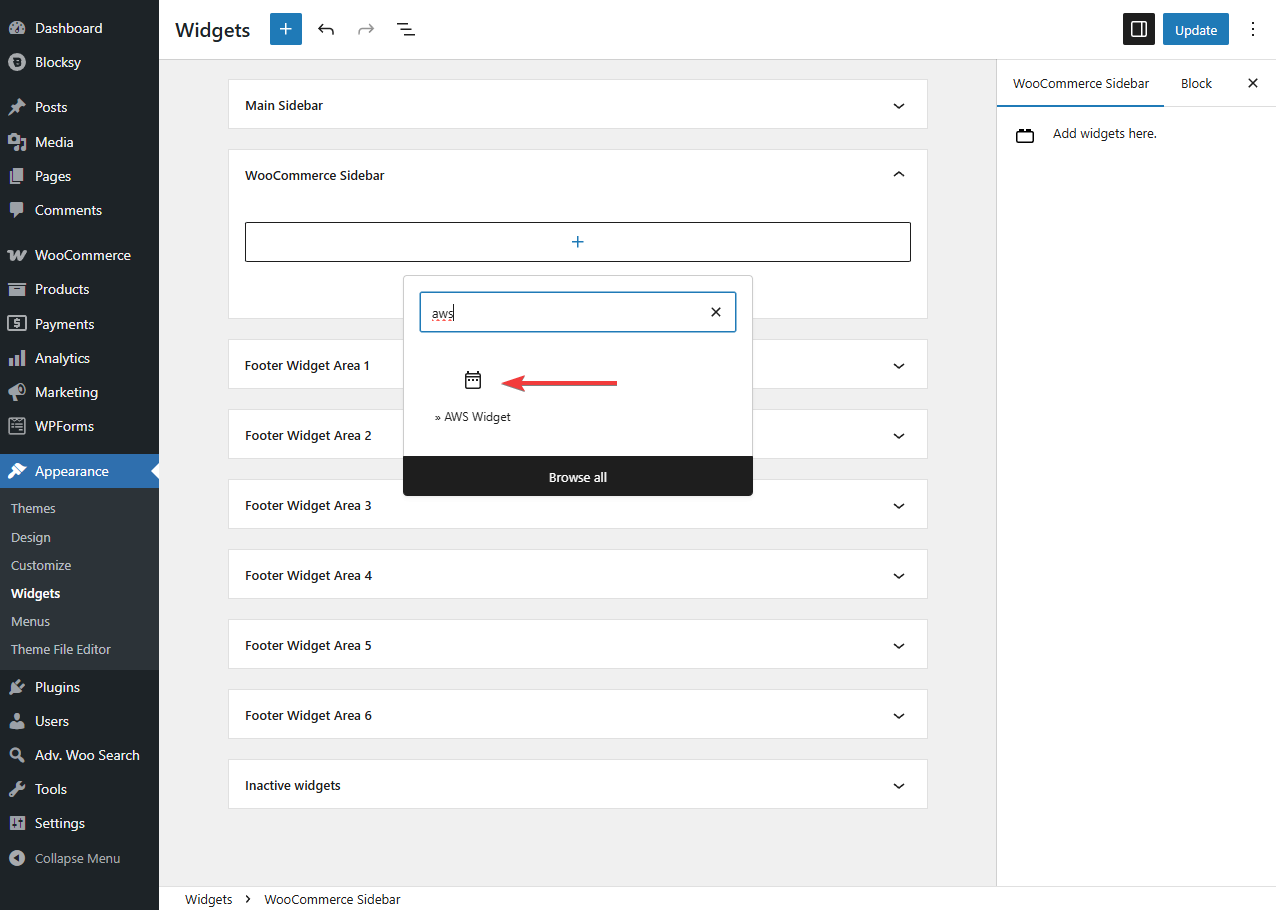
Alternatively, you can use the AWS Widget to add the custom form to your store. Paid AWS users should be able to choose which forms they want to display on the widget.
Step 3: Enable Product Category Search in Search Forms
In the free AWS plugin, go to Adv. Woo Search → General and scroll down to the Archive Pages option. Paid AWS users need to select a specific search form and then go to Search Results to access this option.
Set the Category under Archive Pages to Yes.
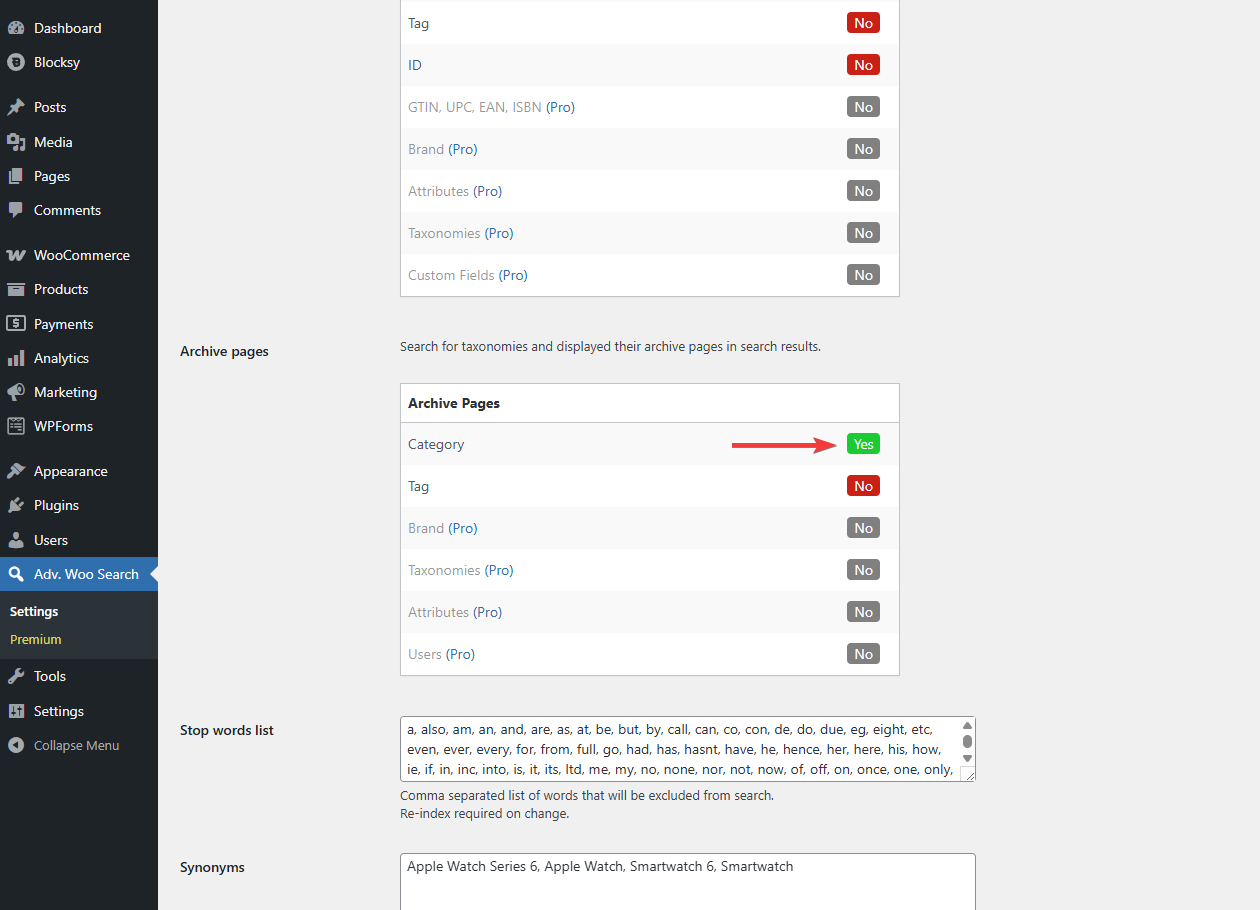
This setting is what powers WooCommerce search for category, allowing you to show category pages as individual search results.
When enabled, a user typing Gaming will see a clickable result for the Gaming category. Clicking it will take them to the category archive page showing all products in that group.
Here’s how a product category appears in the live search on our demo store:
Side Note: Do you see the Category option under Search In? This setting determines whether the plugin uses product category names as a search source. When enabled, if someone searches for a term like Decor, the plugin will return products from that category even if the word Decor isn’t in the product title or description. Toggle this to Yes if you want products to be found based on their assigned categories.
Step 4: Display Product Category Pages Live in Search Forms
To improve the user experience, Advanced Woo Search supports AJAX live display, which means search results appear instantly in a dropdown as the user types.
When category term search is enabled, those category results will show up above product suggestions. Clicking a category result takes the user straight to the archive page, where they can browse all related products. This feature is what brings WooCommerce search for categories to life, helping users find full collections like Gaming directly from the search bar.
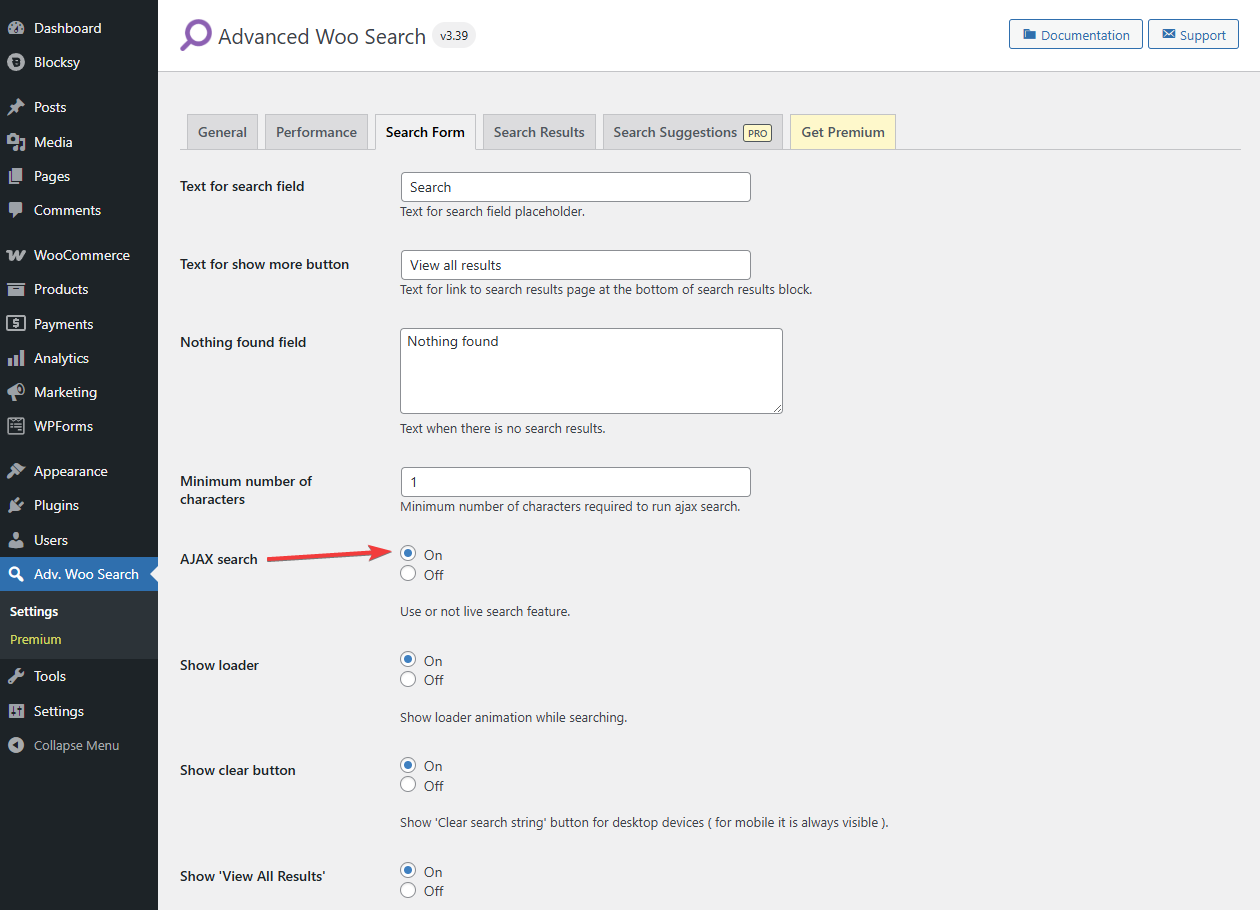
To enable AJAX live search on the free AWS plugin, go to Adv. Woo Search → Search Form, scroll down to the AJAX Search and select On. Paid users need to select a specific search form, then go to Search Form → AJAX Search → On. Click Save Changes when you're done.
If you'd like to explore more configuration options for how the live search appears, you can follow the full tutorial here: How to Add WooCommerce AJAX Search.
Step 5: Display Product Category Pages in Search Result Pages
While the live search dropdown is great for instant suggestions, some customers will still use the full search results page. By default, WooCommerce only displays product results there, not categories, tags, or other taxonomy terms.
Advanced Woo Search gives you a way to display those taxonomy terms alongside product results on the main search results page. This helps users who search broadly (example: Gaming or Shoes) discover relevant collections without needing to rely on menus.
There are three main methods to add taxonomy terms to the results page:
- Use a block (if your site uses Gutenberg or a page builder)
- Insert a shortcode
- Add a PHP snippet to your theme template
We are not going to walk you through each step because we already have a detailed separate article on this: Display Product Category Results in the WooCommerce Search Results Page
With all steps complete, your WooCommerce store now supports WooCommerce search for category, offering a more intuitive experience that helps users find both individual products and entire category pages like Gaming.
FAQs
Can I show categories and products together in the same search results?
Yes. You can display both product categories and individual products in the same search experience. Category results appear above product suggestions in the live dropdown and can also be shown on the search results page. This helps users explore broad collections or go straight to a specific item.
Can I limit search results to the category the user is currently browsing?
Yes, Advanced Woo Search lets you filter results based on the current category page. This means users will only see products within the category they’re viewing. It’s especially helpful in large stores where focused, context-aware results improve navigation and reduce the time it takes to find relevant items.
Can I control which categories are searchable and which ones aren't?
Yes. You can choose which categories appear in search results by enabling or disabling them in the plugin settings. This is useful for hiding system categories like Uncategorized. It gives you control over the taxonomy terms your customers actually see when they use search.
Conclusion
Product discovery is a key part of any successful WooCommerce store, and that process often begins with search. But if your search bar only returns individual products, you're missing a major opportunity to guide users toward broader collections and help them explore everything your store has to offer.
Adding WooCommerce search for category fills this gap by letting shoppers type in a category name and see it appear right in the suggestions. Whether it's T-shirts, Gaming, or Accessories, they can click through to view all relevant products in that category just like they would from a menu, but faster and more intuitively.
Using Advanced Woo Search, you can enable this functionality without writing a single line of code. From live AJAX suggestions to category results on the main search page, the plugin gives you full control over what shows up and how it's presented. You can even extend this to include tags, brands, attributes, or custom taxonomies, making your search more powerful and more tailored to your catalog.
If your store is growing or your customers expect a more modern shopping experience, enabling category-based search is a simple upgrade that delivers immediate results. It helps users find what they need faster, encourages deeper browsing, and ultimately supports more conversions through a better search experience.
- Try the free Advanced Woo Search
- Try the Advanced Woo Search Pro
If you have any questions about the WooCommerce search for category, let us know in the comments section below.
Comments