
If you're looking for a way to add a product search form to your WooCommerce store using a shortcode, you’re not alone. Many store owners want more control over where the search bar appears, especially on custom pages, landing pages, or in the middle of content.
WooCommerce, by default, doesn’t offer a built-in shortcode for its product search form. You can use the search widget or search block, but these options are limited and don’t allow flexible placement or advanced product filtering.
That’s where a dedicated search plugin becomes helpful. In this guide, we’ll show you how to use Advanced Woo Search, a free plugin that gives you shortcode access to a fast, product-focused search form you can place anywhere on your site.
We’ll walk you through the setup, how to insert the shortcode, and how to customize it all in a way that’s easy to follow, even for beginners.
What is a WooCommerce Shortcode? Is There a Default Search Form Shortcode?
In WordPress, a shortcode is a small snippet of text placed inside square brackets. It tells your site to display something dynamic, like a product grid, gallery, or form, without requiring you to write or edit code. Shortcodes are widely used because they make it easy to add functionality exactly where you need it.
WooCommerce includes several built-in shortcodes for displaying products, categories, and cart information. However, it does not offer a default shortcode for adding a product search form.
If you want to place a search bar inside a landing page, blog post, or custom layout, you won’t find a native WooCommerce shortcode that supports this. Instead, WooCommerce relies on the search widget or search block, both of which are limited. The widget can only be used in designated areas like sidebars or footers, and the block often returns results from blog posts or pages, not products.
To overcome this limitation, you’ll need a search plugin that’s built specifically for WooCommerce and supports shortcodes. Advanced Woo Search (AWS) is a popular option that lets you insert a customizable product search form anywhere on your site. Once added, the form pulls from the plugin’s settings and provides fast, accurate product results.
This gives you more control over search placement, improves result relevance, and allows you to fine-tune the search experience for your store visitors.
What is the AWS Search Form Shortcode?
The search form shortcode is one of the core features of the Advanced Woo Search plugin. It allows you to place a fully functional WooCommerce product search form anywhere on your site, without touching templates or writing code.
By default, WooCommerce limits search to the sidebar or header. This can be frustrating if you want more control over where the search bar appears. The shortcode solves that problem by letting you add a product search form to any page, post, widget, or layout area using just a small snippet of code.
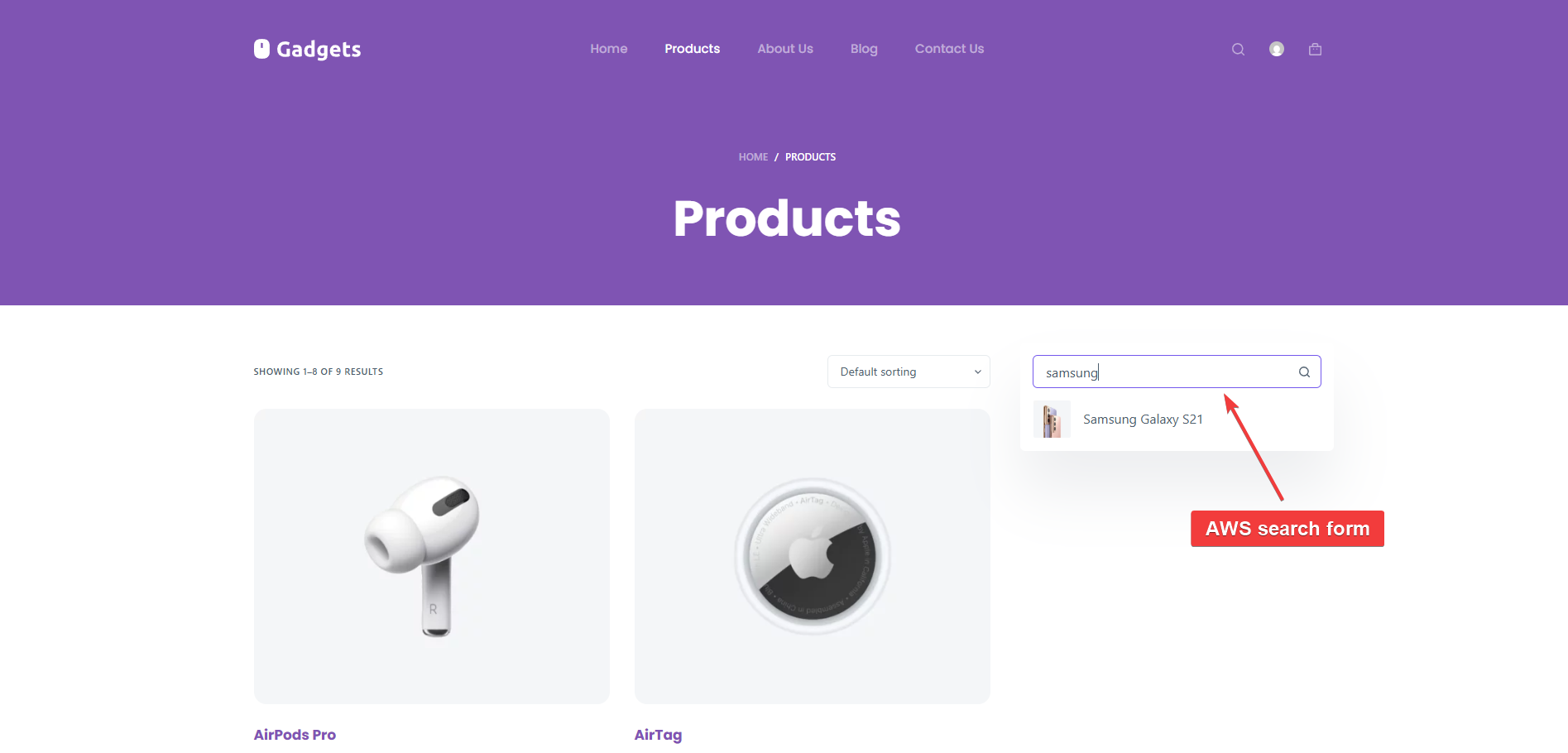
For example, you might want a search bar at the top of your homepage, within a promotional landing page, or embedded inside a blog post reviewing products. Wherever you place it, the form will follow the styling and behavior you’ve set in the plugin settings, including support for AJAX results, live suggestions, product thumbnails, and more.
What makes the shortcode especially powerful is its flexibility. You can customize it using parameters that change how the form looks and behaves. These parameters let you update the placeholder text, show or hide a loader icon, define how many characters are needed before search results appear, and control whether the “Show more” button is visible.
With the Pro version of the AWS plugin, the shortcode unlocks even greater flexibility. You can create multiple unique search forms, each with different filters or configurations, and display them on different parts of your site by referencing their individual IDs.
Overall, the AWS search form shortcode gives WooCommerce store owners complete control over the visibility and function of product search. It helps improve product discovery, user experience, and conversion paths by putting search exactly where your shoppers need it most.
Learn more: Advanced Woo Search features & WooCommerce search settings
How to Insert AWS WooCommerce Search Form Shortcode
Before you can display a product search form using a shortcode, you’ll need to set up the plugin and configure your form settings. The steps below will guide you through installing Advanced Woo Search, customizing your search form, and placing it anywhere on your WooCommerce site.
Step 1: Install & Activate AWS, Then Enable Product Indexing
Install and activate the free Advanced Woo Search on your WordPress website.
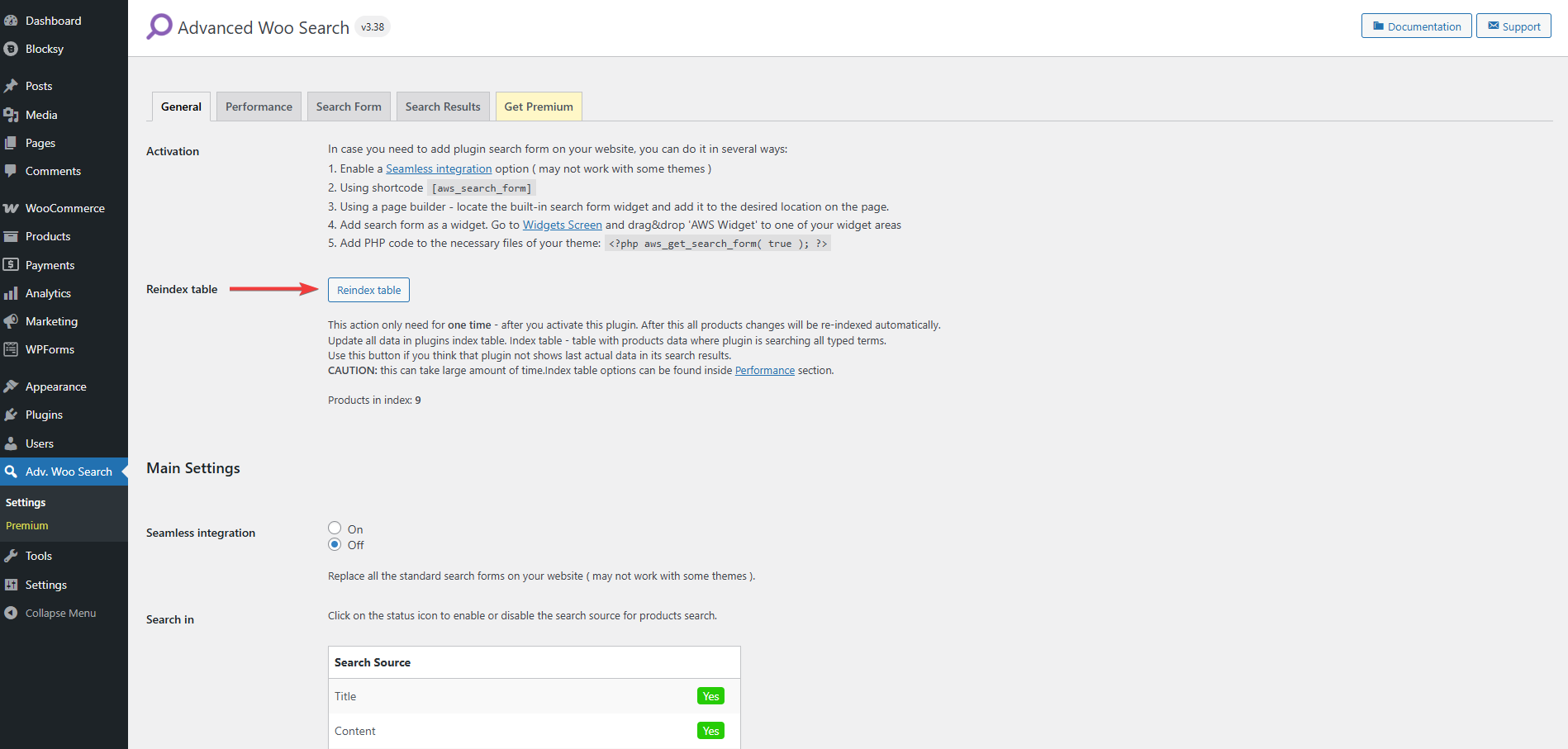
Next, navigate to Adv. Woo Search → General and click the Reindex table button. This indexing process builds a custom database that powers the plugin’s smart search. It ensures your entire product catalog is searchable in real time with accurate, fast results.
This step is required and only needs to be done once during the initial setup. After indexing is complete, the plugin will continue updating automatically whenever products are added, changed, or removed.
Step 2: Add Search Form to Your Site
The free Advanced Woo Search creates one default search form automatically. You can view and customize it by going to Adv. Woo Search → Search Form in your WordPress dashboard. From there, you can adjust settings such as layout, placeholder text, result limits, and AJAX behavior.
If you're using the Pro version, you can create and manage multiple search forms with different configurations. To create a new form, go to Adv. Woo Search → Add New Form. Each form will appear in your dashboard, allowing you to assign different filters or settings based on where you plan to use them.
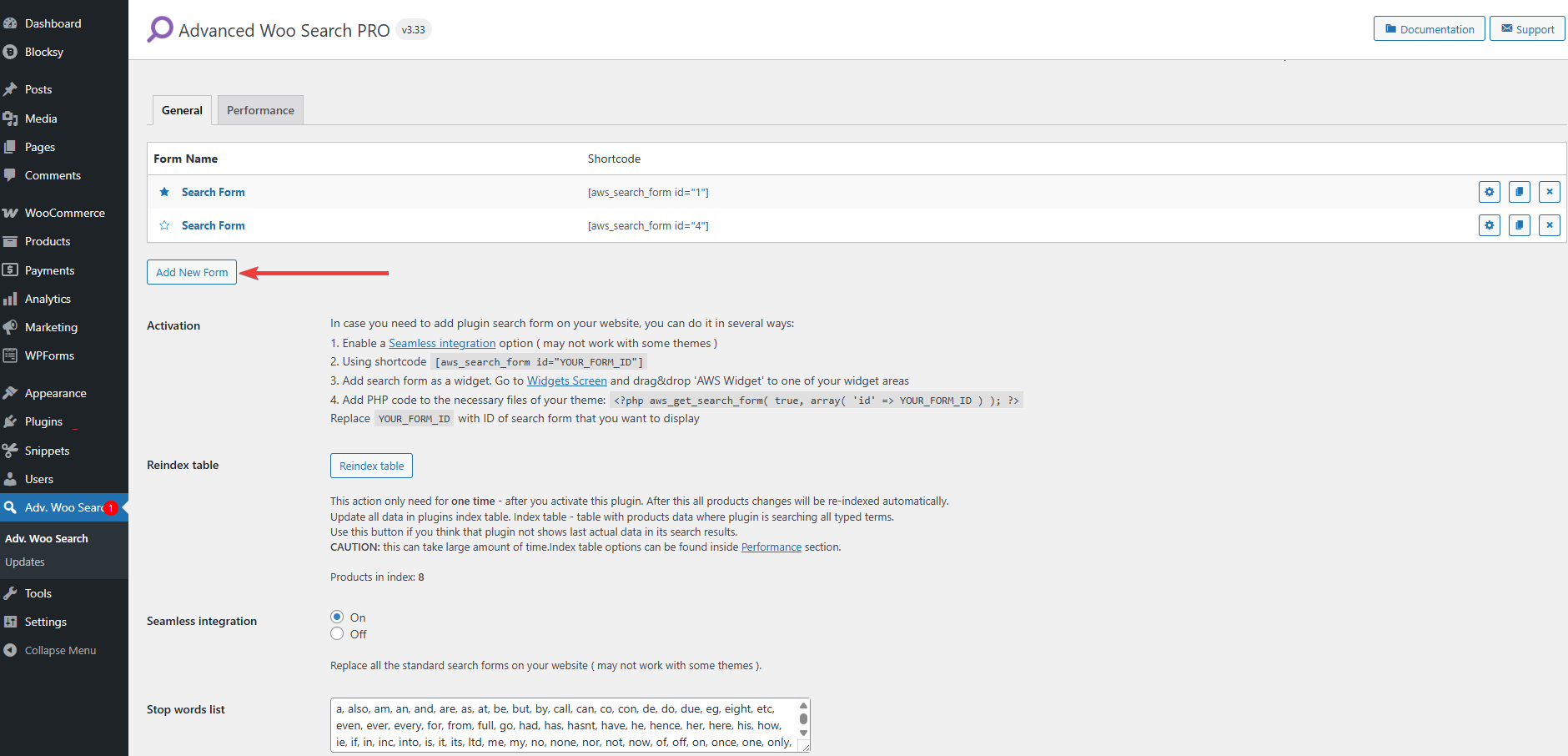
Once your form is ready, you can add it to your site using the shortcode method described in the next step.
Step 3: Insert the AWS WooCommerce Search Form Shortcode
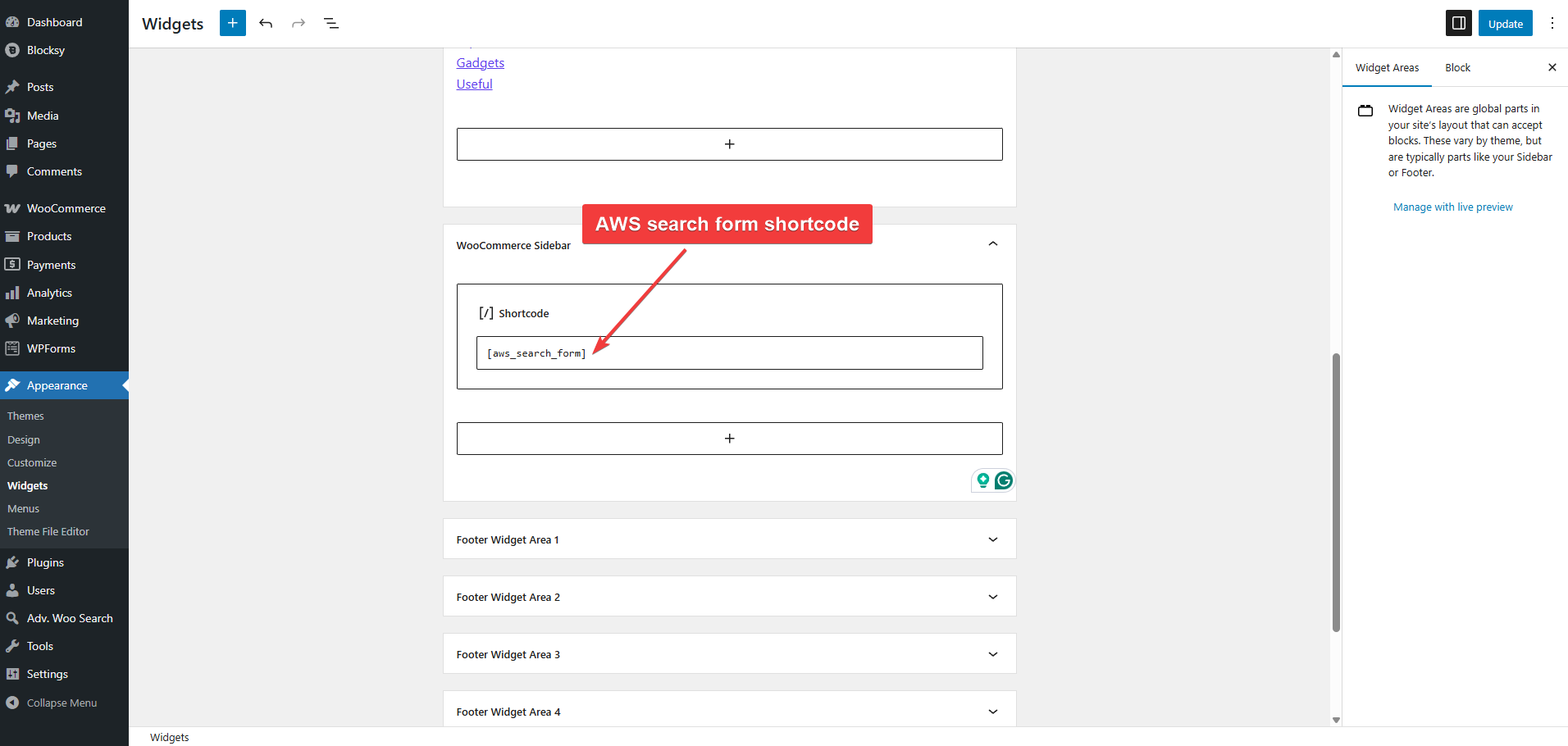
Once you’ve set up the plugin and created a search form, you can insert it anywhere using the shortcode:
[aws_search_form]
Just copy and paste the WooCommerce search form shortcode into any supported content area.
Here are five common placement options:
- Gutenberg block editor: Add a Shortcode block to any page or post, then paste the shortcode
- Classic Editor: Paste the shortcode directly into the text editor where you want the search bar to appear
- Widgets: Use the AWS Widget or any text or shortcode widget to add the search form to sidebars or footers
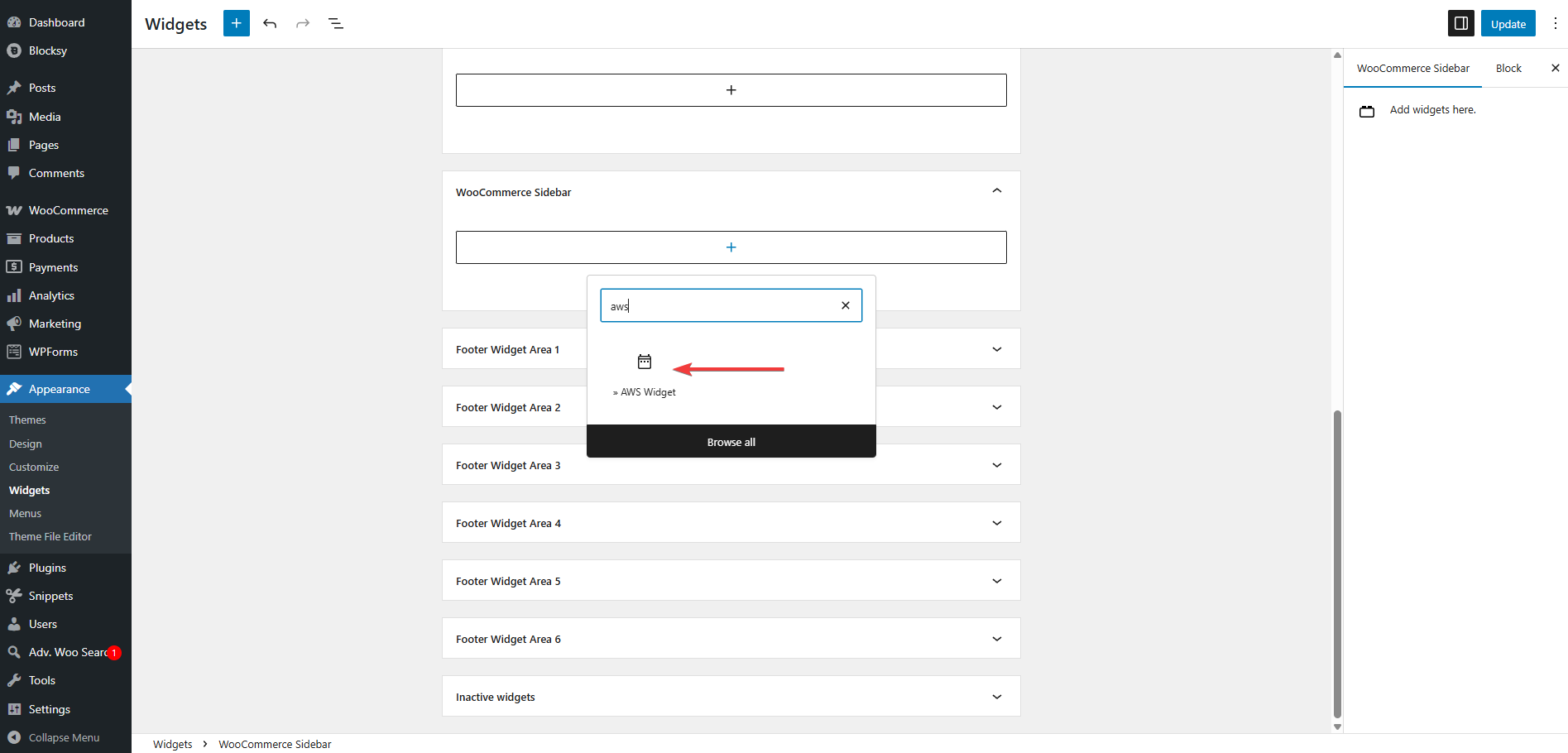
- PHP template files: Use this line inside your theme file to render the form manually:
<?php echo do_shortcode('[aws_search_form]'); ?>
- Other page builders: Editors like Elementor, Divi, and Bricks support shortcodes via their shortcode or HTML blocks. Paste the shortcode inside the relevant module to display the form within your layout.
Once added, the search form will appear based on your global plugin settings. Make sure to test the form on the front end to confirm that it displays correctly and responds to user input as expected.
We added the AWS WooCommerce search form shortcode using the AWS widget on the sidebar of our store:
Need help adding AWS’ WooCommerce search form shortcode? Check out these help docs:
- Adding shortcode to the navigation menu
- Adding shortcode using AWS search widget
- AWS shortcodes help doc
When Using the PRO Version, Assigning Form IDs
If you're using AWS Pro, you can create multiple forms with different settings and insert them using the id parameter. For example:
[aws_search_form id=2]
This tells the plugin to load a specific form configuration.
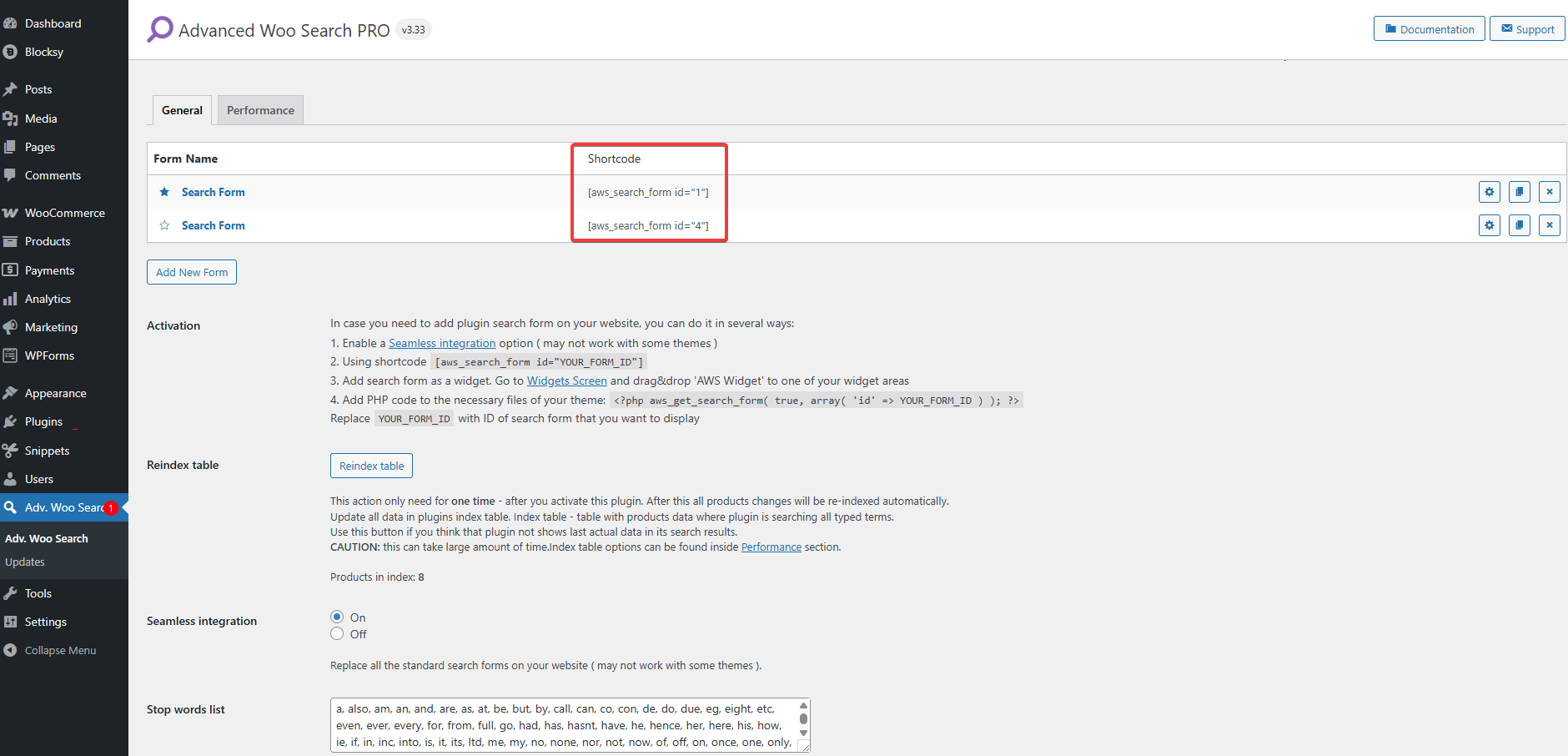
If you don’t specify an ID, the plugin will use the form marked as the main one. If no form is set as the main, it will use the first form in the list by default.
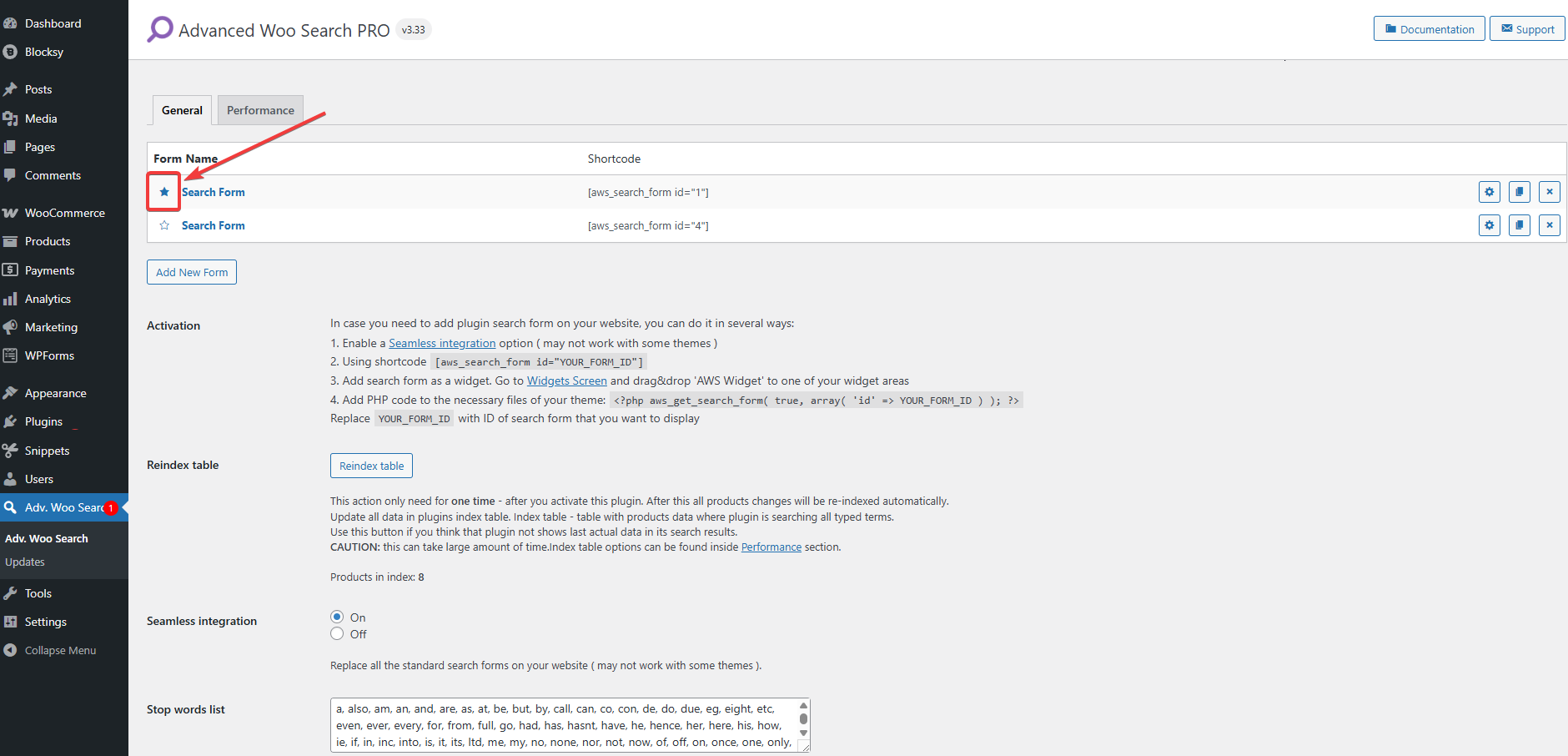
This flexibility allows you to create different search experiences across your store. For instance, you might use one form for your homepage, another for category pages, and a third for a blog sidebar, each with its own settings and filters.
FAQs
Can I use the WooCommerce search form shortcode with Elementor or other page builders?
Yes. The AWS WooCommerce search form shortcode works with the most popular page builders, including Elementor, Bricks, and Beaver Builder. Simply drag in a shortcode or HTML widget and paste the code. The search bar will display and function as expected, just like it would on a standard page or post.
Will shortcodes override my existing search form settings?
No. The shortcode uses your global plugin settings by default. However, you can override specific behaviors by adding parameters directly inside the shortcode. This allows you to fine-tune the appearance and function of individual forms without affecting others, which is useful when placing search in multiple areas of your site.
Can I place the WooCommerce search form shortcode on multiple pages?
Yes. You can use the shortcode as many times as you like across your site. It works in posts, pages, widgets, and builder layouts. If you're using the Pro version of the plugin, you can also create multiple search forms with unique configurations and display them on different pages using the form ID.
What should I do if the shortcode doesn’t display the search form?
First, check that the plugin is installed and active. Make sure the shortcode is entered correctly in a supported area like a block, widget, or template. If the form still doesn’t appear, try clearing your cache, disabling conflicting plugins, or temporarily switching to a default WordPress theme.
Conclusion
A fast, flexible search bar can make a big difference in how easily your customers find the products they want. Unfortunately, the default WooCommerce search often falls short when it comes to placement and product relevance.
That’s where Advanced Woo Search stands out. With its WooCommerce search form shortcode, you can place a fully functional, customizable product search form anywhere on your site, no coding or complex setup required. Whether you're using Gutenberg, Elementor, or classic widgets, it takes just a few steps to embed a better search experience.
You also get the option to fine-tune how the form behaves using shortcode parameters. This makes it easier to match your store’s layout, design, and customer needs.
If you're looking to improve product discovery and reduce friction in your customer journey, start by adding a smarter search form with Advanced Woo Search. It’s one small change that delivers a big impact.
- Try the free Advanced Woo Search
- Try the Advanced Woo Search Pro
If you have any questions about the WooCommerce search form shortcode, let us know in the comments section below.
Comments