
Looking for ways to add WooCommerce smart search and stop losing customers to poor search results?
WooCommerce's default search ranks products randomly, not by relevance. When customers search for "wireless headphones," they might see out-of-stock items or irrelevant accessories before your bestsellers.
This frustrates shoppers and costs you sales. People have short attention spans. If they don't see relevant results immediately, they'll leave for a competitor's site.
The solution? WooCommerce smart search with relevance scoring.
Smart search uses intelligent algorithms to prioritize products with search terms in key fields like titles and SKUs, while boosting high-converting items like bestsellers and sale products.
In this guide, we'll show you how to implement WooCommerce smart search using the Advanced Woo Search (AWS) plugin. You'll learn how relevance scoring works, how to set up intelligent product rankings, and optimization strategies that improve conversion rates.
What Is WooCommerce Smart Search? What Are the Benefits?
WooCommerce smart search is an advanced search system that ranks products by relevance score, not just keywords or alphabetical order. Unlike default search, it understands user intent and prioritizes the most useful results first.
Relevance Scores Explained
A relevance scoring system assigns points to products based on:
- Where the search term appears: Title matches get more points than description matches
- How well it matches: Full word matches score higher than partial matches
- Search term frequency: How often the term appears in the product data
- Search term length: Longer, more specific queries get weighted differently
Benefits of Relevance-Based WooCommerce Searches
Better Product Discovery: Customers see best-matching products first. For example, exact title matches rank higher than description mentions, so "Blue Shirt" appears before "Comfortable blue shirt for summer."
Reduced Search Frustration: Smart search catches typos and partial queries, so customers don't hit dead ends. Searching for "run" will still show "running shoes."
Automatic Priority for High-Value Products: You can make bestsellers, sale items, or high-margin products rank higher automatically using custom scoring rules.
Does WooCommerce Have Default Relevancy Scores?
No. The default WooCommerce search shows products in random or alphabetical order and ignores field importance. It treats a title match the same as a description mention and lacks partial match support.
How AWS Relevancy Score Works
Default AWS Field Weights:
AWS uses a weighted scoring system to decide how relevant each product is to a customer’s search. Different fields of your product listings carry different point values based on how important they are for accurate search results.
- GTIN (Global Trade Item Number): 500 points
- Title: 350 points
- Product ID: 300 points
- SKU: 300 points
- Taxonomy Name (categories, tags, attributes): 350 points
- User Name (author or vendor): 350 points
- Content (product description): 100 points
- Brand: 100 points
- Taxonomy Description: 100 points
- Other Fields: 35 points
Scoring Process:
When a search is performed, AWS scans all products and for each one:
- Checks which fields contain the search term
- Adds up points based on where matches are found
- Applies optional penalties for partial matches (if configured)
Result Sorting:
Products are automatically sorted from highest to lowest score. For example:
- Product A (650 points) → GTIN and title match
- Product B (350 points) → Title match only
- Product C (100 points) → Description match only
What You Can Configure Using AWS:
- Adjust point values for each field using code snippets
- Change partial match penalties
- Exclude certain fields from being searched
- Add custom scoring rules to boost specific products in the results
This system ensures your most relevant products always appear at the top, improving the search experience for your customers.
How to Add Smart Revelance Search to WooCommerce Products
We are going to use Advanced Woo Search Pro (AWS) to demonstrate how to add relevancy to your WooCommerce products.
Step 1: Install & Activate AWS Pro & Enable Product Indexing
Install and activate the Advanced Woo Search Pro plugin on your WooCommerce site after completing your purchase. When the plugin is active, add your license key through the plugin settings to unlock all premium features and WooCommerce smart search capabilities.
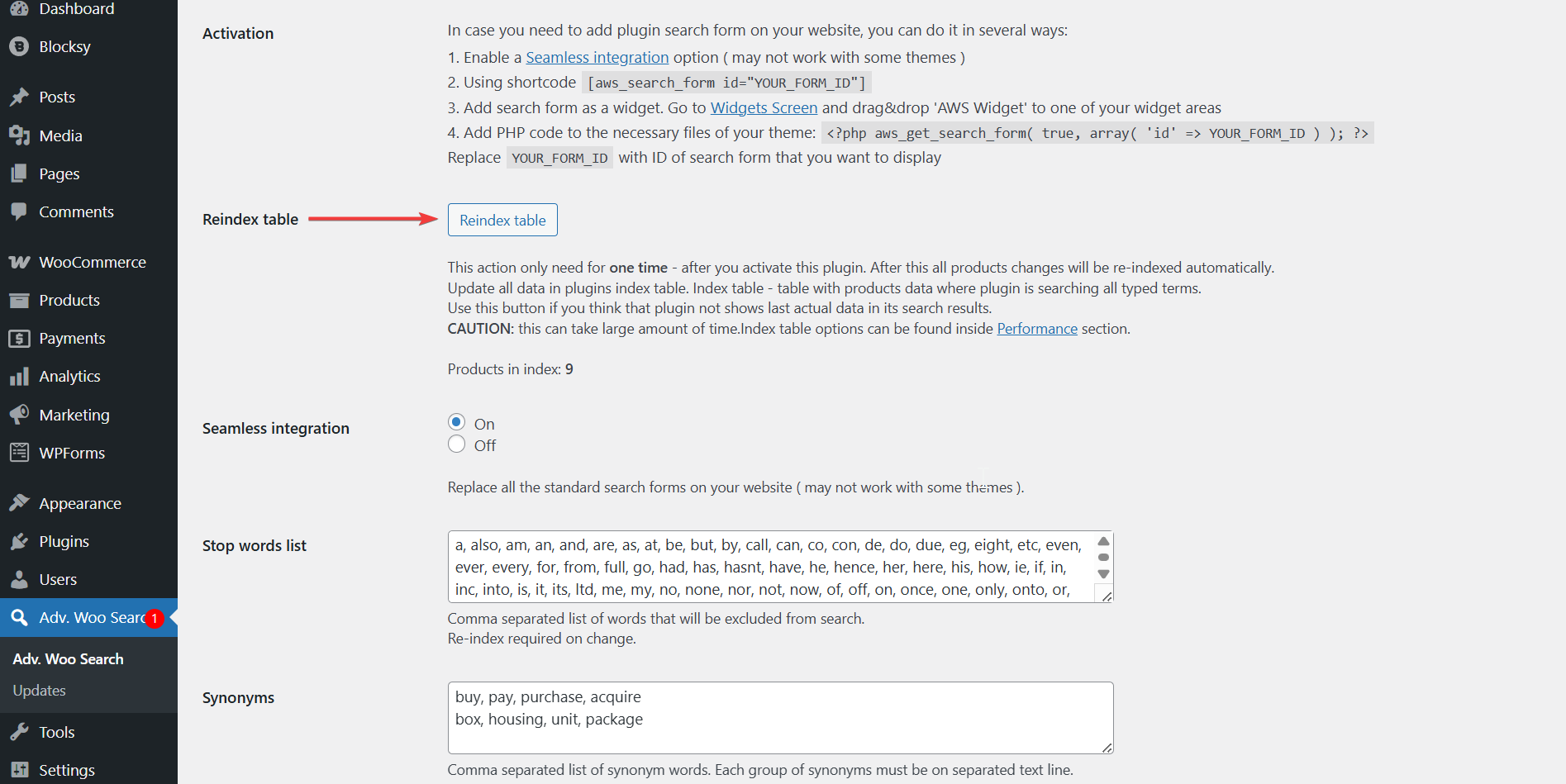
Navigate to Adv. Woo Search in your WordPress admin panel and locate the General tab. Click the Reindex table button to complete the setup process.
This indexing step is essential and cannot be skipped. The plugin builds a specialized database table that enables lightning-fast, real-time search functionality across your complete product inventory.
You'll only need to perform this indexing once during initial setup. Moving forward, the plugin automatically maintains and updates your search database whenever you add new products, modify existing ones, or remove items from your store.
Step 2: Create Search Form & Add it to Site
To use relevance scoring, you need to replace your existing WooCommerce search forms with AWS forms. This is essential because only AWS forms can access the intelligent ranking system we discussed earlier.
Navigate to Adv. Woo Search and click Add New Form. A new search form will appear instantly in your dashboard. Configure the form settings to match your store's needs.

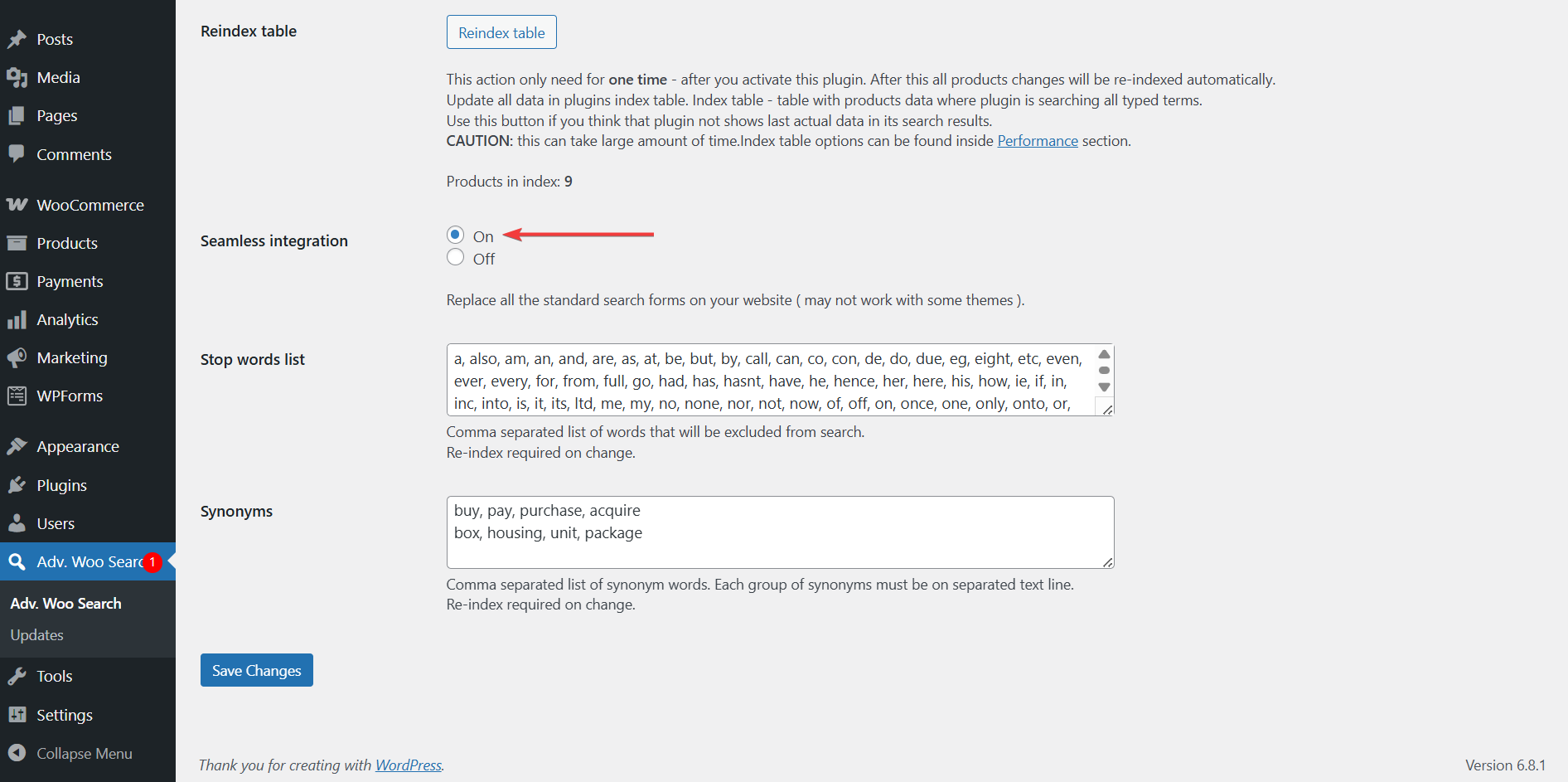
Go to Adv. Woo Search → General → Seamless Integration and set it to "On." Click Save Changes. This replaces all existing search forms across your site automatically.
If automatic integration doesn't work with your theme, use the form shortcode to add it manually to specific locations like your navigation menu or search widget.
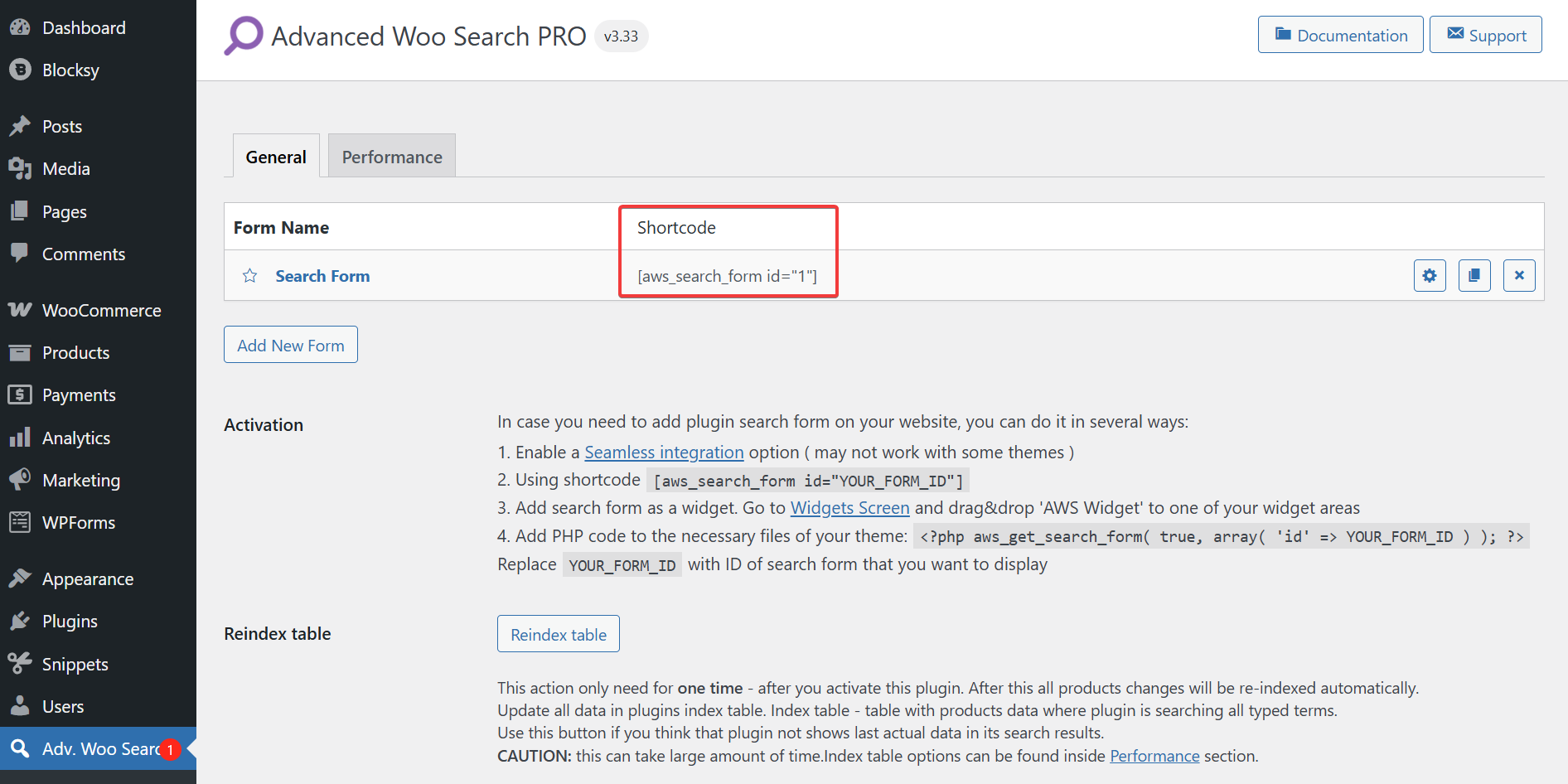
For manual setup guidance, reference these resources:
Step 3: Set Your Own Custom Product Ordering Rules (Optional)
While AWS displays search results based on its built-in relevance scoring system, you can customize the ordering to better match your business goals. This is particularly useful when you want to prioritize certain products beyond just relevance matches.
AWS first selects the most relevant products based on search terms and field weights. Then, if you've added custom ordering rules, it applies those rules to further refine how those relevant products are displayed.
These custom ordering rules affect both live search results (the dropdown that appears as users type) and the main search results page, ensuring a consistent experience across your store.
Custom ordering requires adding code snippets to your child theme's functions.php file or using a code snippets plugin. For detailed examples and ready-to-use code, check out the official AWS Custom Ordering Search Results
Step 4: Test & Validate
After setting up your AWS search forms and custom rules, it's important to test the functionality.
- Check that your highest-scoring products appear first and that any custom ordering rules are being applied properly.
- Test the search experience on both desktop and mobile devices, paying attention to how quickly results load.
- If you've enabled seamless integration, verify that all search forms throughout your site have been replaced with the new AWS forms.
This validation step ensures your customers will experience the improved search functionality you've configured.
Step 5: Set Up Plugin Search Analytics
Once your WooCommerce smart search is operational, monitoring user search behavior becomes crucial for ongoing optimization. Analytics reveal valuable insights about customer search patterns, popular queries, and potential product gaps in your inventory.
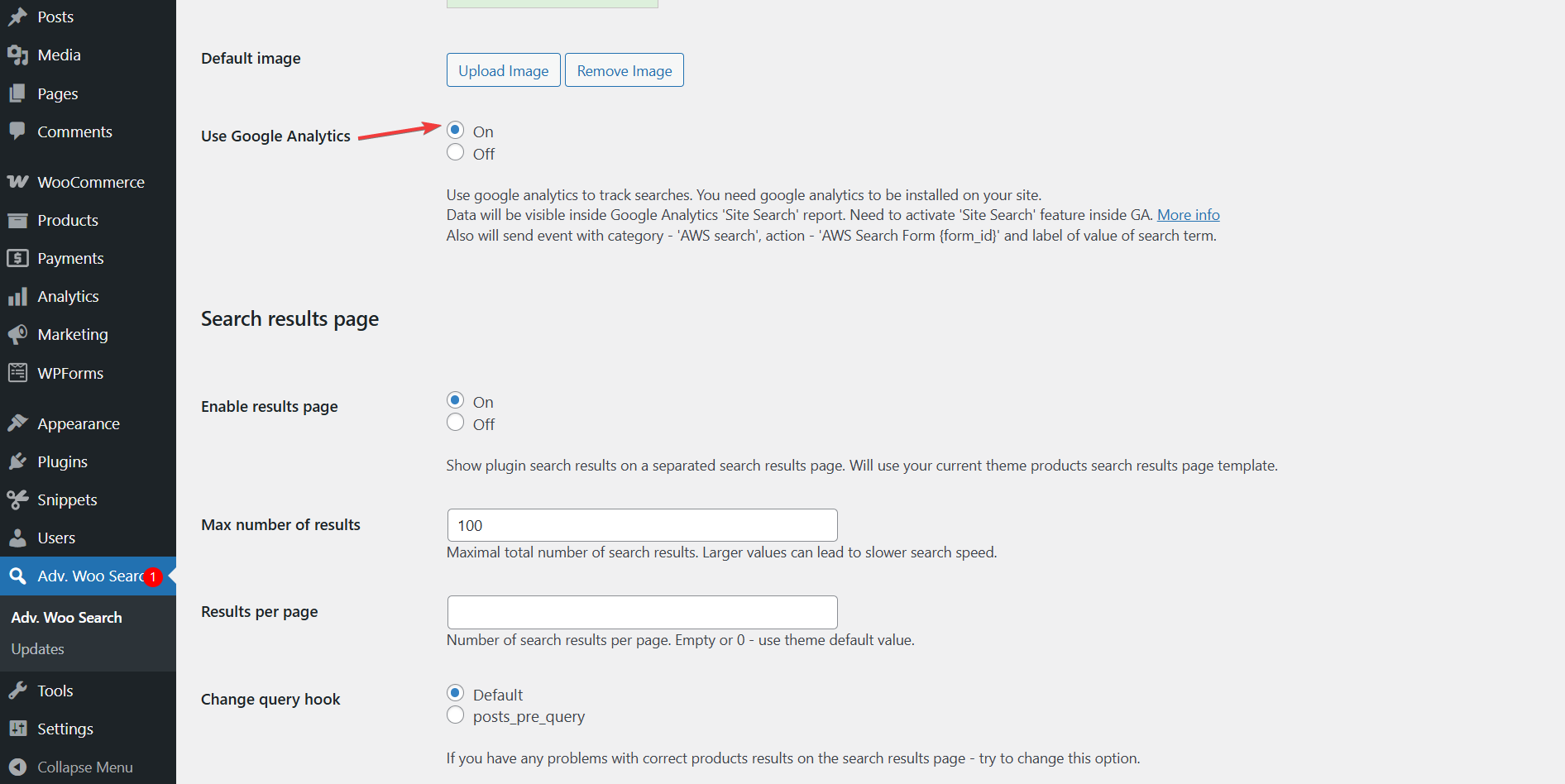
AWS Pro offers native integration with Google Analytics 4 (GA4) and Google Tag Manager. You can monitor specific search terms, user interactions, and which search forms generate the most engagement.
To activate this feature, navigate to Adv. Woo Search → form settings → Use Google Analytics and toggle the setting to On.
Once enabled, you'll need to properly configure your GA4 or GTM setup to receive and process these search events.
For complete setup instructions and configuration details, refer to the comprehensive AWS analytics integration guide.
Optimize Store Search for Better Conversions
Once you've implemented WooCommerce smart search with Advanced Woo Search, the next step is to optimize it to drive more sales by helping customers discover your most profitable and popular products faster.
1. Add Synonyms and Misspellings for Better Search Coverage
Customers often misspell product names or use alternative terms. Instead of showing zero results, map common misspellings like “sneekers” → “sneakers” in AWS settings. You can also add synonyms to cover regional differences or product variations. This prevents lost sales and ensures more customers find what they’re looking for. Learn How to Fix Misspellings & Typos in Search Results.
2. Enable AJAX-Powered Live Search for Instant Results
AJAX live search shows real-time product suggestions as users type, without requiring a page reload. This creates a faster, smoother shopping experience where customers can see matching products instantly. With AWS, you can display images, prices, and other details right inside the dropdown to make results even more engaging. Learn How to Add WooCommerce Ajax Search.
3. Highlight Search Terms to Improve Product Visibility
When customers view search results, highlighting their search term within product titles or descriptions makes it easier for them to spot relevant products. This small detail improves usability, increases confidence in the results, and helps guide users toward clicking the right products. Learn how to highlight search terms.
FAQs
Can I exclude out-of-stock items?
Yes, AWS allows you to hide out-of-stock products from search results. Open the Settings page of your Search Form and go to Search Result → Filter Results → Product Results, and select the Filter Products Search Results button. With these options, it is possible to create complex filtering rules based on different product criteria. You can use these filters to hide/show out-of-stock products.
Does WooCommerce smart search work with product variations?
Yes, AWS searches through product variations and their specific attributes like size, color, and material. When customers search for "red shirt medium," the plugin will find and display the exact variation, not just the parent product. This helps customers discover precisely what they're looking for faster.
How to add more relevance for specific product fields?
You can adjust field weights using code snippets to make certain fields more important. For instance, increase SKU weight from 90 to 150 points, or boost custom fields like brand names. Use the aws_relevance_scores hook to modify default scoring and prioritize fields that matter most for your store. Learn more: AWS Relevancy Score.
Conclusion
Relevance-based search ensures customers find what they want faster, reducing bounce rates and boosting conversions. WooCommerce smart search fixes your store's random sorting by adding intelligent ranking, typo tolerance, partial matches, and field prioritization.
With Advanced Woo Search, you can customize weights, add synonyms, and implement custom scoring rules to align with your store's unique needs. The plugin offers both dashboard configuration for basic optimizations and code snippets for advanced customizations.
Use AWS analytics to track search performance and refine your strategy for even better ROI.
Whether you're dealing with frustrated customers or want to showcase bestsellers more effectively, smart search transforms your store's product discovery experience.
Ready to add WooCommerce Smart Search to your store? Try Advanced Woo Search Pro today and give your customers the intelligent search experience they expect.
Comments