
This article explains how to customize the WooCommerce search results page, covering the WordPress search results page and WooCommerce search results page, with a focus on creating a custom WooCommerce search results page and effective WooCommerce search page customization.
We’ll cover multiple approaches - from no-code builders to direct PHP edits - so you can choose the solution that best fits your needs for WooCommerce search customization.
Customizing the search results page is important because it allows you to deliver a more relevant, engaging shopping experience on your WordPress search results page. By tailoring how products appear and behave in search results, you can increase conversions, reduce bounce rates, and highlight your best offerings.
In general, we will cover how to customize parts of the WooCommerce search results page, including:
- Products grid - change its layout, styling, and the content displayed for each product
- Page title and its styling
- Page layout - width, colors, fonts, and more
- Page sidebars and widgets
- Any custom blocks you want to insert anywhere on the results page
Why need to customize default WooCommerce Search Results Page?
By default, WooCommerce uses your theme’s archive template to display product search results. You can usually find this template in the woocommerce/archive-product.php file. This file contains all the logic and structure for the WordPress search results page.
The default WooCommerce search results page is often very limited. This means:
- A generic grid of products with title, price, and thumbnail
- Default page layout and styles
- No easy way to highlight featured items or promotions
- Limited control over sorting, filtering, or layout without additional plugins
- No option to add custom content or promotional blocks
These limitations can make the search experience feel bland or confusing for customers.
Customizing the search results page helps you overcome these restrictions and deliver a user experience that aligns with your brand and sales goals.
In this article, we will cover how to customize the search results page using the most popular page builders like the WP Block Editor (Gutenberg), Elementor, and Divi Builder. Additionally, we will quickly cover the basics of using plain PHP by modifying the WooCommerce template for the product search results page.
1. WP Block Editor ( Gutenberg )
First, let's cover how to customize the WooCommerce search results page using the WordPress Block Editor (aka Gutenberg) for an effective WooCommerce search results layout.
First, your theme must support customizing site templates via the Block Editor. These are called block-based themes.
How do you check if your theme is block-based? Simply go to Appearance -> Editor. If you see a screen listing page templates, congratulations, your theme is block-based.
Now just follow these steps to customize your theme’s default WooCommerce search page.
1. Go to Template -> WooCommerce, and click on the Product Search Results template.
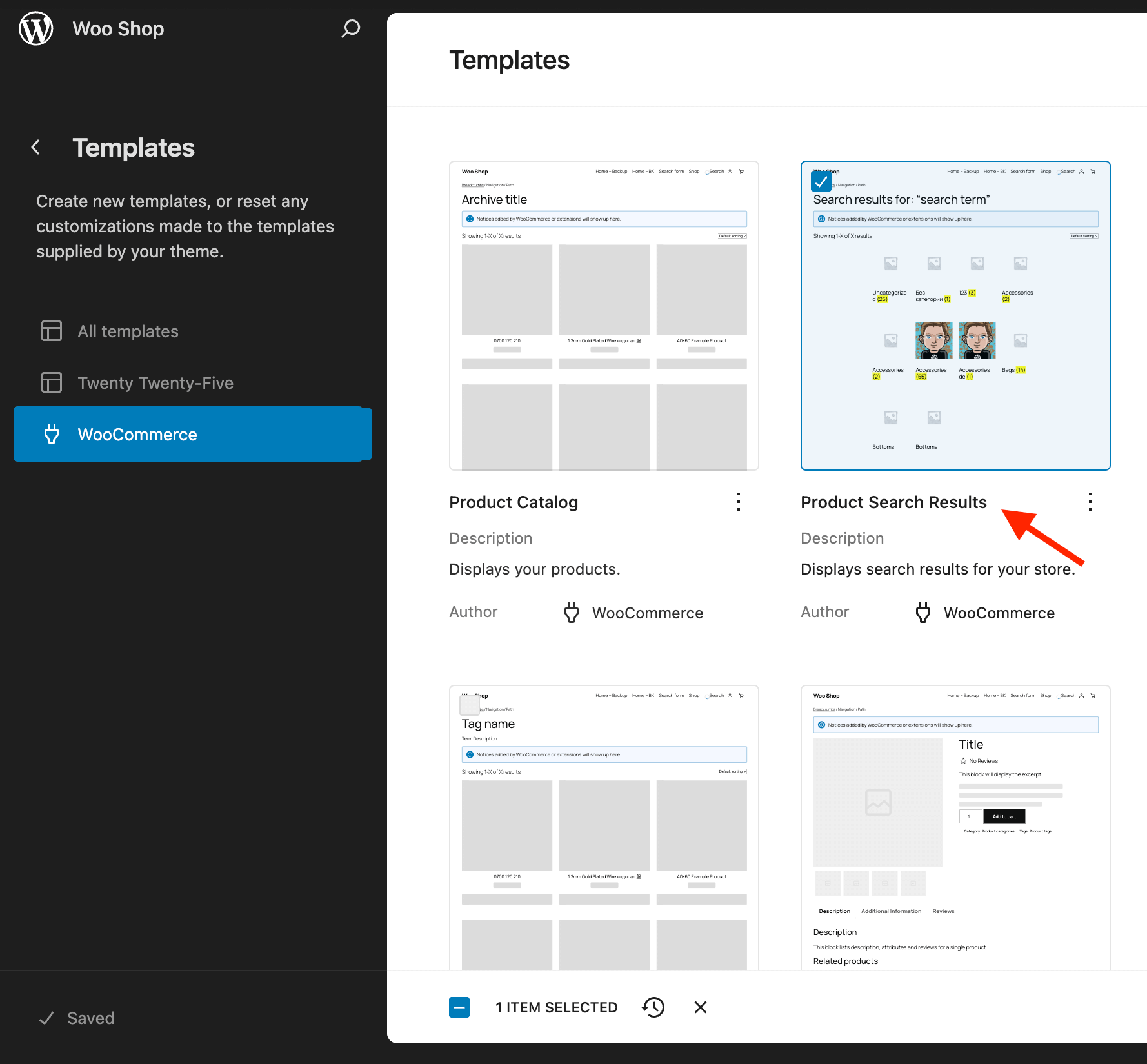
2. You are now inside the page editor for the WooCommerce search results page. The main block for this page is the Product Collection, which contains the template for each product in the results loop, as well as elements like pagination and the 'no results' text.
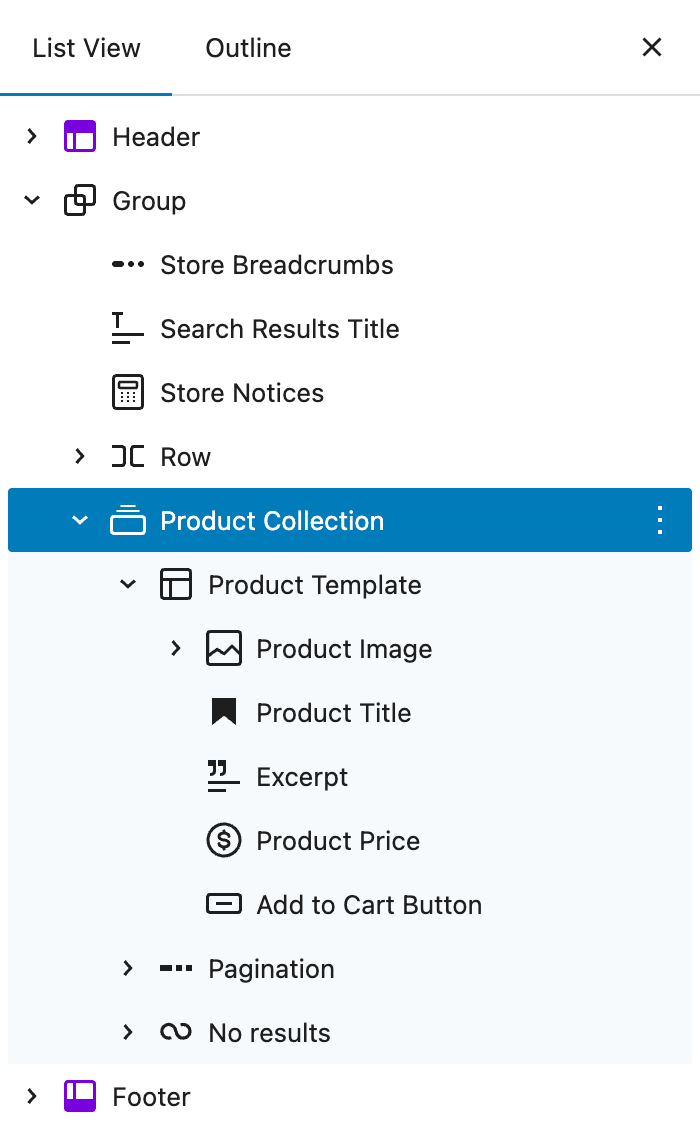
3. You can edit any element on this page. For example, if you want to hide product images from the search results page, simply remove the Product Image block from the Product Collection elements list. Then save your changes and review the search results page to ensure your customize woocommerce search results settings took effect.

In the same way, you can make other changes to the search results page - add or remove product elements, insert new blocks like filters or custom text, feature promotions, and more.
2. Elementor
Now, let's cover how to customize the WooCommerce search results page using the Elementor page builder.
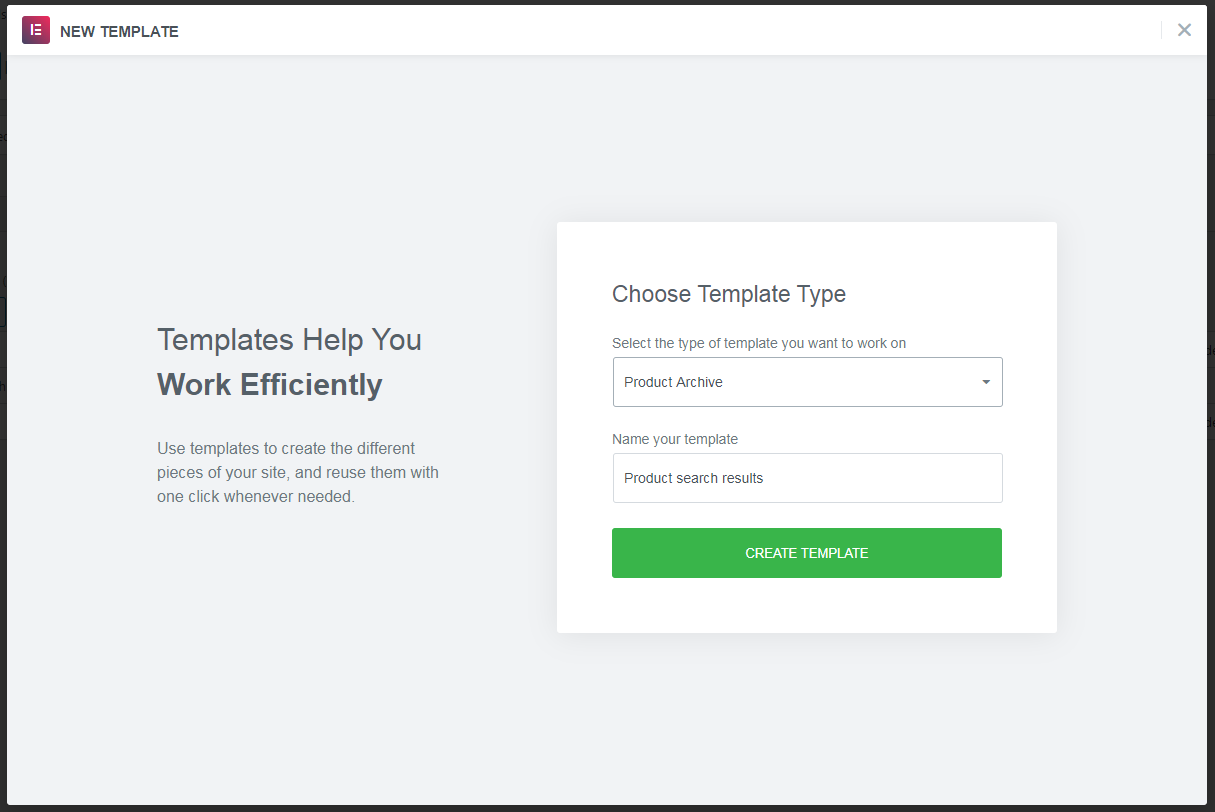
1. Navigate to Templates -> Theme Builder. Click Add New. In the pop-up, choose Product Archive as the template type and give your template a name.
2. On the next screen, choose how to build your page - from scratch or using a pre-built layout. Let's select the first option. Close the Library pop-up to begin building your search page template.
3. You are now inside the Elementor editor. From the list of available widgets, find Products under the WooCommerce category and drag it onto the page.


4. Open the Products widget settings and set the Query option to Current Query. You can also adjust options under the Content tab, such as products per row and the total number of columns.
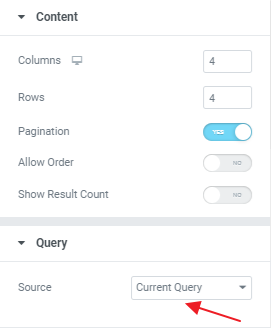
5. Additionally, you can add other elements to this WooCommerce search results template, but the Products widget is the only required element. Feel free to include titles, filters, custom content boxes, and more.
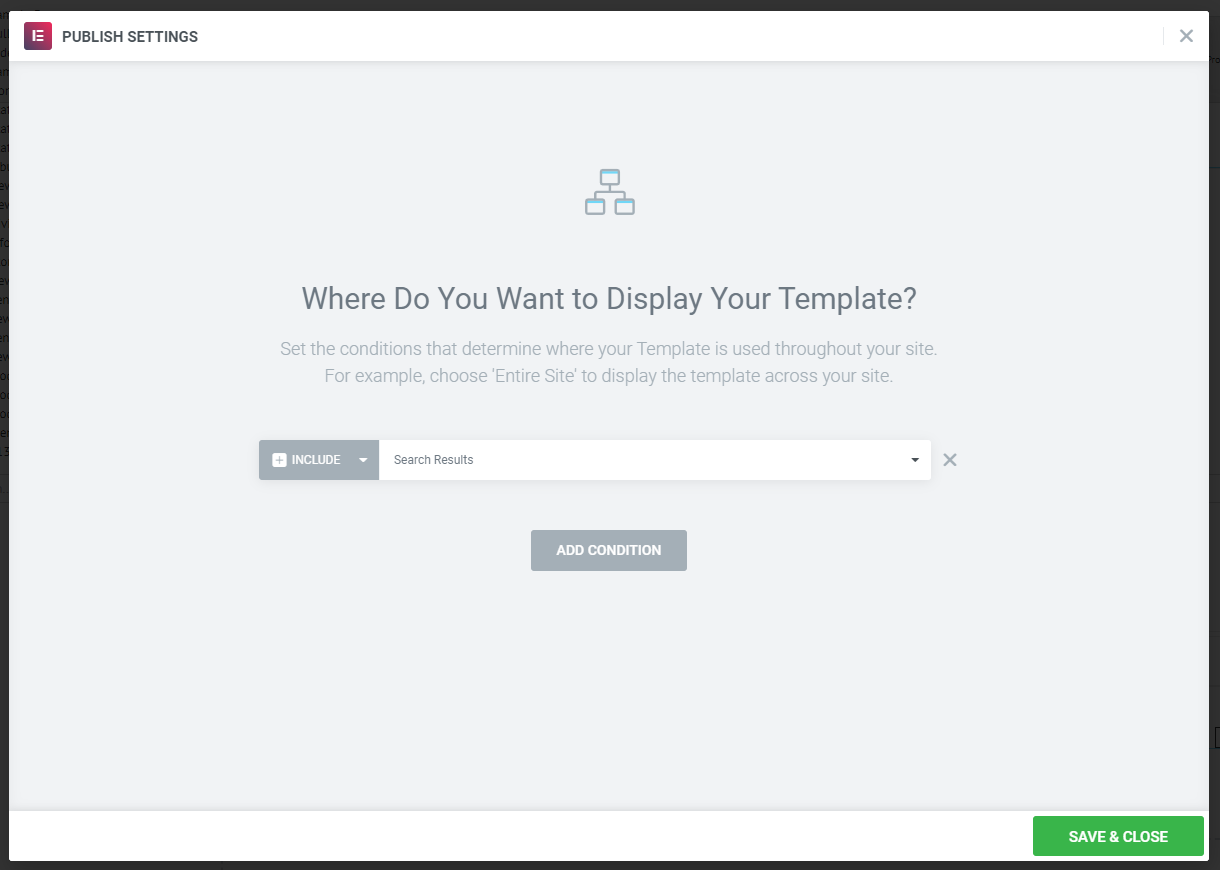
6. When you're finished, click Publish. In the Publish Settings pop-up, set the rule to Include: Search results to apply this template only to the WooCommerce search results layout.
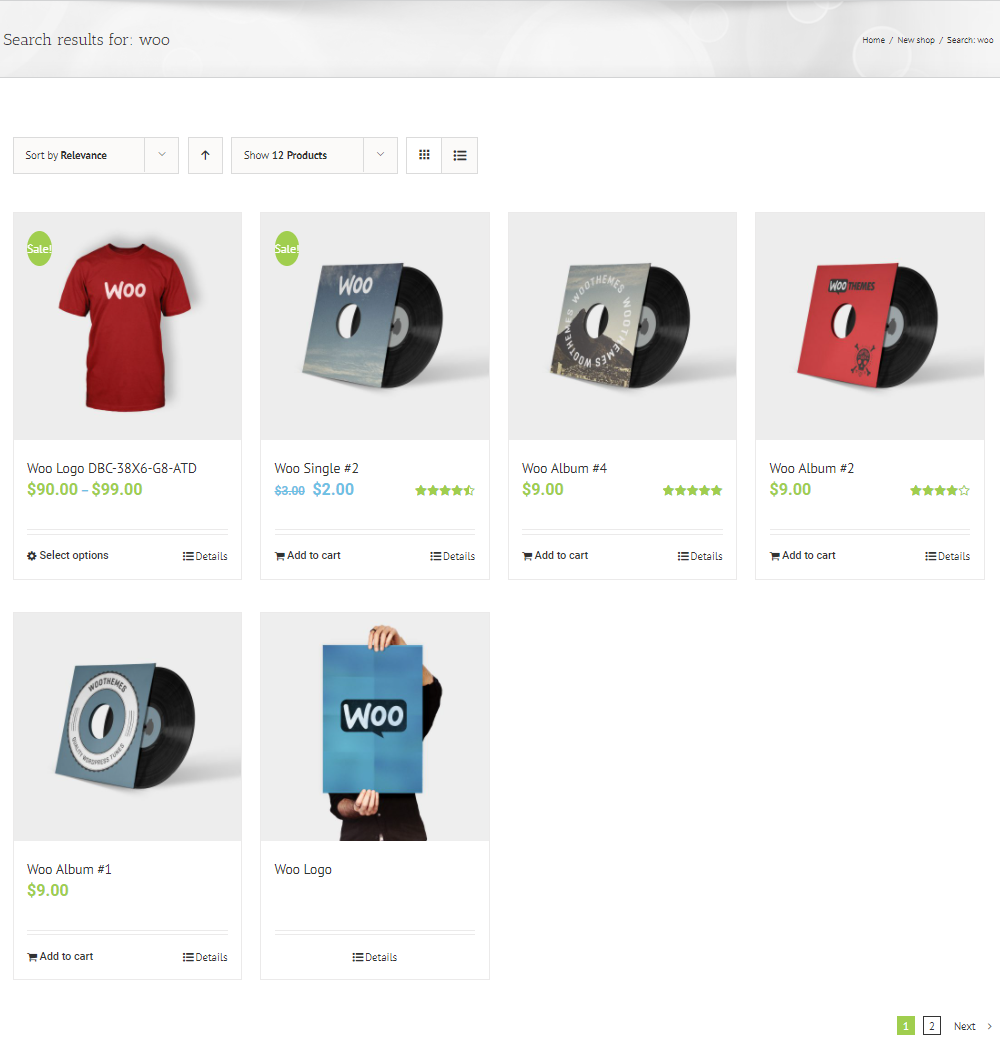
7. We're done! Check your new search page template to ensure it includes all the changes made via the Elementor page builder for WordPress search results page customization.
3. Divi builder
Now let's cover how to customize the search results page using another popular page builder - Divi Builder.
1. Navigate to Divi -> Theme Builder. Click Add New Template and select Search Results.
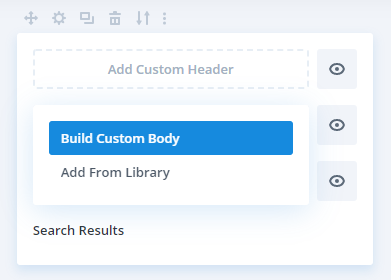
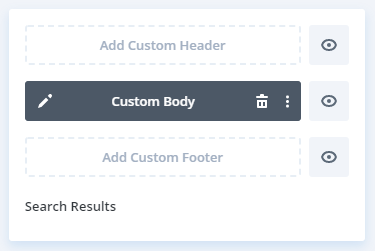
2. In the new template block, click Add Custom Body -> Build Custom Body. Then choose the Build From Scratch option to start building your new search results page.
3. In the page editor, find the Shop module and drag it onto your page.

4. Open the module settings pop-up and enable Use Current Page. Here you can also set options such as the total number of products and the number of columns.

5. The Shop module is the only required element for the search results template. Other elements are optional; you can add titles, filters, custom content boxes, and more as needed.
6. When you're finished, click Save and exit the visual builder.
7. Finish! Check your product search results page to ensure it includes all the changes you made with Divi Builder.
4. Bricks Builder
In this section, we will use the Bricks Builder plugin to customize the WooCommerce search results page.
Follow these steps to configure the search page template:
1. Go to Bricks -> Templates and create a new blank template.
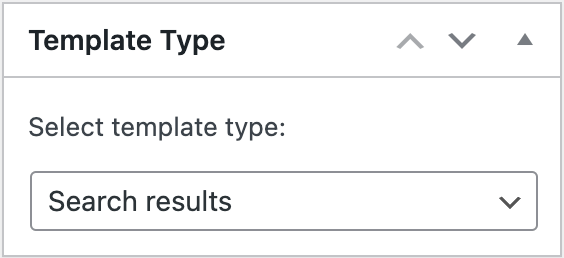
2. Give it a name and set the Template Type field to Search Results.
3. Click the Edit With Bricks button.
4. On the next page, find the Products element under the WooCommerce section and add it wherever you want the search results to appear.
5. You can adjust settings for the Products element if desired, but it's not required. Leaving the defaults will still display the search results correctly. You can also add additional elements like titles, filters, or custom content boxes.
6. Publish the new template and view the search results page. You should see your products displayed in the new layout.

5. Breakdance Builder
Breakdance is another popular page builder plugin. Follow these steps to customize the WooCommerce search results page using it.
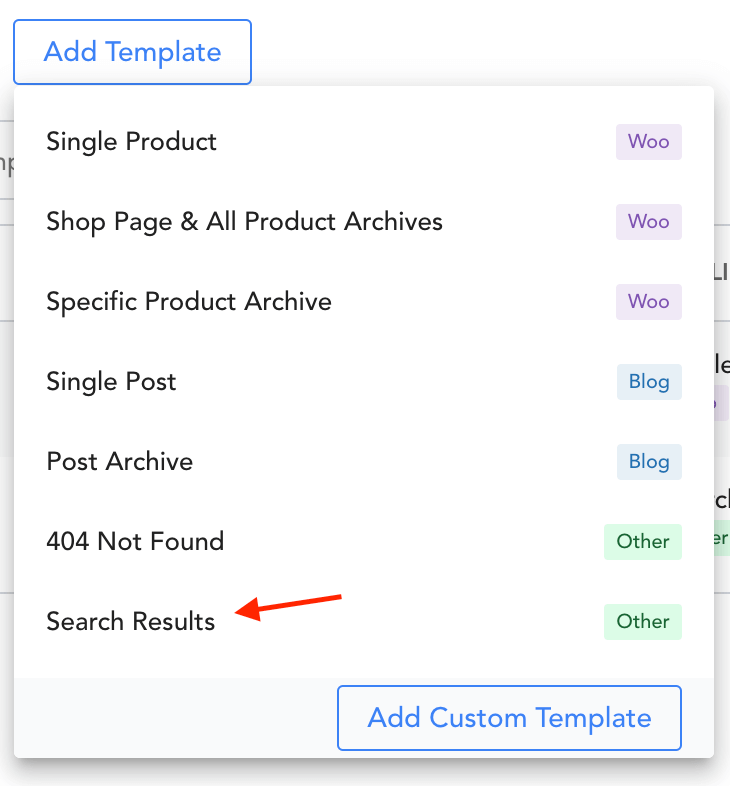
1. Go to Breakdance -> Templates and click Add Template. Create a blank template for the search results page.
2. Click Edit in Breakdance for the search results page template.
3. In the blank template, add a Products List block to the area where you want the search results grid to appear.

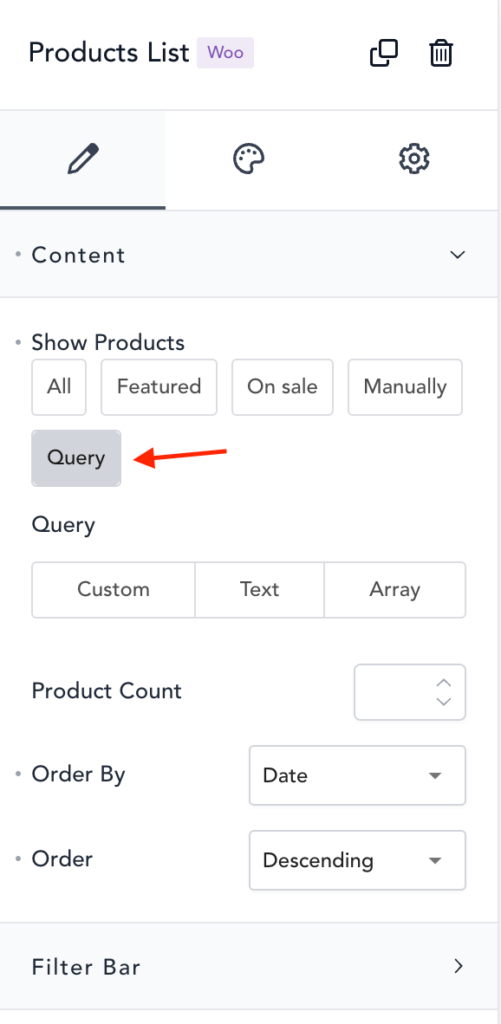
4. In the block settings, go to the Content tab and set the Query option for Show Products. Adjust other options as needed or leave them at their defaults.
5. Add any additional blocks you want, such as titles, filters, or custom content boxes, or leave just the Product List block.
6. Save your changes and check the product search results page. It should reflect the layout you built with the Breakdance Builder plugin.

6. Oxygen Builder
Let's learn how to customize the WooCommerce product search results page using the Oxygen Builder plugin.
1. Open the Oxygen -> Templates page.
2. Click Add New Template.
3. In the WHERE DOES THIS TEMPLATE APPLY? section, click Other and select the Search Results checkbox.
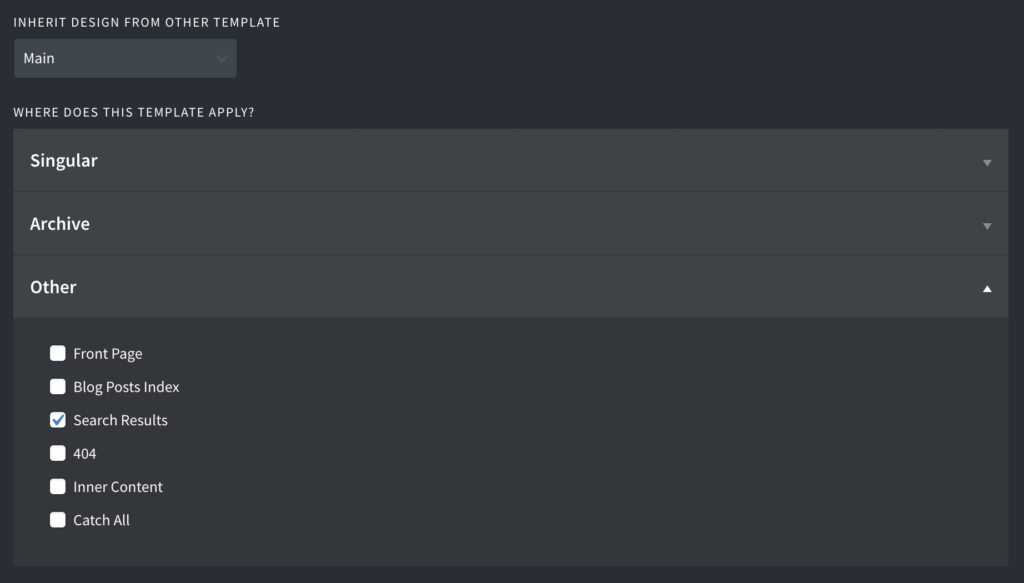
With this option, we create a new page template specifically for WooCommerce product search results.
4. On the same page, set a high value for the TEMPLATE PRIORITY option, such as 9999.
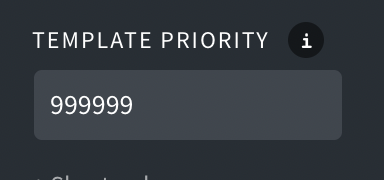
This setting is useful when multiple templates share the same display rules; the template with the highest priority takes precedence.
5. Now click the big Edit with Oxygen button.

6. Inside the editor, find the Product List block and drag it to the areas where you want the search results grid to appear.
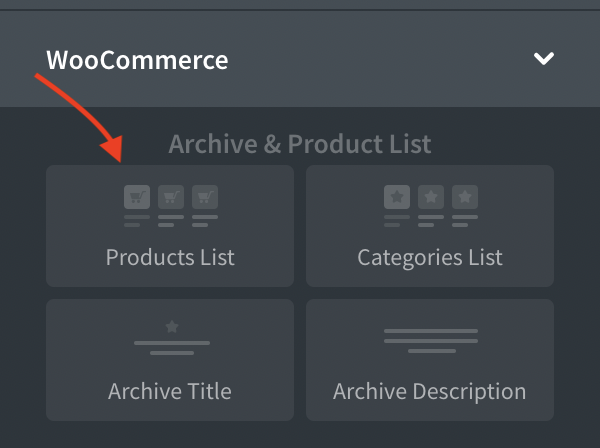
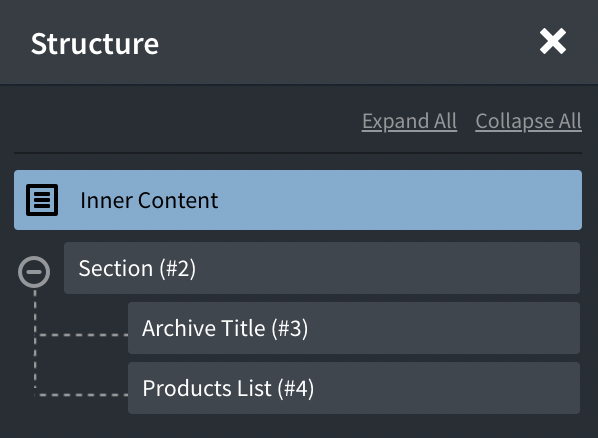
You can add additional blocks – for example, search forms, headings, or text – but it's not required and won't affect the search results page functionality.
7. When you're done editing, click Save and exit the builder.
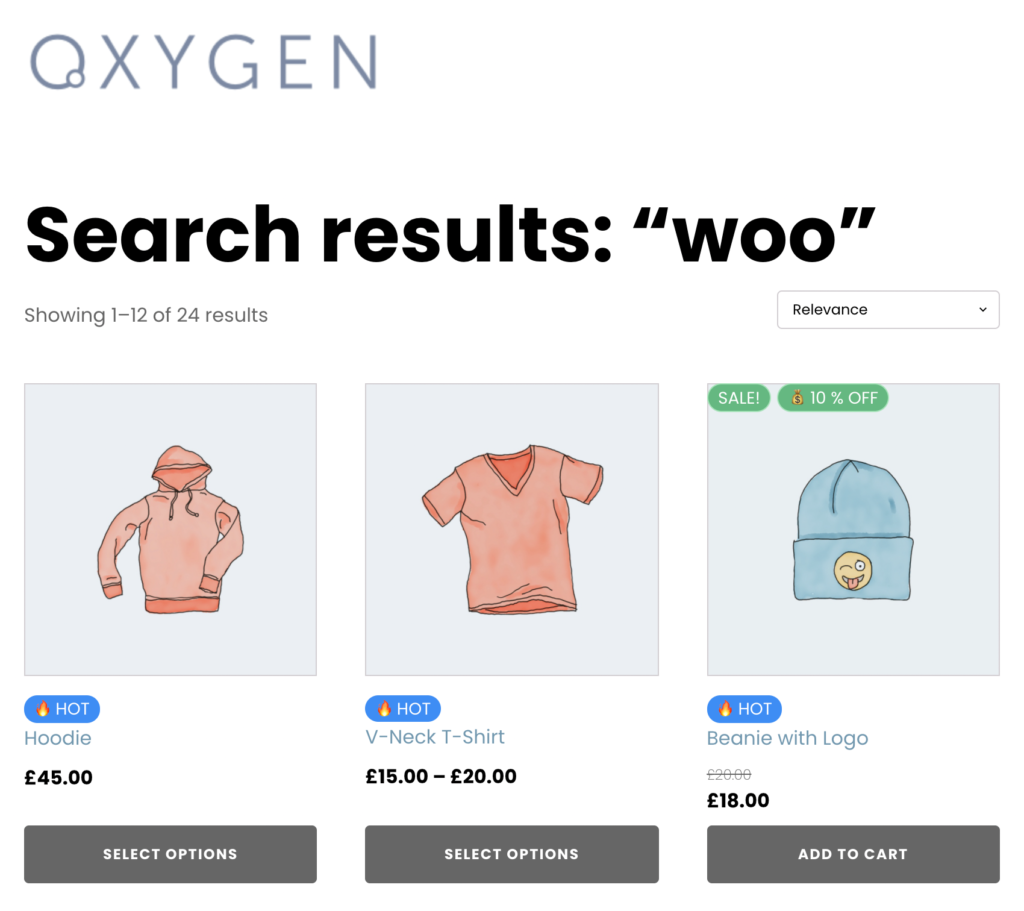
8. Done! Check your product search results page to confirm the layout and structure set via the Oxygen Builder.
7. Avada Builder
Avada is a very popular WordPress theme that includes its own powerful page builder solution - Avada Builder.
Here are the steps to customize the WooCommerce search results page with Avada Builder:
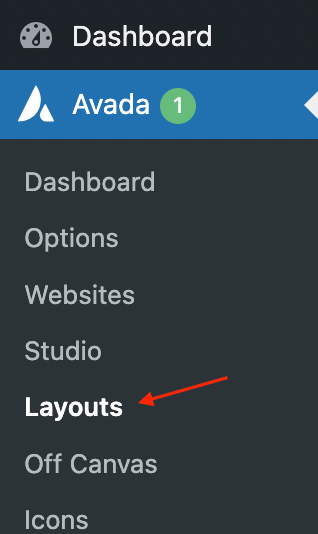
1. Open Avada -> Layouts.
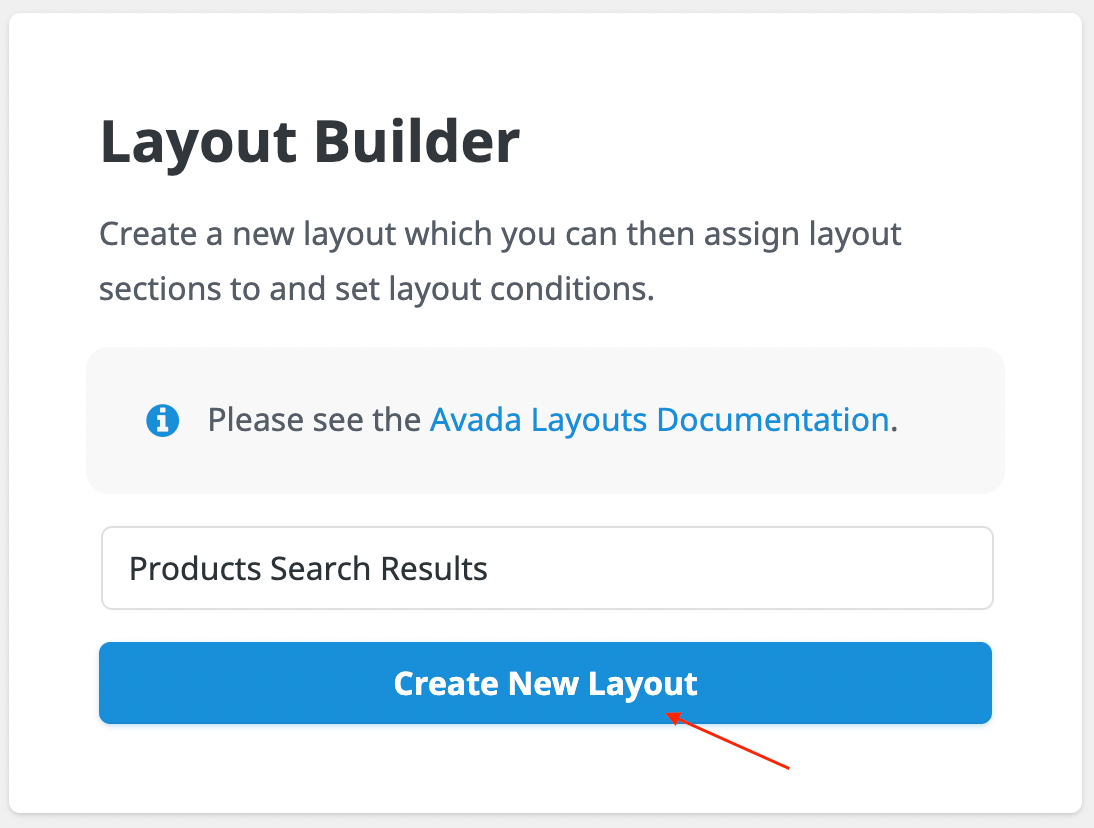
2. Find the Layout Builder box and create a new layout named Products Search Results.
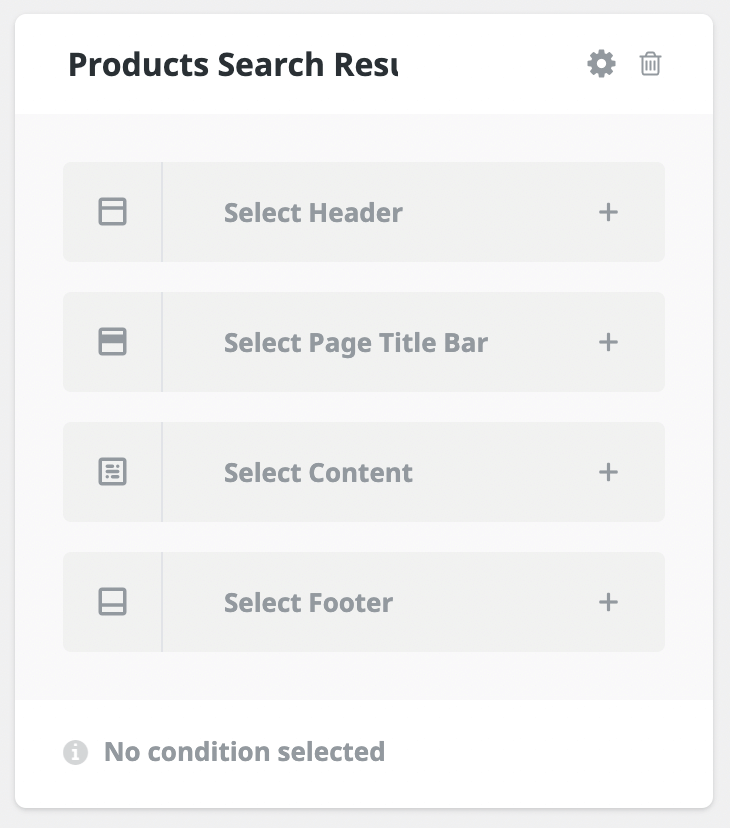
3. On the same page, locate the new Products Search Results layout. You can customize the Header, Title Bar, Content, and Footer sections separately. Our focus is the Content section, where the product search results appear. Feel free to adjust the other sections as you like; they are not covered in this tutorial.
4. Click the Select Content section and create a new section in the pop-up, for example, Products Results.
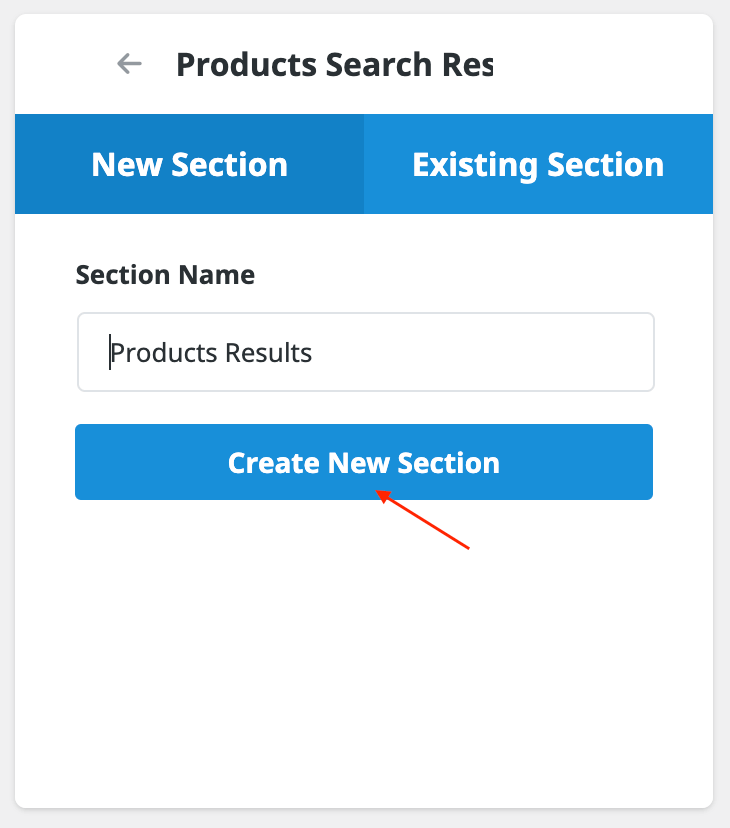
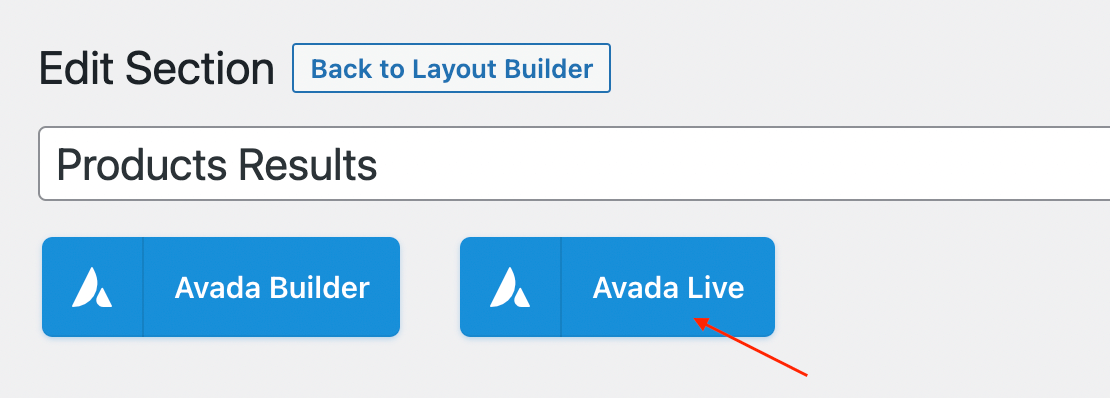
5. After creating the new section, click its edit icon to go to that page. Then click the Avada Live button to launch the front-end builder.
6. Find the Woo Archives element and place it where you want the product search results to appear. This element offers options such as the number of columns, number of products, styles, and more - configure them as desired.

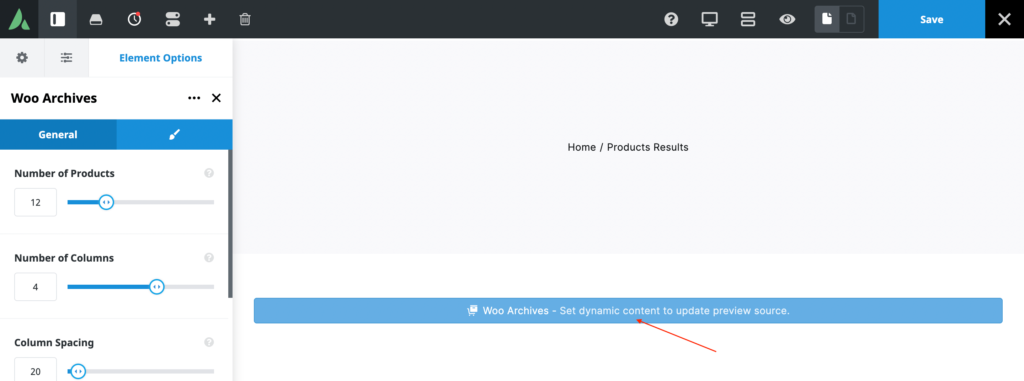
You can add any additional elements you want - titles, filters, custom content boxes, etc.
7. Click Save when you're done.
8. Return to the Layouts page. Find the Products Search Results layout and click Add a Condition at the bottom of the block.
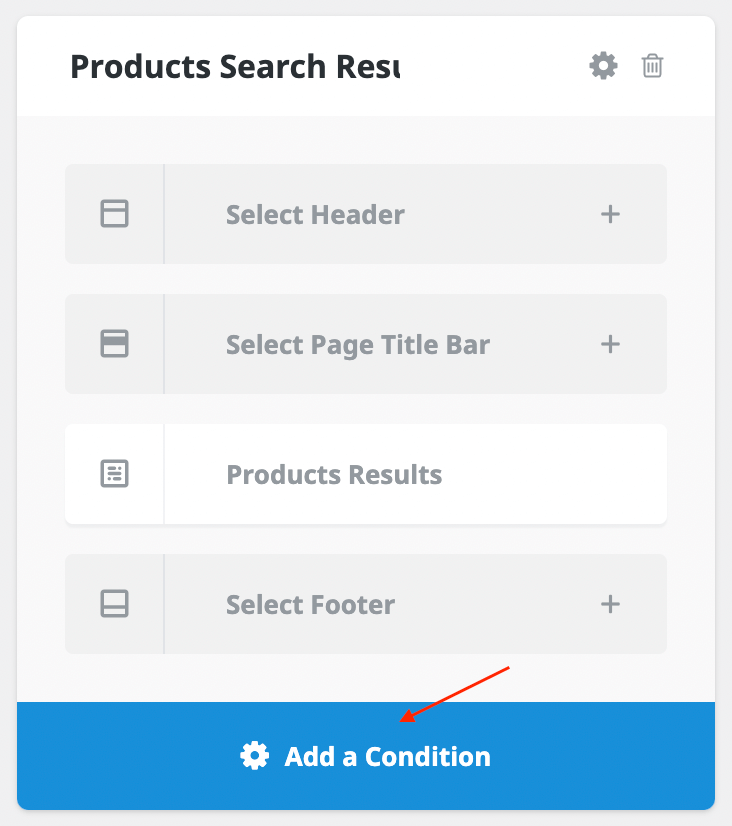
In the pop-up, select Other and choose the Search Results condition. Then close the pop-up.
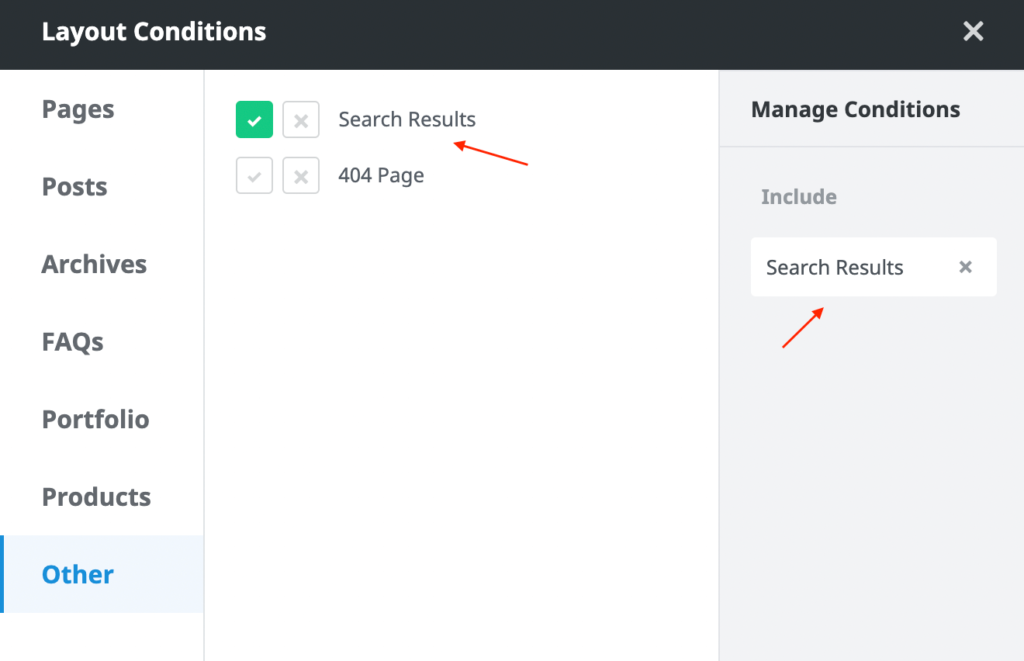
9. Done! You should now see a fresh new layout for your product search results page.
8. Flatsome UX Builder
Flatsome is another popular WordPress theme that includes its own page builder, the Flatsome UX Builder, which you can use to customize the WooCommerce search results page.
Follow these steps to configure the WooCommerce product search results page using the Flatsome UX Builder:
1. Open Appearance -> Customize. In the Customizer, choose WooCommerce -> Product Catalog.
2. In the left sidebar, you'll see all the customization options for this page template.
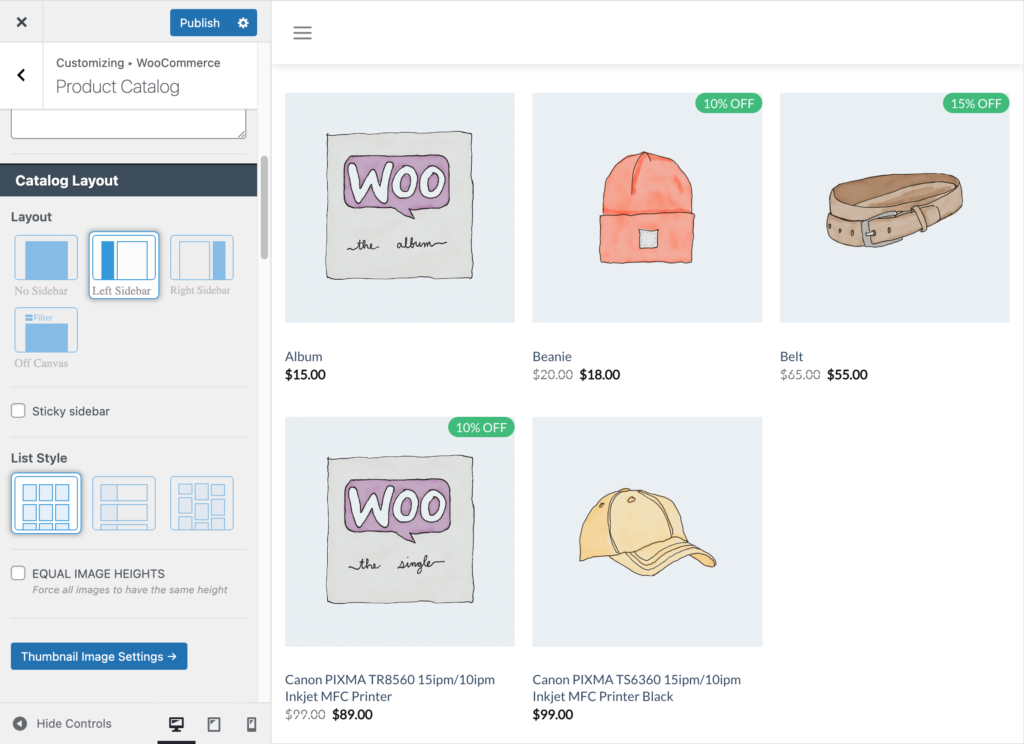
You can change the product display layout (grid or inline), sidebar position, header style, number of products, and more.
Please note that these changes will affect not only the product search results page, but also the shop, category archives, and other archive pages.
3. When you’re ready, click Publish to save your changes, then review the search results page to confirm it reflects your settings.
9. PHP template ( universal solution )
This solution is useful for advanced users or those without a page builder who want to customize the WooCommerce search results page layout via code.
Customizing the search results page via PHP depends heavily on your theme—each theme may have its own layout. We will cover the most common approach that generally applies to most WordPress themes.
The main PHP file responsible for the search page layout is archive-product.php. You can find this file in one of two locations:
- In your theme folder:
woocommerce/archive-product.php - In the WooCommerce plugin folder:
plugins/woocommerce/templates/archive-product.php
Copy that file into your child theme and modify it as needed. This ensures your changes aren’t lost when the theme or plugin updates.
If you don't have a child theme, create one first here. Then copy the file to wp-content/themes/your-child-theme/woocommerce/archive-product.php.
Within archive-product.php, preserve the loop that outputs products:
woocommerce_product_loop_start();

	if ( wc_get_loop_prop( 'total' ) ) {
		while ( have_posts() ) {
			the_post();

			/**
			 * Hook: woocommerce_shop_loop.
			 */
			do_action( 'woocommerce_shop_loop' );

			wc_get_template_part( 'content', 'product' );
		}
	}

	woocommerce_product_loop_end();
To adjust each product’s display (title, description, price, etc.), edit the content-product.php file. Copy it to wp-content/themes/your-child-theme/woocommerce/content-product.php and modify as desired.
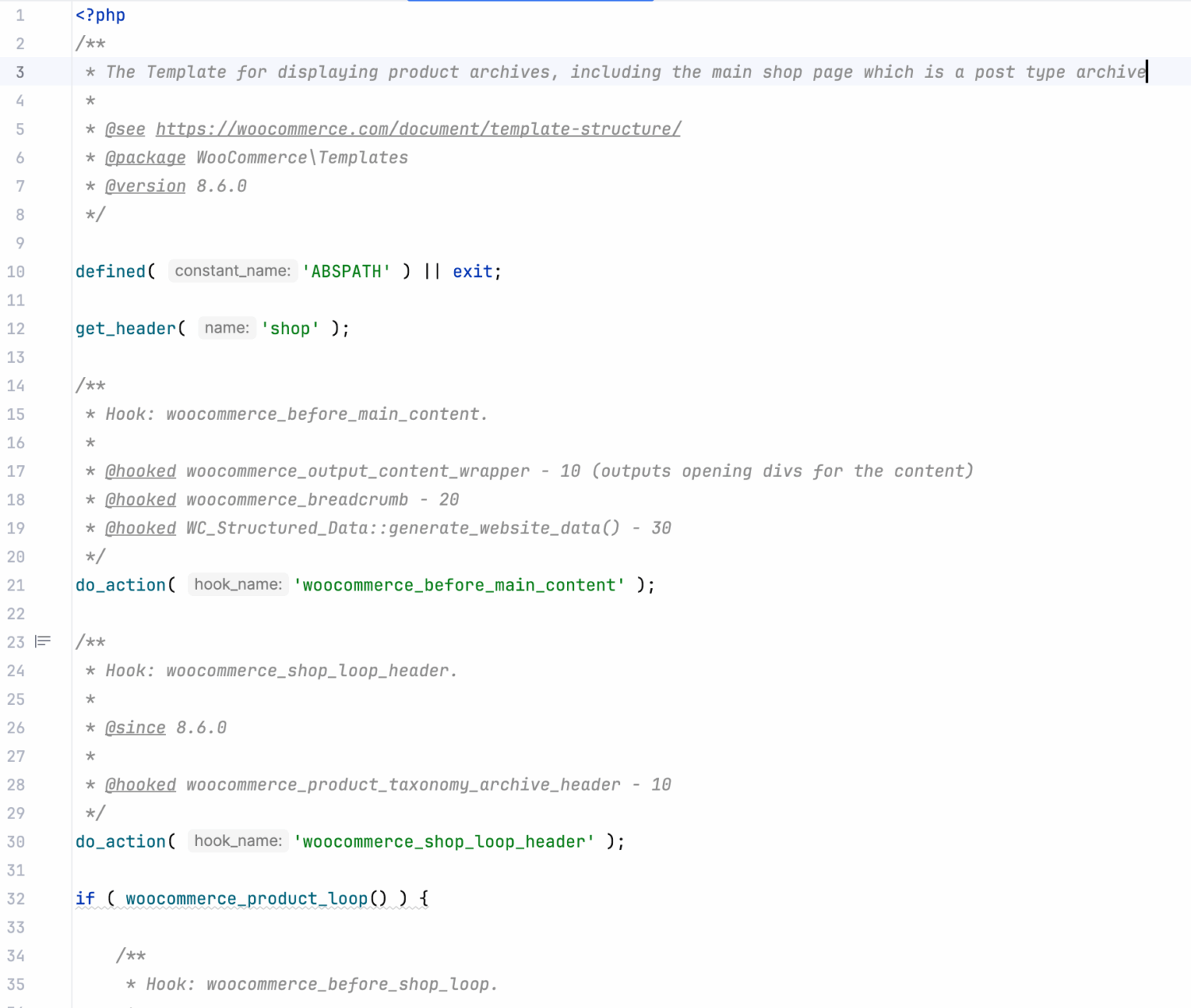
This PHP-based approach is very powerful but requires coding knowledge and a clear plan of what changes you want to make, so it may not be suitable for everyone.
Advanced: How to display categories search results
By default, the WooCommerce search results page only displays product results. But what if you want to search for product categories and display those results too?
The default WooCommerce search engine doesn’t support that. You can add a static categories block via page builders, but it won’t show dynamic results relevant to the current query.
The solution is to use the Advanced Woo Search plugin. It allows you to search and display not only WooCommerce products but also product taxonomies.
For more details, check out this tutorial:
- How to display product category results in the WooCommerce search results page
https://advanced-woo-search.com/blog/how-to-display-product-category-results-in-the-woocommerce-search-results-page/

Conclusion
Customizing the WooCommerce search results page is key to delivering a refined shopping experience. Whether you prefer the Block Editor, Elementor, Divi, or direct PHP coding, there’s a solution to match your skill level and requirements for a custom WooCommerce search results page and WooCommerce search customization.
FAQ
How can I add filters to the search results page?
You can add filters by using a dedicated product filter plugin (like FacetWP or JetSmartFilters) or by using your page builder’s filter blocks. For example, in Elementor, you can use the “Filter Products” widget and configure it to match the current query. With Gutenberg, install a block-based filter plugin and insert the “Product Filter” block above your product grid. You can also use the default WooCommerce filtering widgets.
Is it possible to include non-product content (blog posts, FAQs) in search results?
It is possible to display only product search results ( and product taxonomies in some cases ) inside the WooCommerce search results page. With some page builders you can also add blocks to display content like blog posts, pages, FAQs, etc - but usually they will show only static results that are not correlated to the current search query.
What about other page builders that wasn't mentioned in this article?
Many other page builders support dynamic templates for search results. For example, Beaver Builder, Thrive Architect, and WPBakery Page Builder all allow you to create custom archive templates and insert product loops. Check your builder’s documentation to learn more.
Can I show product variations search results inside WordPress search results page?
Yes, you can include product variations into search results page with Advanced Woo Search PRO plugin. Learn more about this in this post: How to Search and Display WooCommerce Product Variations.
Comments