
This article explains how to add quick search buttons to your WooCommerce product search results page. These buttons allow customers to instantly refine their search with one click, improving both usability and conversion rates.
We will cover several ways to add quick search buttons using different methods, such as Gutenberg blocks, Elementor page builder, default WordPress widgets, shortcodes, and PHP code (for advanced users).
For the search functionality, we will use the powerful Advanced Woo Search (AWS) plugin.
Some related blog posts:
- How to shop categories search results inside search results page. Learn more.
- How to create search experience similar to Amazon.com. Learn more.
- How to fix misspellings and typos for WooCommerce search results. Learn more.
What Are Quick Search Buttons?
Quick search buttons are pre-configured buttons that, when clicked, automatically trigger a specific product search query. They are a convenient tool to guide users toward popular, seasonal, or filtered product lists without typing anything into the search field.
Example of use:
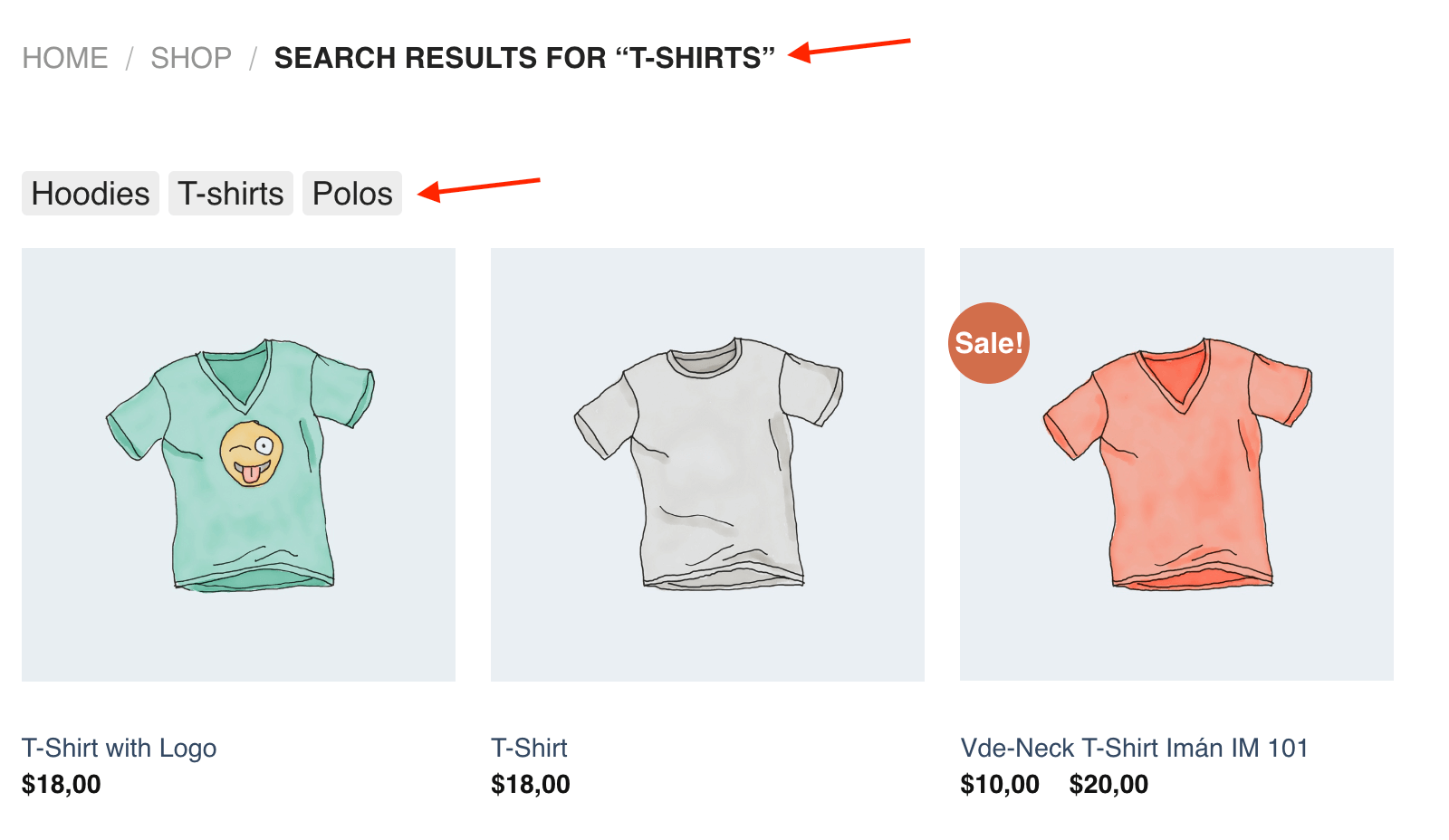
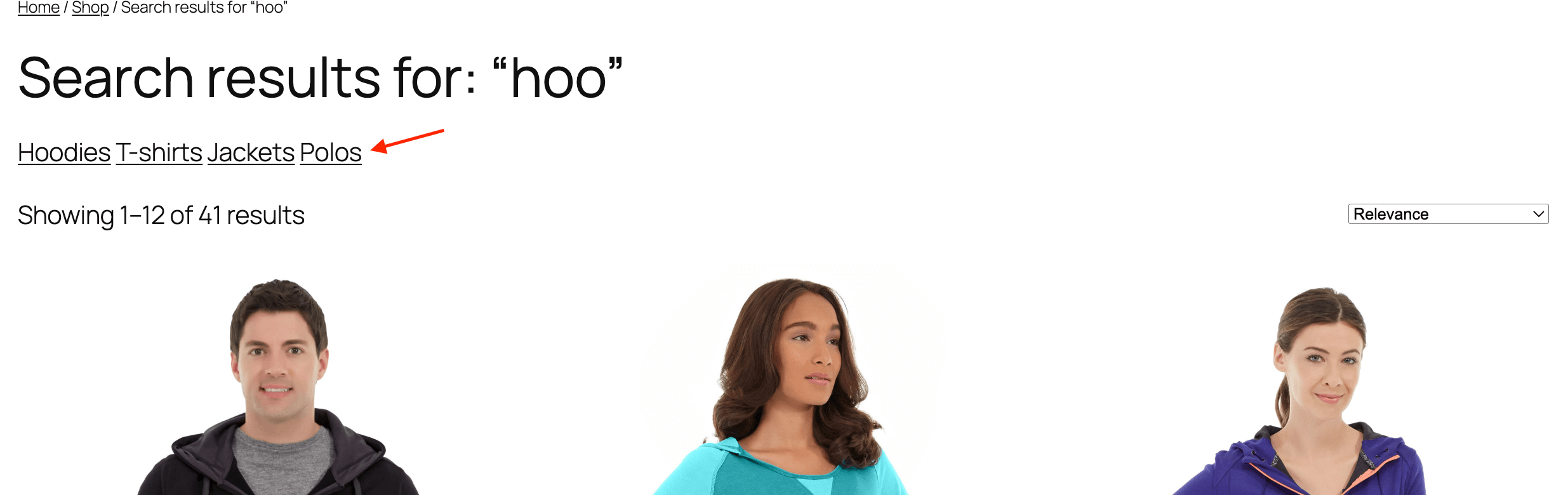
When a user is on the Hoodies search results page, they will see quick search buttons like 'Hoodies', 'T-shirts', 'Polos', etc. This allows users to make more specific search queries and receive more relevant results.
Why Do You Need Quick Search Buttons on the Search Page?
Quick search buttons can significantly improve the shopping experience for users. Here's why:
- Faster navigation: Customers can jump directly to popular product segments.
- Increased visibility: Promote trending items or high-margin products.
- Relevant search results: These buttons allow narrowing down to user-specific search queries and showing relevant results.
- Increase conversion: Showing more accurate search results for each user guarantees the best possible conversions.
- Mobile-friendly: Easier interaction on small screens.
As you can see, adding these buttons is a great solution for every eCommerce store.
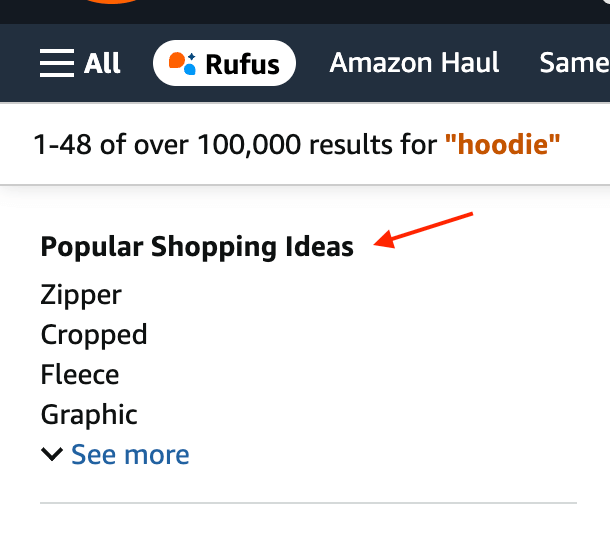
If you're still not convinced – just look at Amazon.com, the leading eCommerce site. Searching for items like Hoodie will show quick search buttons for Zipper Hoodies, Cropped Hoodies, etc.
If such large and popular sites use this feature, they know what they're doing, and so should you.
Steps to Add Quick Search Buttons to Your Store
Now that we've learned what quick search buttons are and why they are important, let's learn how to add them to your WooCommerce store's search results page.
Broadly speaking, the entire process can be divided into two steps: configuring your store's search engine and its settings, and adding quick search buttons to the WooCommerce search results page.
Below we will cover both these steps in detail.
Step 1: Prepare Your Store
First, we need a robust search engine for our WooCommerce store that supports quick search buttons as well as many other useful features like search in different product fields, AJAX live search, search filters, and more.
Advanced Woo Search is a plugin that has all these (and even more) features out of the box. In this step we will cover how to properly configure it before adding quick search buttons.
1. Install and activate the Advanced Woo Search PRO plugin.
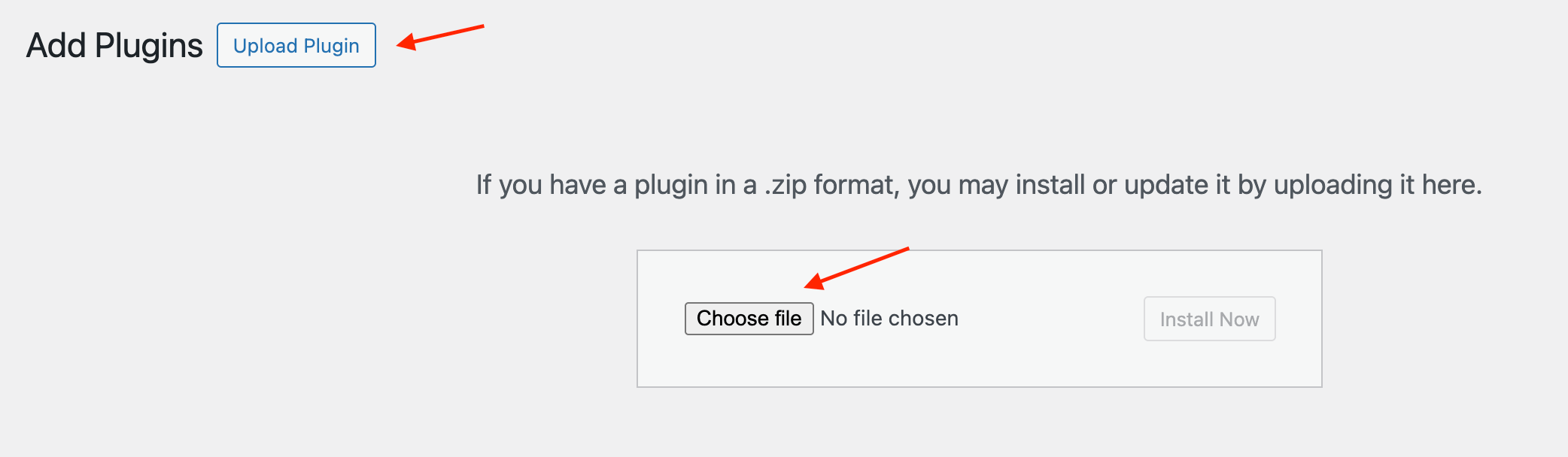
After purchasing the plugin, you will receive an email with a .zip file. Download the .zip file. Then go to the WordPress admin dashboard → Plugins → Add New and click the Upload Plugin button. Select the .zip file and activate the plugin.
2. Activate license key
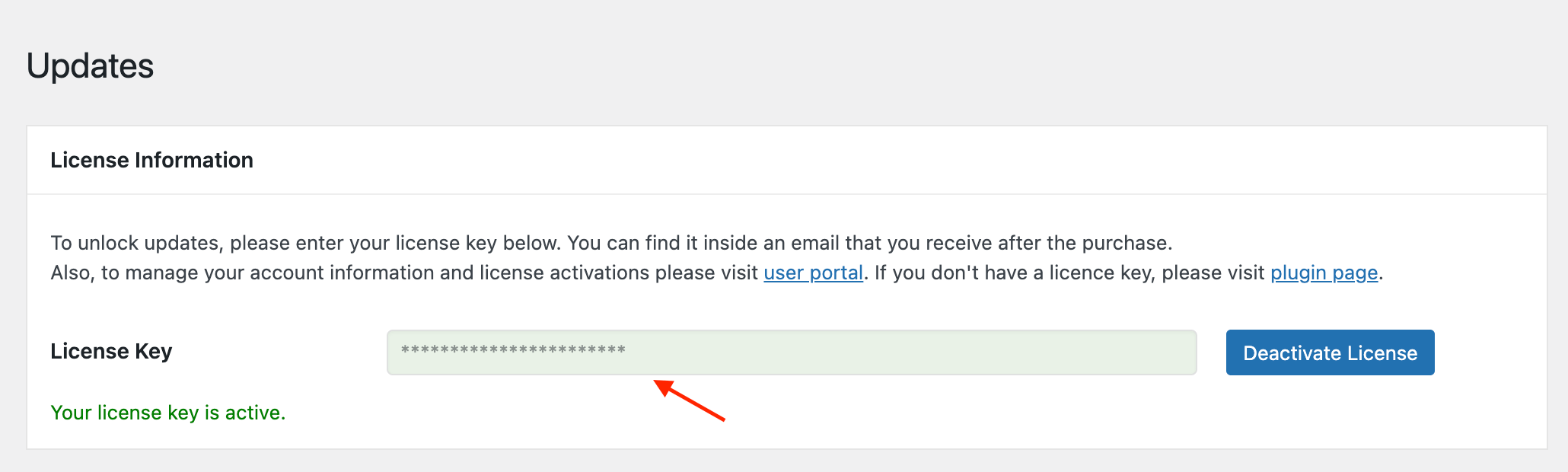
Go to Adv. Woo Search → Updates page and activate your license key. The license key can be found in the same email with the plugin download files.
3. Index products data
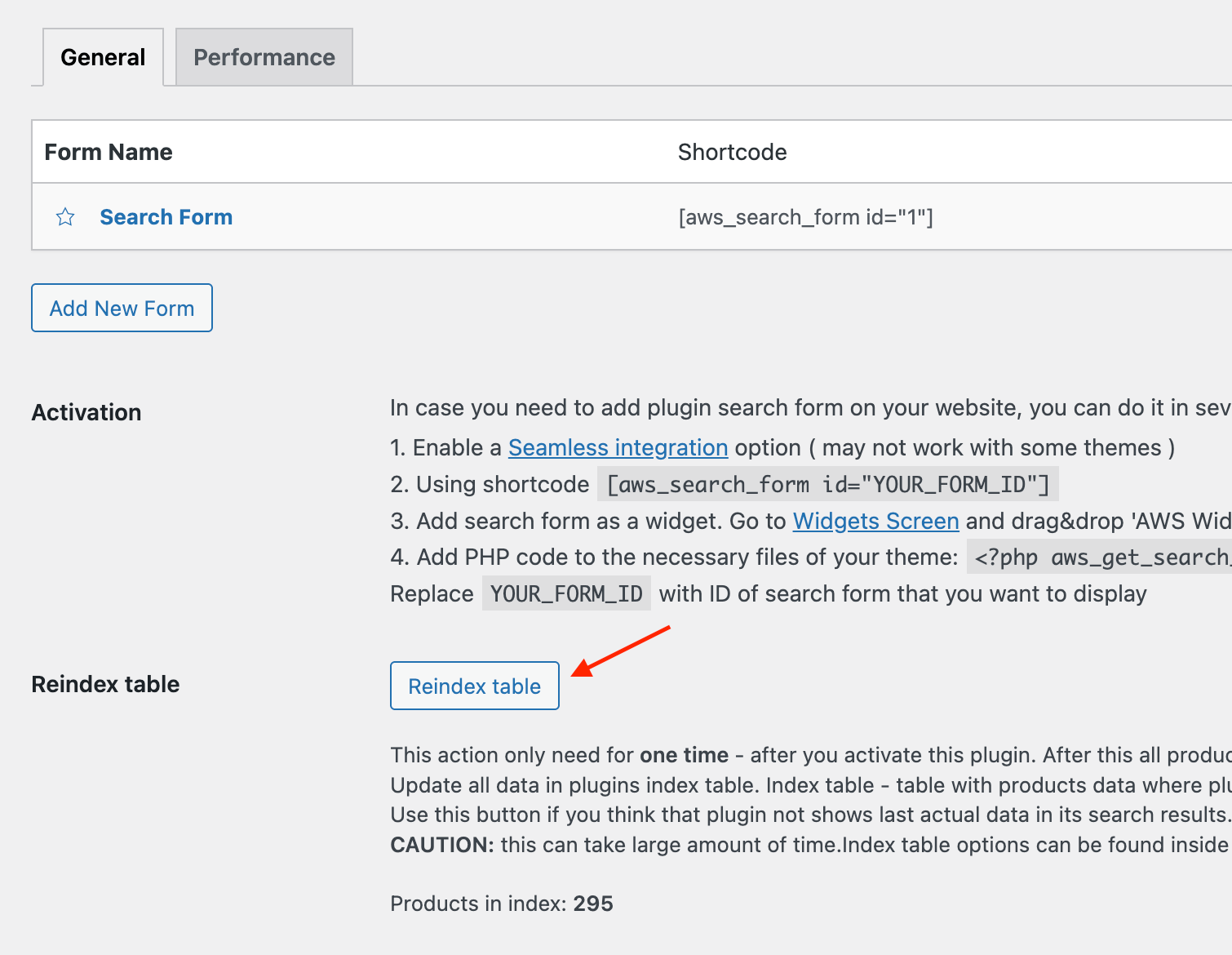
Go to the Adv. Woo Search main settings page, find and click the Reindex Table button. Wait until reindexing is finished (this may take time for stores with many products).
4. (optional) Configure other plugin settings
Optionally, you can configure other plugin settings such as search fields, styling, search output, and more. This step is not necessary and does not affect how quick search buttons are added.
Step 2: Add Quick Search Buttons to the Search Results Page
Now that we have finished setting up the Advanced Woo Search plugin, we can start adding quick search buttons to the WooCommerce search results page.
First, let's decide which search terms we want to use for the quick search buttons. These buttons will be visible on all search results pages, so they should represent common, popular search queries.
For our example, we will add quick search buttons for Hoodies, T-shirts, Jackets, and Polos. You can choose any search terms you prefer.
Now we just need to add those buttons. There are several ways to display quick search buttons. We will cover the major methods:
- Gutenberg: Use the WordPress block editor and the Shortcode block.
- Elementor: Use Elementor page builder and customize the WooCommerce search results template.
- Widgets: Add a text or HTML widget to a sidebar or content area.
- Shortcodes: Use custom shortcodes; can be used with any page builder or text editor.
- PHP Code: Add buttons programmatically using hooks inside your theme’s functions.php.
Adding via Gutenberg (WP block editor)
First, make sure your theme is block-based and allows customization of the WooCommerce search results page. Go to Appearance → Editor. If you see a list of templates here, your theme is block-based.
Follow these steps:
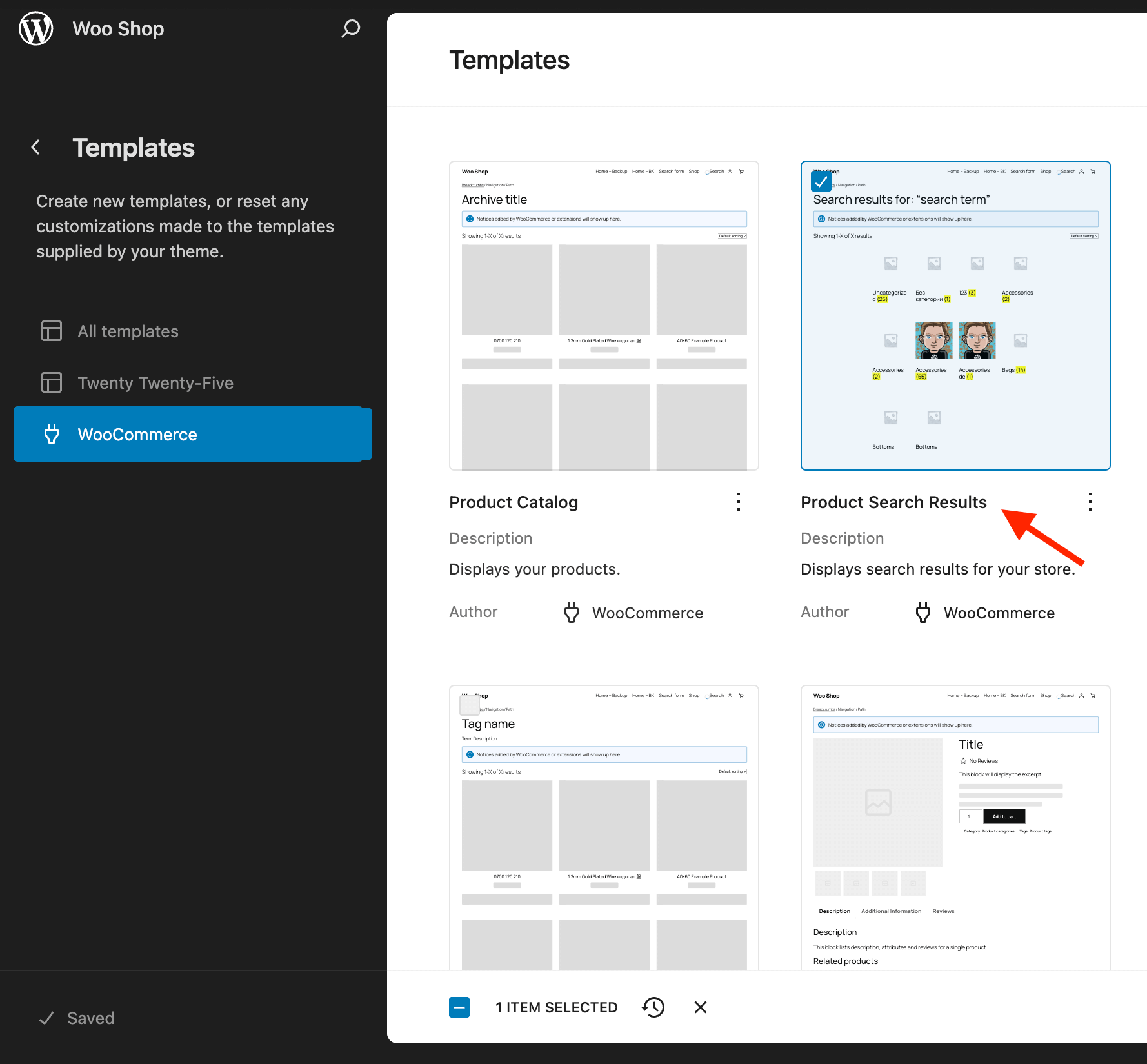
1. Navigate to Appearance → Editor and open the Product Search Results template.
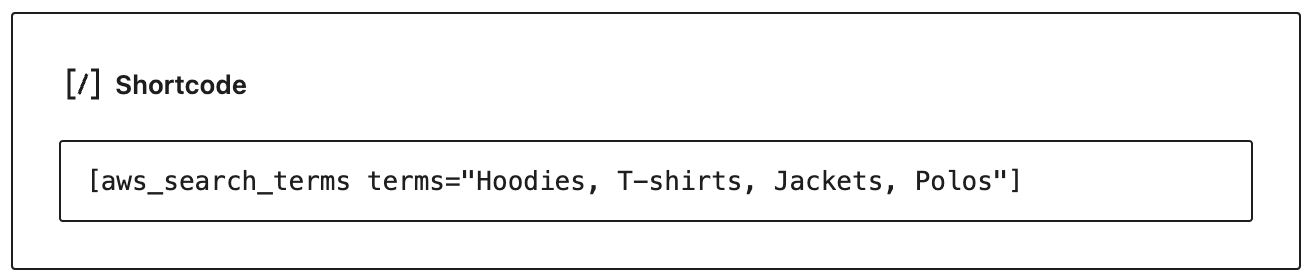
2. Add the Shortcode block above the products block. As the content for this block, enter:
[aws_search_terms terms="Hoodies, T-shirts, Jackets, Polos"]
3. Save your template and view the WooCommerce search results page. Quick search buttons should now appear above the products. Clicking any button will redirect the user to a new search results page for that query.
Adding via Elementor
Now, let's cover how to add quick search buttons using the Elementor page builder.
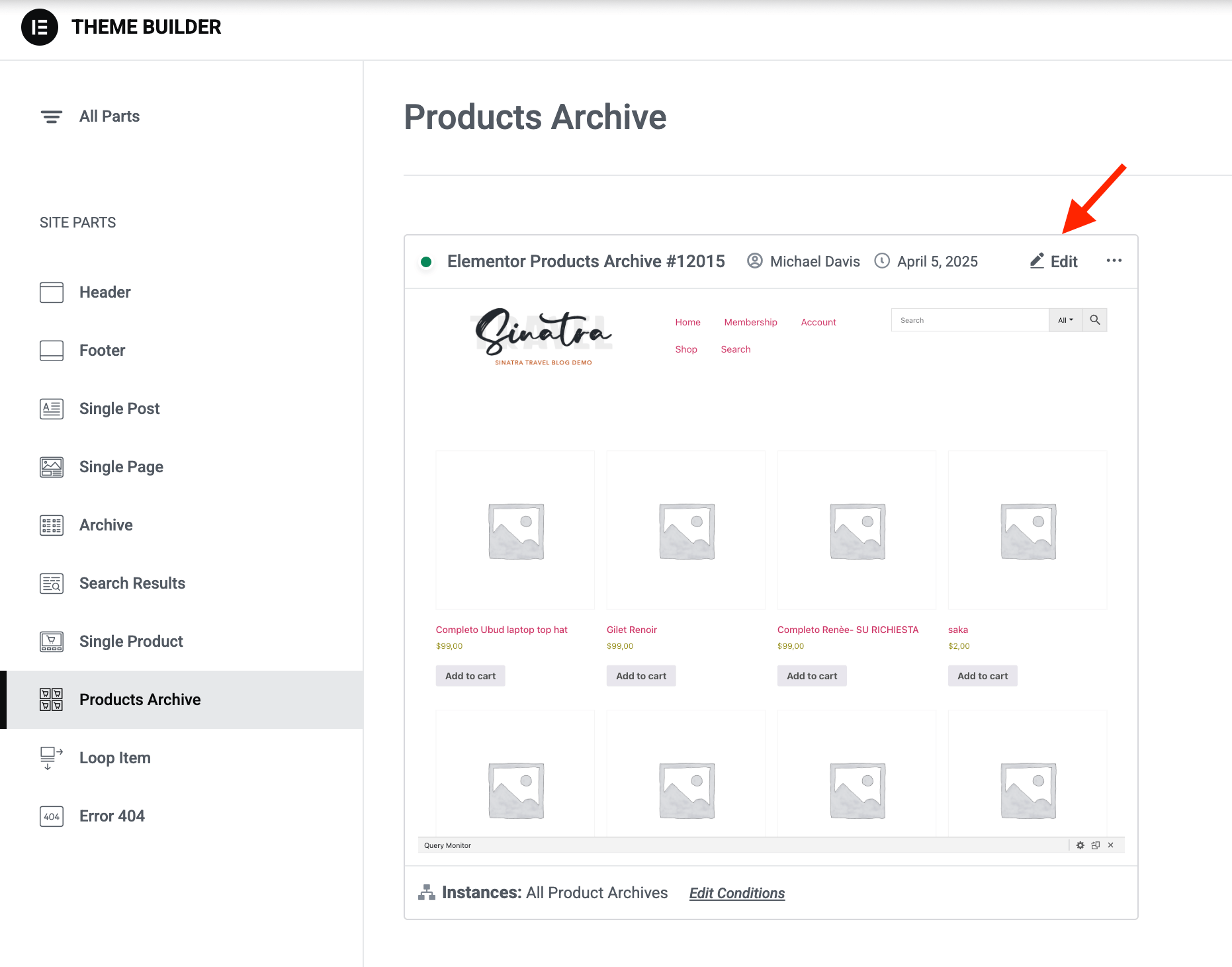
1. Go to Elementor → Templates → Theme Builder.
2. Find the Product Archive template and click “Edit.” If you don’t have one, follow this guide to create it.
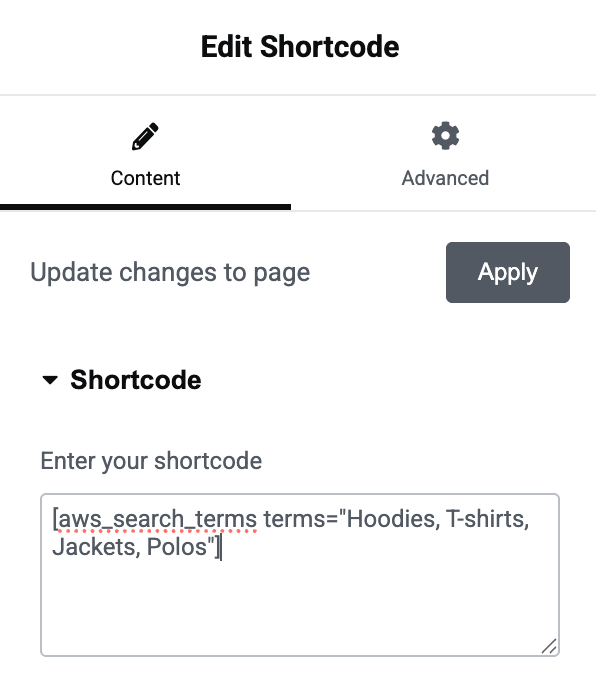
3. In the editor, add the Shortcode widget above the product results. For its content, enter:
[aws_search_terms terms="Hoodies, T-shirts, Jackets, Polos"]
4. Save your template and view the WooCommerce search results page. Quick search buttons should now appear above the products. Clicking any button will redirect the user to a new search results page for that query.

Adding via widgets
If your theme provides widget areas on the WooCommerce product search results page, the simplest solution is to use a text widget with the quick search buttons shortcode.
Follow these steps:
1. Open Appearance → Widgets.
2. Find the widget area related to the search results page.

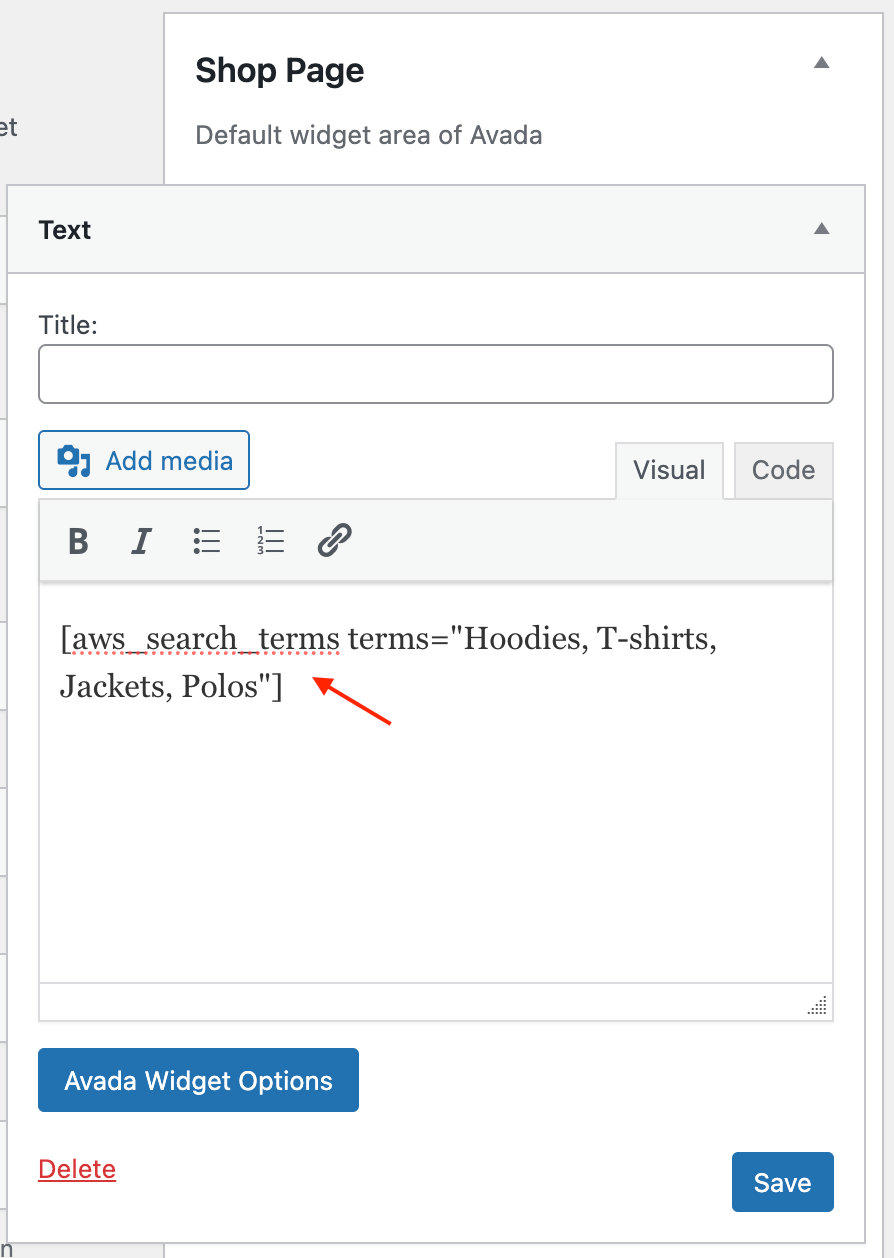
3. Add a new Text widget to this area.
4. For the widget’s content, use the following shortcode:
[aws_search_terms terms="Hoodies, T-shirts, Jackets, Polos"]
Adding via shortcode
This solution is useful for those using a page builder not covered here or the plain WP editor.
All you need to do is add the following shortcode to the WooCommerce search results page:
[aws_search_terms terms="Hoodies, T-shirts, Jackets, Polos"]
You can add it via a shortcode block in your theme builder, a text widget, the text editor, etc. Choose the method that suits your theme and plugins.
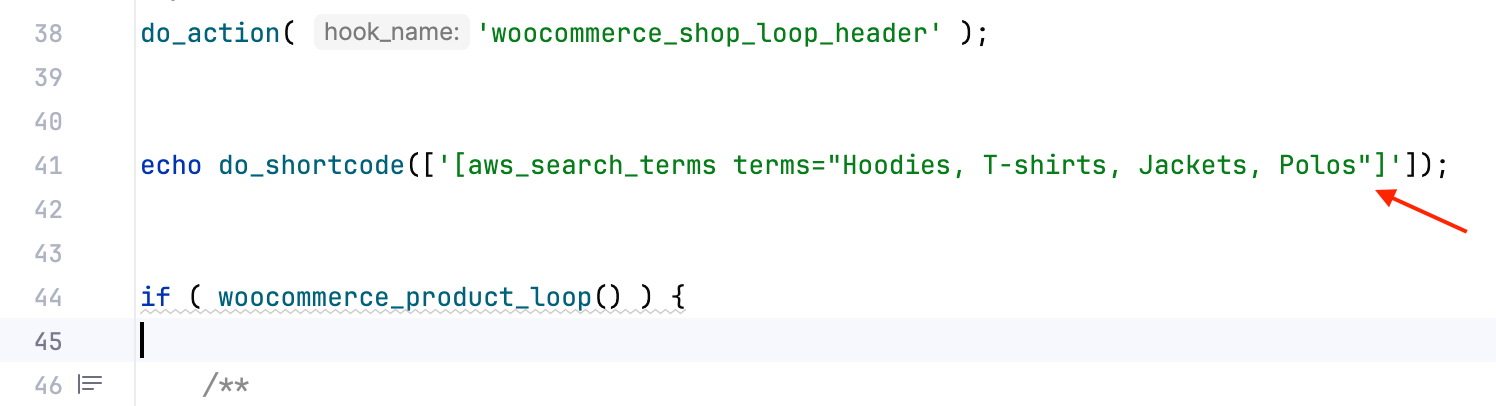
Adding via PHP code
This solution is for advanced users: manually add PHP code to the appropriate theme PHP file. It's useful when your site doesn't have a page builder plugin or widget areas on the WooCommerce search results page.
First, locate the PHP template for the product search results page. By default, this template is in your theme folder under woocommerce → archive-product.php, but this may vary depending on your theme's structure.
Then, add the following code snippet to the desired location in that template:
echo do_shortcode(['[aws_search_terms terms="Hoodies, T-shirts, Jackets, Polos"]']);
How to Change Styles for Quick Search Buttons
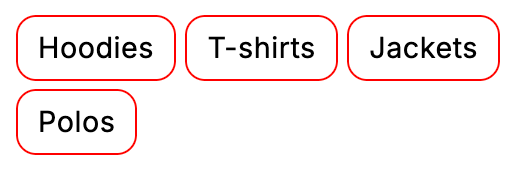
By default, quick search buttons use the same styles as the WordPress default Tag Cloud widget.
The markup for these buttons looks like:
<div class="aws_search_terms tagcloud">
<a href="#" class="aws_term_suggestion">Item 1</a>
<a href="#" class="aws_term_suggestion">Item 2</a>
...
</div>
If you need to customize the styles for these quick search buttons, simply add the necessary CSS rules.
Example: To make the button border rounded, change its border color to red, and adjust the background and text styles, you could use the following CSS.
.aws_search_terms.tagcloud a {
    color: #000;
    border-radius: 10px;
    border-color: #ff0000;
}
Bonus: Adding Quick Search Buttons to Any Other Page
In this article, we covered how to add quick search buttons to the WooCommerce search results page since it's the most logical location, but that doesn't mean it's the only place to use them.
You can add quick search buttons anywhere on your site. When a user clicks any of these buttons, they will be redirected to the WooCommerce search results page for the selected query.
For example, you might add quick search buttons to your main shop page to promote specific products or categories.
Example: add buttons like 'men's clothing', 'women's clothing', and 'children's clothing' to the shop page. This gives users the option to quickly search for the product types they need.
Conclusion
Adding quick search buttons to your WooCommerce store is a simple but powerful way to boost your store's usability and engagement. Whether you're targeting seasonal trends, highlighting bestsellers, or offering convenient filters, these buttons make it easier for your visitors to find what they’re looking for in just one click.
With careful use, quick search buttons can be a powerful solution for your WooCommerce store that drives both sales and user engagement.
FAQ
Can I add same quick search buttons to trigger ajax live results?
Yes, since Advanced Woo Search plugin support live ajax search you can add quick search buttons to trigger that live search. More datails can be found here: Add Quick Search Buttons For Search Form.
Can I add quick search button inside ajax live results?
Yes, it is possible. Please read this article: Add Quick Search Buttons For Search Results.
Can I display some search suggestions based on current search query?
Yes, this is one of the features of the PRO plugin version - you can add search suggestion for both live search results and search results page. Difference with quick search buttons is that search suggestions are generated automatically based on current search query and your store products. More info: Search Suggestions.
Can I create quick search buttons dynamically?
Yes, it is possible. In our example we add some search terms for quick search buttons manually, but you can do the same automatically. In this case you will need to use php code snippet method to add quick search button and also has some custom code to generate needed search terms.
Comments