
Accurate shipping rates build trust and help customers complete their purchases. Flat-rate or zone-based methods often cause problems by overcharging nearby customers or undercharging distant ones.
Distance-based shipping solves this by calculating delivery costs based on how far the customer is from your store. It gives shoppers fair, transparent pricing and helps you stay profitable.
This setup works best for local and same-day delivery stores such as restaurants, florists, grocery shops, and furniture sellers.
WooCommerce does not support distance-based pricing by default, but plugins make it simple to add.
In this guide, we will show you how to set up WooCommerce distance rate shipping using the Calculate Prices Based on Distance for WooCommerce plugin.
You will learn how to configure delivery rates, test your setup, and explore a few advanced options from the Pro version.
When to Use Distance-Based Shipping in WooCommerce
Distance-based shipping is not required for every WooCommerce store, but it can make a big difference for businesses that deliver locally or handle their own transportation.
You should consider using it if your delivery costs depend on how far you need to travel. Here are a few common scenarios:
- Local or same-day deliveries: Perfect for bakeries, grocery stores, florists, and restaurants that deliver within a limited area. It ensures nearby customers pay less, while those farther away are charged fairly.
- Stores selling bulky or heavy products: Ideal for furniture shops, appliance sellers, or hardware stores where delivery costs increase with distance due to fuel and labor.
- Businesses delivering perishable goods: Useful for food delivery, meal prep services, or flower shops that need to manage quick, nearby deliveries to keep products fresh.
- In-house delivery services: Works well when you use your own drivers or vehicles instead of fixed-rate courier companies. It helps you track delivery zones and costs accurately.
- Businesses that value transparent pricing: Customers appreciate knowing that delivery charges are based on real distance, not guesswork or inflated flat rates.
Distance-based shipping helps you control costs, maintain profit margins, and improve the customer experience. If you fall into any of these categories, the next step is to learn how to set it up efficiently using a plugin.
How to Set Up WooCommerce Distance Rate Shipping
Setting up distance-based shipping in WooCommerce might sound technical, but with the right plugin, it only takes a few steps.
The Calculate Prices Based on Distance for WooCommerce plugin automates this entire process using the Google Maps API.
The plugin calculates delivery prices based on real driving distance, giving customers fair, transparent shipping rates. You can charge per kilometer or per mile, show the price instantly at checkout, and even let customers choose their preferred delivery date and time.
To demonstrate, we’ll use the free version of the plugin to set up basic distance-based delivery pricing. We’ll also briefly look at what the Pro version offers for users who need more control or advanced pricing options.
Prerequisites
Before you begin setup, make sure a few essentials are ready:
- WooCommerce Installed and Active: You’ll need an existing WooCommerce store with products added and shipping enabled.
- Google Maps API Key: The plugin requires a valid API key to calculate real-world distances. You can create one in your Google Cloud Console.
The following APIs must be enabled:- Geocoding API
- Distance Matrix API
- Directions API
- Places API
- Maps JavaScript API
- Google requires billing information to activate these APIs, but standard usage is free for small and medium-sized stores.
- Verify the API Key: Once your key is ready, test it in the plugin’s settings to confirm all required APIs are active. The plugin includes a “Check API Key” button that helps identify any missing permissions.
- Store Address and Preferred Distance Unit: Make sure your store location and the preferred measurement unit (kilometers or miles) are ready. You’ll need these when configuring the delivery rates.
Once these steps are complete, you’re ready to install and configure the plugin.
Step 1: Install & Activate the Plugin
To begin, log in to your WordPress dashboard and open the Plugins section from the sidebar. Click Add New, then search for Calculate Prices Based on Distance for WooCommerce in the search bar.
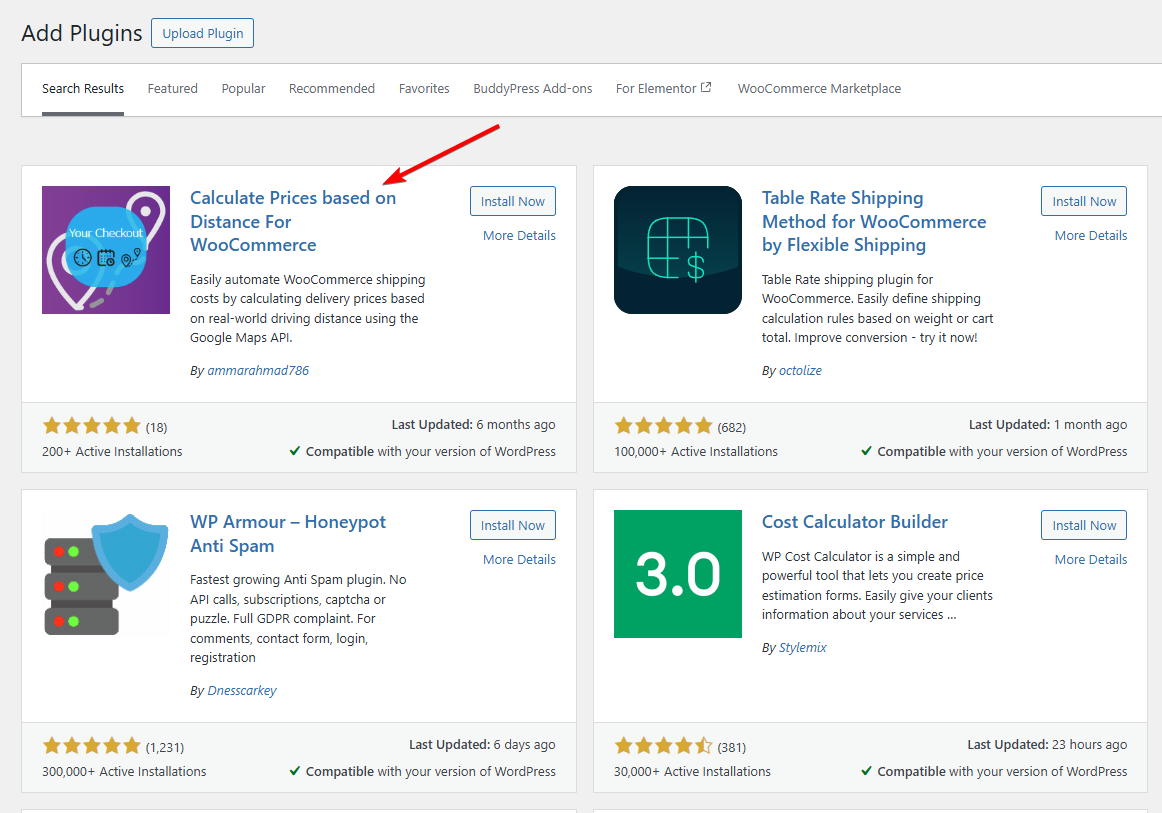
Once you find it, click Install Now and wait for WordPress to finish the installation process. After that, click Activate to enable the plugin on your site.
When activation is complete, the plugin automatically adds a new settings page where you can configure your delivery pricing. In most cases, you’ll be redirected to this page right after activation. If not, you can access it anytime by going to WooCommerce → DC Distance Calculator from your dashboard.
Step 2: Connect Your Google Maps API Key
The plugin uses Google Maps to calculate the real distance between your store and the customer’s address, so connecting your Google Maps API key is an essential step. Without it, the plugin will not be able to calculate delivery costs accurately.
To get started, go to the plugin’s settings page in your WordPress dashboard. You’ll see a field where you can enter your Google Maps API key. If you don’t already have one, you can generate it by visiting the Google Cloud Console and following Google’s instructions for creating a new project.
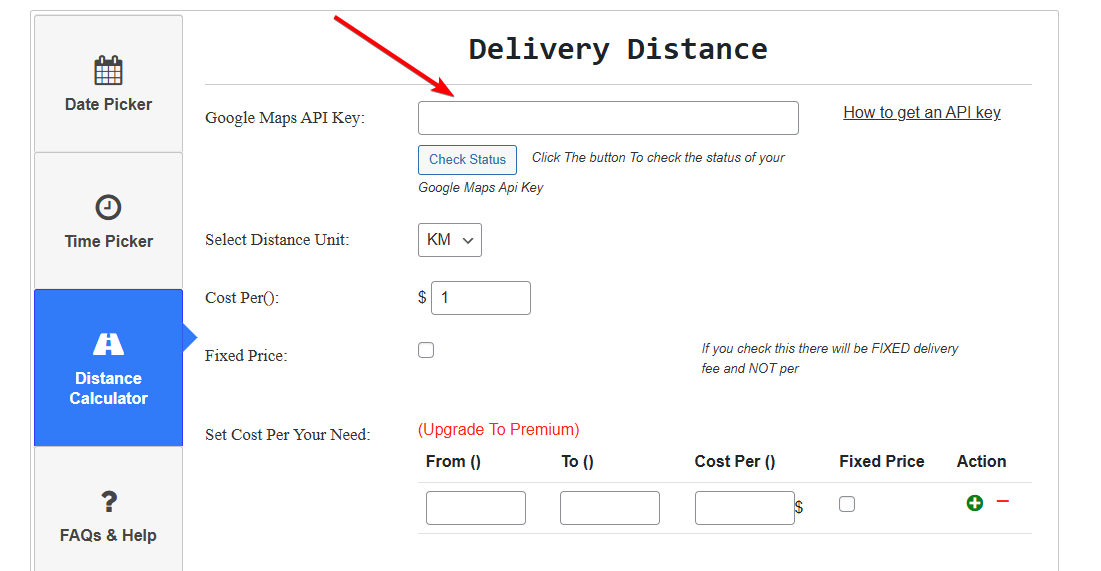
Once you’ve created the key, make sure the required APIs are enabled. These include the Geocoding API, Distance Matrix API, Directions API, Places API, and Maps JavaScript API. Google requires you to add billing details to activate these APIs, but the standard usage is free for most small and medium-sized businesses.
After you paste your API key into the plugin’s settings, click Check Google Maps API Key. The plugin will test the connection and show which APIs are active and which ones are missing. This step helps prevent issues later when calculating delivery costs.
If all APIs are active, save your changes. Once your API key is connected successfully, the plugin is ready to calculate distances automatically for your WooCommerce orders.
Step 3: Configure Your Store Location & Cost Settings
After your Google Maps API key is connected, the next step is to set your store location and define how delivery costs will be calculated. This configuration tells the plugin where your deliveries start from and how much to charge per distance unit.
In your WordPress dashboard, open the plugin’s settings page and look for the Distance Settings section. Here, enter your store’s full address exactly as it appears on Google Maps. This ensures the plugin can calculate the correct route between your location and the customer’s delivery address.
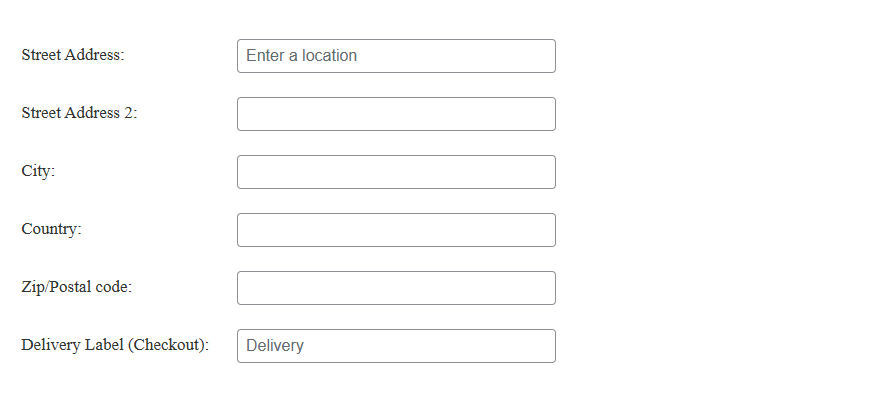
Next, set your cost per distance unit. You can choose to charge per kilometer or per mile, depending on your preference or region. For example, if you charge $2 per kilometer and a customer lives 10 kilometers away, their delivery fee will be $20. The plugin automatically performs this calculation at checkout, so you don’t have to adjust it manually.
You can also select your preferred distance unit (kilometers or miles) from the same settings page. Once this is saved, all future calculations will use that unit consistently.
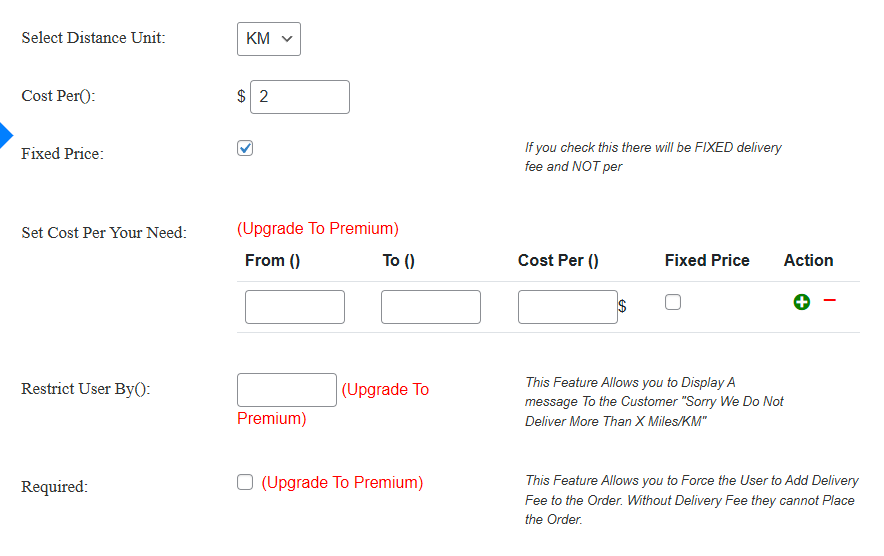
Below the pricing options, you’ll find the Delivery Options section. Here, you can choose how customers receive their orders.
- Enabling Delivery allows the plugin to display a map showing your store’s location.
- Enabling Store Pickup adds a pickup option at checkout, letting customers collect their orders directly from your store.
- The third option, Delivery and Pickup, is available only in the Pro version and lets users calculate the distance between two addresses.
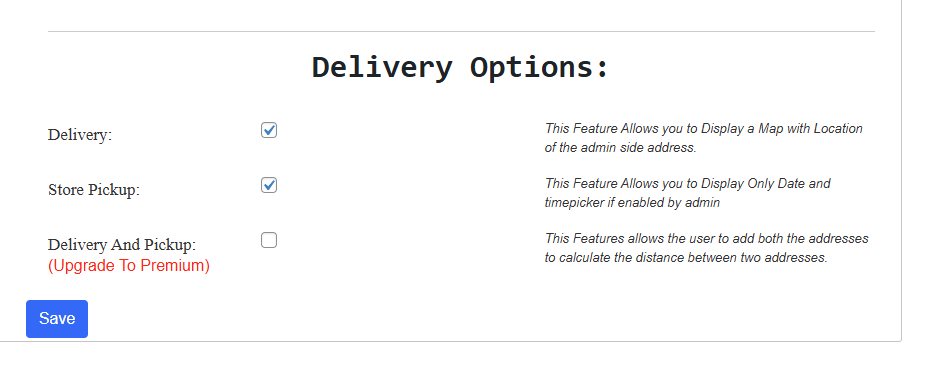
Before saving, double-check your store address, distance unit, and pricing details. When everything looks correct, click Save Changes. Your WooCommerce store is now ready to calculate real-time delivery fees based on the distance between your store and the customer’s location.
Step 4: Configure the Date Picker & Time Picker
The plugin includes built-in Date Picker and Time Picker options that let customers choose when they want their delivery. These features are useful for businesses offering same-day or scheduled deliveries, helping you manage orders more efficiently.
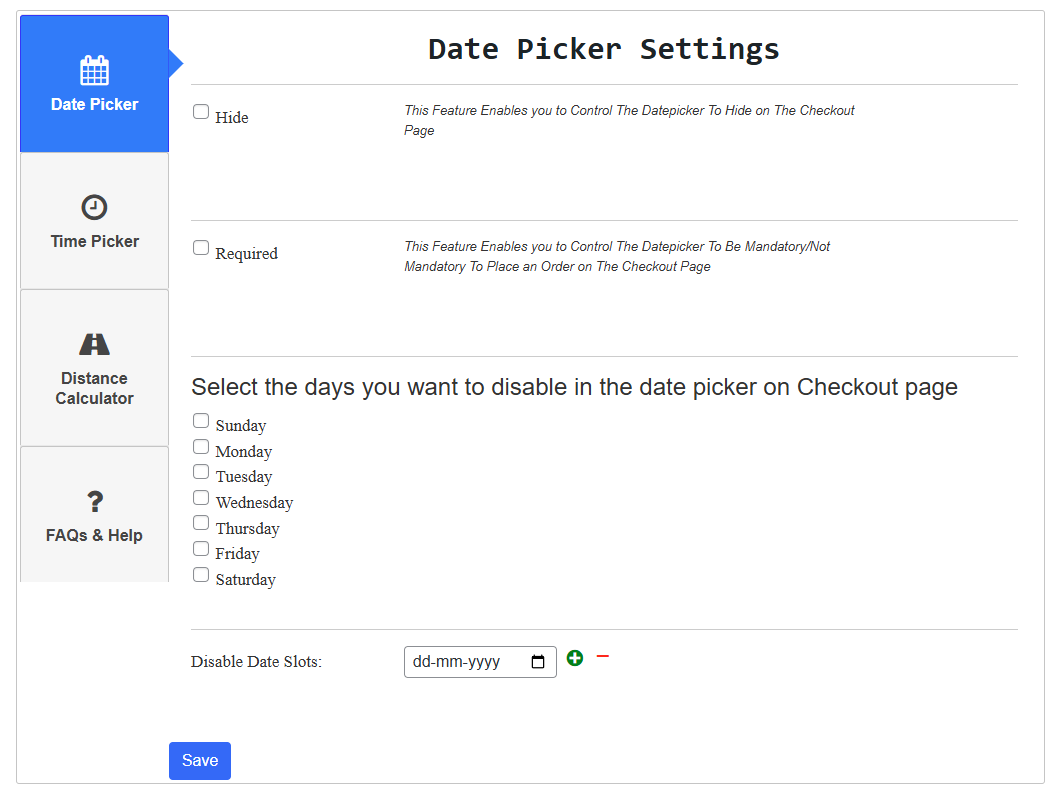
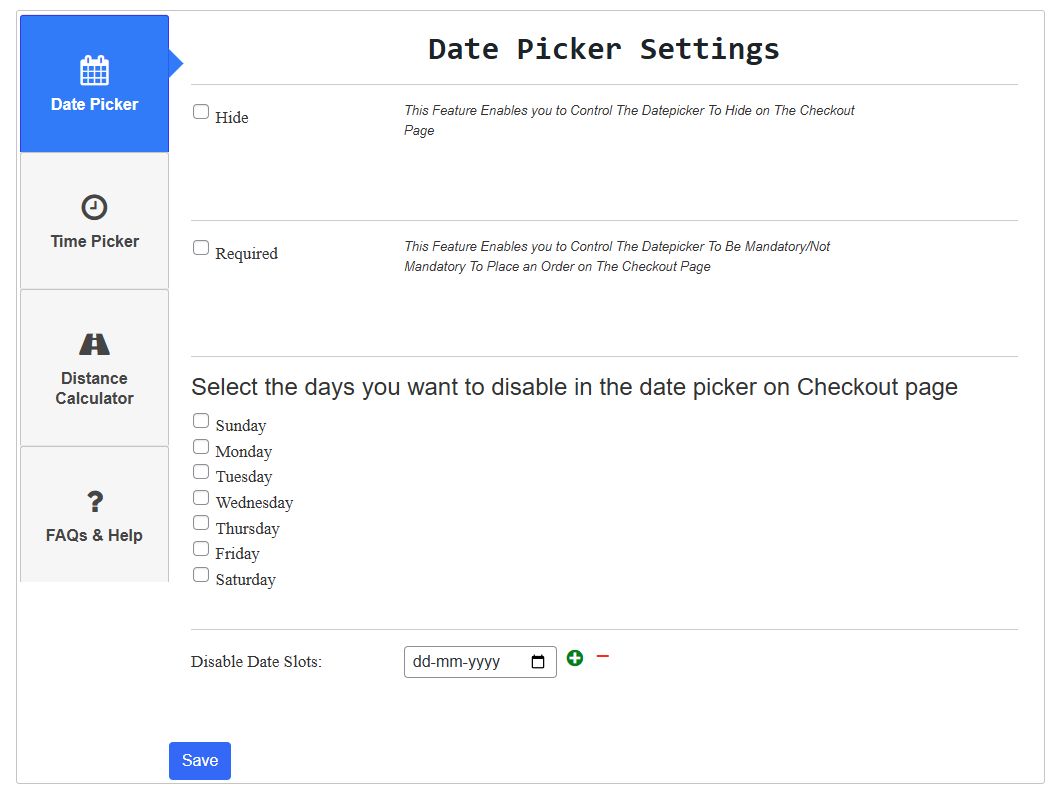
In the Date Picker tab, you can choose whether to hide the date selector or make it mandatory at checkout. You can also disable specific days of the week if your business does not deliver on those days. For example, you might disable Sundays or public holidays to prevent customers from selecting unavailable dates. Additionally, you can block specific dates using the “Disable Date Slots” option.
In the Time Picker tab, you can set the available delivery hours. Define your start time, end time, and time interval between each slot (for example, every 15 minutes). You can also hide the picker or make it a required field during checkout. This ensures customers can only select delivery times that fit within your operating hours.
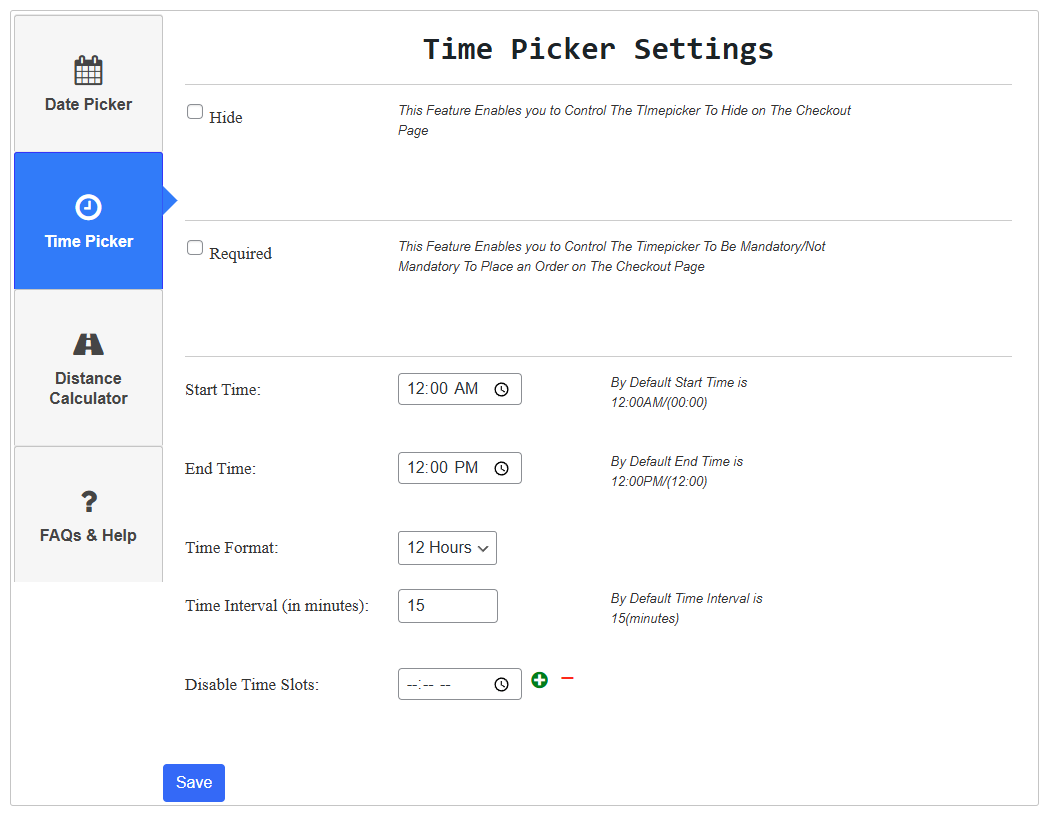
Once you’ve configured both tabs, save your settings. The date and time fields will now appear on your WooCommerce checkout page, allowing customers to pick a delivery slot that suits them while keeping your schedule organized.
Step 5: Test the Setup
After configuring your store location and delivery settings, test the plugin to ensure everything works correctly.
Add a product to your cart, go to checkout, and enter different addresses to see if delivery prices update accurately.
If rates appear incorrect, recheck your Google Maps API key, store address, and enabled APIs.
Once prices are calculated properly, your WooCommerce store is ready to apply distance-based delivery fees automatically, giving customers fair and transparent pricing.
Optional Step: Advanced Features for Power Users (Pro Version)
The Pro version of the plugin expands your delivery options with advanced controls. It allows you to create tiered pricing brackets, such as different rates for specific distance ranges, making it easier to manage costs across multiple delivery zones. You can also set a maximum delivery distance to restrict orders beyond a certain radius, ensuring you only serve reachable areas.
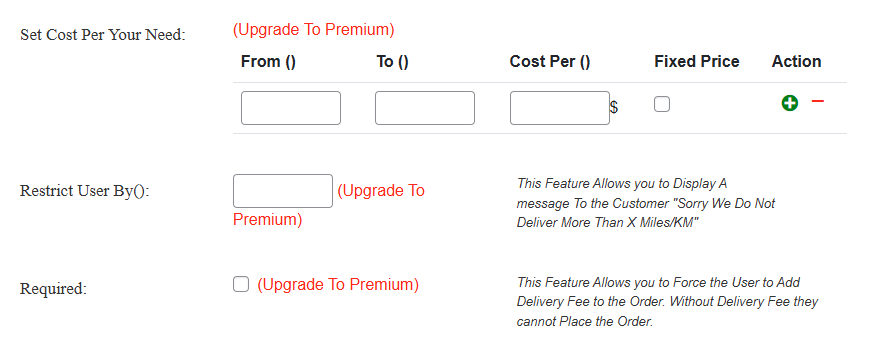
For courier-style businesses, the Pro version supports pickup and drop-off address fields, which automatically calculate delivery costs between two points.
Additionally, you can customize delivery messages and labels to make the checkout process clearer and more professional. These advanced tools are ideal for high-volume or multi-location stores, while the free version remains a great fit for most local businesses.
FAQs
Does WooCommerce support distance-based shipping by default?
No, WooCommerce does not include built-in distance-based shipping options. By default, it only supports flat-rate, free, or zone-based shipping. To calculate delivery costs based on distance, you need a dedicated plugin like Calculate Prices Based on Distance for WooCommerce, which integrates Google Maps for accurate pricing.
Is Google Maps API required for this plugin?
Yes, the plugin depends on the Google Maps API to measure real-world distance between your store and the customer’s address. You’ll need an API key with services like Distance Matrix, Geocoding, and Directions enabled. Google requires billing details, but typical usage for small stores is free.
Will this slow down my checkout process?
No, the plugin is lightweight and optimized for speed. It performs distance calculations in real time using Google Maps without affecting checkout performance. Results appear instantly after the customer enters their address, ensuring a smooth and responsive checkout experience even for stores with high order volumes.
Conclusion
Distance-based shipping gives WooCommerce stores a smarter, fairer way to charge for delivery. It ensures customers pay only for the distance covered, which helps build trust and reduces abandoned carts caused by unclear or inflated fees.
The Calculate Prices Based on Distance for WooCommerce plugin makes setup simple, even for beginners. The free version is enough for most small and local businesses that want automatic, distance-based delivery pricing.
For stores that need more control, the Pro version offers advanced tools such as tiered pricing, maximum delivery distance limits, and pickup or drop-off address options. These features are especially helpful for courier services, multi-location stores, and high-volume businesses that want to fine-tune how delivery costs are calculated.
With these added capabilities, store owners can manage complex pricing rules, prevent unserviceable orders, and deliver a better shopping experience to customers.
Comments