
WooCommerce stores often include dozens or even hundreds of product variations. A simple product like a t-shirt might come in five sizes, six colors, and multiple materials.
When customers search for something like “blue running shoes,” they expect to find a filtered list of relevant results. Instead, they often see everything remotely related, with no way to narrow it down by size, color, or price.
This lack of filtering leads to frustration, higher bounce rates, and missed sales opportunities. To fix this, store owners need a way to let users filter search results by attributes like size, color, and brand.
Advanced Woo Search makes this possible. It adds powerful attribute-based filtering directly into your WooCommerce search forms. Whether you're running a small store or managing a large catalog, this plugin helps customers find the right product faster.
In this guide, we’ll show you how to set up WooCommerce filter products by attributes using Advanced Woo Search Pro.
What Are Product Attributes?
Product attributes in WooCommerce are traits that describe a product in more detail. Common examples include size, color, material, brand, and fit. These attributes help customers filter, compare, and find products more efficiently, especially when browsing a large catalog.
Attributes can be either global or custom. Global attributes are defined across your store and reused for multiple products. For instance, you might create a global Size attribute with values like Small, Medium, and Large. Custom attributes, on the other hand, are unique to individual products and are usually added directly from the product edit screen.
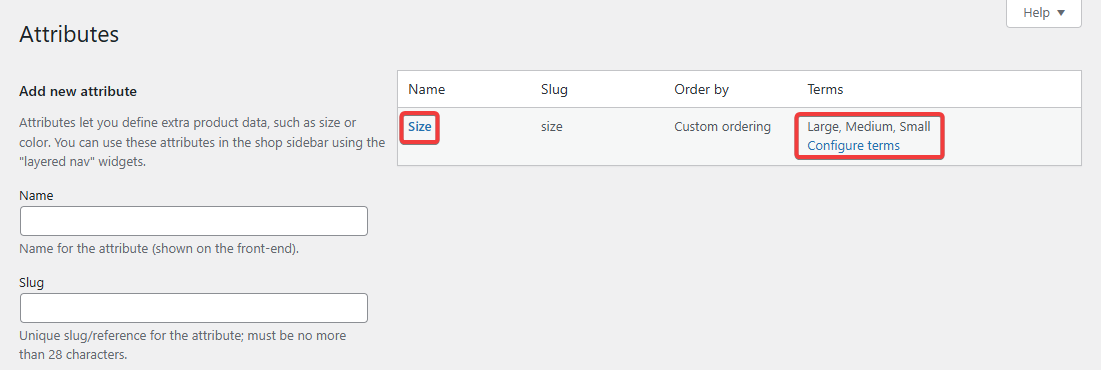
Attributes are especially important for variable products. They determine the variations available to customers, like selecting a T-shirt in Blue and Medium. By using attributes in your filters, you create a foundation for building a powerful WooCommerce filter products by attributes experience that improves search accuracy.
In the next section, we’ll explore why filtering by these attributes improves the search experience.
Why Filter Products by Attribute in WooCommerce?
WooCommerce’s native search is basic. Without a proper WooCommerce filter products by attributes setup, your store’s search experience can feel cluttered and frustrating for customers.
For example, if someone searches for red dresses, they might see every dress that mentions the word red, even if the product itself is blue or out of stock. There’s no way to filter results by color, size, price, or stock status. This forces customers to sift through irrelevant results, which slows down the shopping process and often leads to abandoned carts.
Filtering products based on attributes has several key advantages:
- Precision Search Results: Users can narrow searches instantly based on attributes like size, color, and material.
- Higher Conversions: Stores that use attribute filtering tend to see more purchases and longer session durations.
- Mobile-Friendly Browsing: Attribute filters simplify navigation on small screens, where scrolling through long result lists is inconvenient.
With our plugin, Advanced Woo Search (AWS), add filters to your search form and allow your store users to filter WooCommerce products based on product attributes.
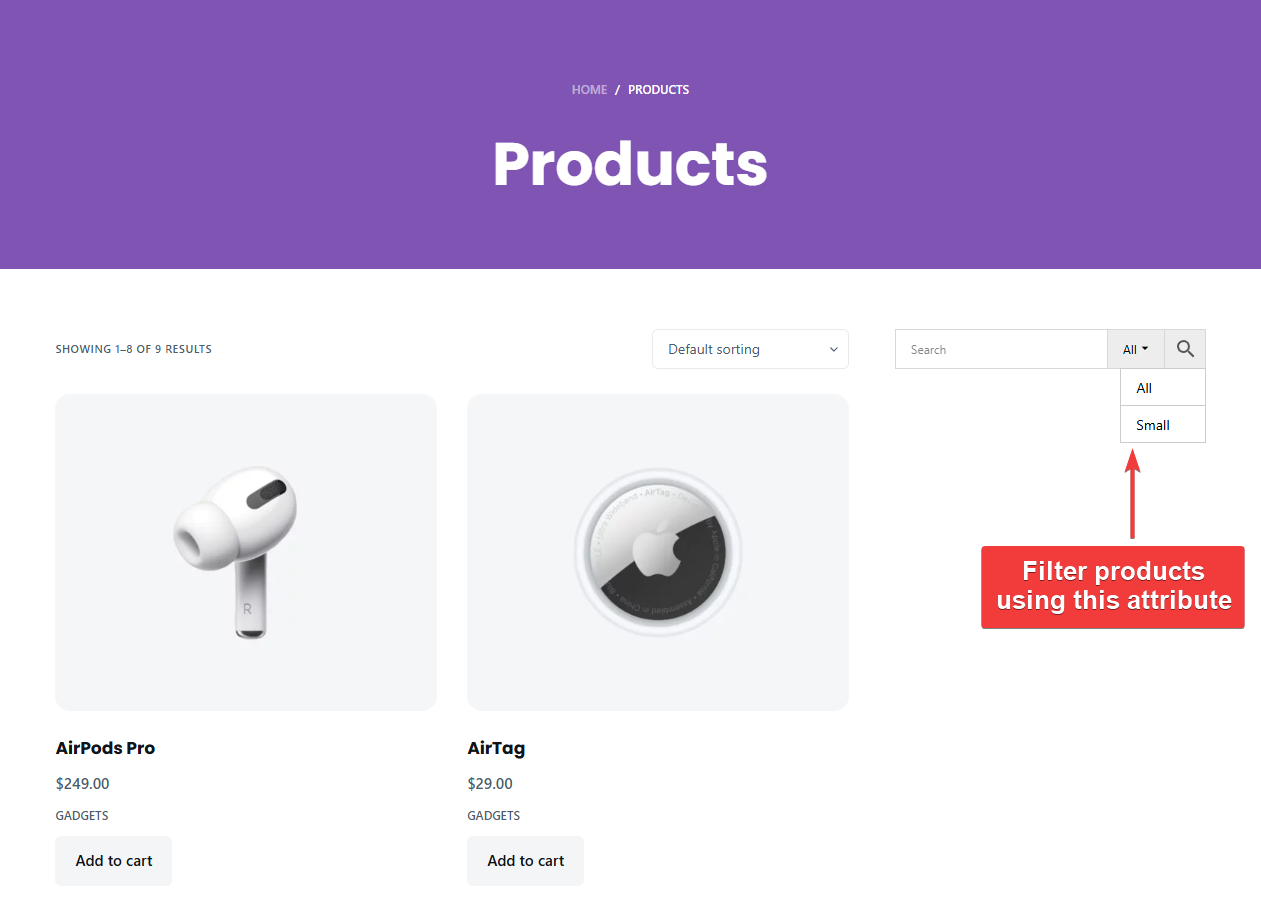
You can even combine attribute filters with other criteria like stock status, price range, or custom taxonomies.
It also supports advanced logic through AND/OR filter groups, allowing you to build highly specific search filters that help customers get to the right product faster. Learn more: Search Results Filter
Now that you understand the benefits, let’s walk through how to create a WooCommerce filter products by attributes experience using Advanced Woo Search Pro.
Setting Up 'WooCommerce Filter Products by Attributes' With AWS
While there is a free version of the Advanced Woo Search plugin, the ability to create and apply filters based on product attributes is available only in the Pro version. If you want to set up attribute-based search filters on your store, you’ll need to purchase and install Advanced Woo Search Pro.
Step 1: Install AWS Pro & Reindex Tables
To get started, install and activate the Advanced Woo Search Pro plugin on your website and be sure to add your unique license key. Once the plugin is active, it will add a new menu item labeled Adv. Woo Search to your admin sidebar.
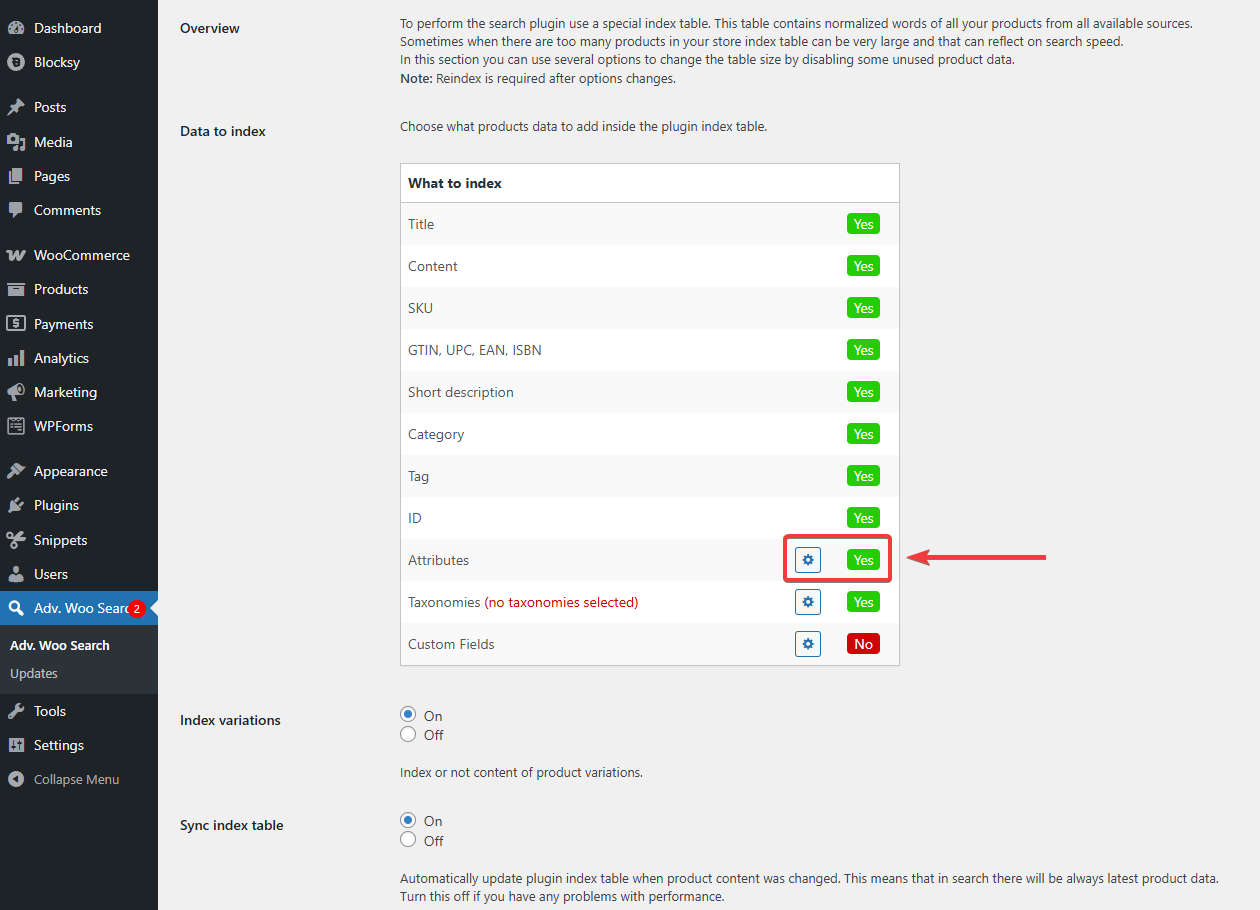
Go to Adv. Woo Search → Performance → Data to Index and enable Attributes to Yes. Then click the gear icon and inside enable the attribute (like Size) and save the settings. This ensures the plugin includes attribute information when building your initial search index.
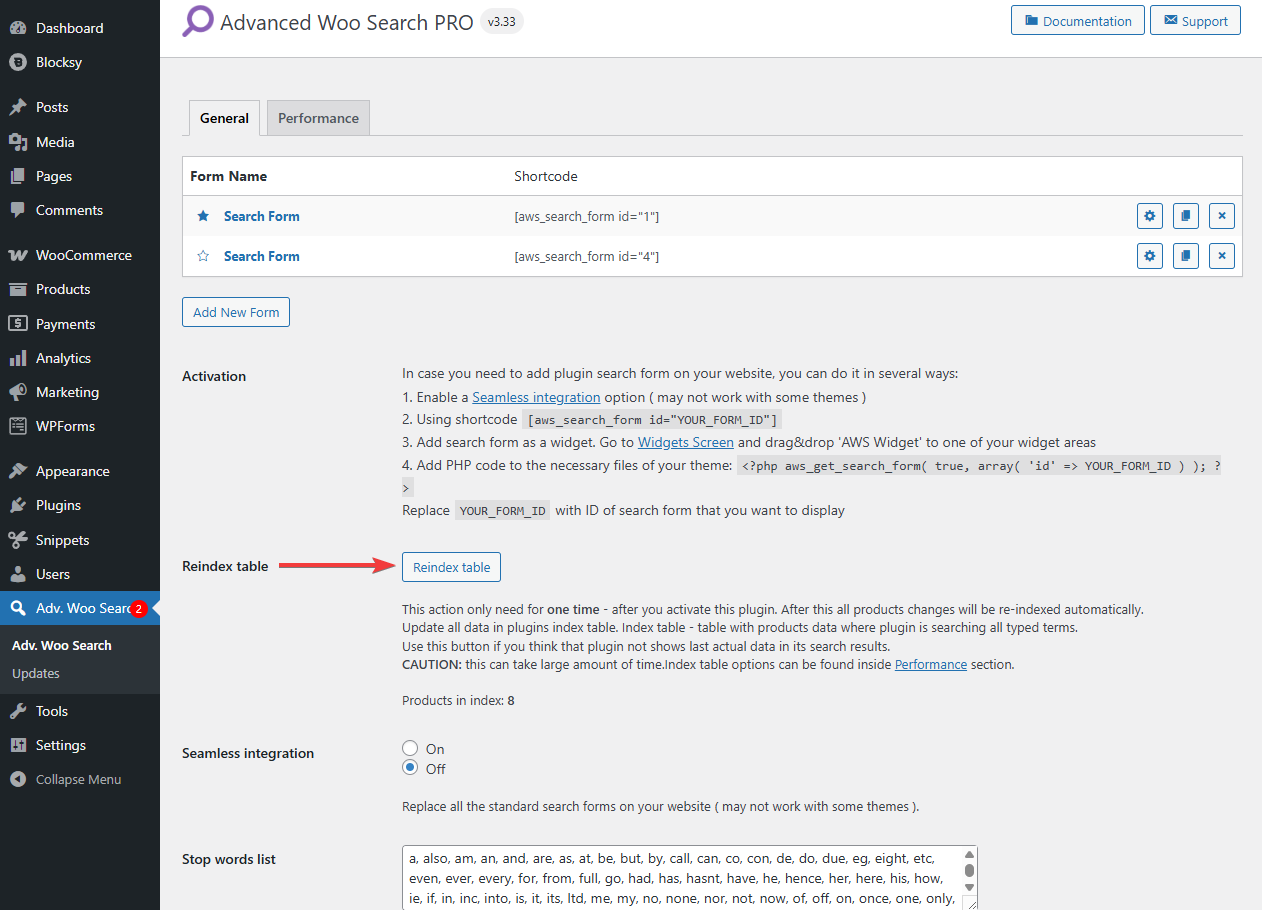
Before you configure any filters, it’s important to build the plugin’s internal index. This step ensures that all your product data is searchable and that results are returned quickly and accurately.
Head to Advanced Woo Search → General and click the Reindex Table button. The plugin will now scan your store’s products and create a dedicated search index based on your current catalog. This process only needs to be done once, but you can manually trigger it again anytime if you make significant changes to your product listings.
Once indexing is complete, the plugin will automatically keep your index up to date as products are added, removed, or edited in your store.
Step 2: Create a Search Form & Add it to Store
This is where the foundation of your WooCommerce filter products by attributes setup begins, as each form controls how filters appear and function.
To begin, go to Adv. Woo Search → General and click the Add New Form button. This will create a new search form that you can configure independently. Give the form a descriptive name so it’s easy to identify later, especially if you plan to use different forms on different parts of your site.
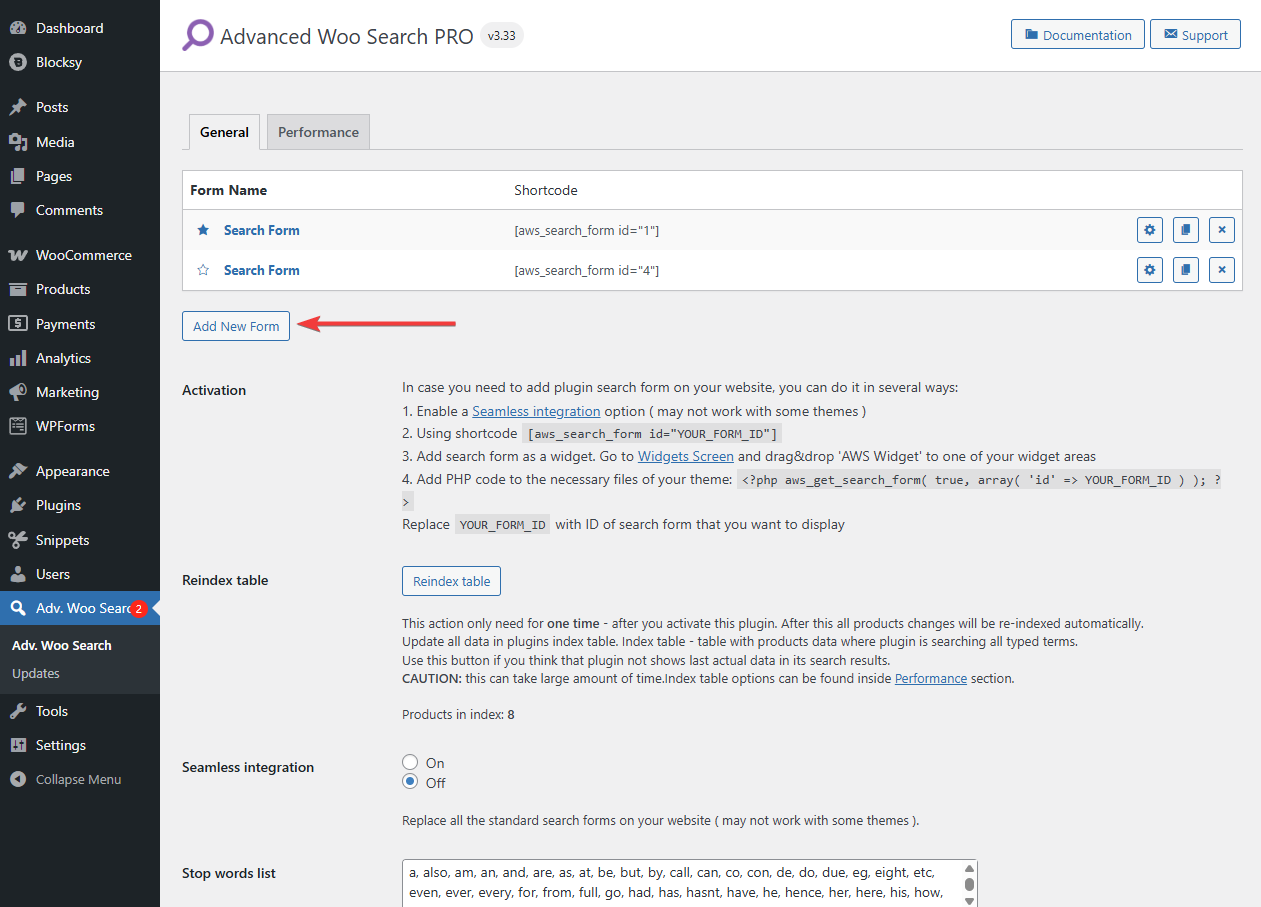
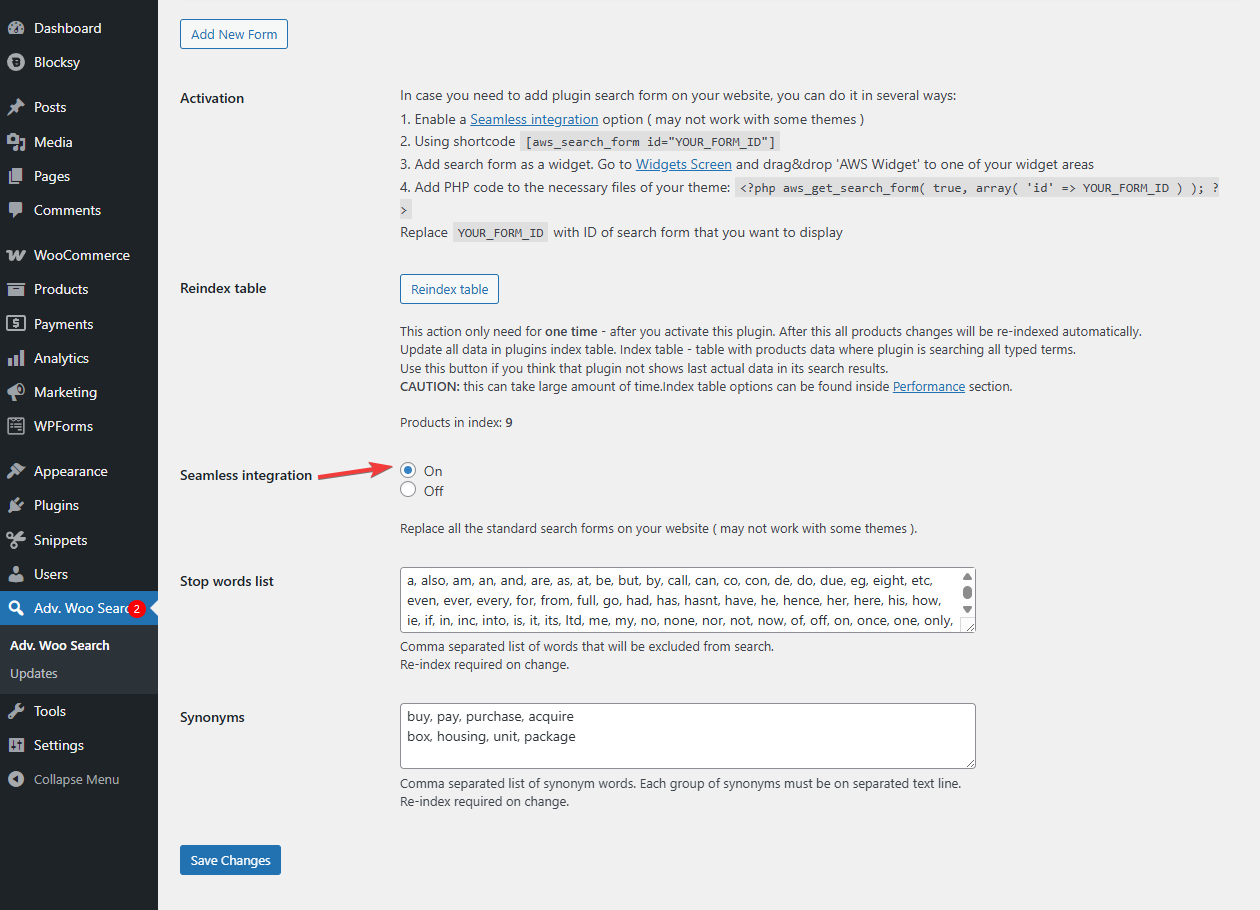
Once your form is created, you’ll want it to replace the default search fields currently used throughout your WooCommerce store. The easiest way to do this is by enabling Seamless Integration (go to Adv. Woo Search → General → Seemless Integration), which automatically swaps out all native search boxes with the AWS-powered version.
If you prefer to place the search form in specific areas manually, you can do so using a shortcode. Each form you create will have a unique ID, and the shortcode format looks like this:
[aws_search_form id="1"]
[aws_search_form id="2"]
[aws_search_form id="3"]
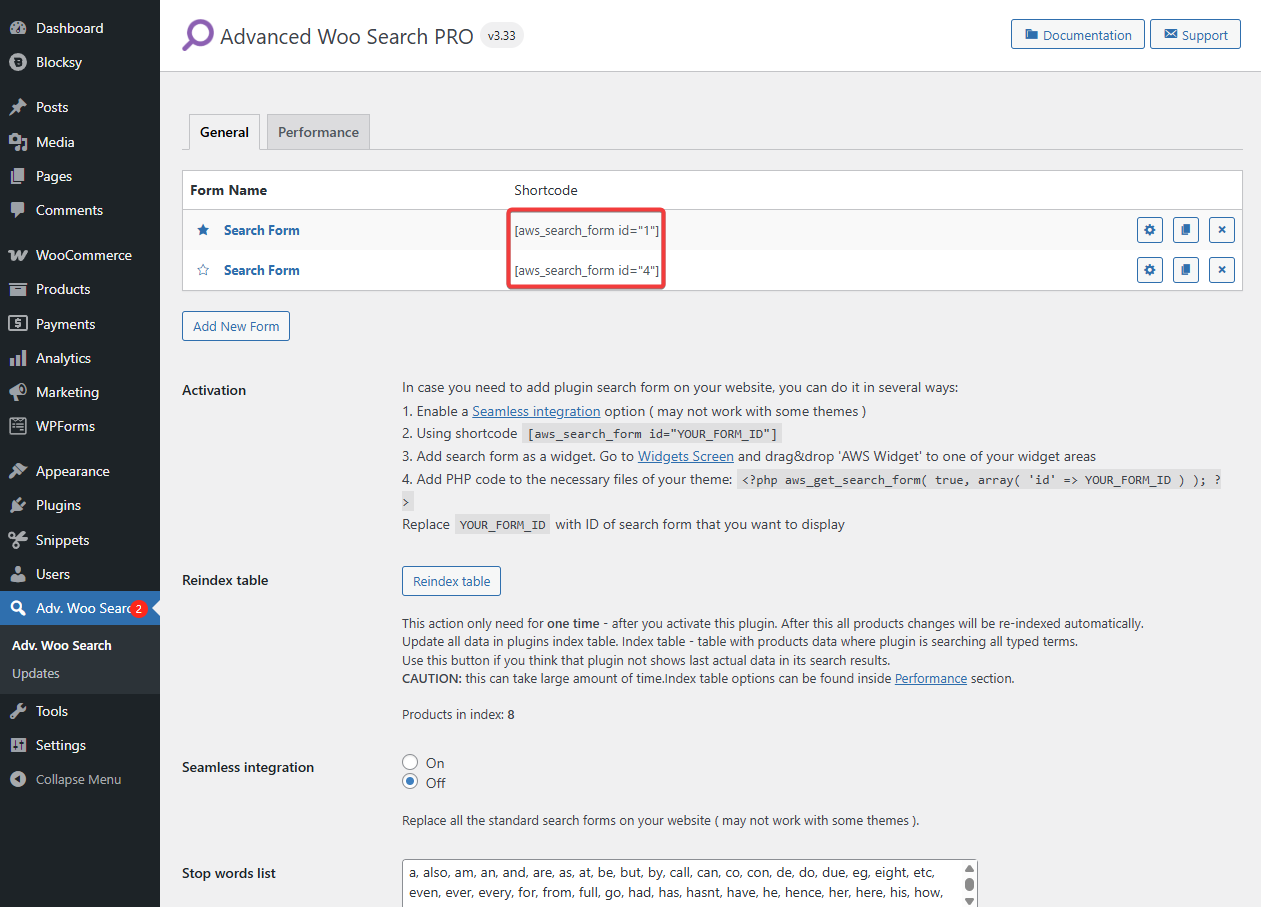
You can paste this shortcode into any post, page, or widget area where you want the search form to appear.
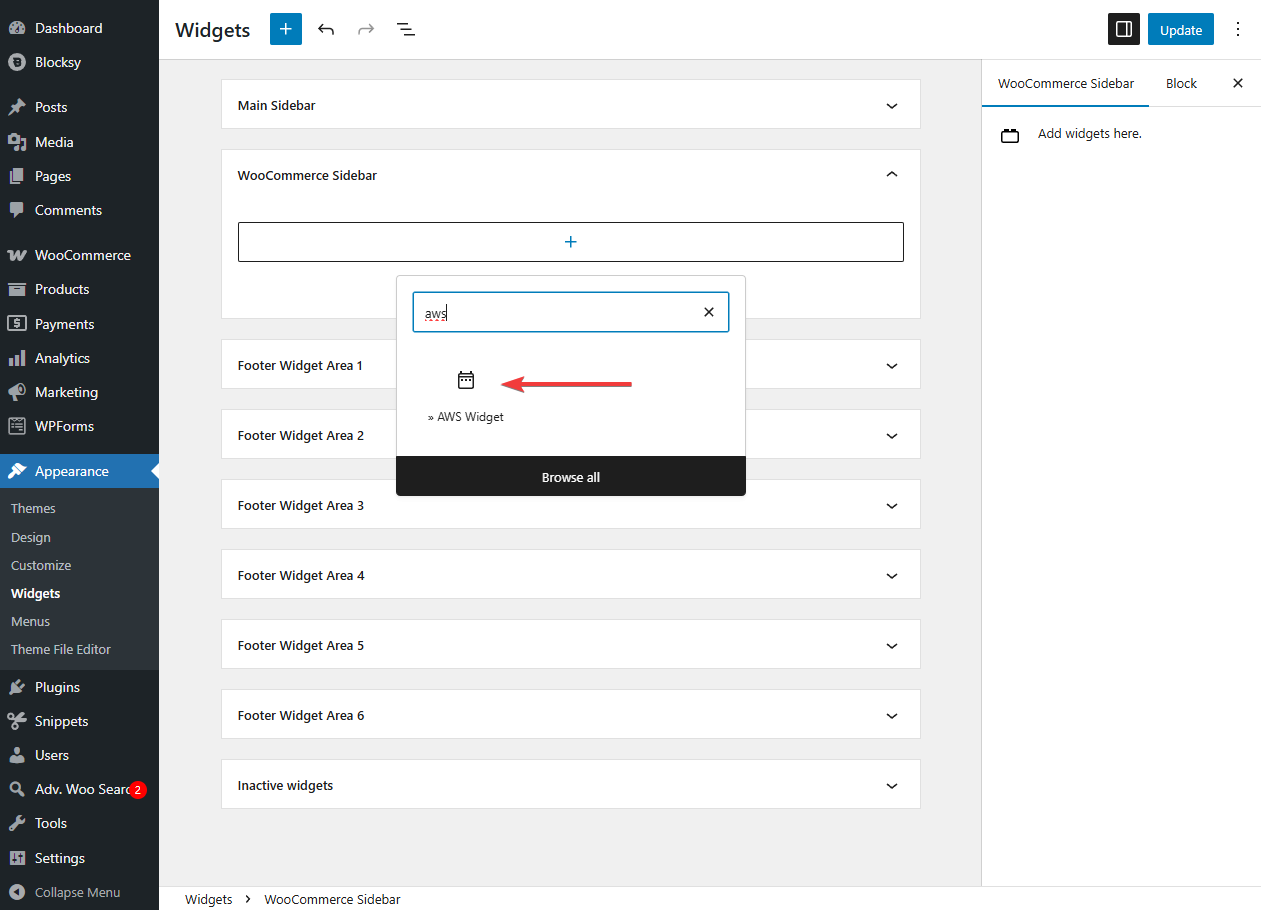
Alternatively, you can go to Appearance → Widgets, locate the AWS Widget, and drag it into your sidebar or header. Once placed, choose which of your custom forms you want the widget to display.
Step 3: Create a New Filter to Display Products With a Specific Attribute
To start setting up your WooCommerce filter products by attributes system, go to Adv. Woo Search and select the custom form you created earlier.
Navigate to the Search Results tab. And click the Add New Filter button to create a new filter.
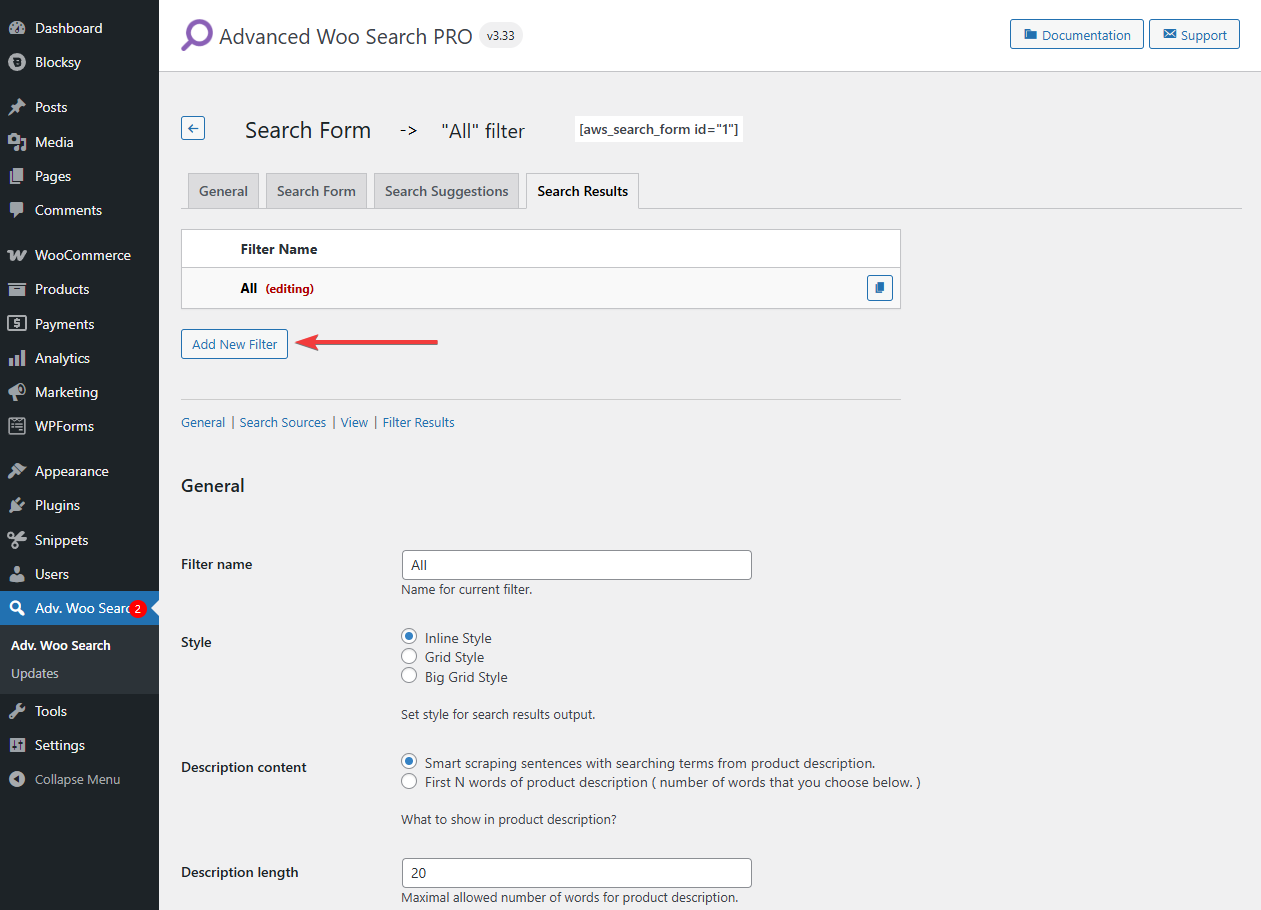
Once the new filter appears in the list, click on its name to begin customizing it. Give your filter a descriptive name that reflects the attribute you’re targeting. For example, Small if you’re filtering by size.
Next, scroll down to the Search Source option and enable the Attributes option to Yes.
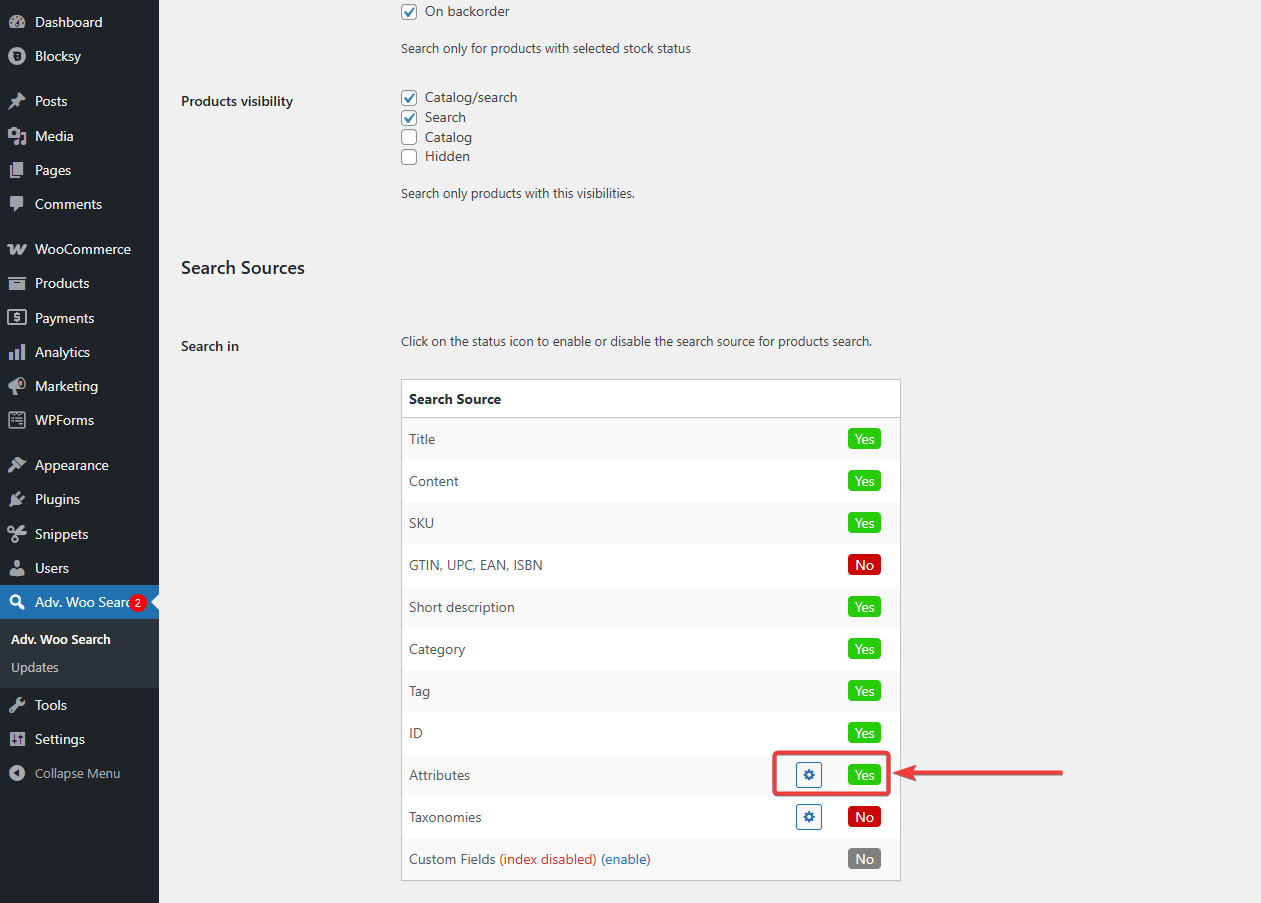
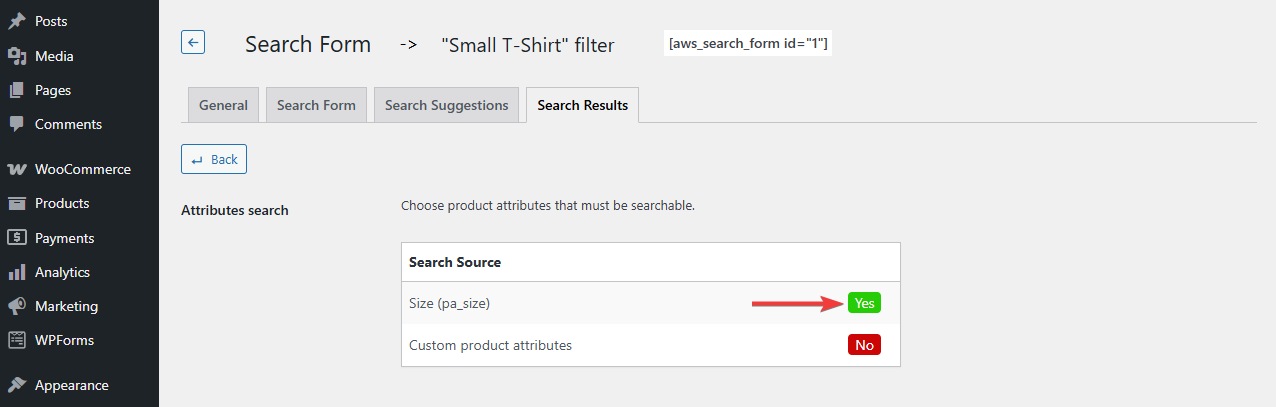
Then select the gear icon, and on the next page, be sure to enable your custom attribute, like Size. Save your configuration.
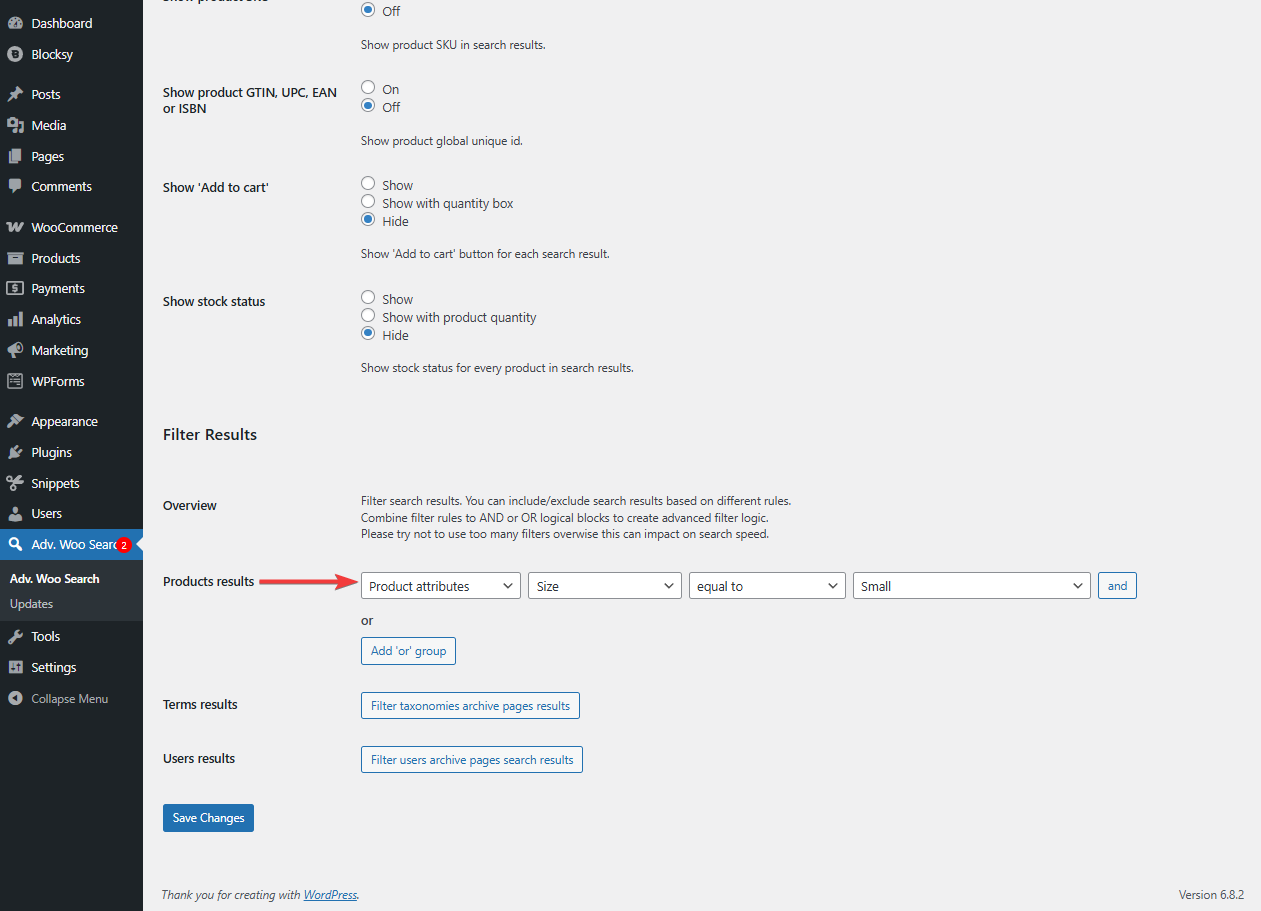
Next, go back to the search form → Search Result → select the filter you just created (example: Small), scroll down to the Filter Results section, and click the Filter products search results button.
From the list of conditions, choose:
- Product attributes → Size → equal to → Small (or whichever attribute value you want to filter by), and save your settings.
This tells the plugin to return only products that match this specific attribute value.
Locate the Variable products option. Set this to Show only child products if you want to display individual product variations, such as a specific size or color, rather than the parent product. This is especially useful for stores with lots of configurable items.
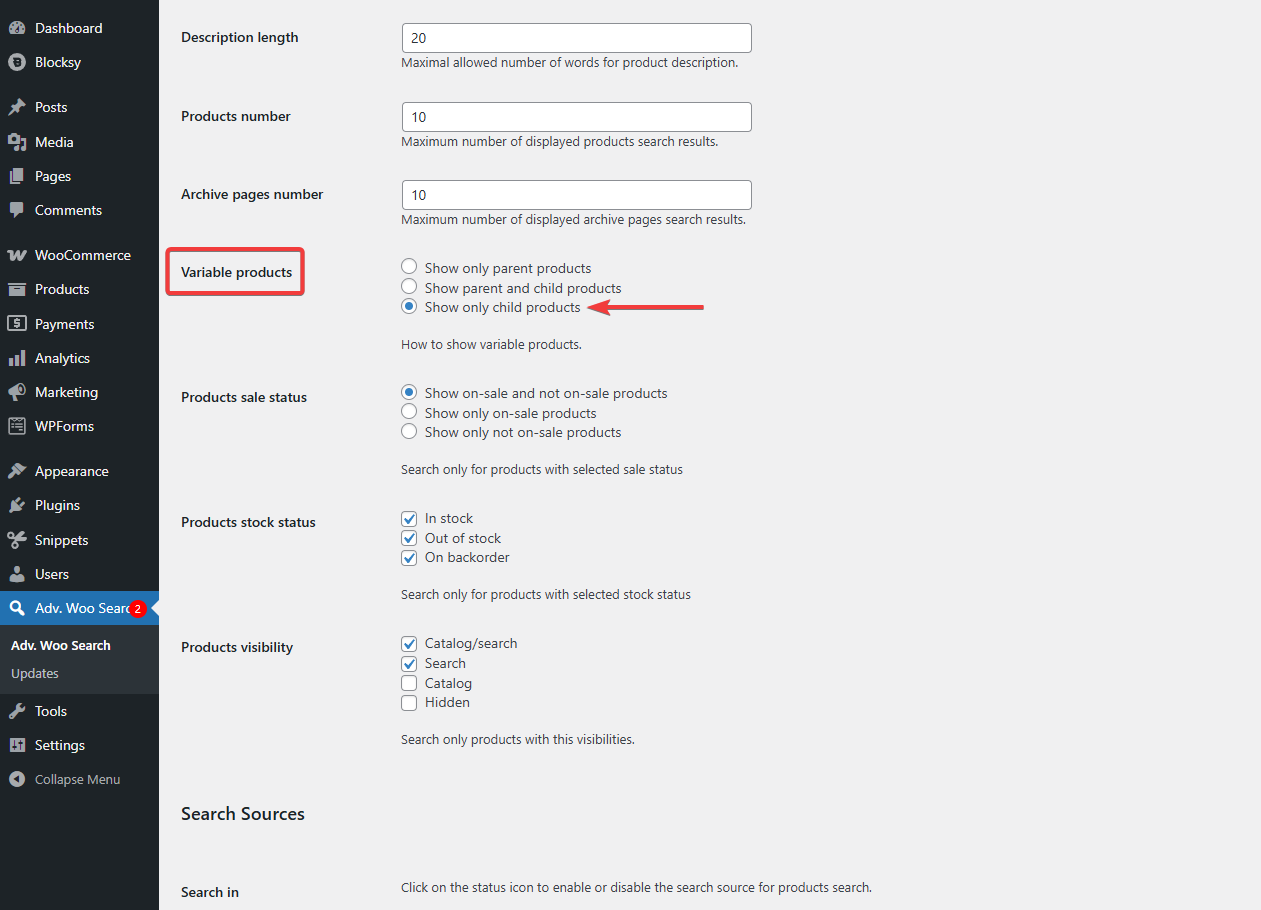
Need more assistance? Check out this help doc: AWS Search Form Filters.
Here’s how a WooCommerce filter products by attributes looks in action on a live store using Advanced Woo Search.
In this way, you can add multiple filters to your search form. But it’s best to avoid adding too many filters because this approach is not user-friendly, and multiple filters can slow down your website.
Step 4: Customize Filter Behavior & Appearance (Optional)
Each filter you create can be further customized beyond just attribute rules. You can:
- Choose a different layout for search results
- Include or exclude products based on categories, stock status, or price
- Select different search sources (example: products, vendors, taxonomy pages)
- Control how products appear in the results, including image size and layout
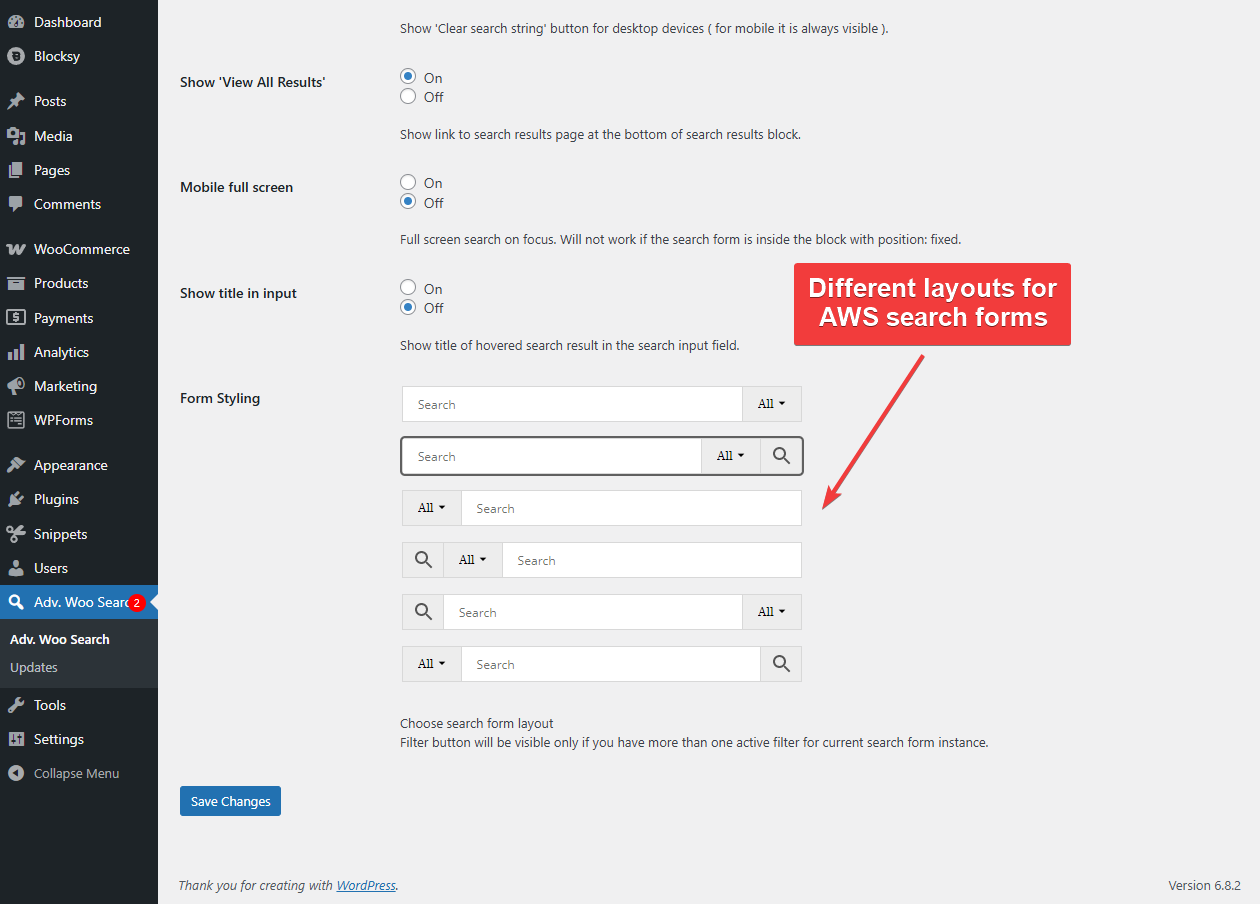
These options allow you to fine-tune the user experience for each filter tab. For a full breakdown of all available settings, check out the official AWS documentation on filter configuration.
That’s it, folks. By now, you should have a search form that filters products by attributes on your WooCommerce store.
FAQs
Can I add filters by product custom attributes?
Yes. Advanced Woo Search Pro supports filtering by custom product attributes in addition to global ones. When setting up a filter, select Product custom attributes and choose the attribute value you want to include or exclude. This works for unique, product-specific attributes that aren’t part of the global taxonomy. Read more: Filter for Search Results with AWS
Do filters work with variable products?
Yes. AWS Pro allows you to filter search results that include product variations. You can target specific attributes within variations, such as Size: Small or Color: Blue, and choose to display only child (variation) products. This is useful when shoppers are looking for specific options across a product range.
How many product filters by attributes can I add?
There’s no fixed limit. You can create multiple filters based on different attributes and apply them to a single search form. For example, you could add separate filters for color, size, and brand. Each filter appears as a tab in the search interface and can include multiple rules or values. That said, too many filters can hinder user experience and slow your website down.
Conclusion
Attribute filters give WooCommerce store owners a powerful way to improve product discovery and streamline the shopping experience. Instead of overwhelming users with too many options, you can guide them to exactly what they’re looking for by letting them filter results by size, color, brand, or other key attributes.
Advanced Woo Search makes this process simple by offering a way to add flexible, precise filters to your search forms. Whether you want to target specific product variations or combine attributes with price and stock filters, the plugin gives you full control.
The result is faster searches, more relevant results, and a smoother path to purchase. If your store has a large or complex catalog, attribute filters can make a measurable difference in how customers interact with your products.
Try it for yourself and see how building a smart WooCommerce filter products by attributes system can lead to better search performance and more conversions.
Get the Advanced Woo Search Pro plugin today!
And if you have any questions about WooCommerce filter products by attributes, then let us know in the comment section below.
Comments