
Looking for ways to add WooCommerce search suggestions to your store? One of the most effective options is using search synonyms. They ensure customers can find what they need, even if they use different terms than your product listings.
The reality is that most WooCommerce stores rely on exact keyword matching. That means simple differences in language, like trainers instead of sneakers or sofa instead of couch, can lead to empty search results, frustrated customers, and lost sales.
Imagine a shopper types hoodie, but your products are labeled as sweatshirts. Without search synonyms, they see nothing and are likely to leave your store.
Advanced Woo Search (AWS) solves this by making your store smarter. It connects related words behind the scenes, so shoppers always see relevant results.
In this guide, we will show you how to set up synonyms in WooCommerce and use them to improve product discovery and sales.
What is WooCommerce Search Synonyms? Why Do You Need It?
WooCommerce search synonyms allow your store to understand different words or phrases that mean the same thing. Instead of relying on exact keyword matches, your store connects related terms to the same products. For example, you can map laptop to notebook computer or sofa to couch.
Without synonyms, customers have to guess the exact terminology used in your product titles or descriptions. If they get it wrong, they are likely to see zero results and leave frustrated.
Synonyms help your store speak your customers' language. Whether they use regional terms, industry jargon, or casual phrases, your search results stay relevant. This not only improves the shopping experience but also increases the chances of converting visitors into buyers.
In short, if your store relies on search to help customers discover products, synonyms are essential for reducing abandoned searches and boosting sales.
How to Set Up Search Synonyms in WooCommerce
Adding WooCommerce search synonyms to your store is one of the most effective ways to improve product discovery. With the right setup, customers can use their preferred terms and still find exactly what they need.
While WooCommerce does not support search synonyms by default, Advanced Woo Search AWS makes it easy to set them up. Before we get into the step-by-step process, it helps to understand how AWS processes WooCommerce search synonyms behind the scenes.
How AWS Search Synonyms Works
Synonym Group Processing: AWS lets you group related terms so they are treated as equals during a search. For example, searching for package will also show products with box, housing, or unit in their details.
Search Query Expansion: When a search term belongs to a synonym group, AWS automatically expands the search to include all related terms. This increases the chances of relevant results without the customer even noticing.
Phrase and Word Synonym Support: You can set up both single-word and full phrase synonyms. A phrase like memory book will be treated the same as album, so customers can find products no matter which term they use.
Integration with Search Logic: Synonyms work with both AWS's OR and AND logic settings. This ensures your search behaves as expected while still covering language variations.
Database Indexing: Synonyms are stored during the indexing process for fast and accurate results. You simply need to re-index after updating your synonym groups.
Now, let's set up synonym searches using the Advanced Woo Search plugin.
Step 1: Install & Activate Advanced Woo Search
Install and activate the free Advanced Woo Search plugin on your WooCommerce store.
Step 2: Set Up Synonym Options in AWS
To add WooCommerce search synonyms, go to Adv. Woo Search → General → Synonyms in your WordPress admin panel.
Here, you can define synonym groups that help the plugin treat related words or phrases as equal during searches. This means customers can find the right products even if they use different terms than those listed in your product details.

For example, if you add the group box, housing, unit, package, a search for package will also show products that include box, housing, or unit.
How to Add Synonym Groups:
- Enter each synonym group on a separate line
- Separate words within a group using commas
- You can also add full phrases, not just single words (example: album, memory book)
Avoid adding too many synonyms, as this can make your search index unnecessarily large and slow down performance.
Please note that synonyms work seamlessly with both OR and AND search logic modes. OR logic shows products that match any of the search terms, making results broader. AND logic requires all search terms to be present, giving more precise results. No matter which mode you use, your synonym groups will function as expected.
Keep in mind that the AND search logic is available only in the Pro version of the plugin.
Need more assistance? Read this help doc on AWS Synonyms.
Step 4: Re-index Tables
In your WordPress dashboard, go to the Adv. Woo Search section and open the General tab. Here, you will find the Reindex table button.
This indexing step is crucial and must be completed. It allows the plugin to build a dedicated database table that powers fast, accurate, real-time search across your entire product catalog.
You only need to run this indexing process when you first set up the plugin or whenever you add or change synonym groups. There is no need to manually index the table every time you edit product content. The plugin automatically scans product titles, descriptions, and other searchable fields in the background, indexing any words that belong to your existing synonym groups during regular product updates.
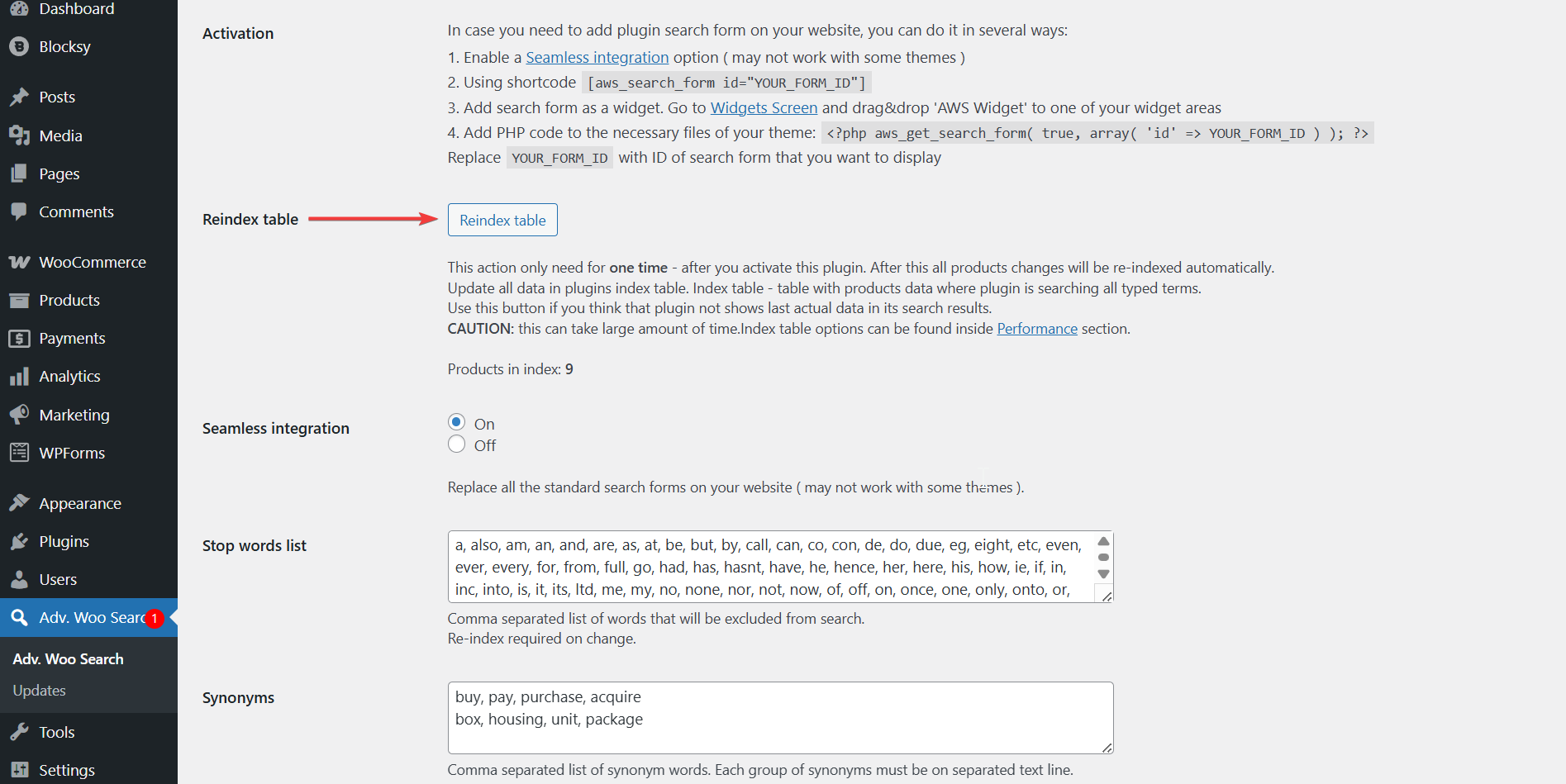
Whenever you update your synonym list, you must re-index the plugin table to apply the changes. This step ensures the plugin refreshes its search database, so your new or updated synonym groups are recognized and reflected in search results immediately. Without re-indexing, the search will continue using outdated data.
Step 5: Test Synonym Functionality
Once you have added your WooCommerce search synonyms and re-indexed the plugin table, it is important to test if everything is working correctly. Try searching for each term you added to your synonym groups using your store's search bar.
For example, if you created the group Apple Watch Series 6, Apple Watch, Smartwatch 6, Smartwatch, you should perform separate searches for Apple Watch, Smartwatch 6, and Smartwatch to confirm that your Apple Watch Series 6 product appears in the results.

If your synonyms are not working, there are a few common reasons:
- You may have forgotten to re-index the plugin after adding or updating your synonyms
- The synonym terms may not all be part of the same group, or may be formatted incorrectly
- The fields you have set as searchable may not include product titles, descriptions, or other areas where the synonyms apply
Always double-check your settings and run a re-index after any changes to ensure your synonyms work as expected.
Step 6: Monitor Performance and Optimize
Once your search synonyms are set up, it is important to track how they perform over time. Monitoring your search data helps you identify which synonyms are working well and where improvements are needed.
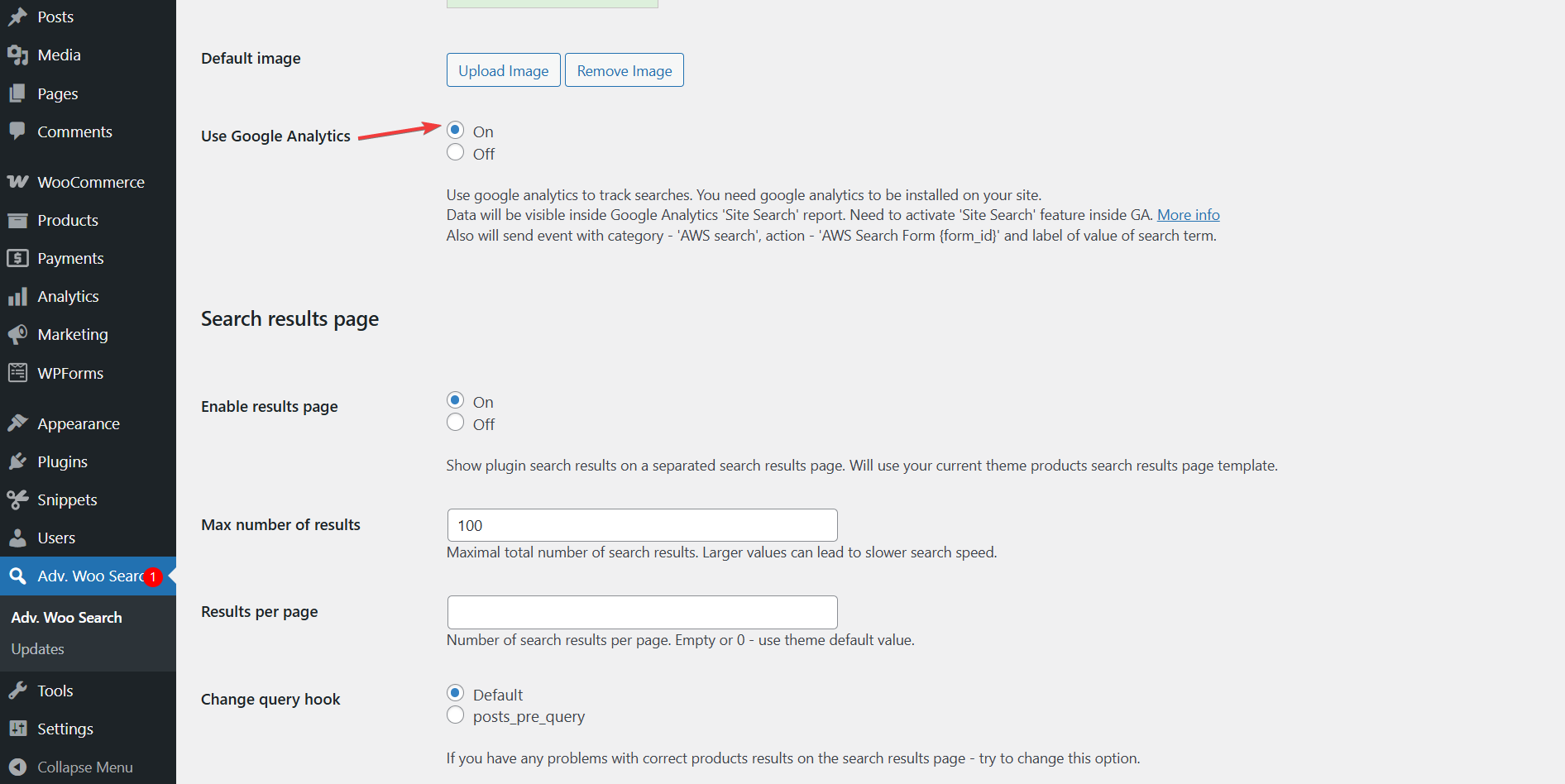
Advanced Woo Search Pro makes this easy by offering built-in support for Google Analytics 4 (GA4) and Google Tag Manager. This allows you to track search activity and understand how customers interact with your store's search.
To enable tracking, go to Adv. Woo Search → General → Use Google Analytics option, and switch it On. This connects your search form to your analytics setup, so you can collect valuable search performance data.
By regularly reviewing this information, you can refine your WooCommerce search synonyms, remove irrelevant terms, and add new ones based on real customer behavior. This ensures your store’s search stays accurate, helpful, and optimized for conversions.
For full setup details, be sure to check the official AWS Analytics Integration guide.
Best Practices for Creating Effective Synonym Lists
A well-planned WooCommerce search synonyms list can significantly improve your store’s search results, but adding random terms can do more harm than good. Follow these best practices to create synonym groups that actually help your customers and boost conversions.
1. Research Customer Language Patterns: Start by looking at your store’s search analytics, customer support tickets, and reviews. Pay attention to the words customers naturally use to describe your products.
2. Create Category-Specific Synonym Groups: Different product categories often have their own common terms. For example, in electronics, group terms like phone, smartphone, mobile. In clothing, group hoodie, sweatshirt, pullover.
3. Include Common Misspellings: Adding common misspellings like jewelery and recieve can help capture more searches. However, if you have AWS's misspelling fix option enabled, these types of errors are automatically corrected, so manual synonym setup for misspellings is not necessary.
4. Add Abbreviations and Acronyms: Map short forms to full product names, such as TV to television or AC to air conditioner. This is especially helpful for mobile users who tend to type shorter terms.
5. Consider Regional Variations: Customers often use different terms based on their location. For example, trainers and sneakers, or jumper and sweater. Adding these improves search results for international or diverse audiences.
It’s important to be selective when creating synonym groups. Adding too many unrelated terms can lead to irrelevant results that frustrate customers instead of helping them.
Also, begin with five to ten high-impact synonym groups based on your best-selling categories. Use your search data to see what works, then expand your list over time.
FAQs
Do synonyms work with product variations?
Yes, AWS synonym groups apply to all product types, including variations like size, color, or style. As long as the relevant terms appear in searchable fields such as product titles, descriptions, or attributes, your customers can find the correct variations using synonyms, improving search results across your entire store.
Will synonyms slow down my search performance?
No, synonyms do not slow down search performance. AWS processes and stores synonym groups during the indexing phase, so all relationships are pre-built. When a customer searches, the plugin quickly references these indexed connections without adding extra processing time, ensuring fast and accurate search results for your store visitors. Learn more about how AWS affects performance.
How do I track which synonyms are most effective?
You can track which synonyms are most effective using Google Analytics integration. The plugin sends custom search events and parameters to GA4. By setting up events and dimensions, you can monitor search terms and performance inside your GA dashboard, helping refine synonym groups and improve product discovery based on real data.
If a customer misspells a search term, will synonyms still work?
Yes, if the misspelling fix option is enabled in AWS. This feature automatically corrects common typos before applying synonym groups, so even if a customer types iPhAne, the search will still expand to include iPhone, Apple phone, and iOS device, showing accurate and relevant results. Learn more: AWS misspelling fix.
Conclusion
Customers expect your WooCommerce store to understand how they search. But unless your search engine supports synonyms, you risk losing potential sales simply because of language differences or common terminology mismatches.
WooCommerce search synonyms eliminate this problem by connecting related words to the same products. Whether shoppers search for notebook or laptop, jumper or sweater, they still find what they need.
Advanced Woo Search makes it easy to manage synonyms without slowing down your store. Its group-based system and fast indexing ensure quick and relevant search results, even with complex synonym lists.
Start by adding synonyms for your bestselling products, seasonal terms, and regional language variations. Use AWS analytics to track search performance and keep refining your synonym groups based on real customer behavior.
With the right synonym strategy in place, your store becomes easier to navigate, reduces bounce rates, and turns more visitors into satisfied customers.
Need more help with adding WooCommerce search synonyms? Leave us a comment below.
Comments