
Looking for ways to display WooCommerce search product tags on your store?
WooCommerce product tags are an effective way to organize your catalog and connect related products. They help shoppers explore your store intuitively by grouping items with similar attributes such as material, color, or theme. However, there’s one major drawback – WooCommerce’s built-in search completely ignores product tags.
As a result, customers searching with tag-based terms like “cotton,” “summer,” or “casual” might not see the products that match their intent. This gap can frustrate users, reduce product visibility, and ultimately impact sales.
A strong search experience is essential for keeping customers engaged and guiding them to the right products quickly. The good news is that you can easily fix this limitation with a dedicated WooCommerce search plugin like the Advanced Woo Search (AWS).
In this guide, you’ll learn what WooCommerce product tags are, why they’re not searchable by default, and how this affects your store’s search results.
We’ll then walk you through the steps to enable tag-based search using the Advanced Woo Search plugin and show how to test your setup for accurate results.
Let’s get right into it!
What Are Product Tags in WooCommerce
Product tags in WooCommerce are descriptive keywords that help organize and connect similar products within your store. They allow you to label products based on shared features such as color, fabric, or purpose, making it easier for customers to browse related items.

Unlike categories, which follow a parent–child hierarchy, tags are non-hierarchical and offer more flexibility. For example, a tech store might use a “Gadget” category and then assign tags like “virtual reality”, “headset”, or “earphone” to describe individual items more precisely.
Tags also improve internal navigation and product discoverability. When customers click on a tag, they can instantly view other products that share the same label. This helps create an intuitive browsing experience that encourages deeper engagement.
Beyond navigation, product tags can contribute to SEO. Each tag generates its own archive page, giving search engines more opportunities to index your products and rank them for relevant keywords.
Does WooCommerce Support Tag Search by Default
By default, WooCommerce search only looks through a few product fields such as titles, descriptions, and content. It completely ignores product tags.

This means that if a customer searches for a word that matches one of your product tags, WooCommerce won’t return any results. For example, if you tag a gaming equipment with “virtual reality,” typing that phrase into the search bar won’t show the product unless those exact words appear in the title or description.
This limitation can hurt both user experience and sales. Customers may assume your store doesn’t carry certain items simply because the search engine isn’t picking up the tags.
To fix this, you need a dedicated search plugin (like AWS) that allows tags (and other data fields) to be included in search results.
Why Make Product Tags Searchable
Product tags contain valuable details about your products, such as fabric type, color, or season. When these tags are searchable, customers can find what they need more quickly and accurately. This improves navigation and helps your store deliver a smoother shopping experience.
- Better product discovery: Tags capture the specific terms customers often use in their searches. Making them searchable ensures those products appear in results, even if the keywords are not in the title or description.
- Improved user experience: A search system that understands tags gives more accurate and relevant results, saving customers time and effort.
- Higher engagement and sales: When shoppers can easily find products that match their intent, they are more likely to continue browsing and make a purchase.
- Fewer missed opportunities: Without tag-based search, relevant products might stay hidden. Adding tag search ensures every suitable item gets visibility.
- SEO and site navigation benefits: Searchable tags can encourage deeper browsing and create stronger internal linking between related products, which supports both usability and SEO.
Improving how WooCommerce search product tags work can make it much easier for customers to find the right products.
How to Enable Search by Product Tags in WooCommerce
Since there’s no default way to make tags searchable in WooCommerce, you need to rely on third-party plugins like Advanced Woo Search.
Advanced Woo Search is available in both free and Pro versions, each offering different levels of flexibility.
The free version is ideal for most WooCommerce stores, allowing you to make product tags searchable, enable live AJAX results, and include key fields like titles, SKUs, descriptions, and categories. It also supports seamless integration, replacing your store’s default search with the AWS-powered version in just a few clicks.
The pro version adds more advanced features such as multiple custom search forms, relevance weighting, custom taxonomies, and the ability to fine-tune search behavior for greater control.
For this tutorial, we’ll use the free version as it already includes everything you need to enable tag-based search and improve product discovery.
Step 1: Install & Activate Advanced Woo Search
To start, you’ll need to install and activate the Advanced Woo Search plugin from your WordPress dashboard.
After activation, a new Adv. Woo Search menu will appear in your WordPress sidebar. This is where you can manage the plugin’s settings and choose what product data should be searchable.
The plugin works seamlessly with both classic and block-based themes and is fully compatible with most WooCommerce themes.
Before using the search, you need to build the plugin’s internal index. Head to Adv. Woo Search → General and click the Reindex Table button. The plugin will then scan your store’s products and create a dedicated search index based on your current catalog. This indexing step is important for ensuring WooCommerce search product tags work correctly.
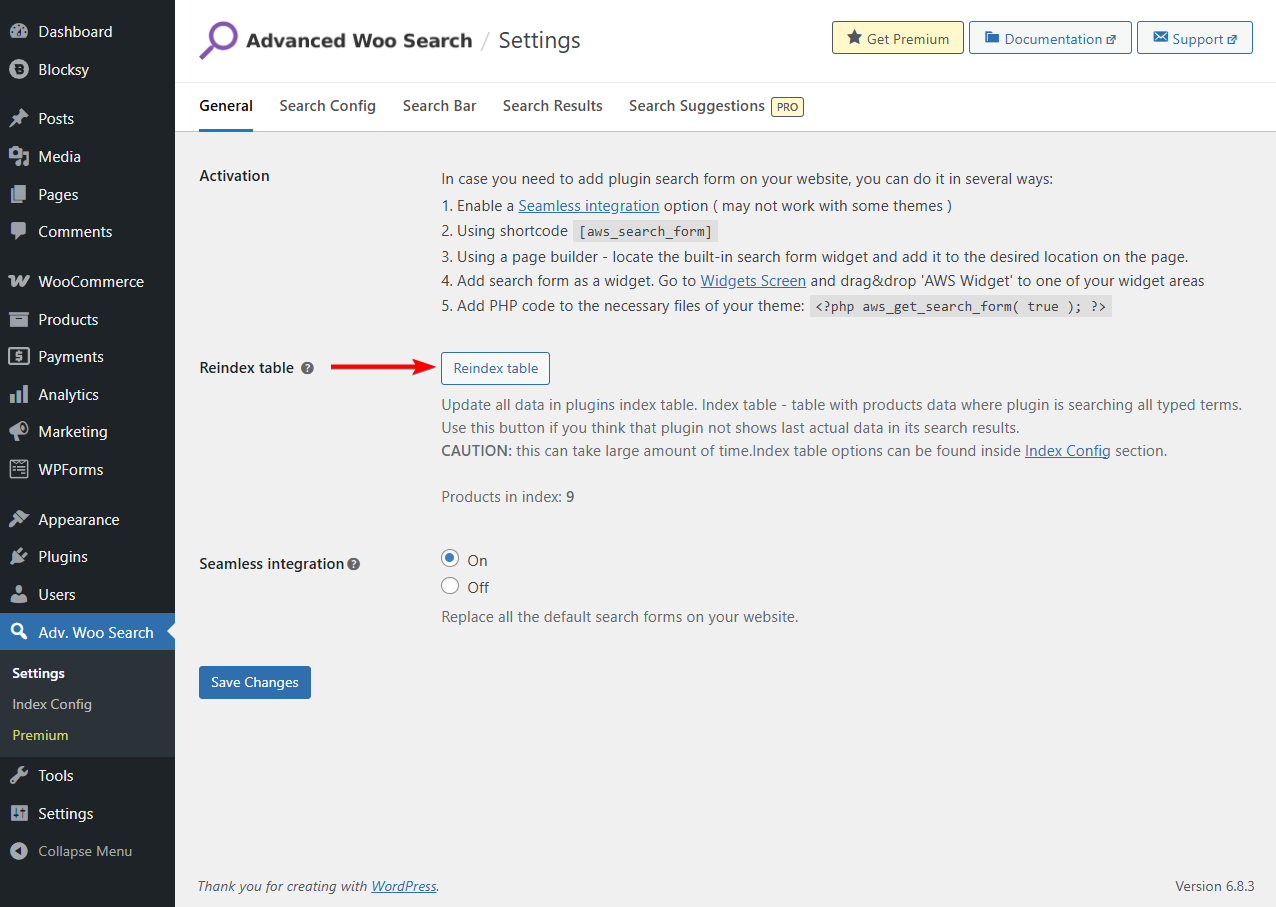
Step 2: Enable Tag Search Under “Search In” Sources
First, you need to make sure the plugin is allowed to index product tags. Go to Adv. Woo Search → Index Config and open the Data To Index section. Here, enable Tags so the plugin can read and include tag values when building the search index. Without enabling this option, tag-based search will not work even if you activate it later in the search settings.
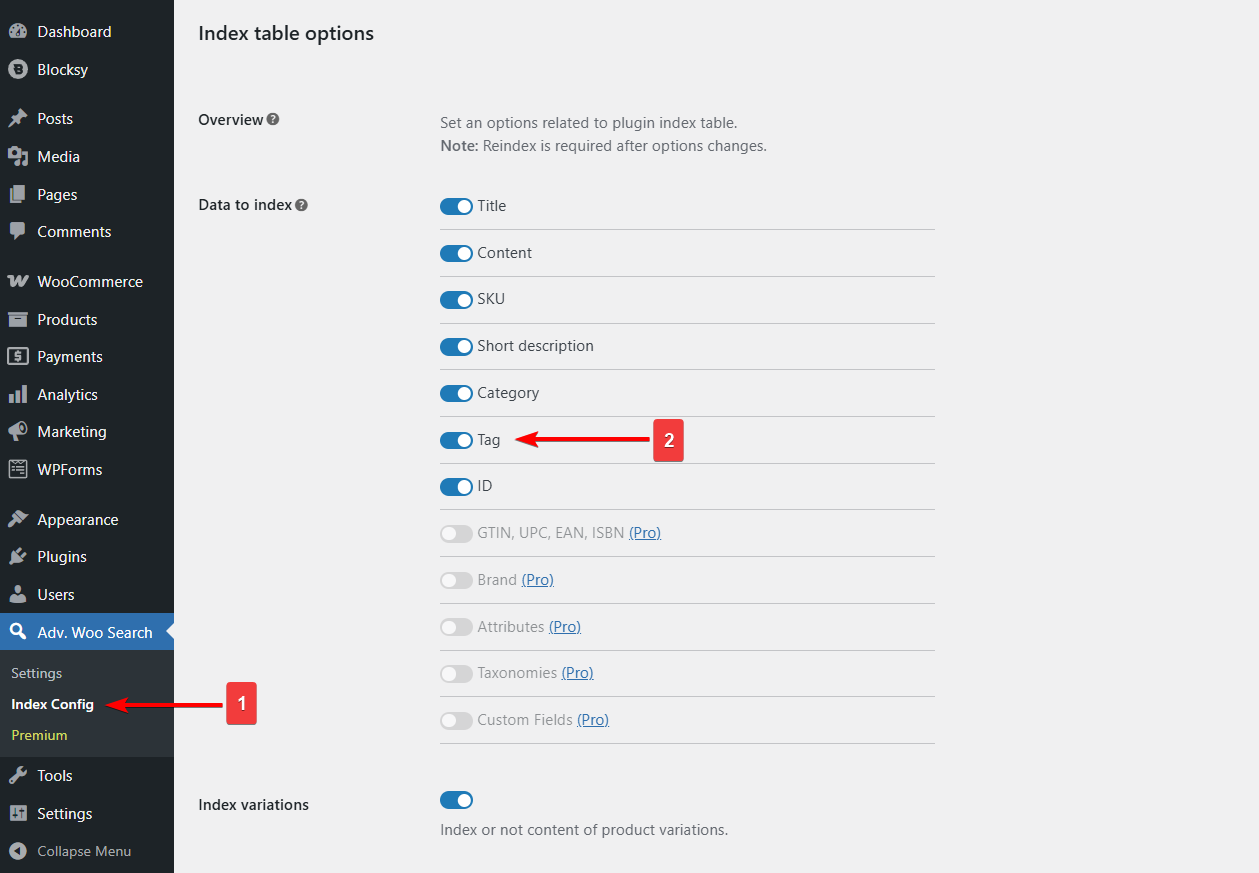
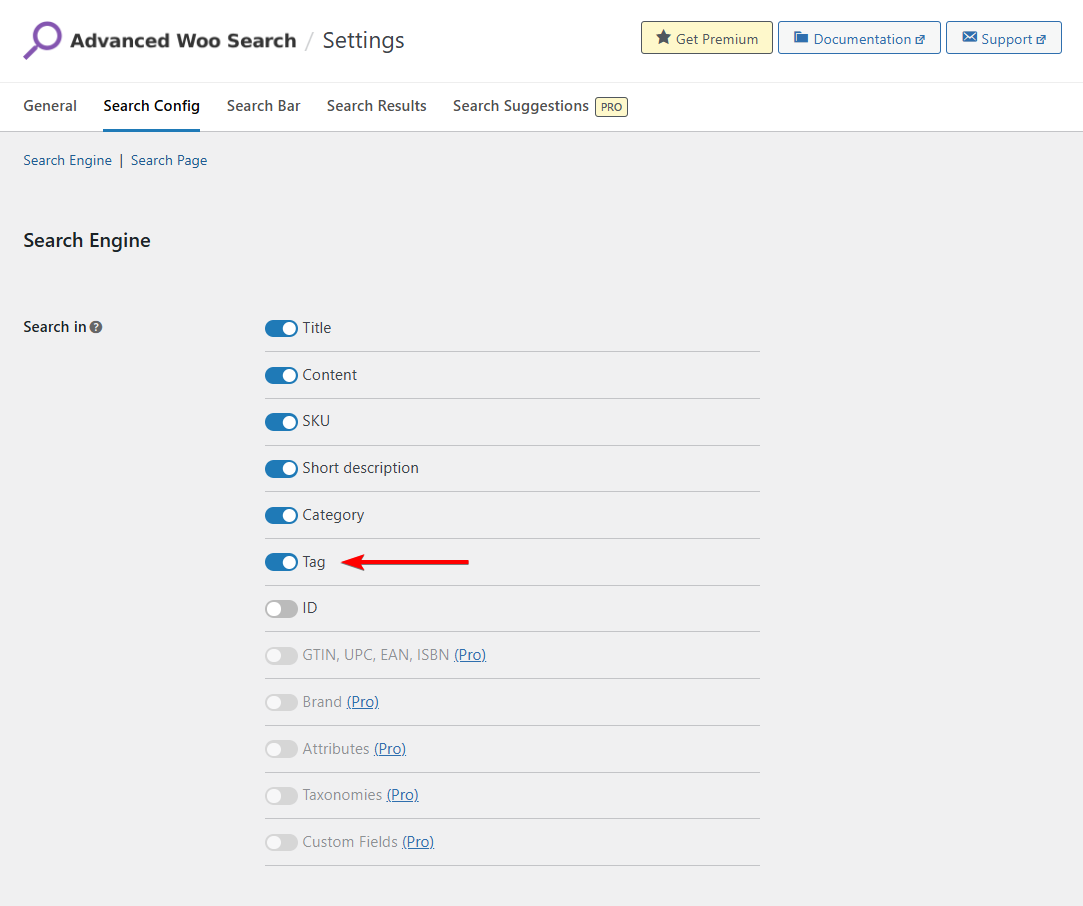
Once tag indexing is enabled, go to Adv. Woo Search → Settings and open the Search Config tab and go to Search In, which lists all the available product data fields that AWS can search through, such as product title, content, excerpt, SKU, category, and tag.
Check the box next to Tag to make WooCommerce product tags searchable. This setting allows the plugin to include tag data in your search index, so products can appear in results even when customers search using tag-based keywords that don’t exist in the product title or description.
Go back to Advanced Woo Search → General and click the Reindex Table button to ensure that tag data is included in your search index.
After the reindexing is complete, AWS will automatically keep your index up to date as products are added, removed, or edited in your store.
Step 3: Configure Other AWS Settings
After enabling tag search, you can fine-tune how your store’s search behaves using additional options available.
Under the Search Config and General tabs, you’ll find several useful settings that help you control search behavior and performance. For example, you can choose whether search results open in a new page or appear instantly using live AJAX results, adjust the number of suggestions shown, or exclude out-of-stock products from search results.
You can also explore the Search Results tab to customize how results are displayed to customers. Here, you can enable product images, pricing, or short descriptions in the live search dropdown to make search results more visually engaging and informative.
If your store has a large catalog, it’s also worth visiting the Performance section to adjust indexing and caching preferences for faster results. These small tweaks can significantly improve search speed and accuracy, especially on high-traffic stores.
Once you’ve made your adjustments, click Save Changes to apply your configuration.
For more assistance, take a look at these AWS help docs.
Step 4: Create & Add AWS Form to Store
Advanced Woo Search uses its own custom search forms to control what appears in your store’s search results. This means that even if you’ve enabled tag search in the plugin settings, it won’t take effect until it’s activated inside a search form instance.
If you are using the free version, a default form is already available. To replace your site’s native WooCommerce search with this AWS form, go to Adv. Woo Search → Settings and enable the Seamless Integration option. This automatically swaps all default search bars across your website with the AWS-powered search form.
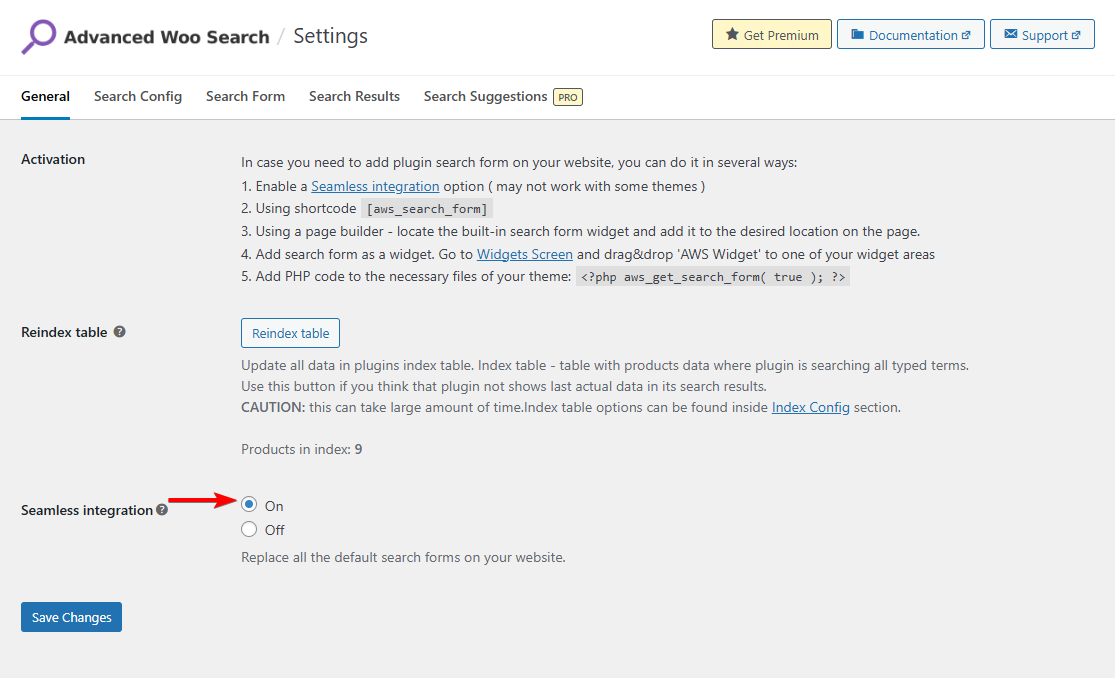
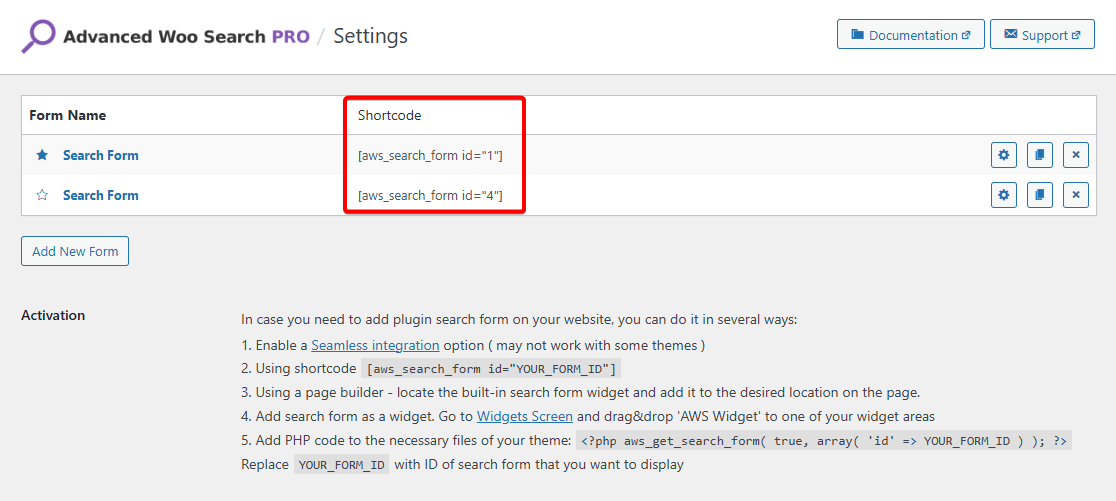
If you are using the Pro version, a default form is also created automatically, so you can turn on Seamless Integration immediately without creating a new form. Creating additional forms is optional. If you want multiple forms for different sections of your site, you can go to Adv. Woo Search → General and click Add New Form, then name it so you can easily recognize it later.
If you prefer manual placement, you can insert your AWS form using a shortcode.
Default AWS form shortcode:
[aws_search_form]
Custom AWS form shortcodes:
[aws_search_form id="1"]
[aws_search_form id="2"]
[aws_search_form id="3"]
Paste the shortcode into any page, post, or widget area where you want the form to appear.
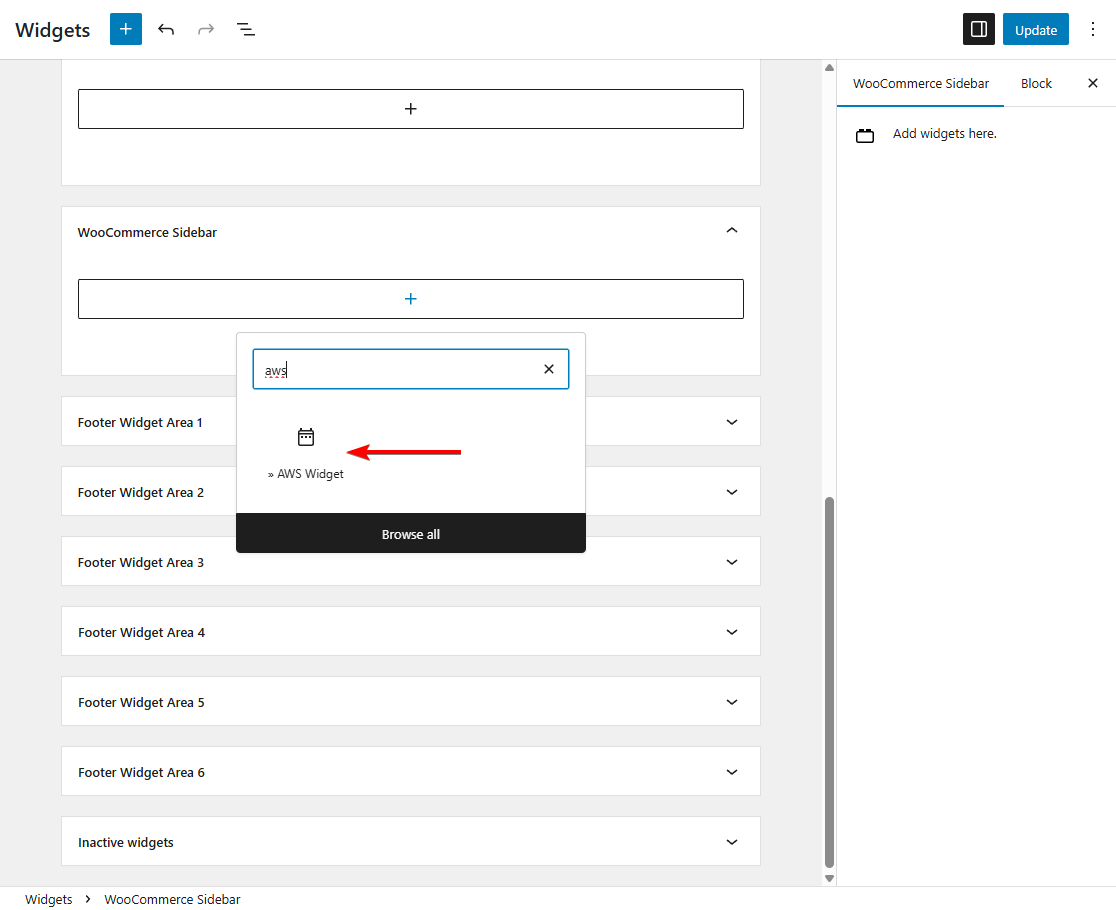
Alternatively, go to Appearance → Widgets, locate the AWS Widget, and drag it into your preferred area, such as the sidebar or header. Pro users can also choose which custom form the widget displays.
Step 5: Test the Tag Search
Once you’ve enabled tag search, it’s important to test that everything is working correctly.
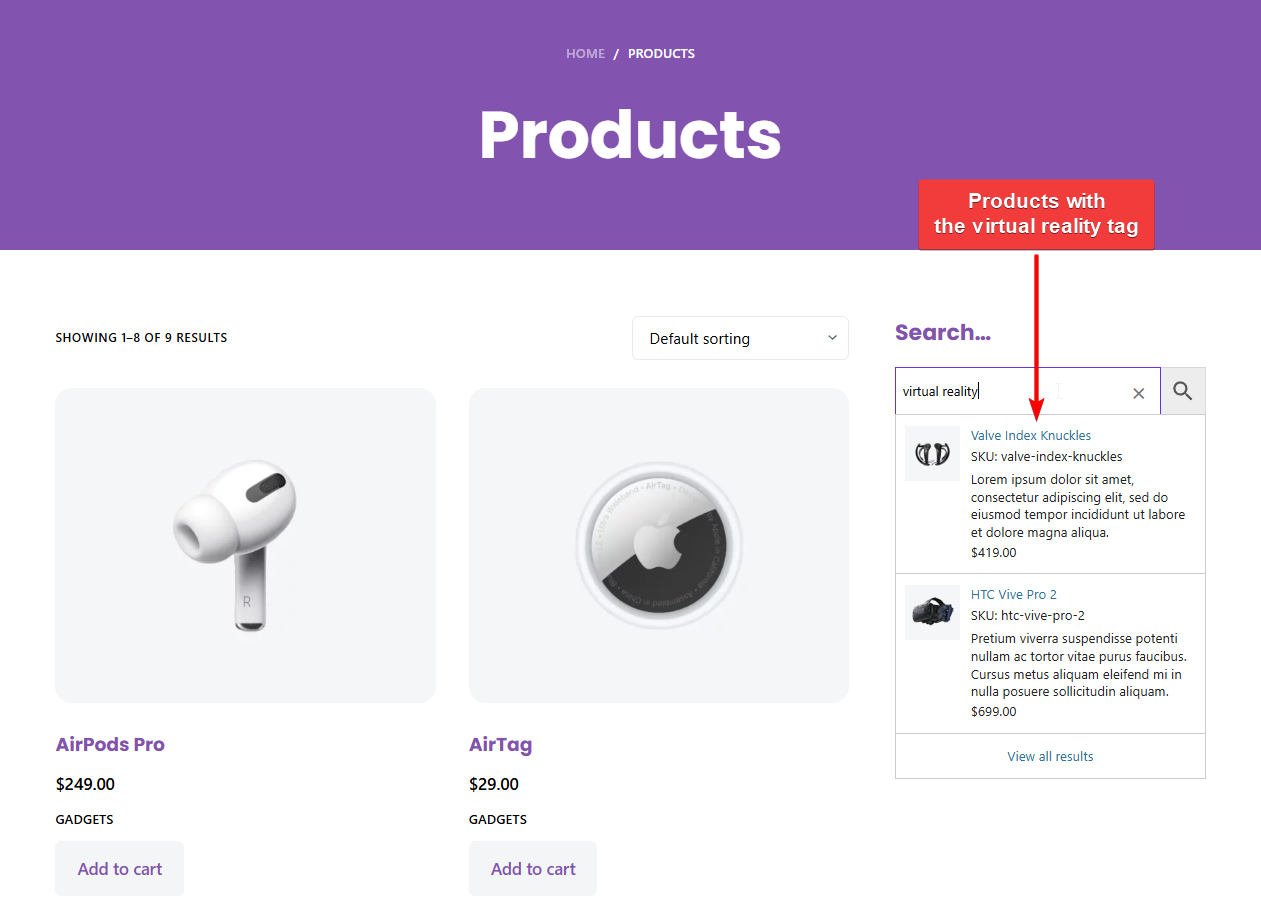
Visit your WooCommerce store’s front end and type a product tag into the search bar. For example, if one of your products is tagged with “virtual reality,” search for that word. Check that products with that tag now appear in the search results, even if “virtual reality” isn’t mentioned in their title or description.
Finally, test the search on both desktop and mobile to confirm that the live results display correctly across all devices.
FAQs
How can we make product tags searchable in WooCommerce?
You can make product tags searchable using the Advanced Woo Search plugin. Once installed, open the plugin settings and enable Tags under the “Search In” section. The plugin will index all product tags and include them in search results instantly, helping customers find relevant items more easily.
Can we combine tag search with SKU or category search?
Yes. Advanced Woo Search lets you include multiple data sources in your search results. You can enable Tags, SKU, Categories, and other fields under the “Search In” settings. This ensures customers see accurate, comprehensive results that combine product information from various fields without slowing down search performance.
Will enabling tag-based search affect my site speed?
No, tag-based search will not slow down your site. Advanced Woo Search uses an optimized indexing system and AJAX technology to deliver instant results. Even if your store has a large catalog, the plugin processes searches efficiently, keeping your WooCommerce store fast and responsive for all users.
Conclusion
WooCommerce’s default search does not include product tags, which often limits how easily customers can find what they’re looking for. By enabling tag-based search with Advanced Woo Search, you can make your store’s search results more relevant, improve product discovery, and enhance the overall shopping experience.
The setup is quick and doesn’t require any coding. Once configured, customers can search using keywords that match your product tags, and results will appear instantly.
To take it a step further, you can also combine tag searches with other fields such as SKUs, categories, or attributes. This creates a powerful and flexible search system that helps customers find products faster, reduces bounce rates, and ultimately increases sales.
- Try the free Advanced Woo Search plugin, or
- Get Advanced Woo Search Pro today!
If you have any questions about WooCommerce search product tags, let us know in the comments section below.
Trackbacks