
Looking for ways to add WooCommerce search suggestions to your store?
WooCommerce’s default search is fairly basic. It doesn’t offer predictive suggestions, real-time previews, or typo handling, all of which are now standard expectations for online shoppers.
By displaying results as users type, search suggestions help bridge the gap between customer intent and product discovery.
Whether a shopper types a partial keyword or a common misspelling, a smart search bar can still guide them to the right product, faster and with fewer clicks.
In this guide, we’ll explore how WooCommerce search suggestions work, their impact on conversions, and how to implement them effectively using our plugin, the Advanced Woo Search plugin.
You’ll also learn how to customize and optimize suggestions to increase engagement, showcase key products, and deliver a smooth, high-converting search experience.
What Are WooCommerce Search Suggestions? What Are Its Benefits?
WooCommerce search suggestions are real-time, predictive results that appear as a user types in the search bar. Instead of waiting for a full query and results page, customers see product suggestions instantly based on partial keywords, related terms, or popular items in your store.
These suggestions can include product titles, images, prices, and other helpful information. By narrowing down options as the customer types, they reduce the chances of typos, missed items, and zero-result pages.
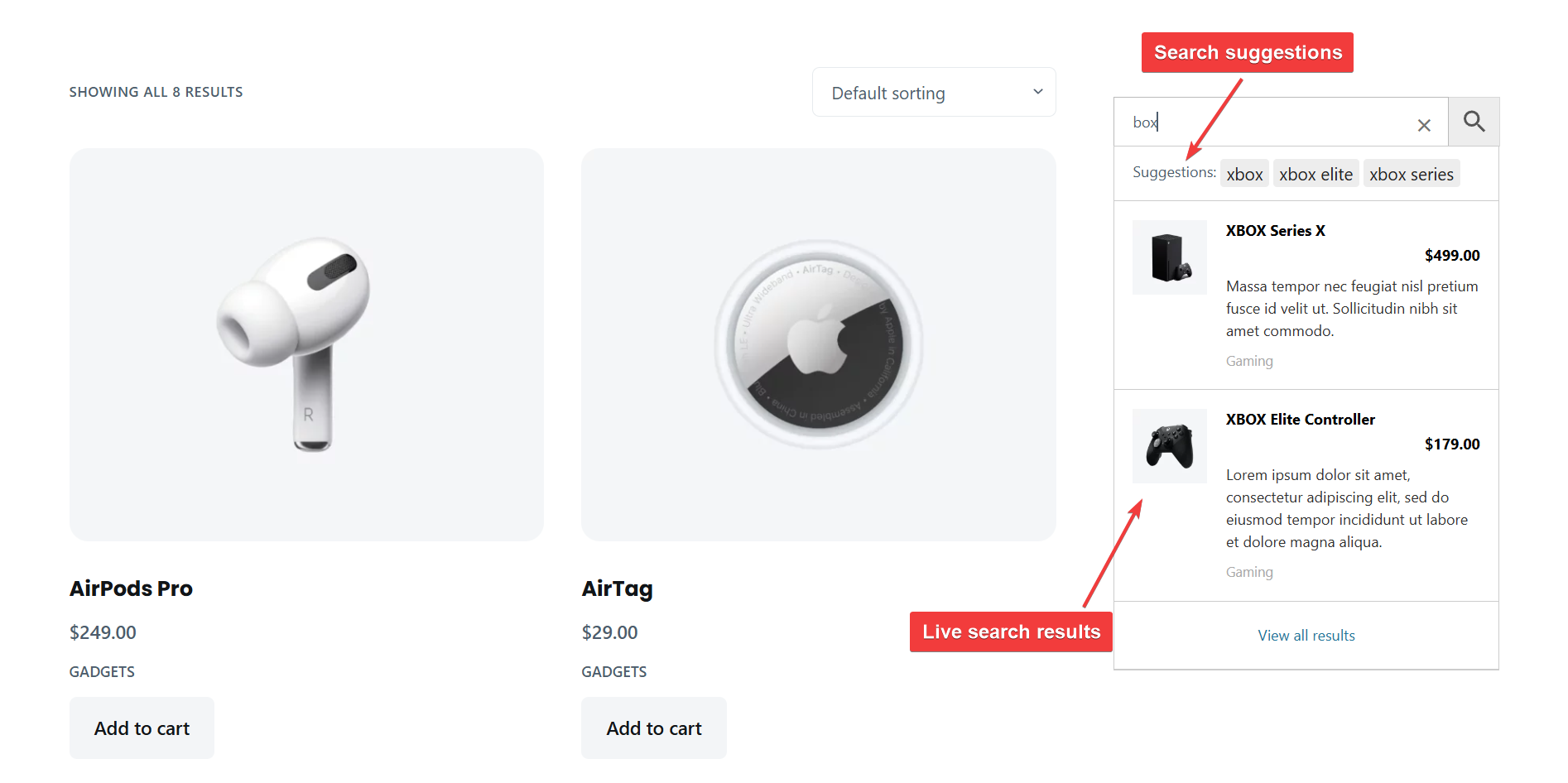
Key Benefits of Using Search Suggestions
Better User Experience: Search suggestions reduce friction by helping users find what they want faster. Even if a shopper enters a misspelled or incomplete word, intelligent suggestions can still guide them toward the right product. This creates a more intuitive and satisfying search experience.
Increased Product Discoverability: Suggestions introduce customers to related or popular products they may not have considered searching for. This expands their browsing behavior and increases the likelihood of cross-sells and upsells.
Higher Conversion Rates: Predictive search helps surface best-selling, discounted, or featured products directly in the suggestions dropdown. This encourages clicks and improves the odds of conversion before the customer even hits "Enter." It also reduces bounce rates from empty or irrelevant search results.
Lightweight & Responsive Search Results: Search suggestions are often powered by AJAX, which allows results to appear instantly as users type. This keeps the shopping experience smooth and uninterrupted, without requiring a page reload. Plugins like Advanced Woo Search are optimized to deliver real-time results quickly, even for stores with large product catalogs.
Compatibility: WooCommerce search suggestion plugins are typically designed to work with your existing theme and product catalog. That means you can install, configure, and start improving your store’s search experience without making major changes.
In the next section, we’ll walk you through how to add this functionality to your WooCommerce site using Advanced Woo Search.
How to Add Search Suggestions to WooCommerce
To demonstrate how to add search suggestions to a WooCommerce store, we’ll use the Advanced Woo Search (AWS) plugin.
While AWS offers a free version with powerful core search functionality, search suggestions are available only in the premium version. Upgrading unlocks a range of advanced features that let you control exactly how and where suggestions appear, what products to promote, and how to fine-tune the experience for maximum conversions.
Here are some of the key features AWS Pro offers for search suggestions:
Advanced Woo Search Key Features
1. Smart Suggestion Generation
AWS intelligently generates suggestions based on user input and your store’s product data. It can surface not only direct matches but also related or popular products to help customers discover more of your catalog.
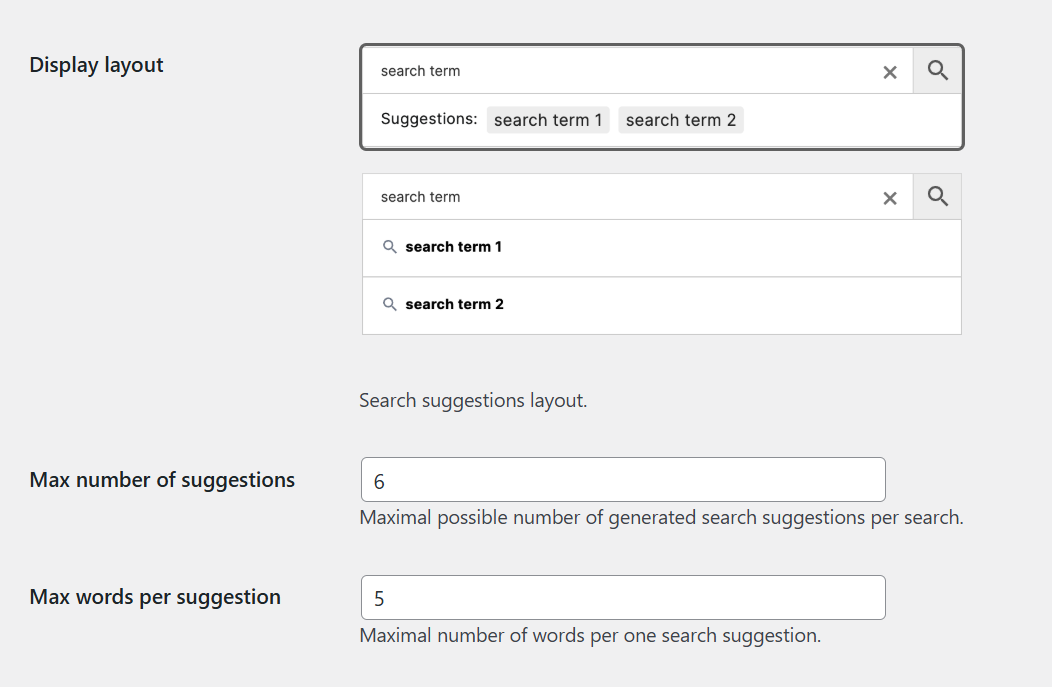
2. Flexible Display Options
You can choose from multiple predefined layouts to match your store's design. Options include minimalist lists, grid-style previews, and rich suggestions that show product images, prices, and other key details directly in the dropdown.
3. Advanced Customization Controls
Fine-tune how suggestions behave and what content they include. You can:
- Set the maximum number of suggestions shown
- Define the minimum word length required to trigger suggestions
- Choose which product fields to include, such as title, SKU, short description, or attributes
- Enable a “Show only when no results” mode to reduce clutter
4. Seamless Integration
AWS works with the default WooCommerce search and most third-party themes. It includes a shortcode ([aws_search_suggestions]) so you can place the search bar with suggestions anywhere on your site. For developers, PHP hooks are available to customize the logic or output even further.
5. Built for Conversions
AWS suggestions are designed to help you guide users toward high-value products. You can boost certain products in the suggestions list, redirect users to a full results page, or instantly update results using AJAX when a suggestion is clicked. The dropdown is fully responsive, mobile-friendly, and compatible with multilingual plugins like WPML and Polylang.
These are just a few of the features AWS offers. To explore the full set of capabilities, take a look at the complete feature list.
Now, let’s learn how to add search suggestions to your WooCommerce store using AWS Pro:
Step 1: Install & Activate Advanced WooCommerce Search Pro
After purchasing the Advanced Woo Search Pro plugin, install and activate it on your WooCommerce store. Once activated, enter your license key to enable all premium features, including search suggestions.
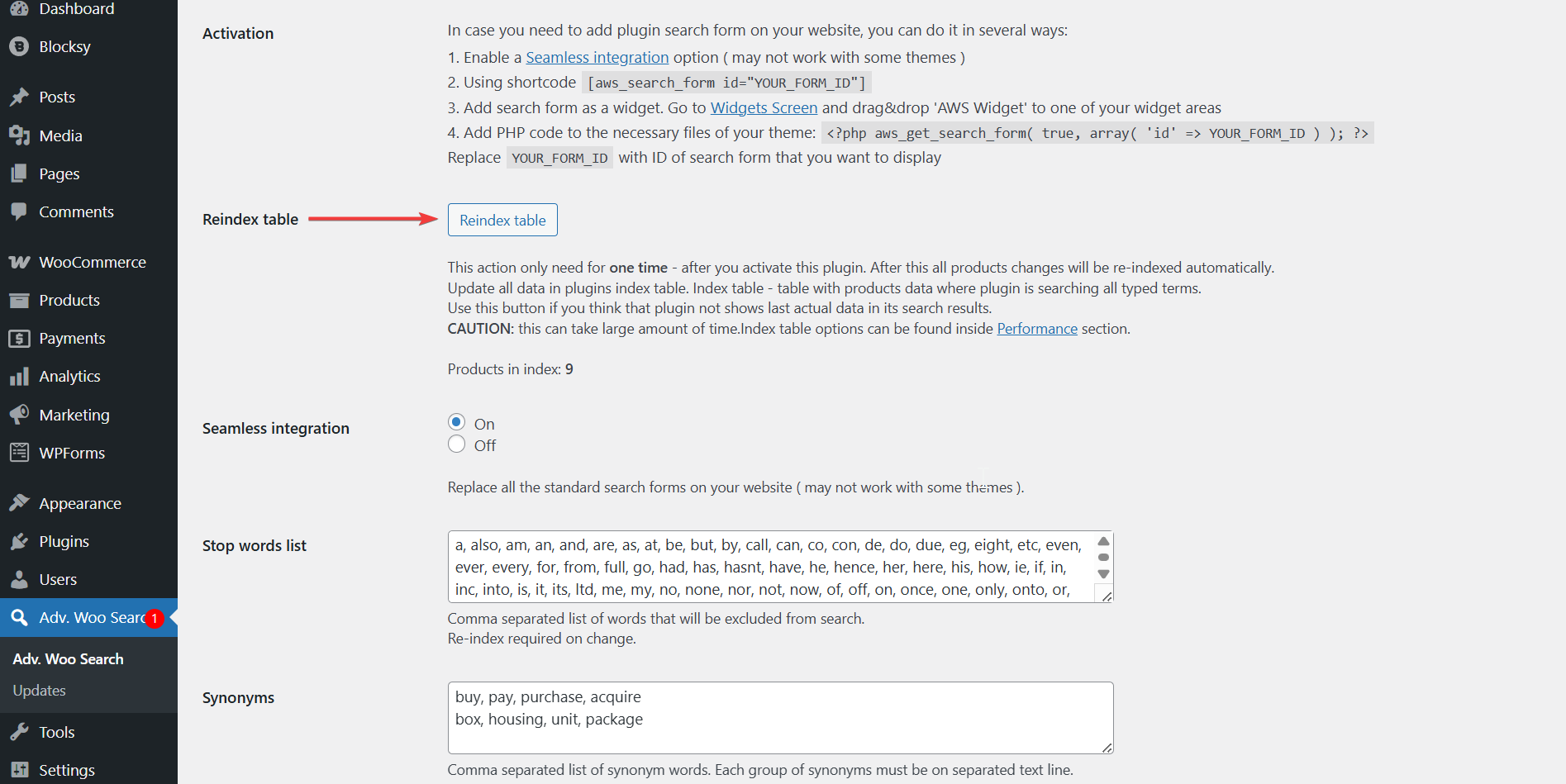
Next, go to the Adv. Woo Search option in your WordPress dashboard. Under the General tab, click the Reindex table button.
This is a mandatory step. It creates a dedicated search index table that powers fast and accurate AJAX-based search results across your entire product catalog. You only need to run the index once. After the initial setup, the plugin will automatically keep your search index up to date in the background whenever products are added, edited, or removed.
Step 2: Create a Search Form
Search Suggestions have to be enabled on individual AWS search forms. To create a new search form after installing the plugin on your store, go to Adv. Woo Search and hit the Add New Form button, and immediately a new form will appear on the dashboard.

Step 3: Enable Search Suggestions
Search suggestions show users a list of related search terms based on what users type and the products currently available in your WooCommerce store.
For example, if someone types “hoodies,” the suggestions might include terms like “Yoga hoodies,” “Full-zip hoodies,” or “V-Neck hoodie.” This helps shoppers refine their search and discover more relevant products.
To enable this feature, go to the form’s settings (gear icon found on the right of the screen) → Search Suggestions → Enable suggestions → Enable and hit the Save Changes button. It is disabled by default, so this step is necessary to activate the functionality.
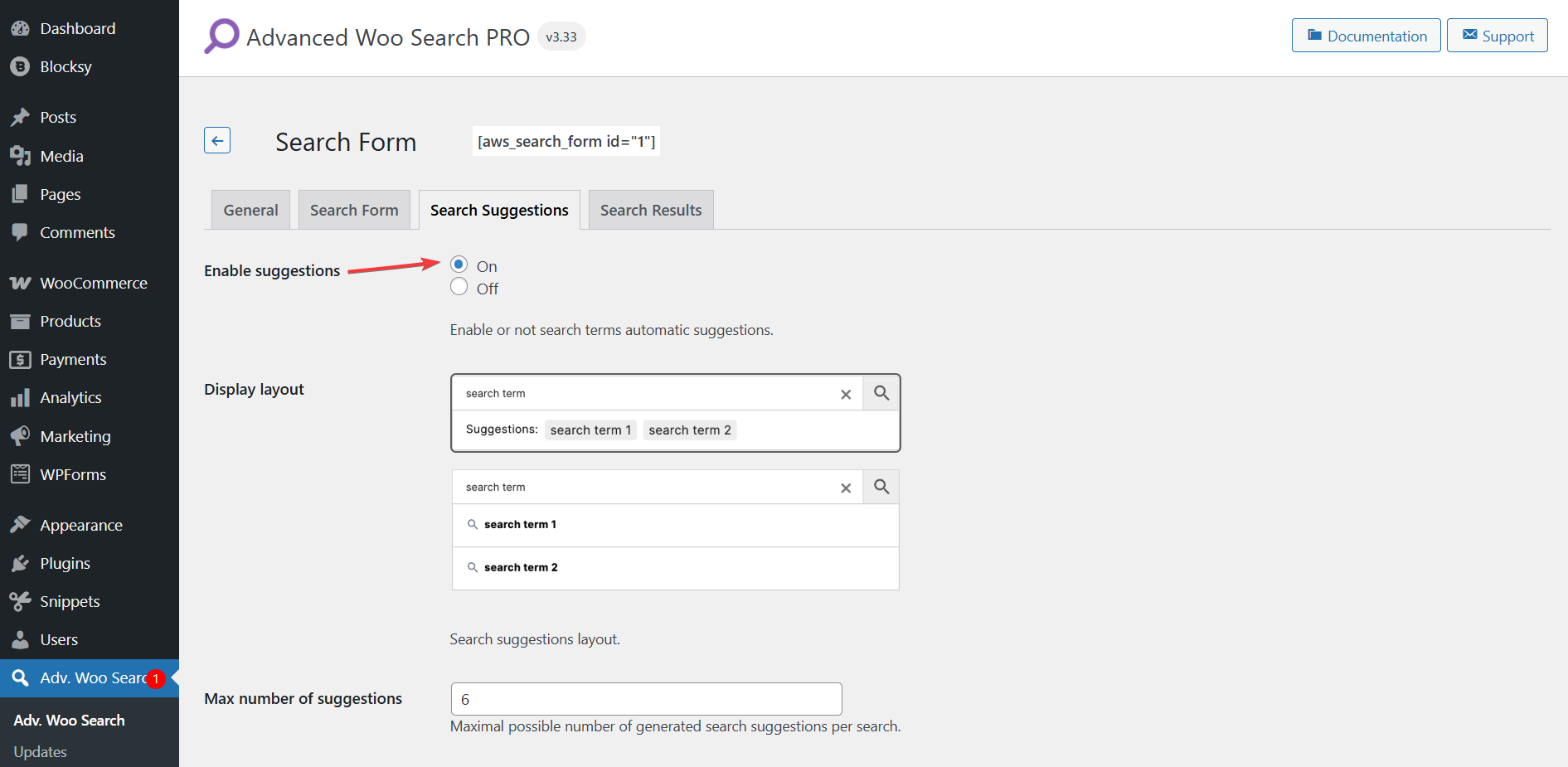
Once enabled, suggestions will start appearing automatically within the live AJAX search results. By default, clicking on a suggestion will refresh the AJAX results with new matching products.
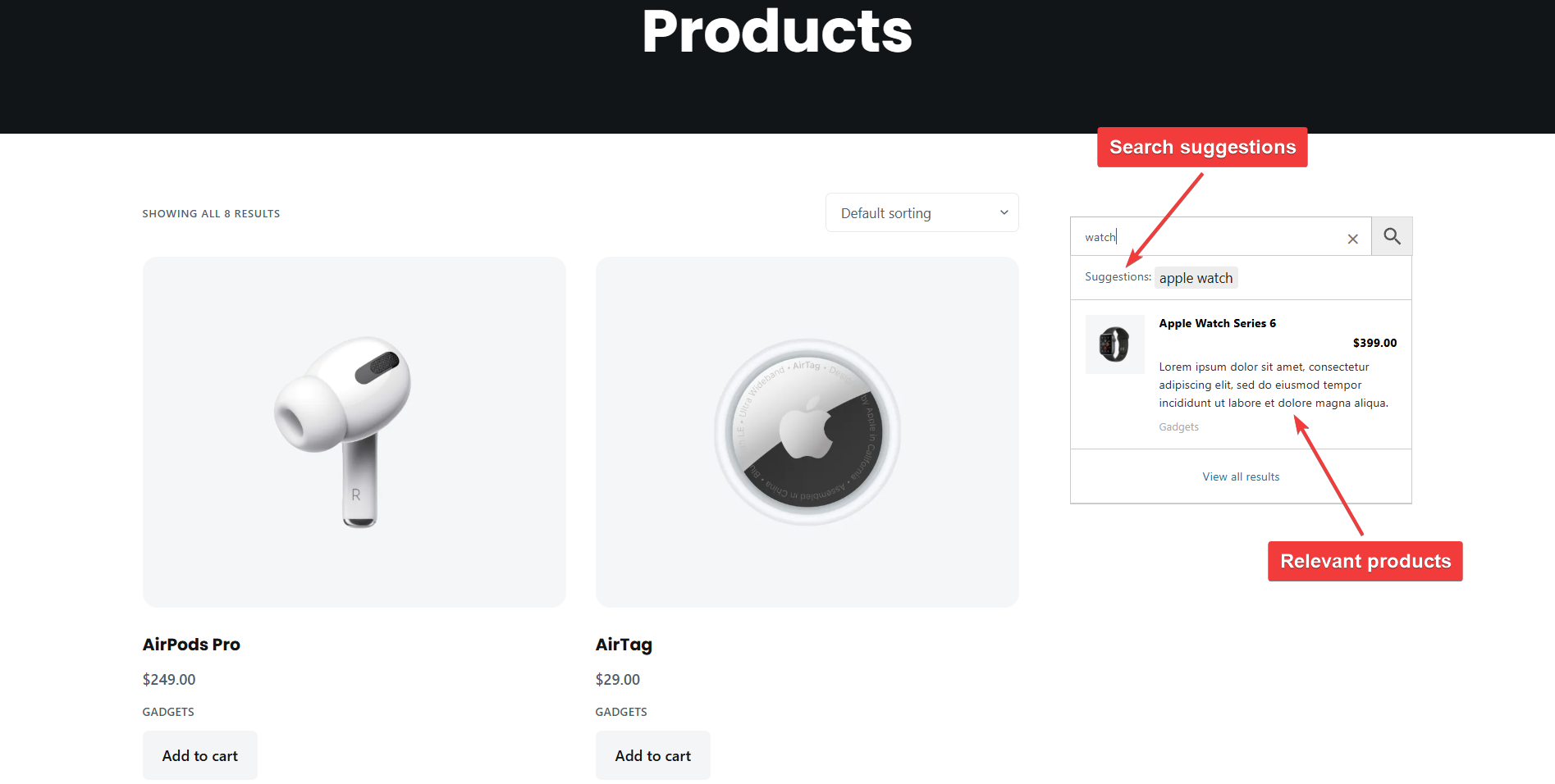
Keep in mind that suggestions are not generated for every search. If no similar terms exist across your products, the suggestions box may not appear for some queries.
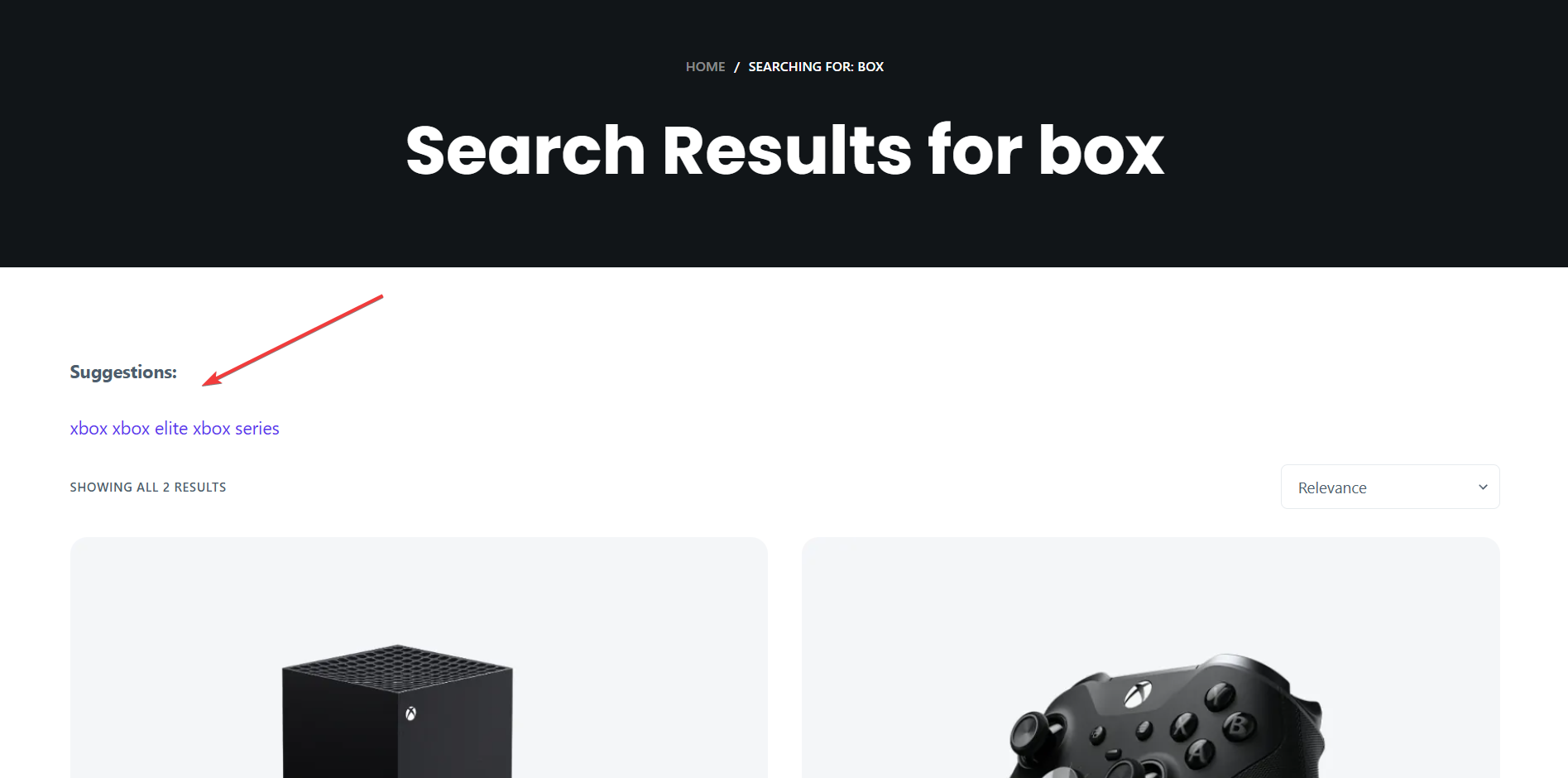
Please note: By default, search suggestions are only shown within the AJAX-powered live search results. If you want to display them on the WooCommerce search results page as well, you can do so using the shortcode:
[aws_search_suggestions]
Add this shortcode directly into your search results template using a page builder like Elementor, a text widget, or PHP if your theme supports it. Just be sure the shortcode is placed inside a WooCommerce product search results page, as it will not work on unrelated pages.
Here’s how the search suggestions show up on our demo store.
Need assistance? Check out this help doc on AWS Search Suggestions.
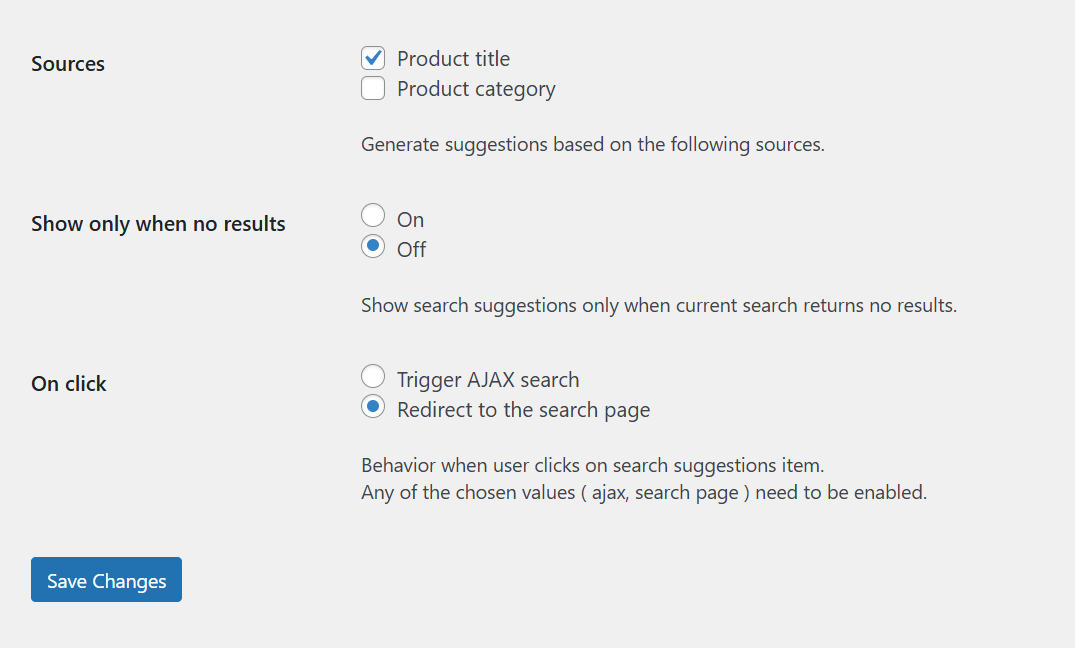
Step 4: Configure Layouts, Sources, & Triggers
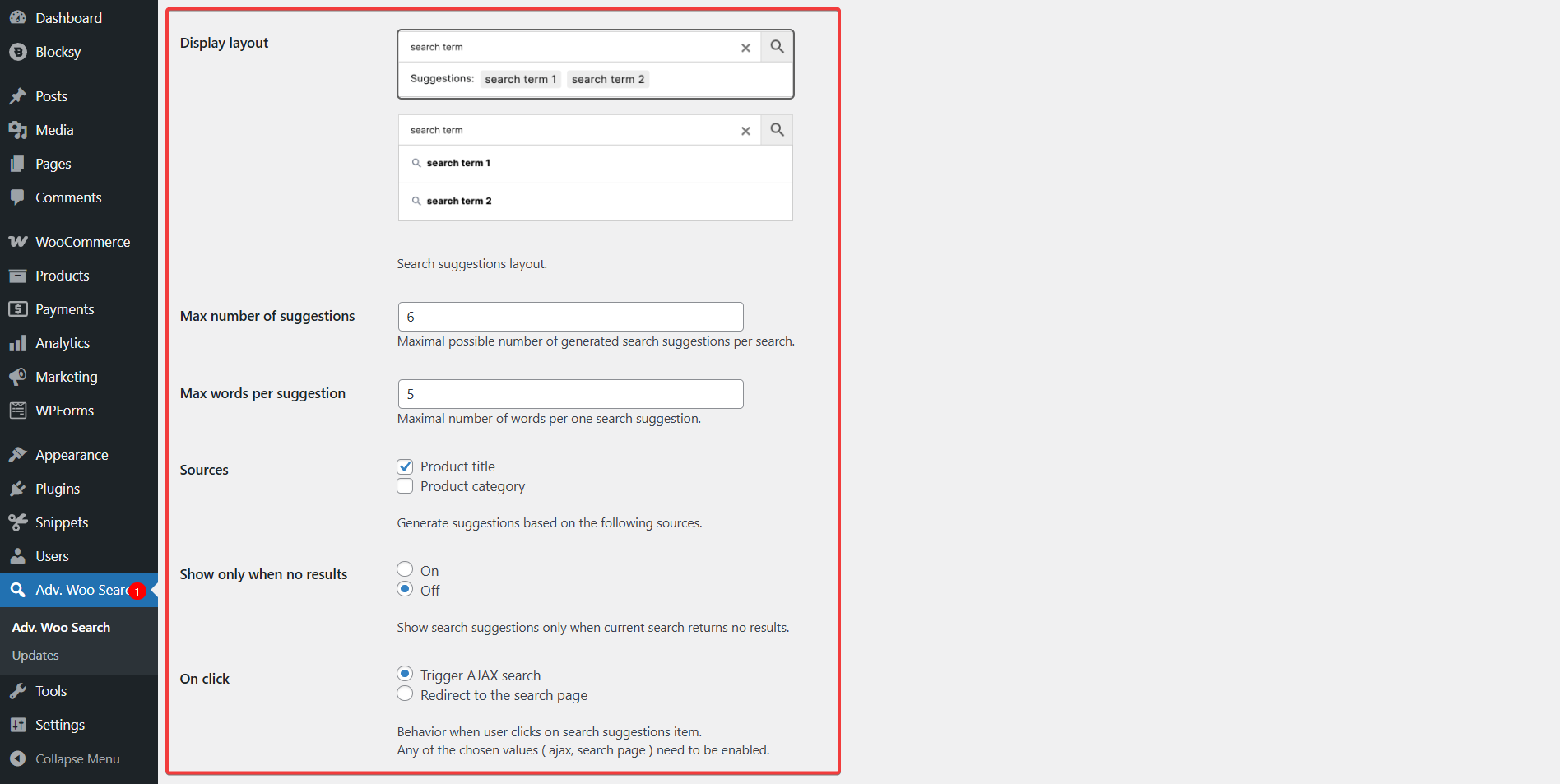
After enabling search suggestions, you can customize how they look, where they pull content from, and what happens when a user interacts with them. These options are available in the Search Suggestions page.
- Display layout: Choose how suggestions are visually styled in the dropdown
- Max number of suggestions: Set how many suggestions should appear for each search
- Max words per suggestion: Limit the number of words shown in each suggestion
- Sources: Select which product fields (like title or category) are used to generate suggestions
- Show only when no results: Display suggestions only when no matching products are found
- On click: Decide whether clicking a suggestion triggers a live AJAX search or redirects to the full results page
These quick adjustments allow you to control both the look and functionality of your store’s search suggestions.
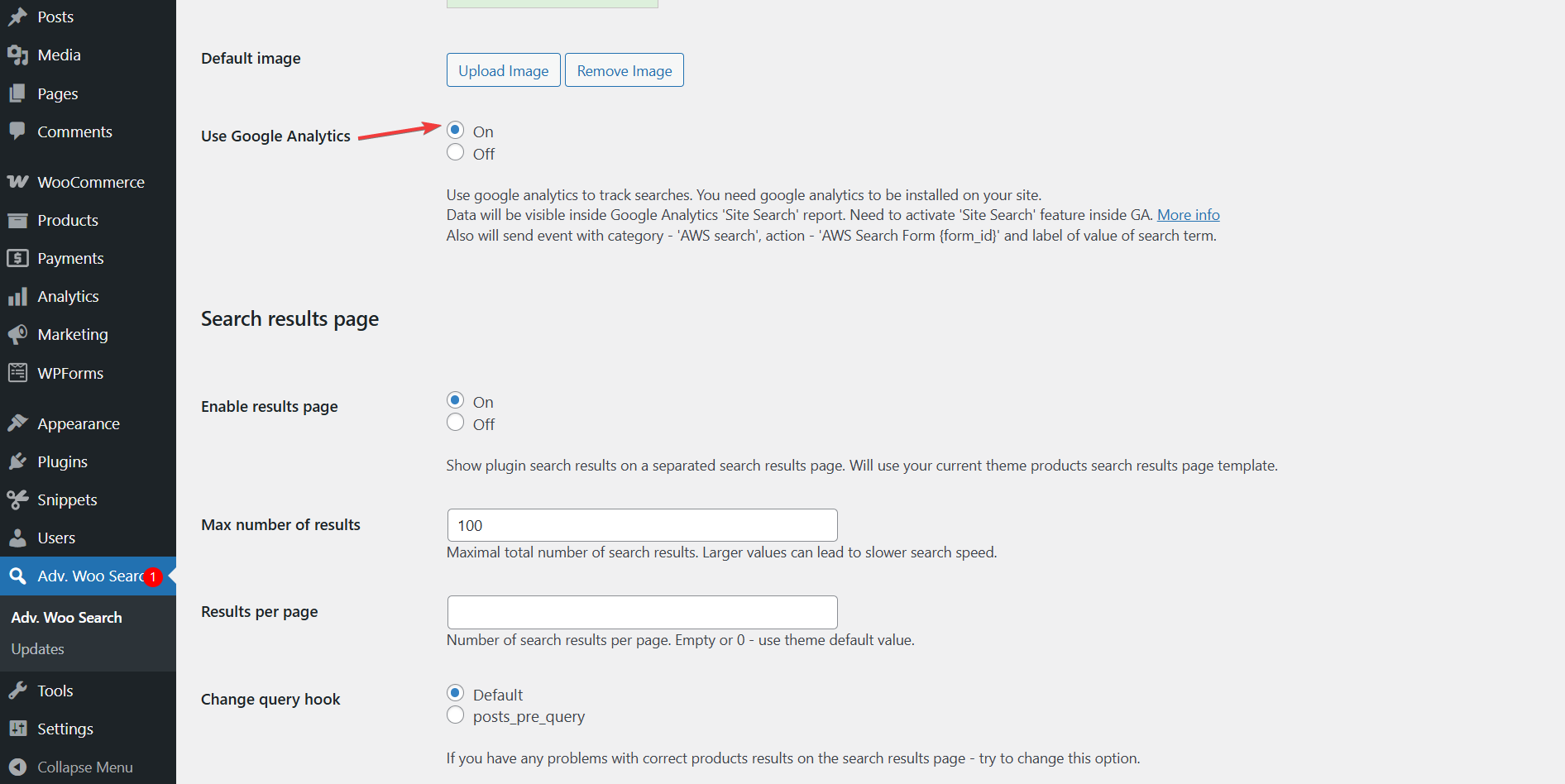
Step 5: Set Up Plugin Search Analytics
After enabling search suggestions, it's important to track how users interact with your store’s search feature. Search analytics help you understand what customers are looking for, which terms lead to clicks, and where there may be gaps in your product catalog.
Advanced Woo Search Pro includes built-in support for Google Analytics 4 (GA4) and Google Tag Manager, allowing you to track every search made through the plugin. This includes details like the exact search term used and the search form instance.
To get started, go to Adv. Woo Search → form settings → Use Google Analytics and turn the option On. From there, you'll need to configure your GA4 or GTM account to capture and display these custom events.
For step-by-step instructions, check out the official AWS analytics integration guide.
Implement These Advanced Optimizations to Boost Conversions
Once you’ve enabled search suggestions with Advanced Woo Search, the next step is to optimize them for conversions. The goal is not just to help users find products but to guide them toward the ones that are most likely to sell.
Here are a few ways you can do that using features built into AWS Pro.
Handle Misspellings & Partial Queries: People often misspell product names or type incomplete words. To catch these searches, you can manually add common misspellings or similar terms in product tags, descriptions, or custom fields. AWS uses partial matching logic to recognize close matches, but a few strategic adjustments on your end can greatly improve relevance. Learn more: AWS Misspelling Fix
Make Suggestions Mobile-Friendly: A significant portion of users shop from their phones. Make sure your search suggestion dropdown is responsive and easy to tap. AWS renders suggestions in a clean layout that adjusts to different screen sizes, but it’s worth double-checking the mobile experience during setup to avoid missed clicks or display issues. Also read: AWS Mobile Support
Optimize for Multilingual Stores: If your store serves customers in multiple languages, AWS integrates with WPML and Polylang. This means your search suggestions can appear in the shopper’s preferred language, improving both relevance and trust. Make sure your product data is fully translated to get the most out of this feature. Learn more: Multilingual Support
FAQs
1. Can I show product images and prices in search suggestions?
Yes, with Advanced Woo Search Pro, you can display rich suggestions that include product images, prices, and additional information such as SKU or short descriptions. This visual preview helps users quickly identify products and improves click-through rates. You can choose from different layout options to match your store’s design and UX needs.
2. Can I boost specific products or categories in suggestions?
While the plugin doesn’t offer a direct “boost” feature, you can influence which products appear in suggestions by optimizing product titles, keywords, and other searchable fields. Including popular search terms in product data increases the chances of those items being suggested. For more advanced control, developers can use custom code and filters to adjust search behavior and prioritization.
3. Do search suggestions work with multilingual stores?
Yes, Advanced Woo Search integrates with popular multilingual plugins like WPML and Polylang. This ensures your search suggestions are shown in the correct language based on the user’s preferences. To get the best results, make sure all product data, including titles, descriptions, and attributes, is properly translated into each supported language.
Conclusion
WooCommerce search suggestions are more than just a nice feature. They play a critical role in helping users find products quickly, reducing bounce rates, and increasing conversions.
By guiding shoppers in real time, especially when they make typos or enter incomplete queries, suggestions help connect customer intent with the right products.
The Advanced Woo Search plugin makes it easy to implement and customize search suggestions that match your store’s needs. With features like smart suggestion logic, rich previews, multilingual compatibility, and performance optimization, AWS gives you the tools to create a faster and more intuitive search experience.
If you’re ready to offer a smarter and more effective search to your customers, try Advanced Woo Search Pro today.
Whether you begin with the free version or upgrade to Pro for access to search suggestions and other premium features, the setup is quick, and the benefits are easy to measure.
If you have any questions, let us know in the comments section below.
Comments