Overview
Advanced Woo Search plugin gives you the option to select where to search for keywords.
Following sources are available: product title, content, description, tags, categories, ID and SKU.
Pro plugin version additionally gives you features to search in product attributes, taxonomies and custom taxonomies.
You can search in all these sources or only in some of them. It is possible via the plugin settings page where you can set these fields. Just find Search In option - inside it you can enable any specific product field that you want.
In this screenshot all sources are active. So when visitors type something in the search box the plugin will search for needed terms in all these fields.
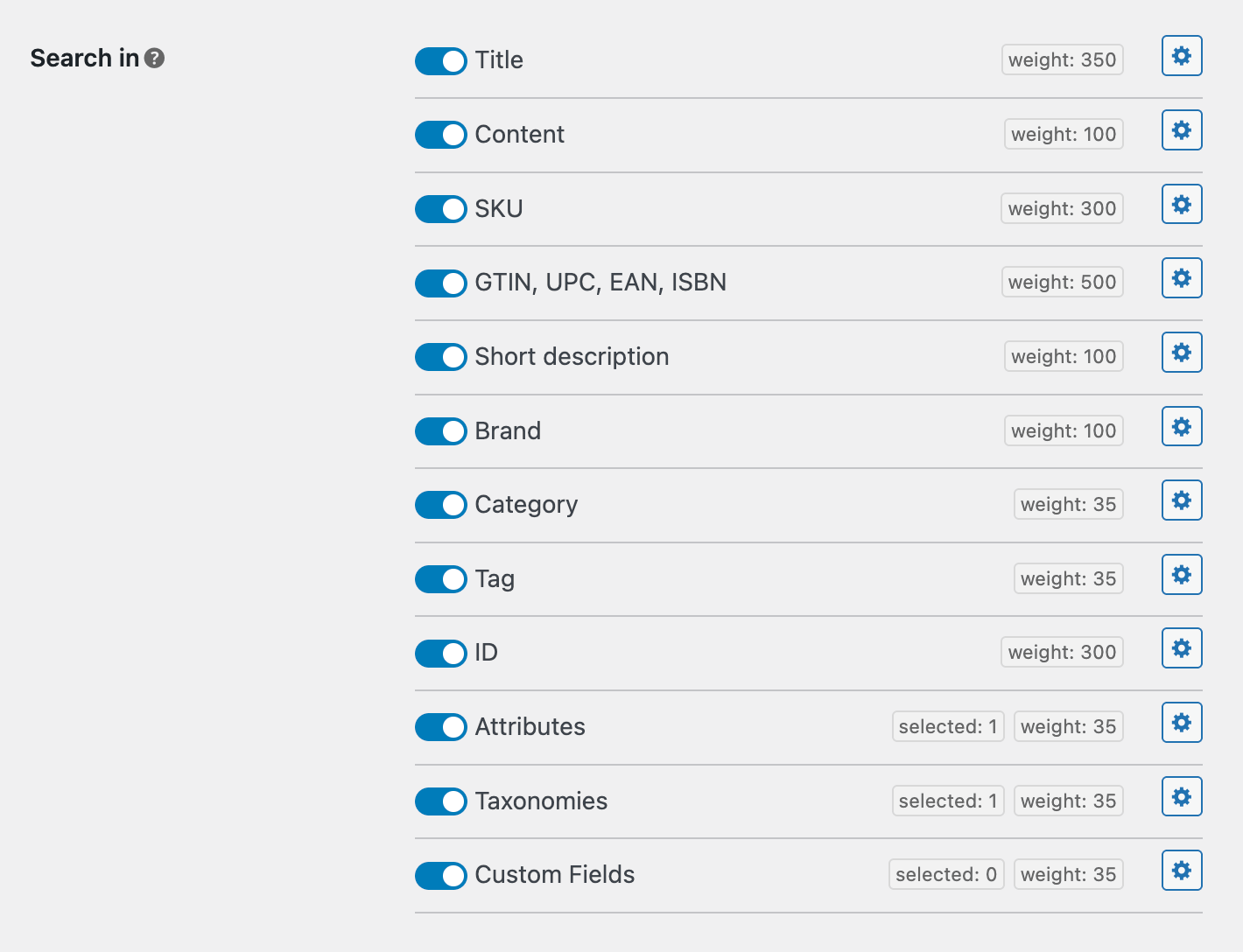
Product fields that are available for search
Weight Option
The first thing you need to learn about is the Weight option. All search sources have this option, including child sources for taxonomies, attributes, and custom fields.
The Weight value shows how important a particular field is for ranking a product higher in the search results. A higher value means more impact. The possible value range is from 1 to 999.
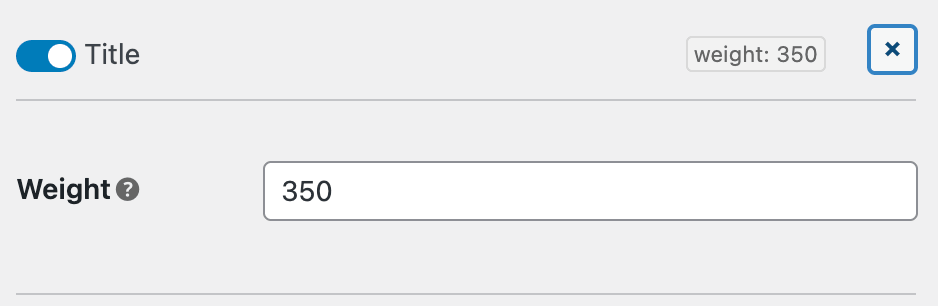
Weight option for the Title product field
How does this work? For example, let’s set the weight to 350 for the Title field and 100 for the Content field. We have two products, A and B. Product A has the search term in its title, and product B has the same term in its content. With these weight values, product A will appear first in the search results.
If we change the values and set 350 for Content and 100 for Title, then with the same search query, product B will appear first.
Also you can read about Relevance Score to know more about how plugin sort search results.
Title Search
Search for words inside the product title field.
If all other fields are disabled this field will be enabled automatically. Title field along with ID and SKU fields has a higher relevance score. So products with search words inside the title will appear higher in the search results.

Title search field option
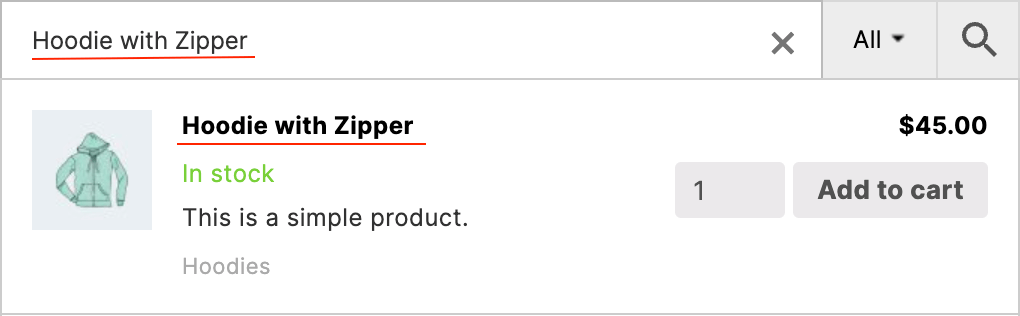
Search for product title.
Content Search
Search inside product content.

Content search field option
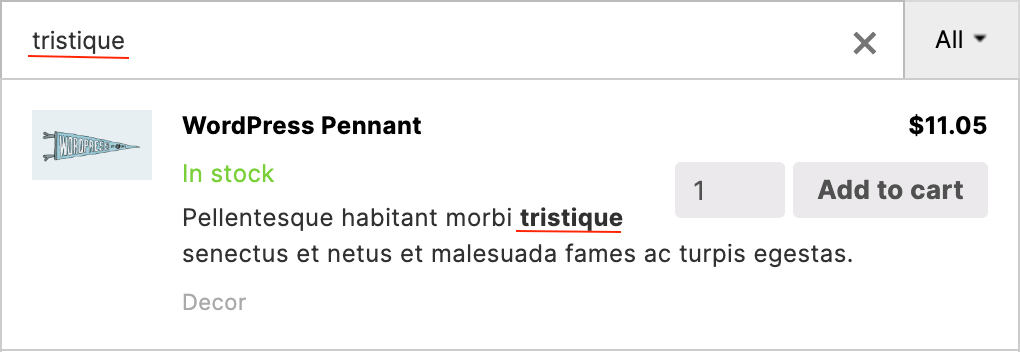
Search for product content.
It is also worth mentioning the possibility of execution of all shortcodes inside this product content field. This means that all data, generated via these shortcodes, will be also available for searching.
The downside of shortcodes execution may be that the index table becomes too big. For this case you have an additional option to disable shortcodes execution for product content. Just open the plugin settings page -> Performance tab and turn off Run shortcodes option.

Option to disable shortcodes execution
SKU Search
Search inside product SKU field. Useful option when you need to find a specific product.

SKU search field option
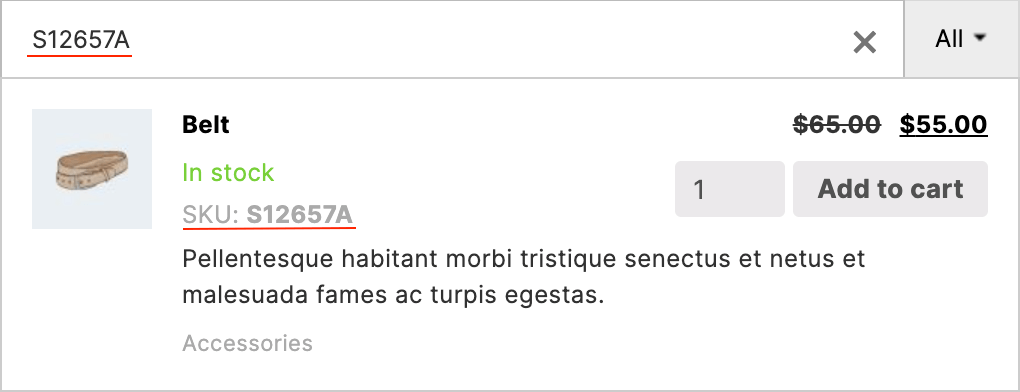
Search for product SKU number.
It is worth mentioning that SKU search works for variable products and its child products too.
Description Search
Search inside product short description field.

Description search field option
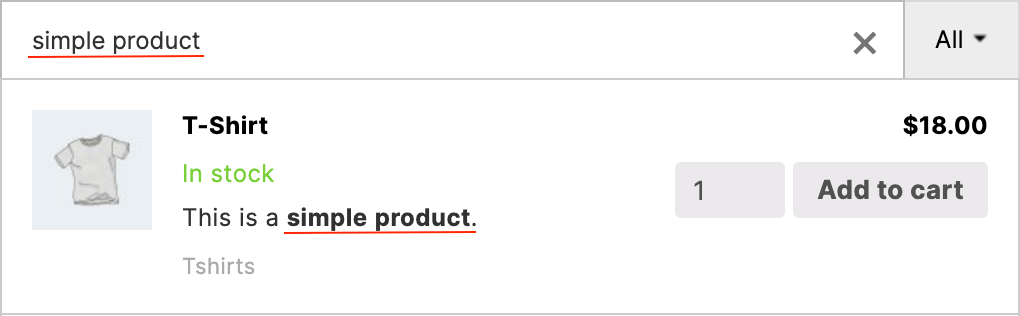
Search for product short description.
Categories/Tags Search
Search inside product categories/tags.

Categories and tags search fields options
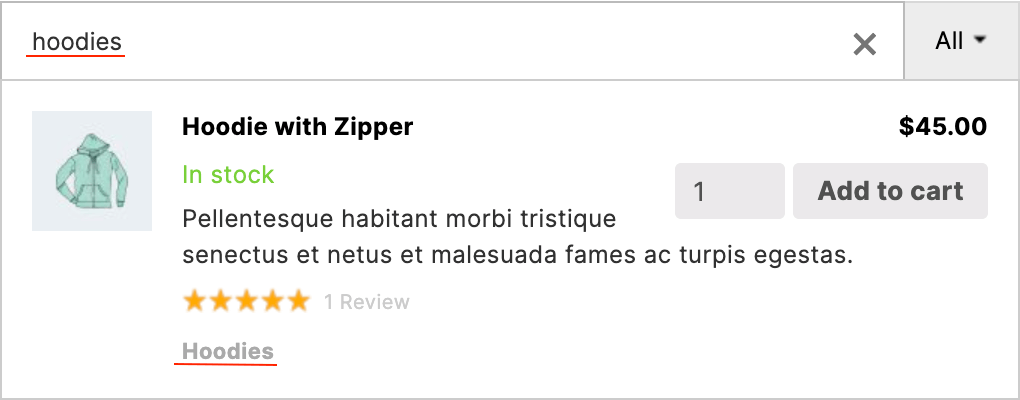
Search for product category.
Product ID Search
Search inside the product ID field. Has the highest relevance score among all product fields. Useful option when you need to find a specific product by its ID.

ID search field option
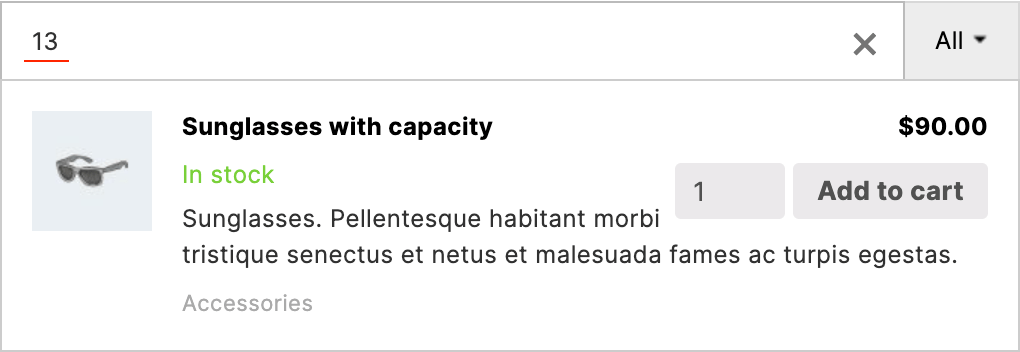
Search for product ID.
Product Brand search
Search for WooCommerce products via Brands names.

Enable/disable search by brands
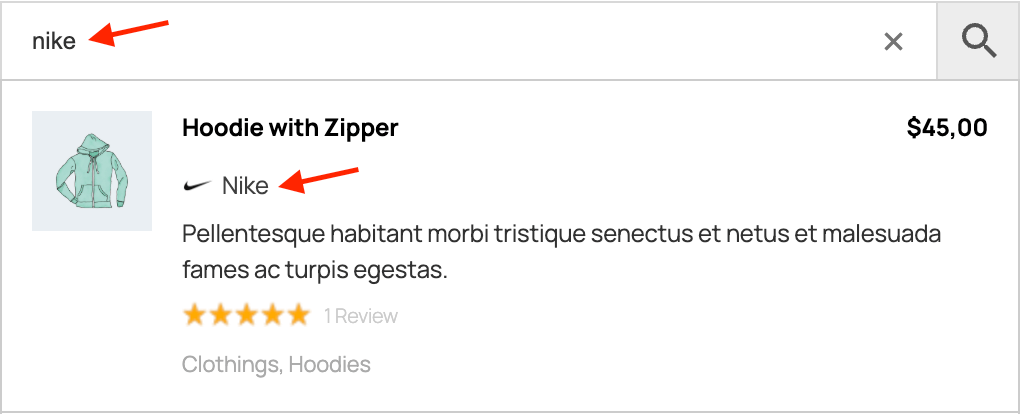
Search by product brand name
More about product brands search you can read here: Brands Search.
GTIN, UPC, EAN, or ISBN Search
Search for products via their GTIN, UPC, EAN, or ISBN numbers.

Enable/disable search
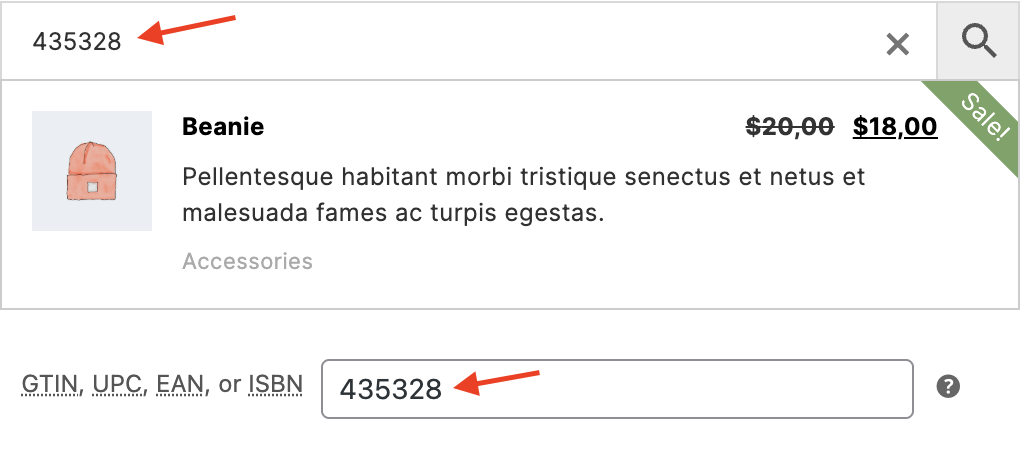
Search by GTIN, UPC, EAN, or ISBN
More about GTIN, UPC, EAN, or ISBN search you can read here: GTIN, UPC, EAN, or ISBN search.
Attributes Search
You can enable or disable product attributes search for each search form instance from the plugin settings page. Also it is possible to enable/disable search for only certain attributes. It can be done by clicking on the gear icon near 'Attributes' search source of sources table. By clicking on it you will see additional options.
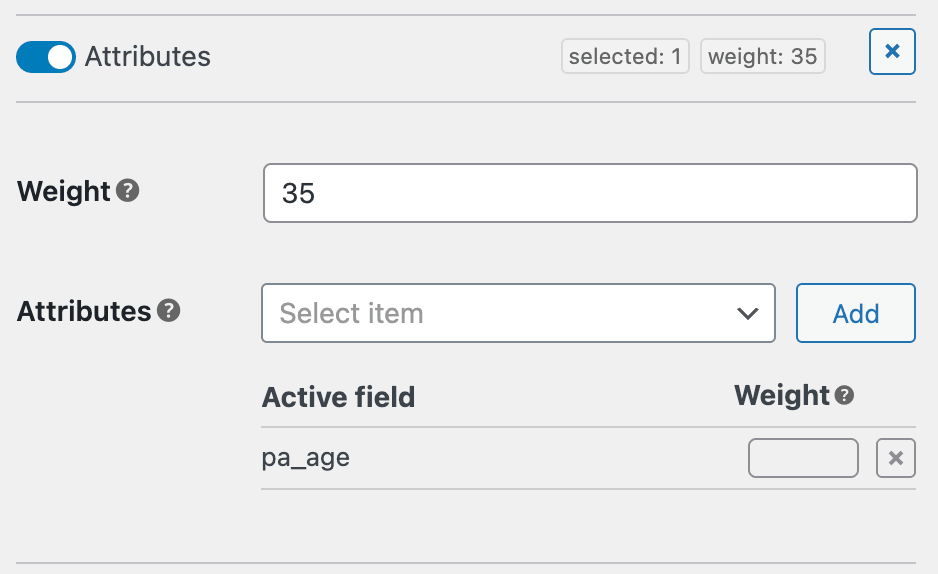
Option to set product attributes for searching
Here you can add/remove attributes that must be available for searching. Also you can set weight values separately for each of such attributes.
Custom Taxonomies Search
It is also possible to search for any available custom product taxonomies. Like and for attributes it is possible to enable/disable search only for certain taxonomies. Just click on the gear icon near 'Taxonomies' search source and open option to add/remove custom taxonomies terms.
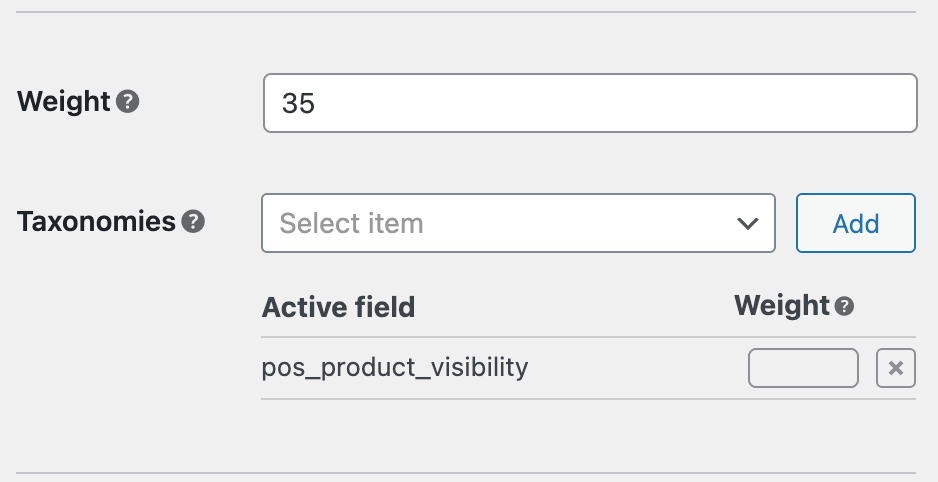
Option to set product taxonomies for searching
Here you can add/remove all of available product taxonomies terms.
Custom Fields Search
Custom fields of your WooCommerce products are also available for search. You can enable it just like other search sources from the plugin settings page. Find Search Results -> Search in option and enable Custom Fields source.
Also notice that by default all custom fields are disabled from search. You need to click on the gear icon near Custom Fields search source and then choose custom fields that must be available for search.
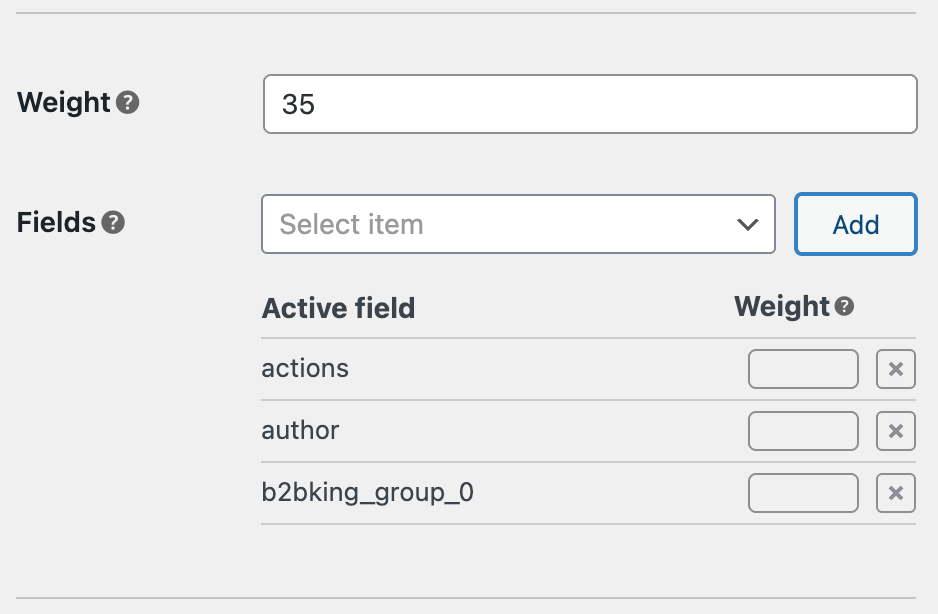
Option to set product taxonomies for searching
If you are using Advanced Custom Fields plugin then you also need to find in that list custom fields that are related to this plugin and activate them in order to make content generated by Advanced Custom Fields plugin searchable. Learn more about integration with ACF plugin.