
GTranslate
Learn about integration with GTranslate plugin.
Learn about integration with GTranslate plugin.
GTranslate is a very popular WordPress plugin for automatic page translations.
The main advantage of this plugin is that it uses fully automatic translations - you don't need to manually translate every site string - all the work is done fully automatically through the Google Translate service.
We are glad to say that starting from Advanced Woo Search PRO version 3.37 the plugin has full built-in integration with the GTranslate plugin. This is relevant for both GTranslate free and GTranslate premium versions.
With this built-in integration you can search for products/taxonomies in the current site language and view search results in the same language. Below we will cover all these features in detail.
Before using all the advantages of the built-in integration with GTranslate there are several additional steps that you need to take.
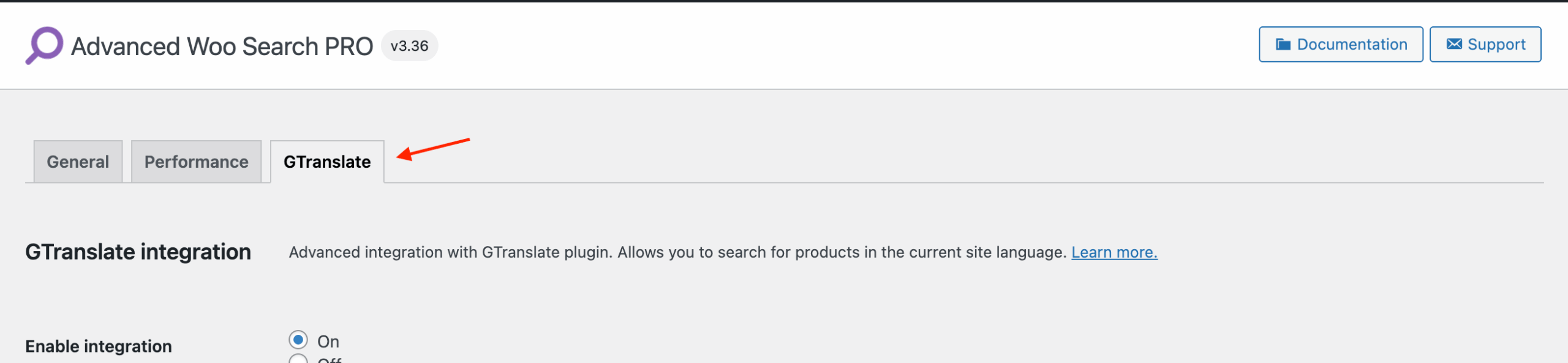
GTranslate settings tab
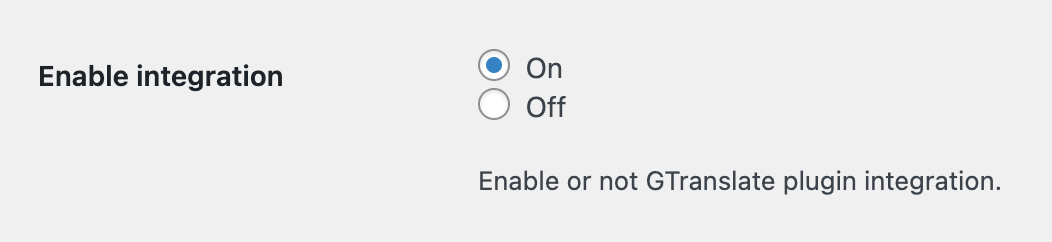
'Enable integration' option for GTranslate integration
For proper operation of the GTranslate integration you need to have one of the API keys – Google Cloud API key or TranslateX API key (a service from the creators of the GTranslate plugin).
You need to have only one of them. It is recommended to use Google Cloud API, but the choice is yours. Both have free tiers that are more than enough for a typical WooCommerce store.
How to get Google Cloud API key
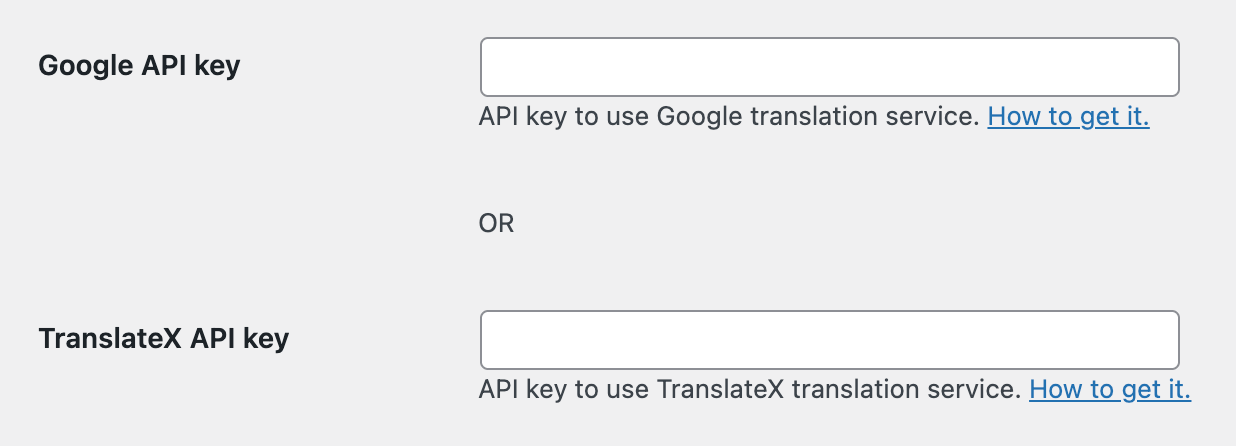
Options for API keys
NOTE: Alternatively you can save your API keys inside php constants AWS_GTRANSLATE_GOOGLE_API_KEY for Google Cloud and AWS_GTRANSLATE_TRANSLATEX_API_KEY for TranslateX. Just add one of them inside your wp-config.php file. In this case you don't need to add anything inside the settings field. This is the recommended way of adding API keys.
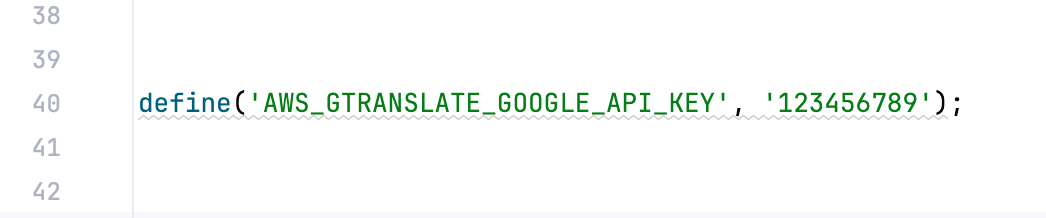
API key inside wp-config.php file

API key field
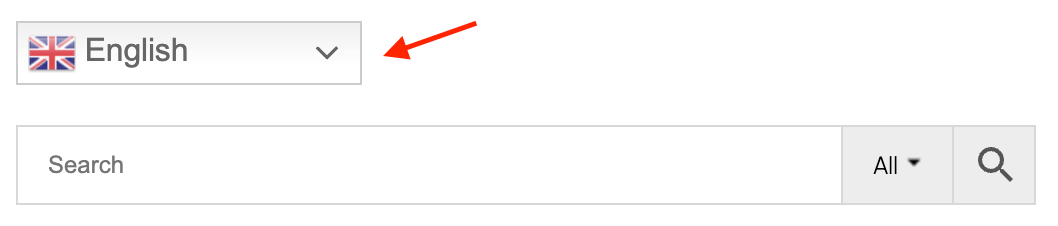
Page with GTranslate language switcher and search form
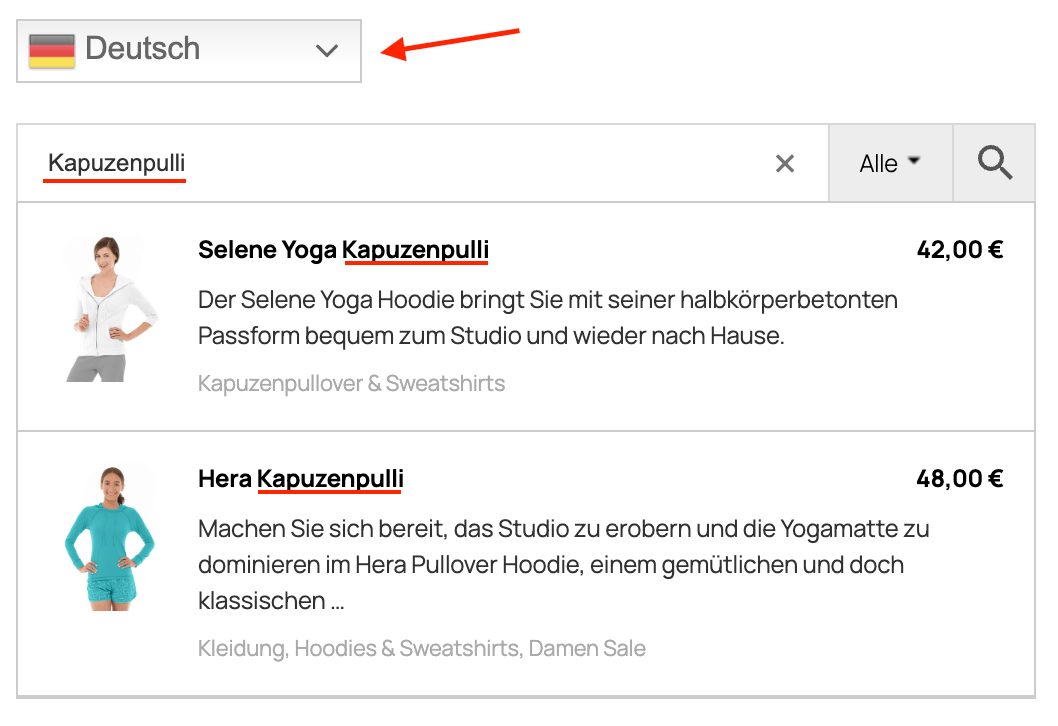
Search results for translated page
In this chapter we briefly cover how this integration with GTranslate works under the hood.
Advanced Woo Search uses an index table to store product data and search through it. Such a mechanism allows performing searches very fast and retrieving highly relevant search results.
The problem is that the GTranslate plugin doesn’t store any translated data – all translations are made on the fly via Google translation services. So AWS simply can’t index those translations and later search for them.
The solution is to translate all non-default search queries to the default site language and search for them. That’s why you need to provide an API key for one of the available translation services. The plugin searches for that translated search term inside the index table and outputs the search results. GTranslate at the same time translates those results to the current site language.
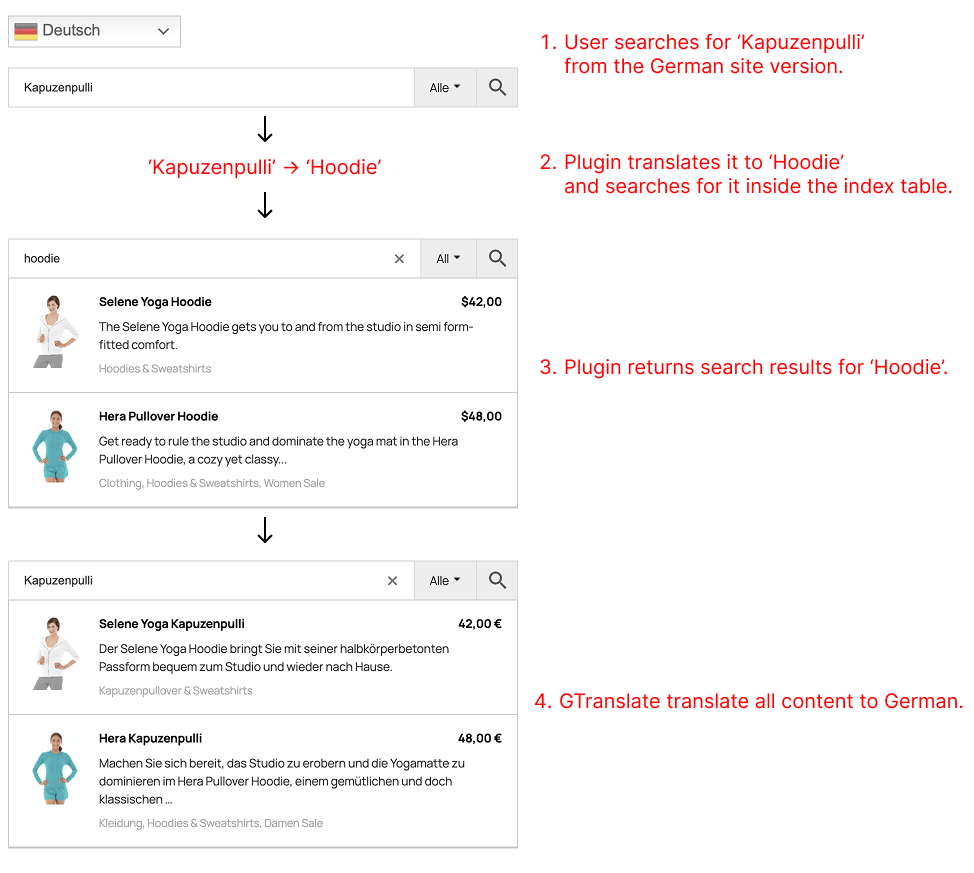
How GTranslate integration is working
Example: Current site language is DE. Default site language is EN. User searches for Kapuzenpulli (Hoodie in German). After submitting this search query the plugin backend translates Kapuzenpulli to Hoodie and searches this word inside the index table. Then it shows all search results with Hoodie inside. GTranslate automatically translates these results content from English to German. The user receives a great experience without knowing how it actually works.
All plugin search results will be translated to the current site language.
This applies to both ajax live results and the search results page.
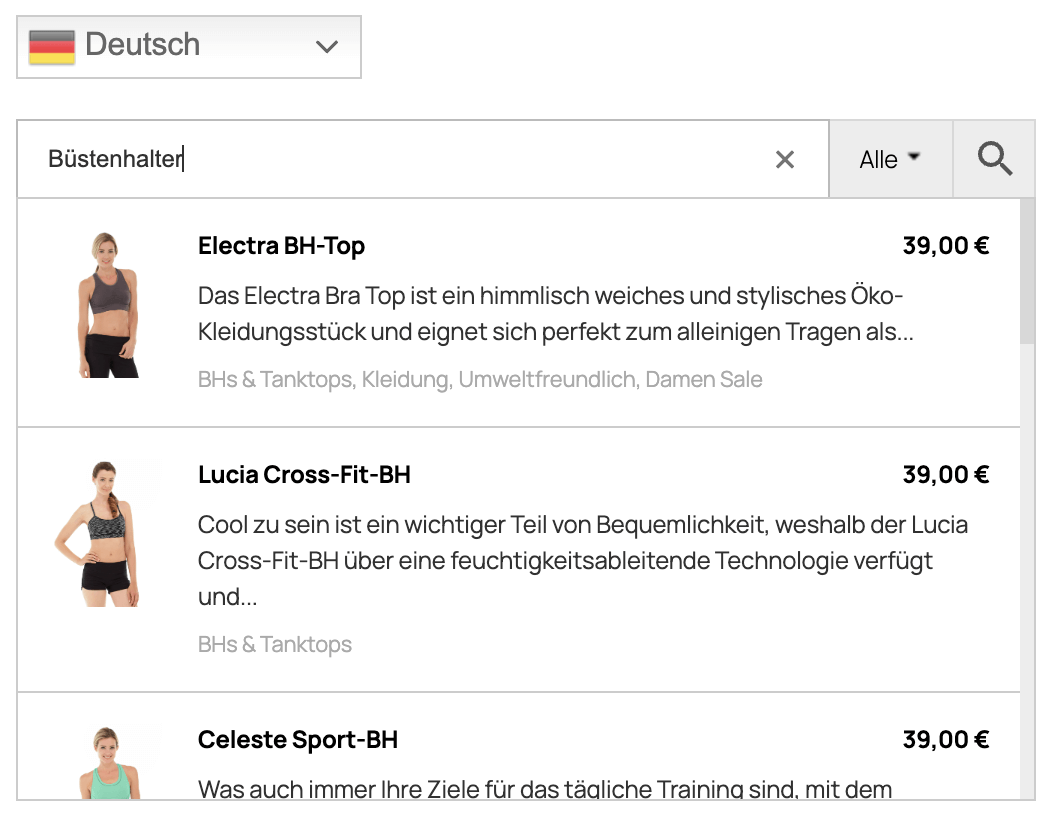
Live search results with translated products

Search results page with translated products
Search for WooCommerce products in the current site language.
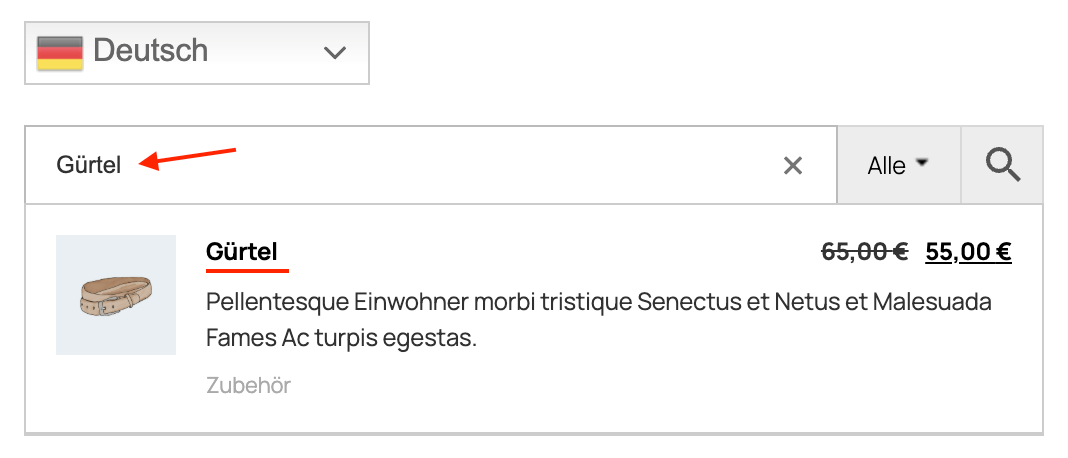
Products results for search query in current site language
Search for WooCommerce product taxonomies terms in the current site language.
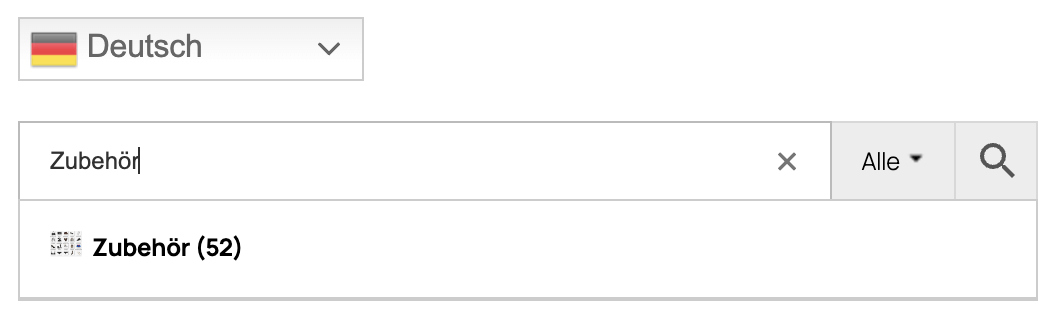
Taxonomies terms results for search query in current site language
Google Cloud API includes access to many Google services in one place. For our specific use case we need access to only the Google Cloud Translation API. Specifically, it will be Cloud Translation Basic (v2) REST API.
During setting up Google Cloud API you will be required to provide credit card details, but the translation API itself has a very generous free tier usage limits, so in most cases it will be free of charge for you.
Free tier - The first 500 000 characters you send each month (for translation and language-detection combined) are free - Google applies a $10 credit automatically every month. More details.
500 000 characters / month is more than enough for almost any WooCommerce store.
Steps to get Google Cloud API key:
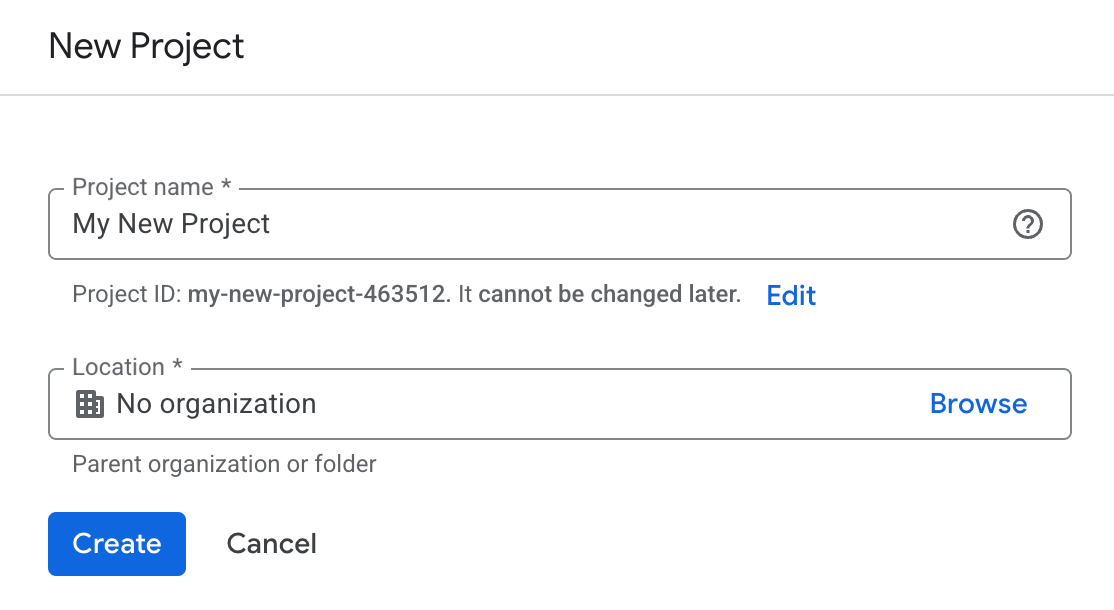
Dialog to create new Google Cloud project
Billing account is required for Translation API in case you exceed the limits of the free tier (500 000 characters / month).
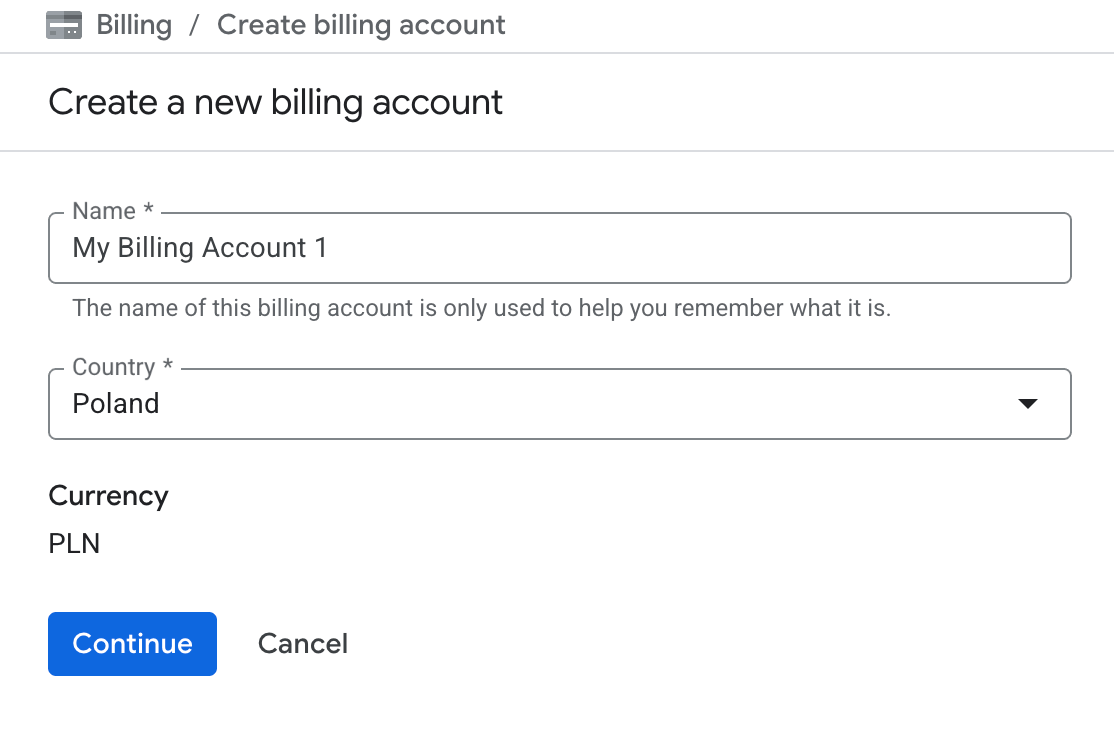
Dialog to create new Google Cloud billing account
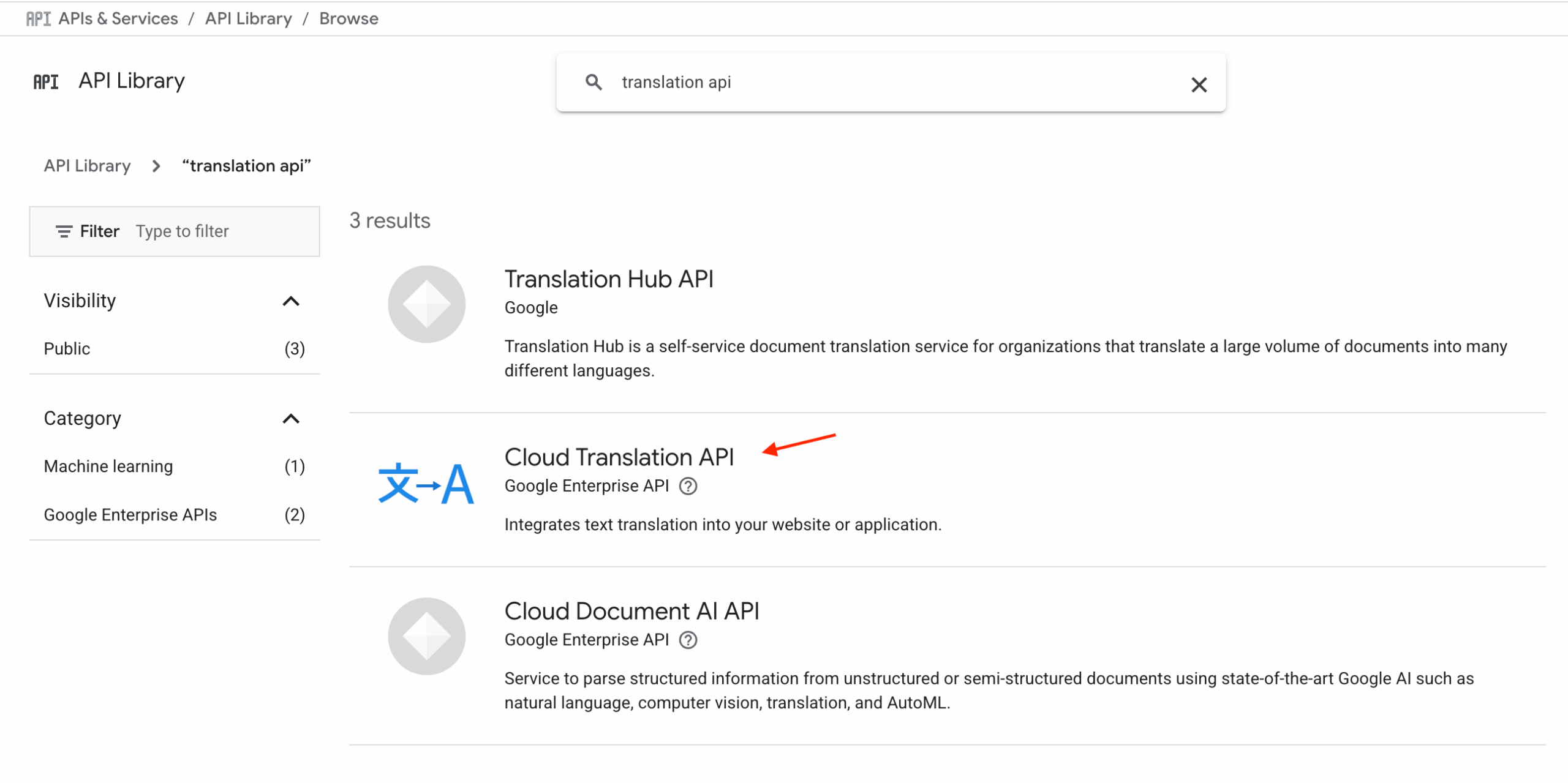
Cloud Translation API service
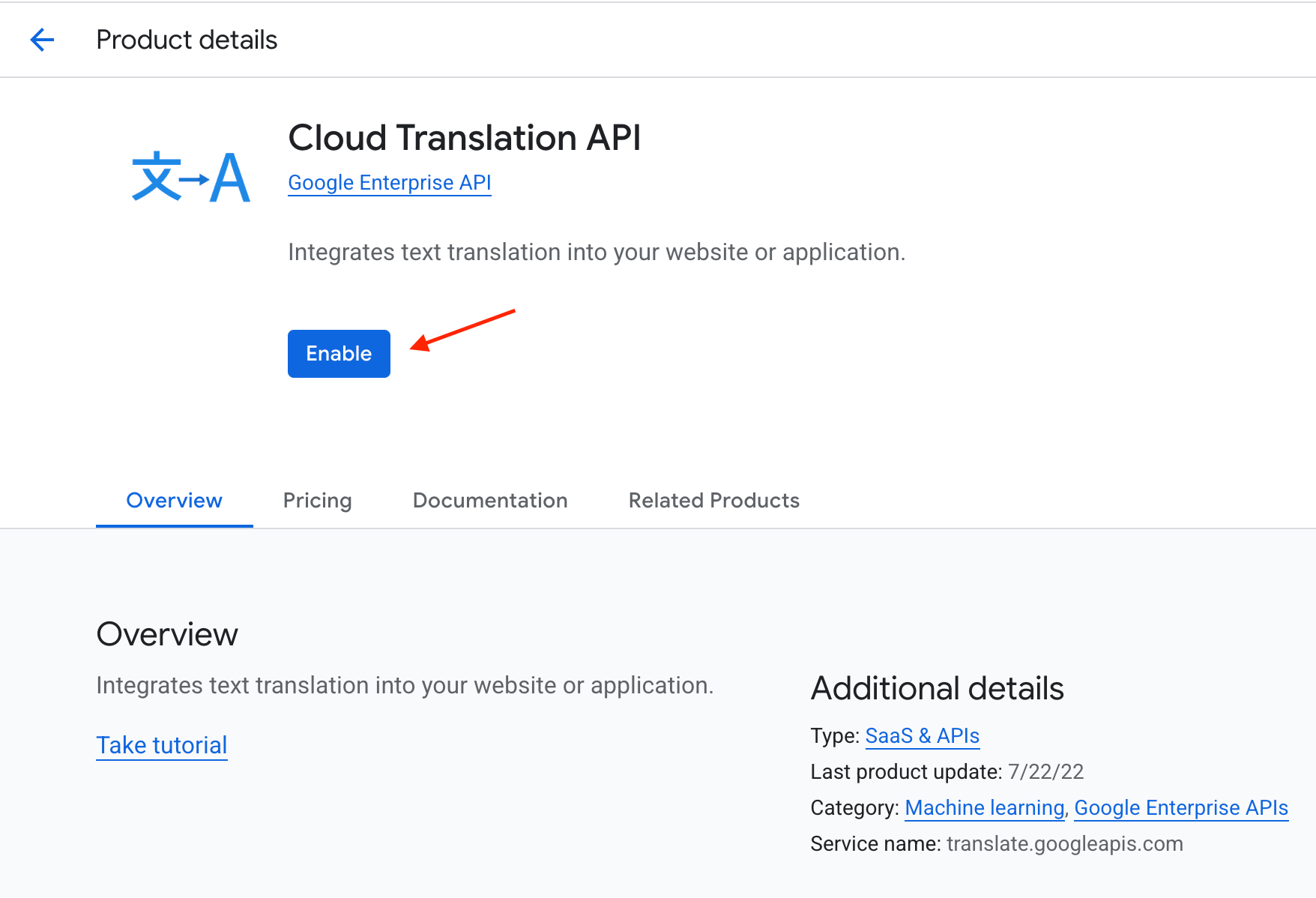
Enabling “Cloud Translation API” service
Inside your project go to APIs & Services → Credentials. Click Create credentials → API key.
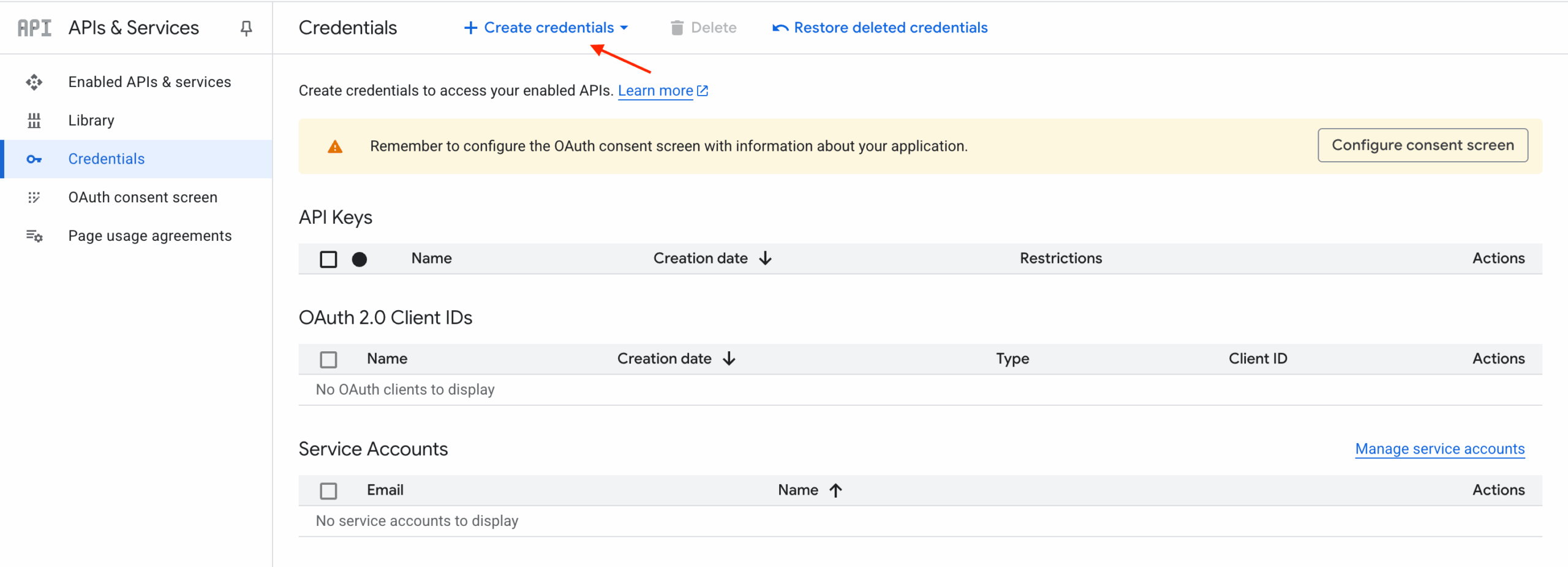
Credential page
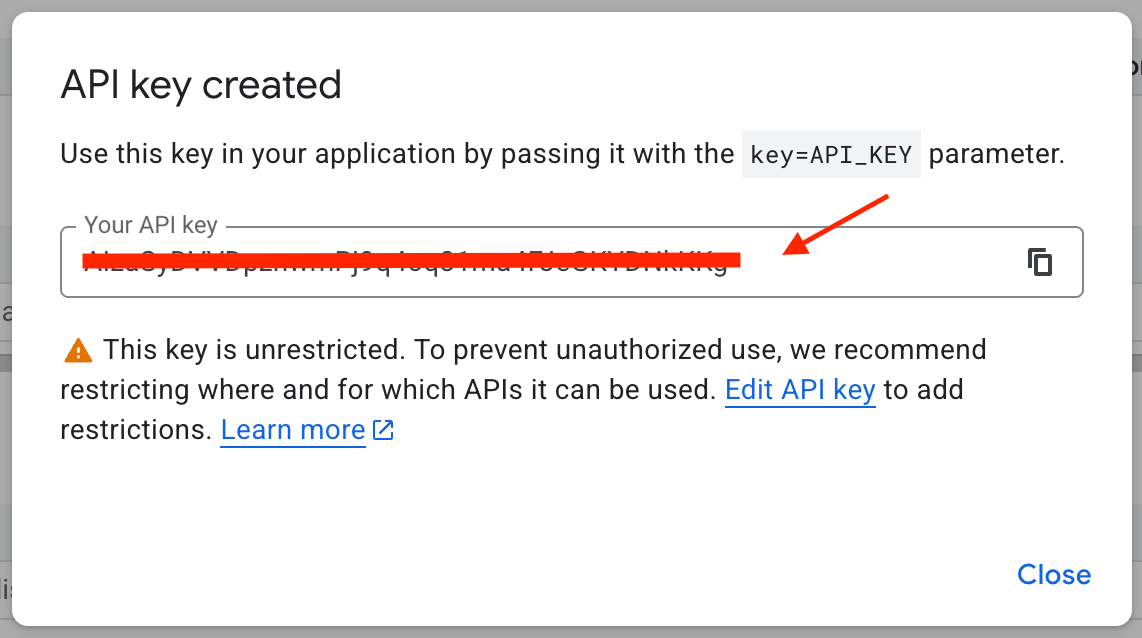
Pop-up with Google Cloud Api key
wp-config.php file via the AWS_GTRANSLATE_GOOGLE_API_KEY constant.AWS_GTRANSLATE_GOOGLE_API_KEY constant for API key
Additionally you can add it as an option for ‘Google API key’ inside Adv. Woo Search → GTranslate page. But the first way is preferred.
'Google API key' option
TranslateX is a translation service made by the author of the GTranslate plugin. It provides a special API to translate strings to 35+ languages.
To register and receive the needed API key you don't need to provide any payment details and you can use it free of charge for up to 50 API calls per minute - more than enough for most WooCommerce stores. But before sign-up please read other limitations of the free tier that can apply.
Here are the steps to get a TranslateX API key:
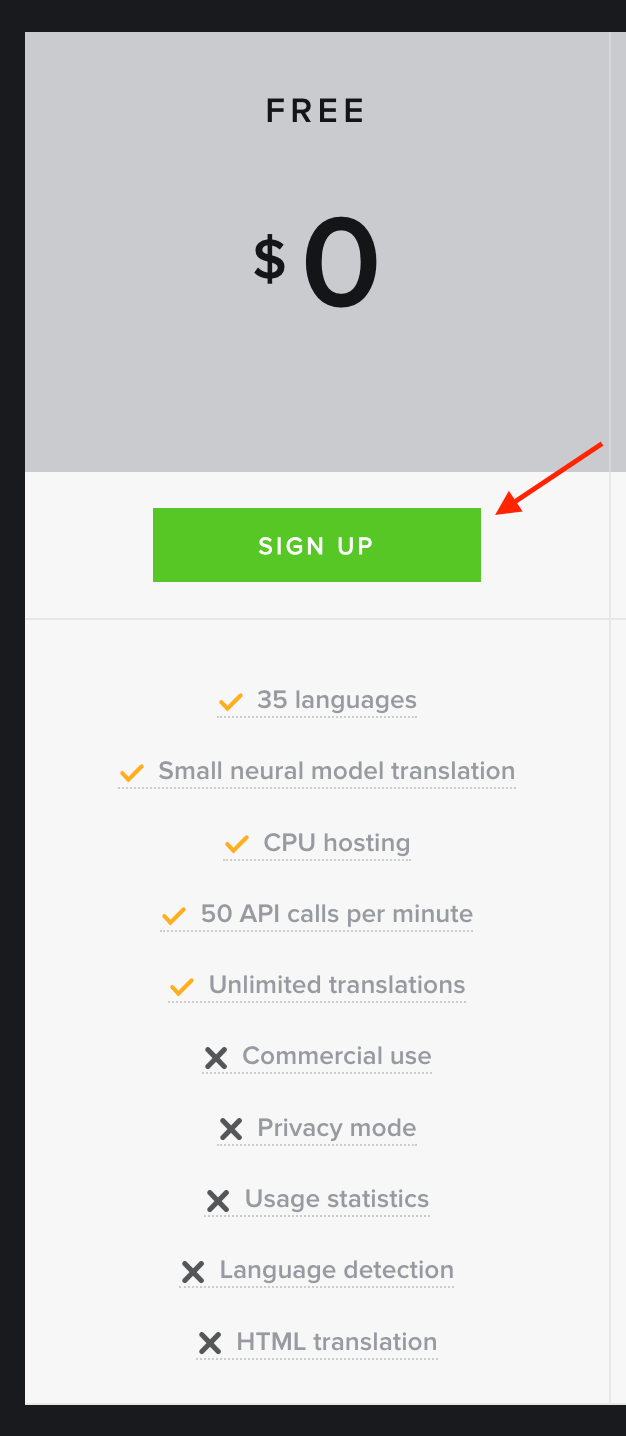
Free plan for TranslateX plugin
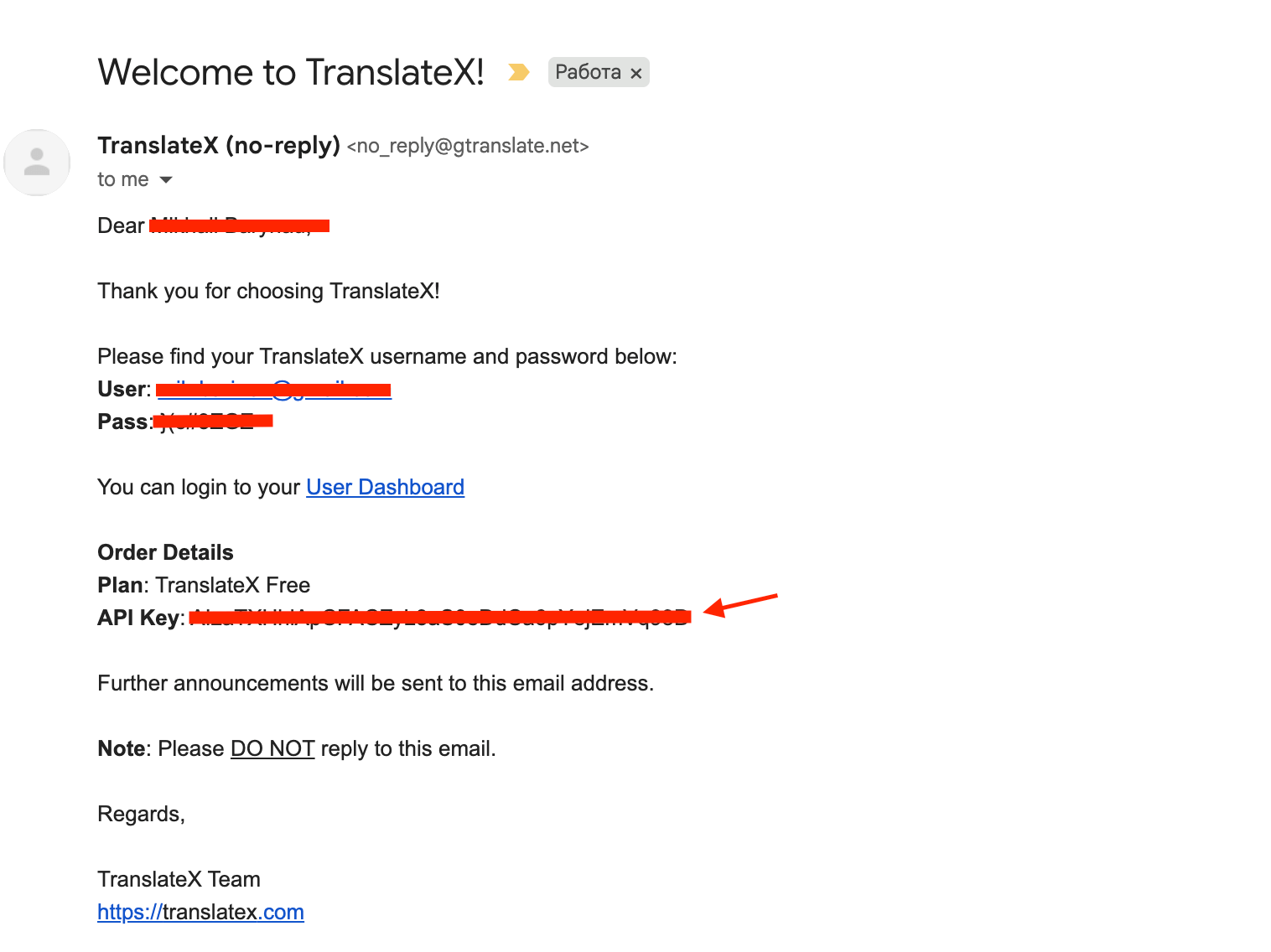
Email from TranslateX with API key
wp-config.php file via the AWS_GTRANSLATE_TRANSLATEX_API_KEY constant.
AWS_GTRANSLATE_TRANSLATEX_API_KEY constant for API key
Additionally you can add it as an option for ‘TranslateX API key’ inside Adv. Woo Search → GTranslate page. But the first way is preferred.

'TranslateX API key' option
Install and activate Advanced Woo Search PRO version 3.37 or newer, ensure the GTranslate plugin is active, then go to Adv. Woo Search -> GTranslate and turn on the Enable integration option. Don’t forget to add your API key and save your changes.
You can use either a Google Cloud API key or a TranslateX API key. Google Cloud is recommended and offers a generous free tier of 500 000 characters/month. TranslateX requires no payment details and allows 50 calls/minute on its free tier. Just add one key via wp-config.php or the plugin settings.
No. Advanced Woo Search translates only the user’s search terms to the default language for querying the index, then GTranslate translates the results on the fly. This approach ensures fast, relevant searches without indexing overhead.
Such a problem can occur because the plugin first translates the search query into the default language, then searches for that translated term and outputs the search results. GTranslate then translates the product content on the fly.
The problem most likely arises from partial word matching. For example, the user searches for Katze, which in German means Cat. The Adv. Woo Search plugin translates Katze to Cat and searches for it. Since there is no product containing the word Cat exactly, but there is a product with the word CATterpillar, the plugin returns that result by default, highlighting the partial match Caterpillar. GTranslate then translates Caterpillar to German as Raupe and highlights it.
The solution is to enable only exact word matching. You can enable this via the Only exact match option on the Adv. Woo Search -> GTranslate integration page.
Yes. On any translated page, you can search in both the current page language and the default site language. The search results will be the same regardless of which language you perform the search in.