Overview
Advanced Woo Search PRO from version 3.37 lets you search products by WooCommerce brands search, display brands within search results, filter search results by selected brands, and search brand archive pages.
Below we cover these features in detail.
Search for products via brands
Advanced Woo Search enables searching products across various product fields - title, SKU, content, GTIN, and more.
This also applies to product brands: you can search any WooCommerce product by its brand name.
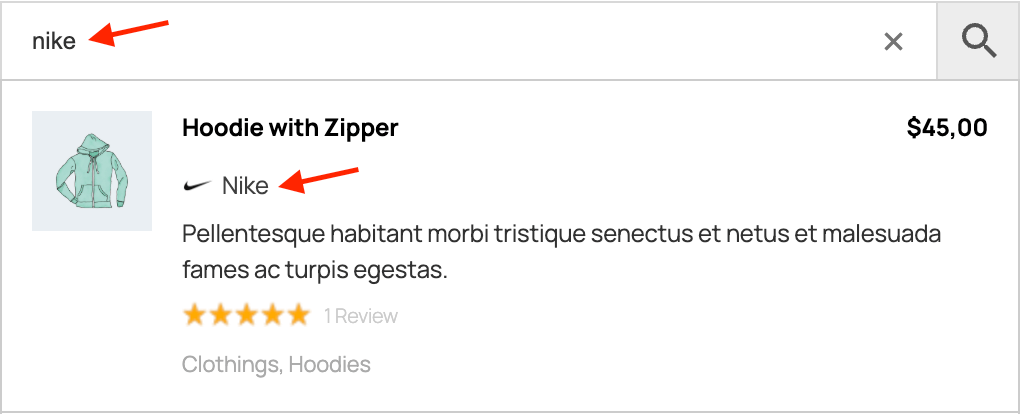
Search by product brand name
How to enable search for products via brands
- Index product brands. Go to the Adv. Woo Search → Performance tab and enable Brand under Data to Index.
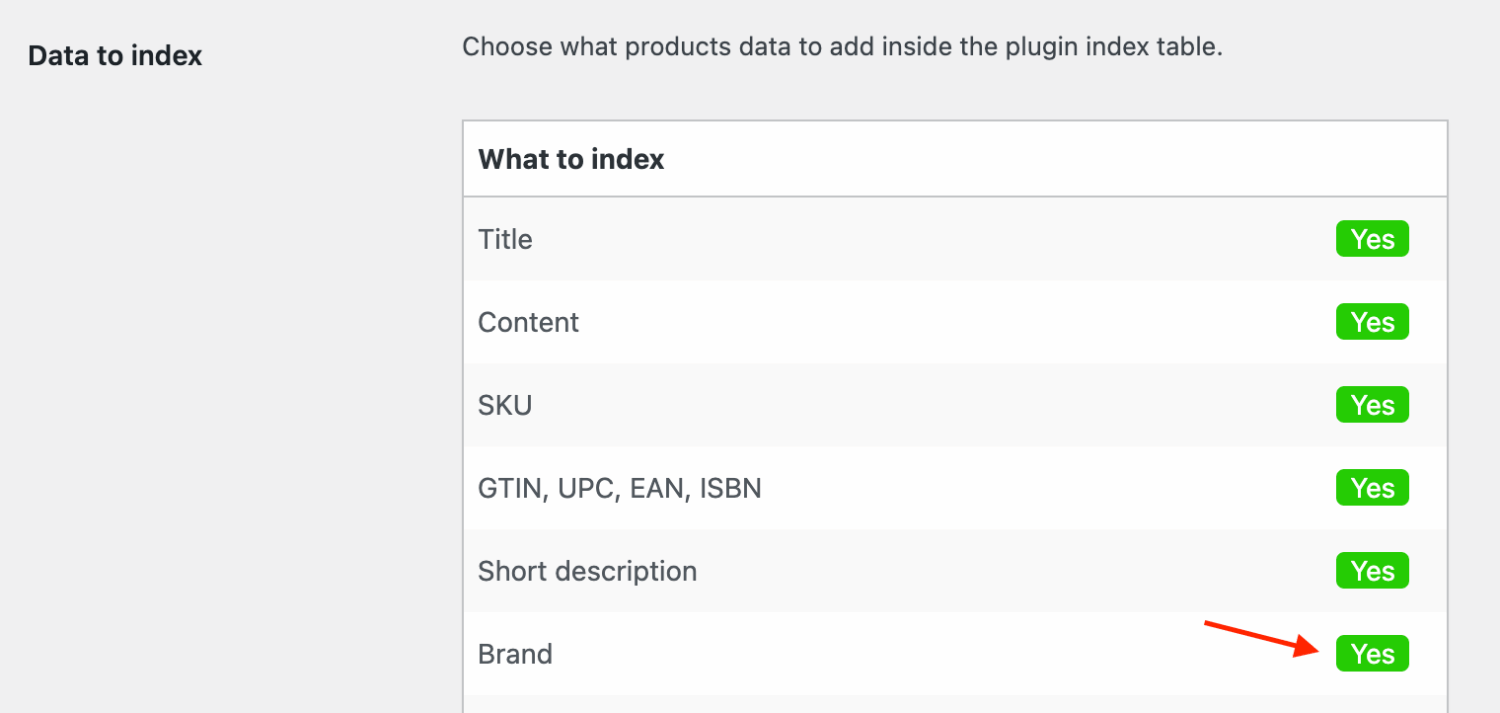
Brand index field
- Reindex the table. On the Adv. Woo Search → General tab, click Reindex Table and wait until it completes.

Reindex Table button
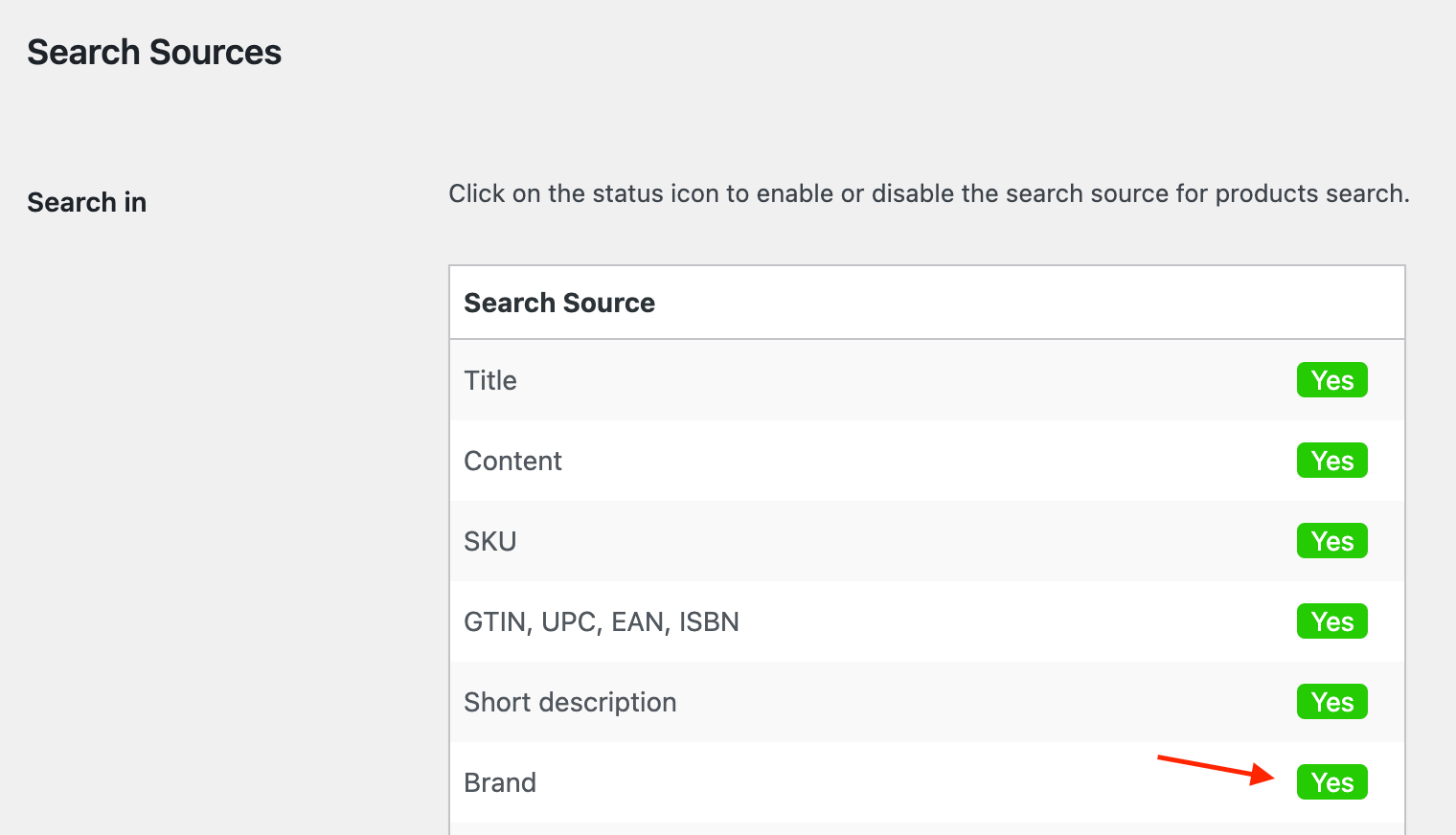
- Enable search by brands. Open the Search Results tab, locate the Search In option, and enable Brand.
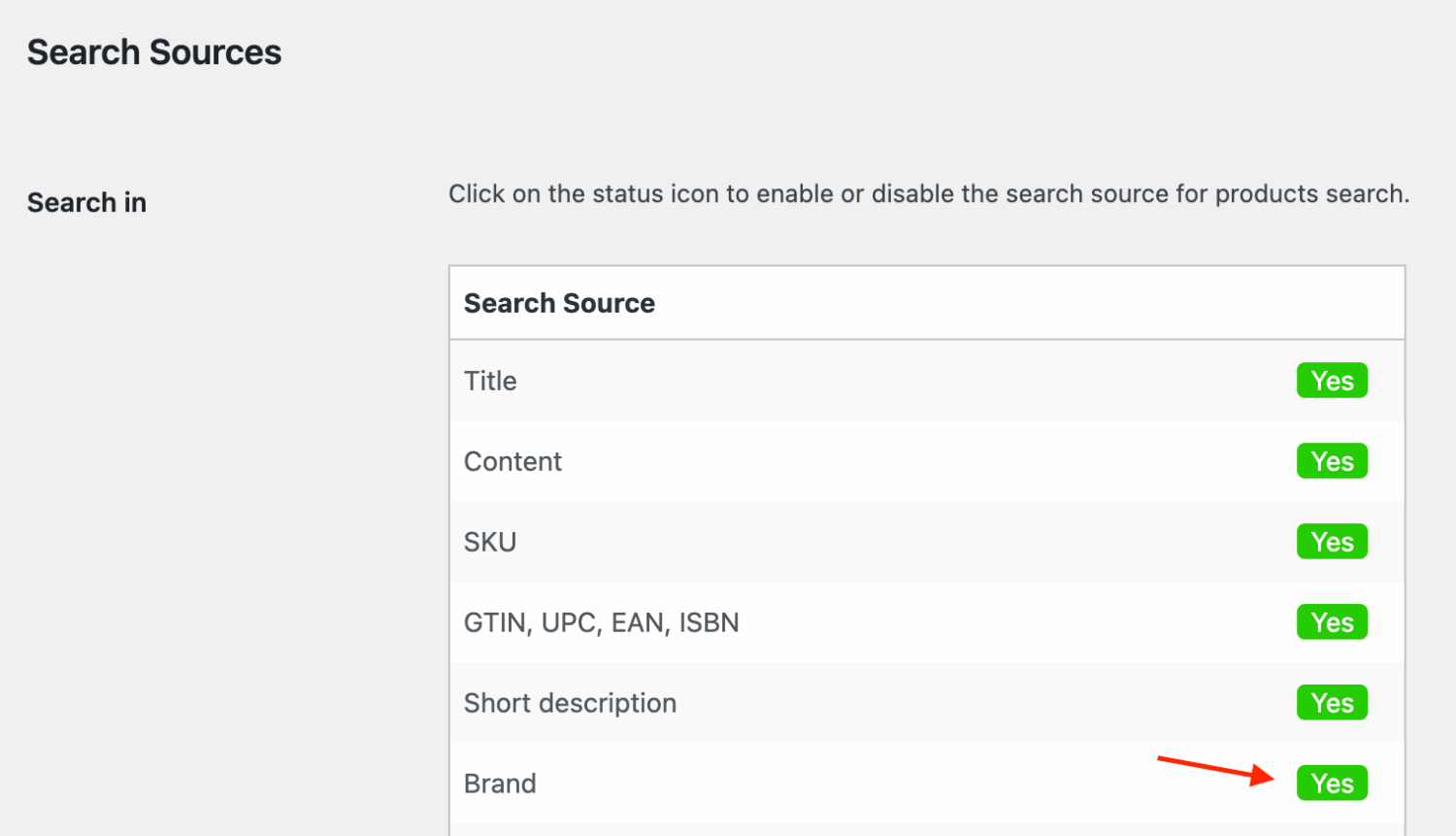
Brand search field
- Test the search. Enter any brand name in the search form - results should display products assigned to that brand.
Display brands in search results
Advanced Woo Search lets you show various product details in search results - image, title, price, categories, tags, custom fields, and more.
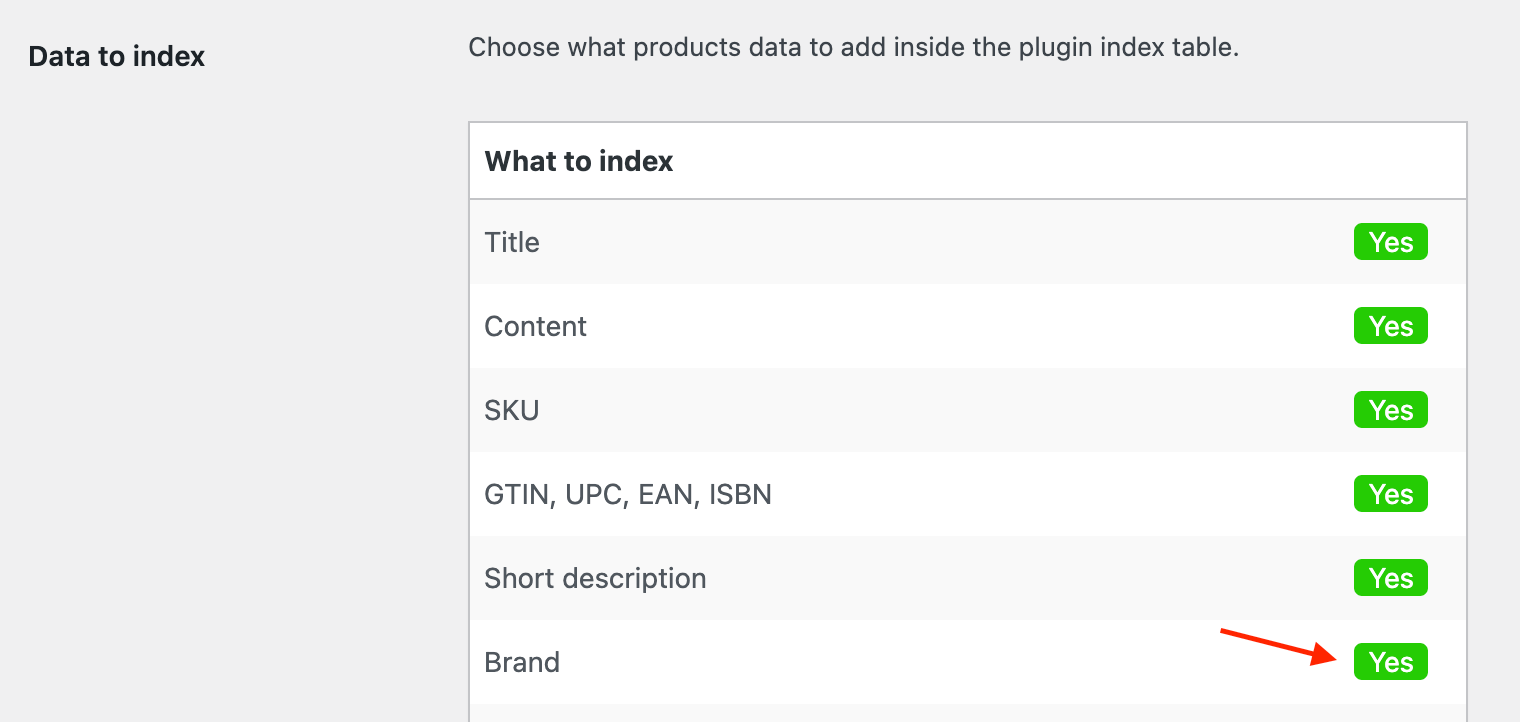
This also applies to WooCommerce product brands: you can display the brand image and name for each product in the search results list.
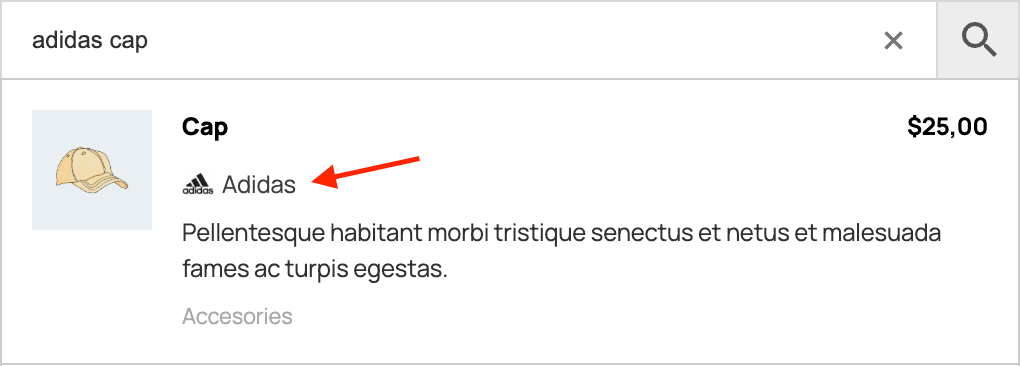
Brand display for product search result
How to enable brand display in product search results
- Navigate to Adv. Woo Search → Search Results.
- Scroll to Show product brand and enable it.

'Show product brand' option
- Check your live search results - products with a brand taxonomy will now show the brand name and image (if available).
Filter search results by product brands
With Advanced Woo Search PRO, you can create search result filters by stock status, sale status, taxonomies, custom fields, and more.
You can also filter by WooCommerce product brands to show or hide all products of a specific brand or group of brands.
This feature is powerful when combined with the search form filtering button: you can add a built-in filter for users to switch to results from a particular brand.
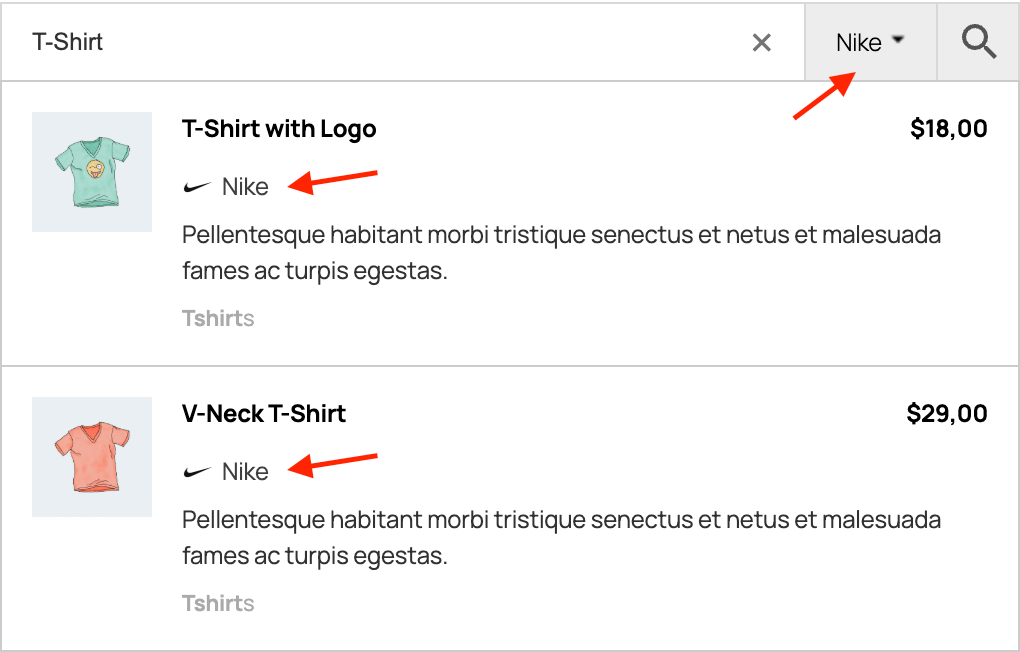
Search results with filter for specific brand.
How to create a filter for search results based on product brand
- Open Adv. Woo Search → Search Results.
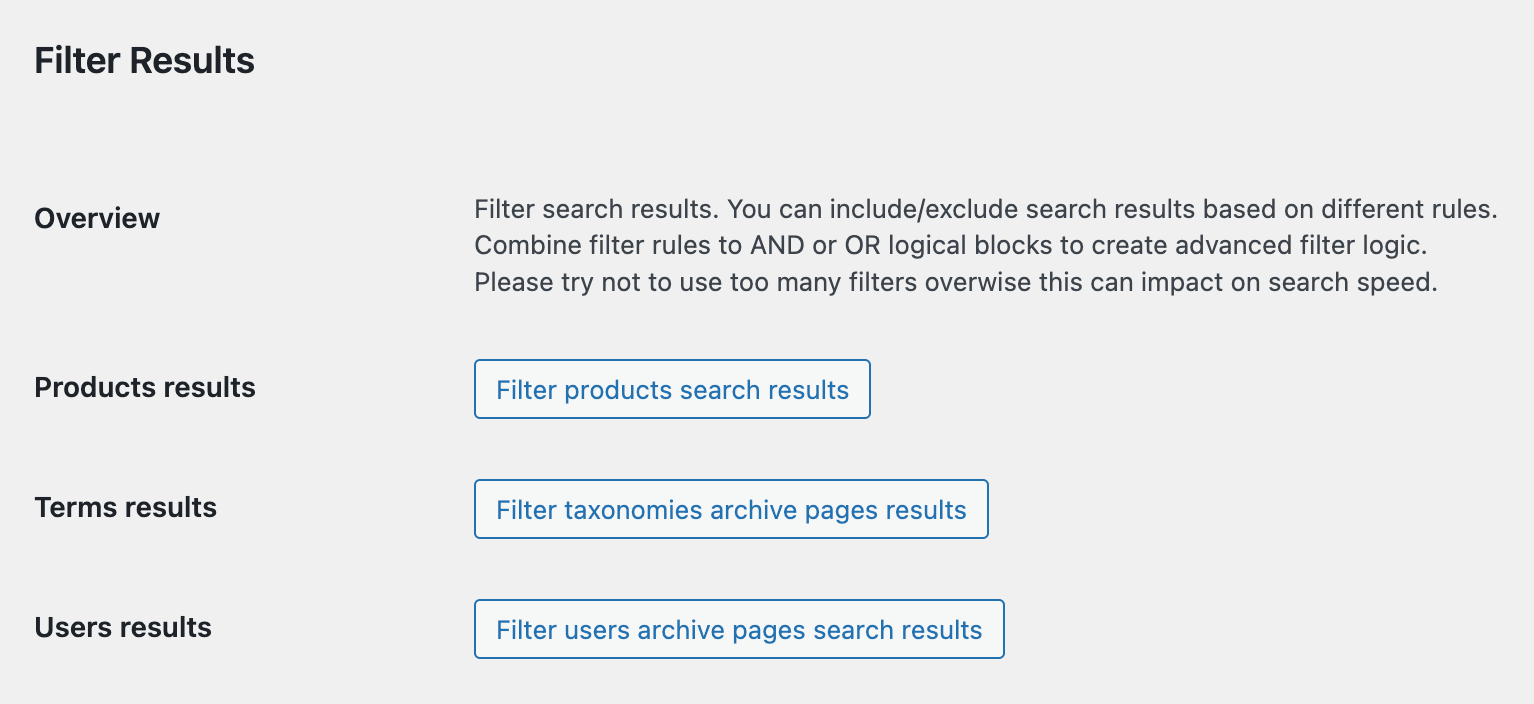
- Scroll to the Filter Results section.
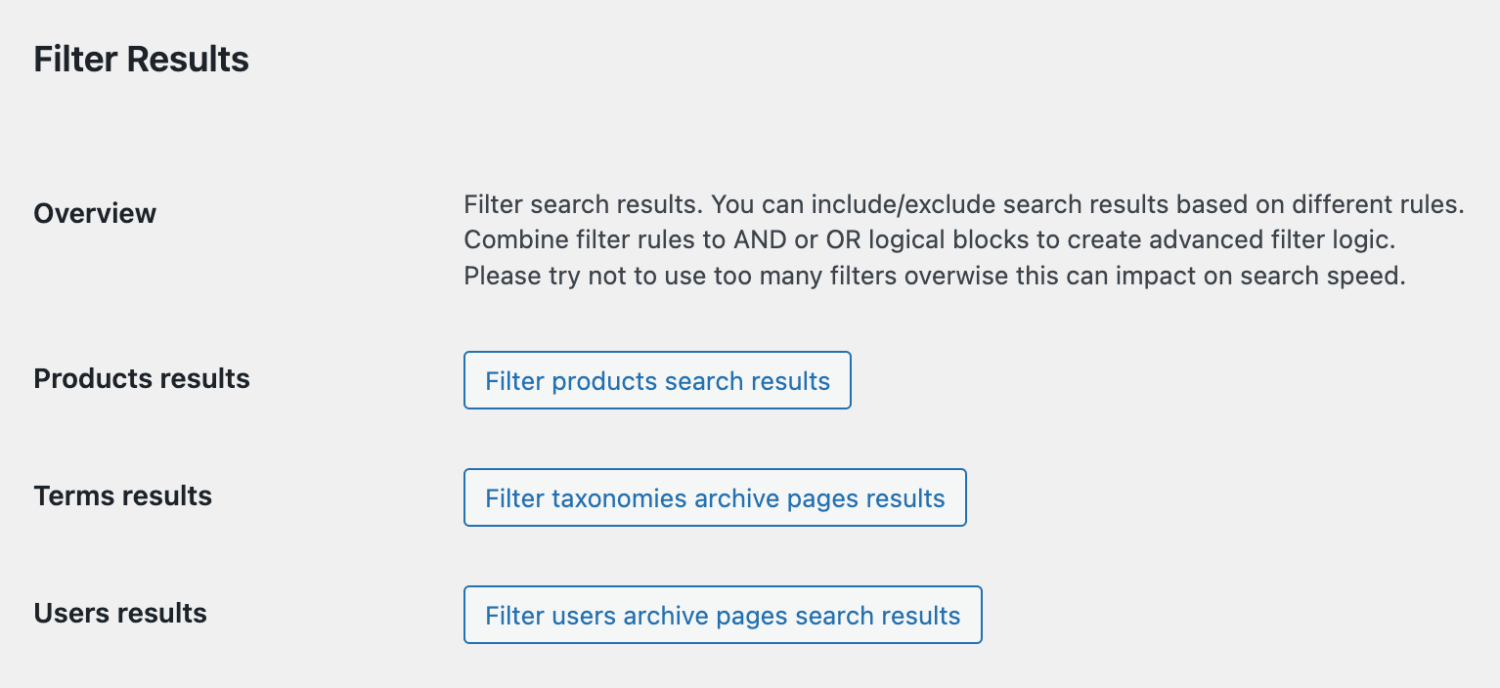
'Filter Results' section
- Click Filter products search results to add a new filter.

Button to create a filter for products search results
- Define a filtering rule for brands. For example:
Product brand → equal to → {Brand_name}where
{Brand_name}is the desired brand. This rule will restrict results to products with that brand.
Search results filters by brand value
- Optionally, add more rules and combine them using AND/OR logic.
- Save your changes and test your search form - results should now be limited to the selected brand.

Search for Brands archive pages
Advanced Woo Search also supports searching taxonomy term archive pages and user archive pages.
This includes product brands: you can search by brand name (or description) and display the brand term in the results. Clicking it redirects users to the brand archive page, showing all associated products.

Brands terms search
How to enable brands archive page search
- Go to Adv. Woo Search → Search Results.
- Scroll to Archive pages and enable the Brand option.
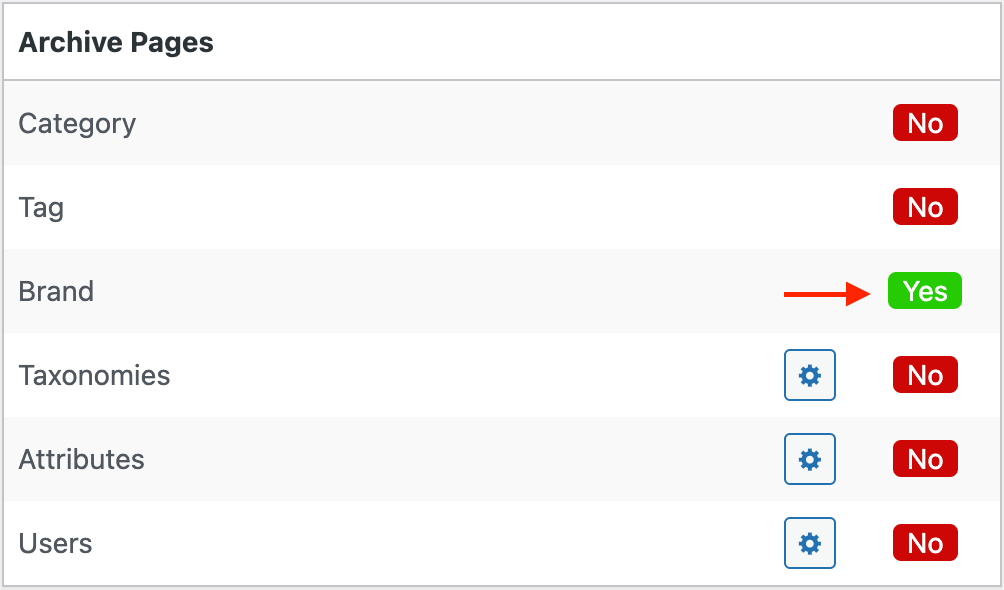
Enabling brands terms search
- Test your search form - enter any brand name and the brand term should appear in the results with a link to its archive page.
Note: The above option affects live search results only. To show brand term results on the search results page, follow the instructions in this article.
FAQ
What version of Advanced Woo Search PRO is required to search by brand?
You need Advanced Woo Search PRO version 3.37 or later to enable product searches by brand, display brands in results, filter by brand, and search brand archive pages.
Can I display brand logos and names alongside products?
Yes. In the Search Results settings, enable the Show product brand option. Products with a brand taxonomy will display both the brand image and name.
Can I add more relevance score for Brands?
Yes, it is possible. By default brand field in case of relevance score equal to fields like product content or product custom taxonomy name. If you want to add more relevance for brand name matching, you can do this by using the following code snippet.
add_filter( 'aws_relevance_scores', function ( $relevance_array ) {
    $relevance_array['brand'] = 500;
    return $relevance_array;
} );
Can I search for brands via description?
Yes, it is possible. By default plugin is searching only via brand name ( as and for all other product taxonomies ), but you can change this behavior by using following code snippet:
add_filter( 'aws_search_terms_description', function ( $search ) {
    return true;
} );